Fields represent the type of data stored in a model, while their widgets control how that data is displayed and formatted in the user interface. This section explains the process of adding widgets to fields.
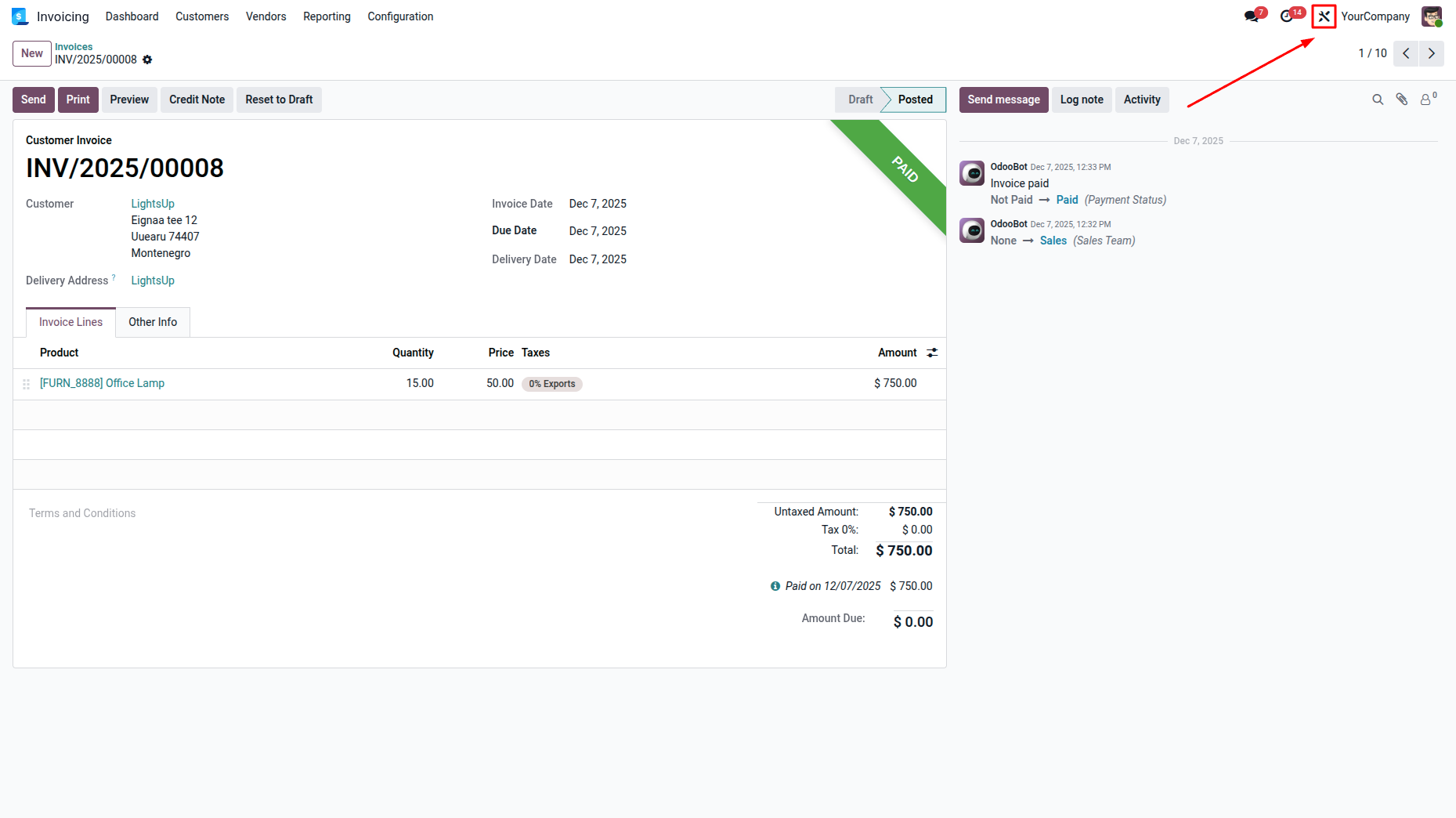
To access the Studio module, click the Studio icon.
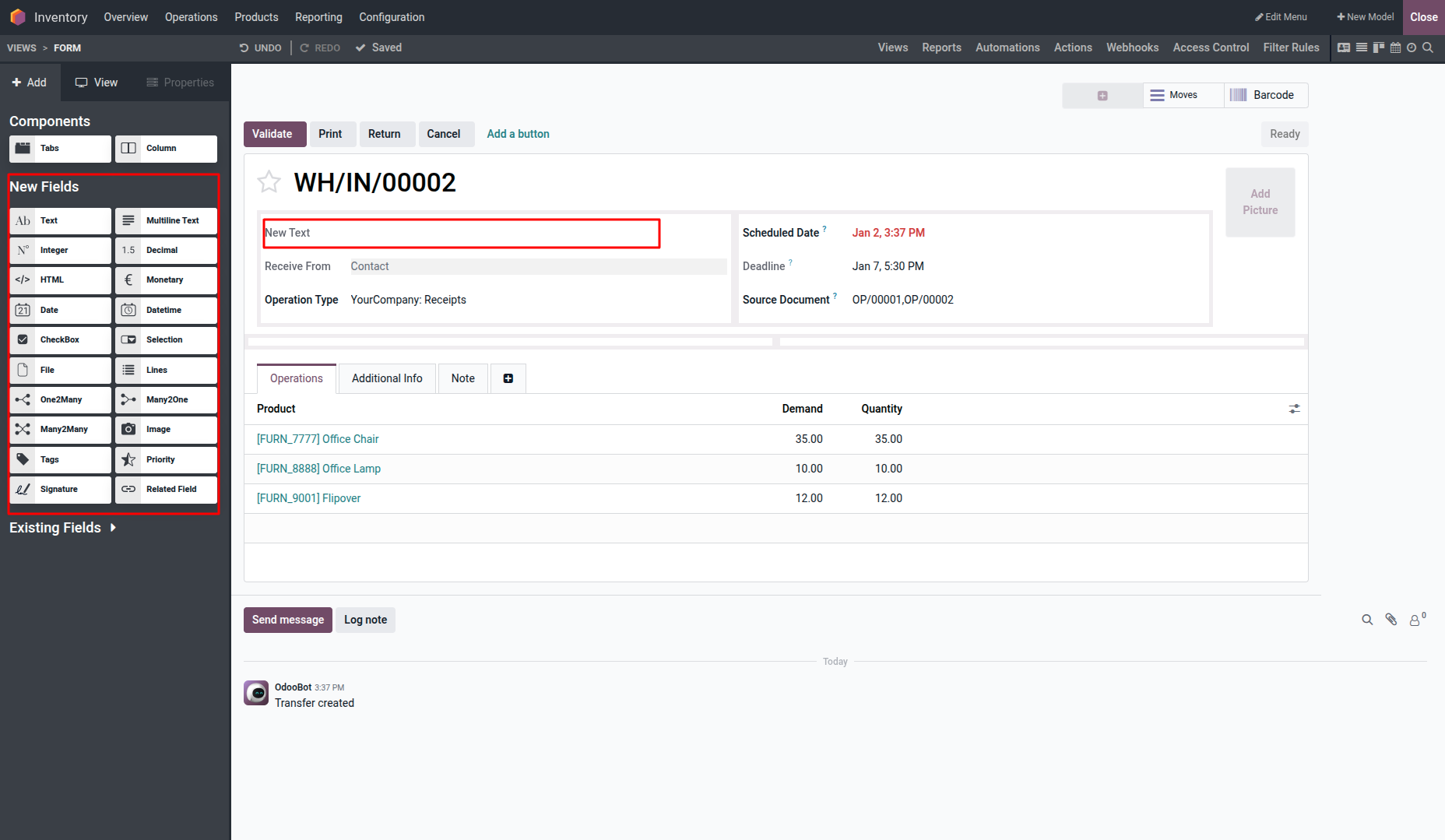
Drag a new field onto the form view.
Click on the newly added field to access its property configuration.
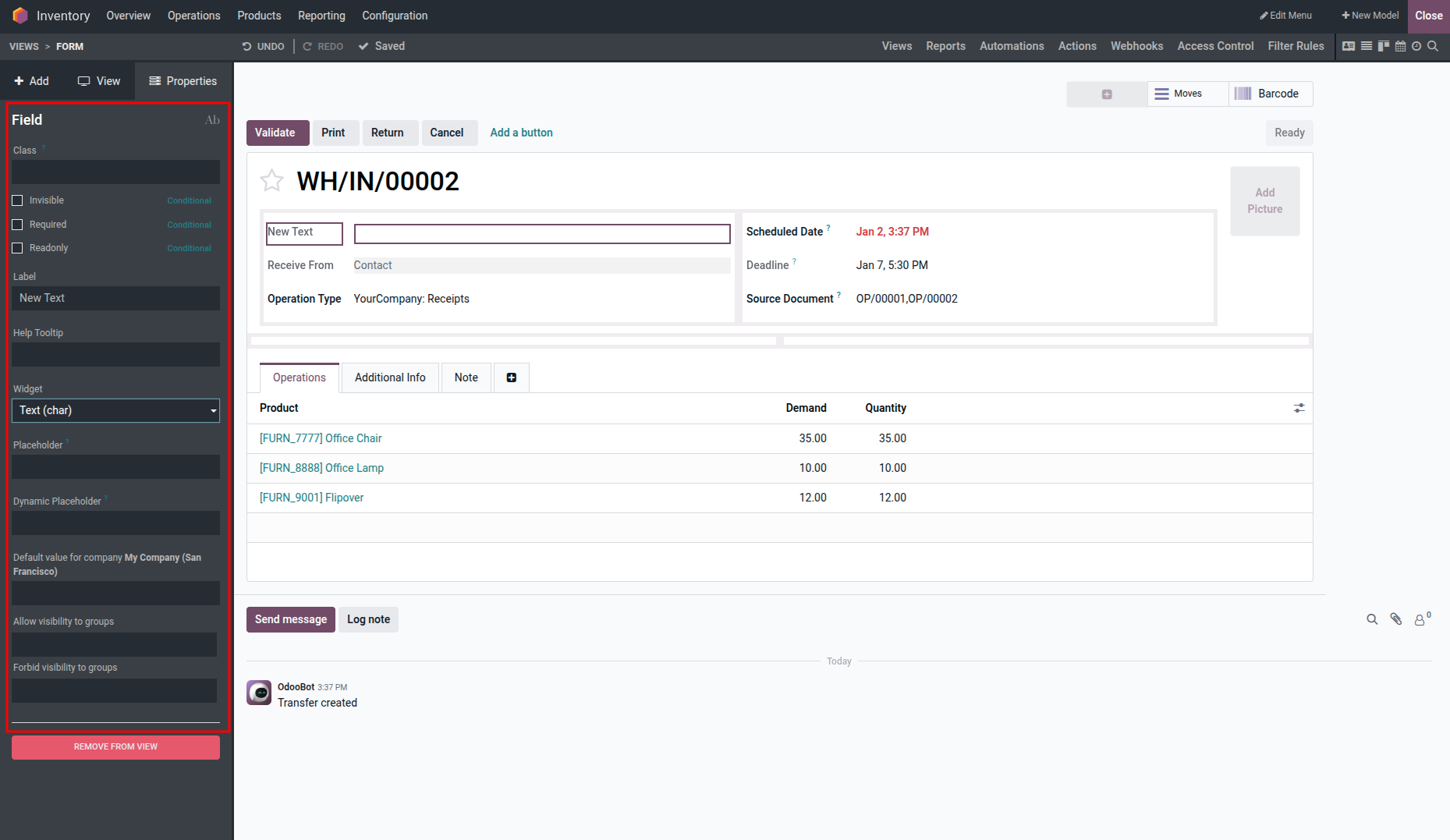
You can see a Widget option there.
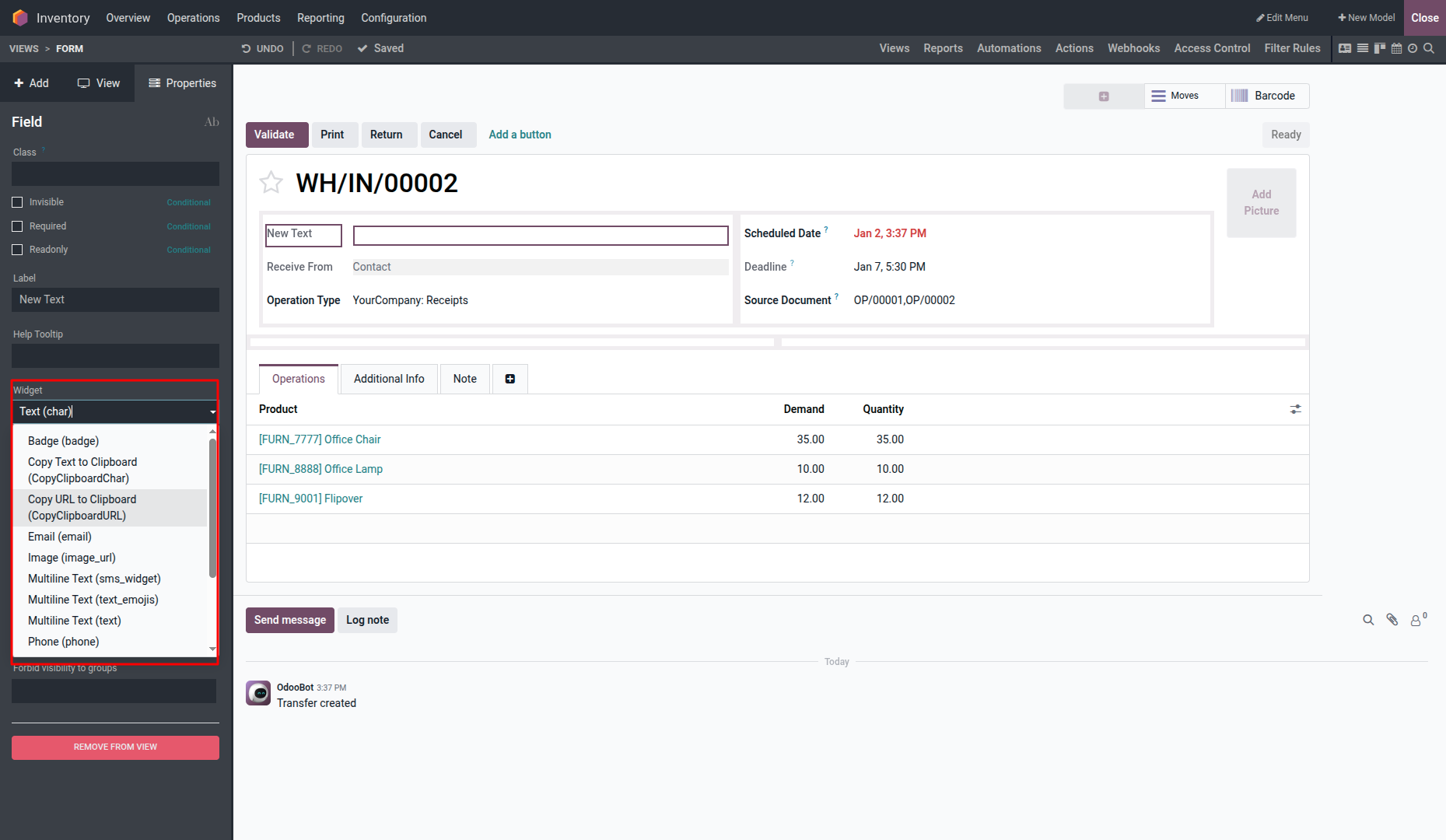
Select the required widget from the dropdown list to associate it with the new field.
The following widgets are available.
- Badge
- Copy Text to Clipboard
- Copy URL to Clipboard
- Email
- Image Phone
- Reference
- Text
- URL
Let's select the Badge widget for the new field and see how the UI changes.
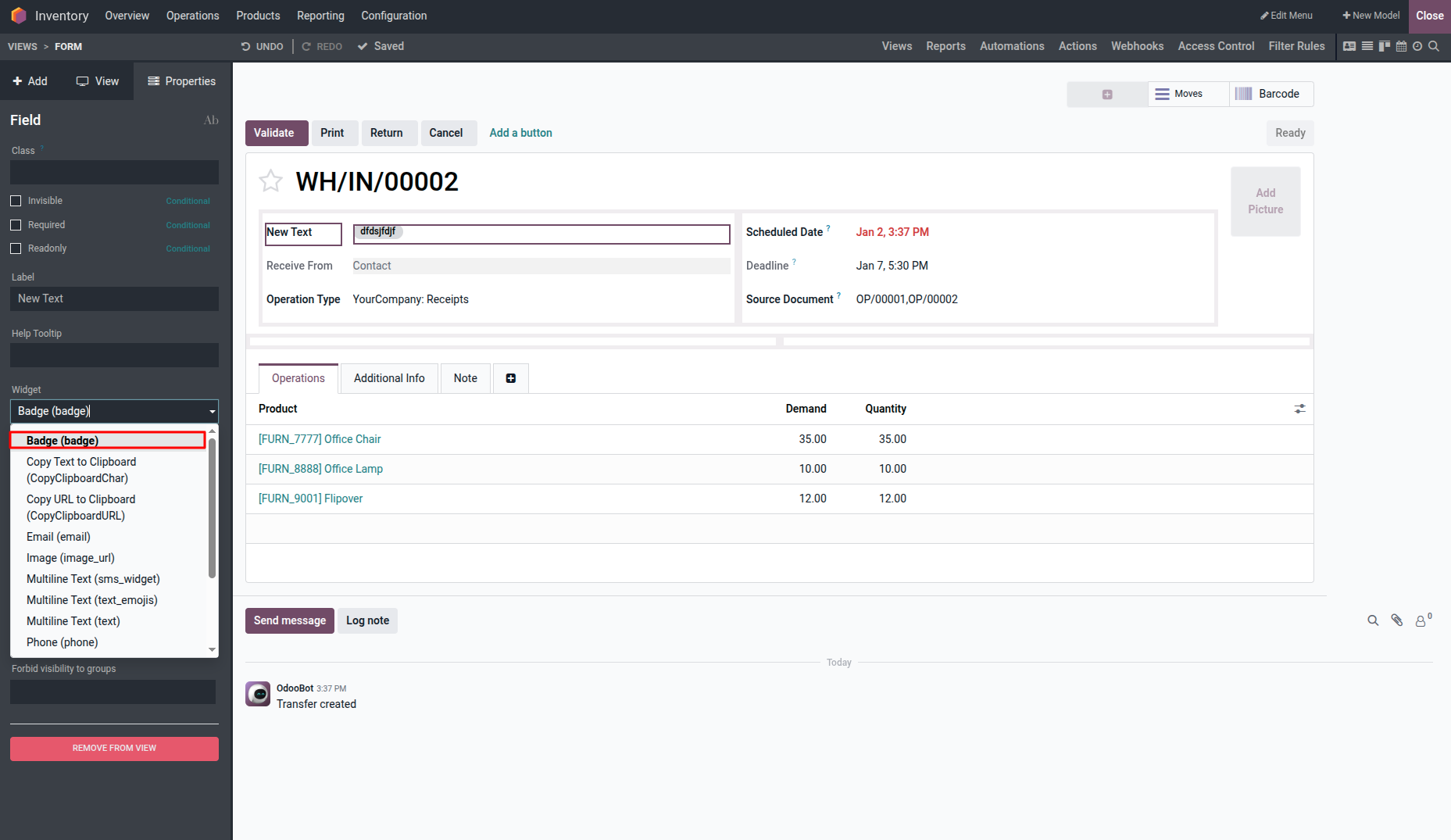
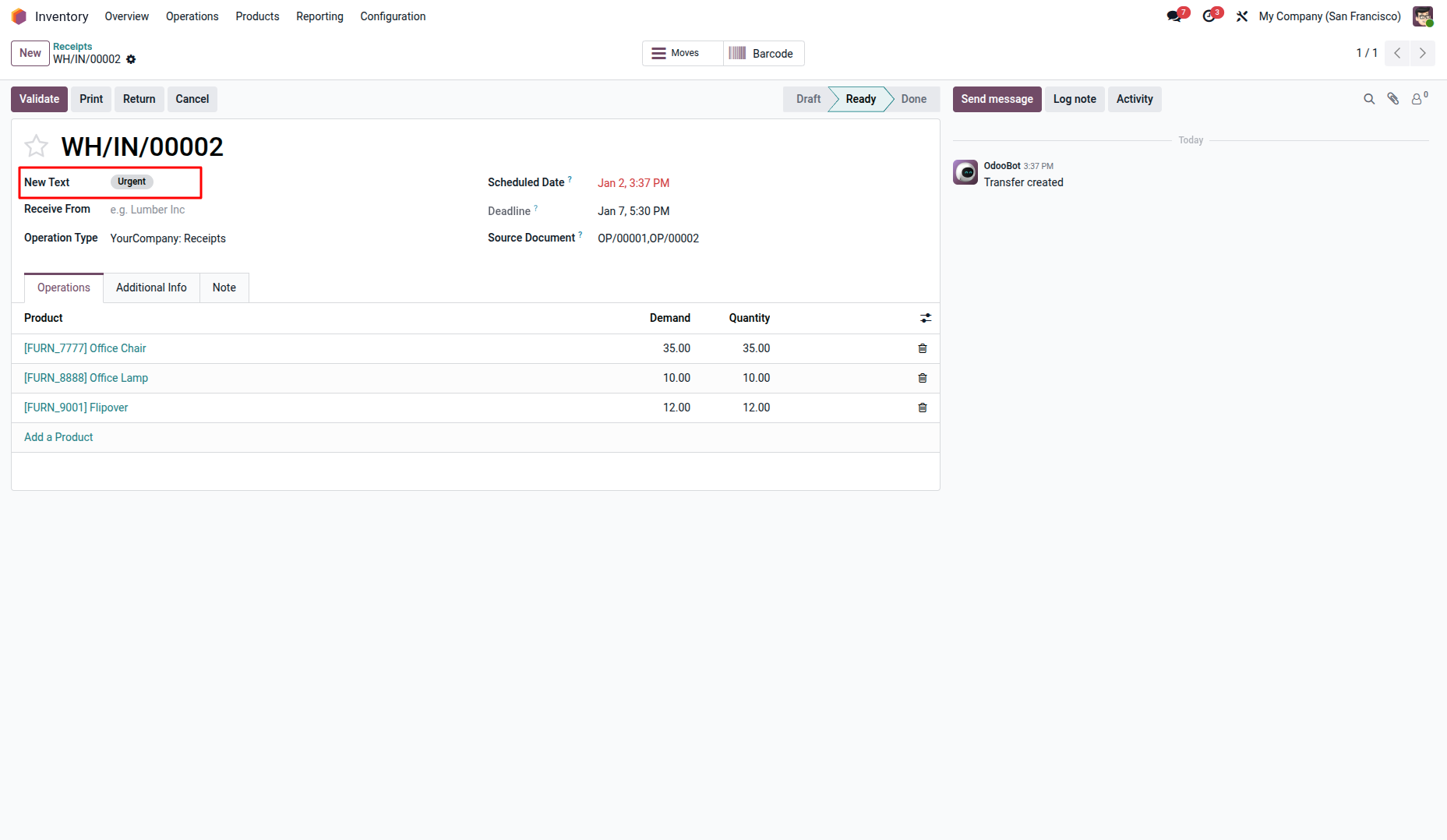
This is how widgets are added during field creation.