Blogs
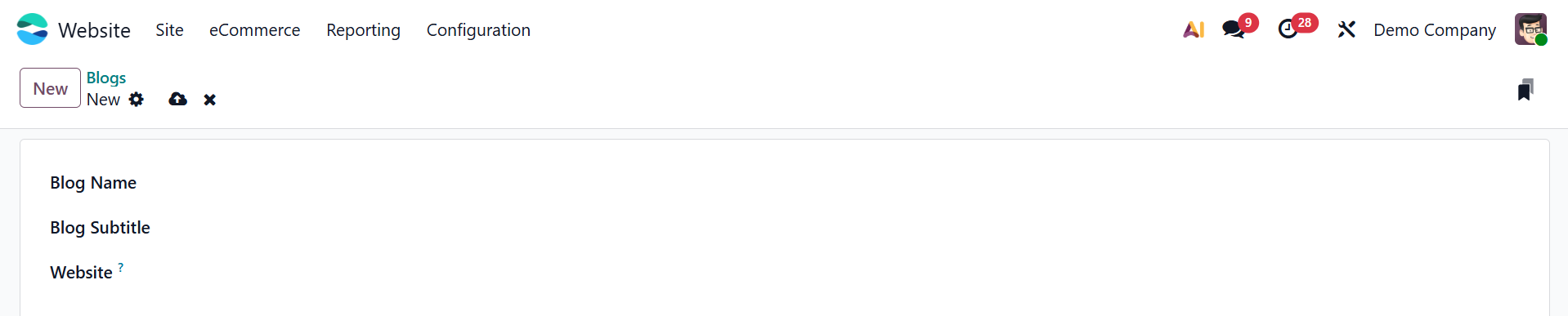
In the Odoo 19 Website module, the Blogs option helps you to organize and publish posts. Here, you can see the already created blogs with details such as Blog Name, Posts, and Website. To create a new blog post, click on the New button as shown below:

Here, add the details such as Blog Name, Blog Subtitle, and Website. Then, save it, and you can see the created blog details in the website menu. There, you can create and publish content for the blog.
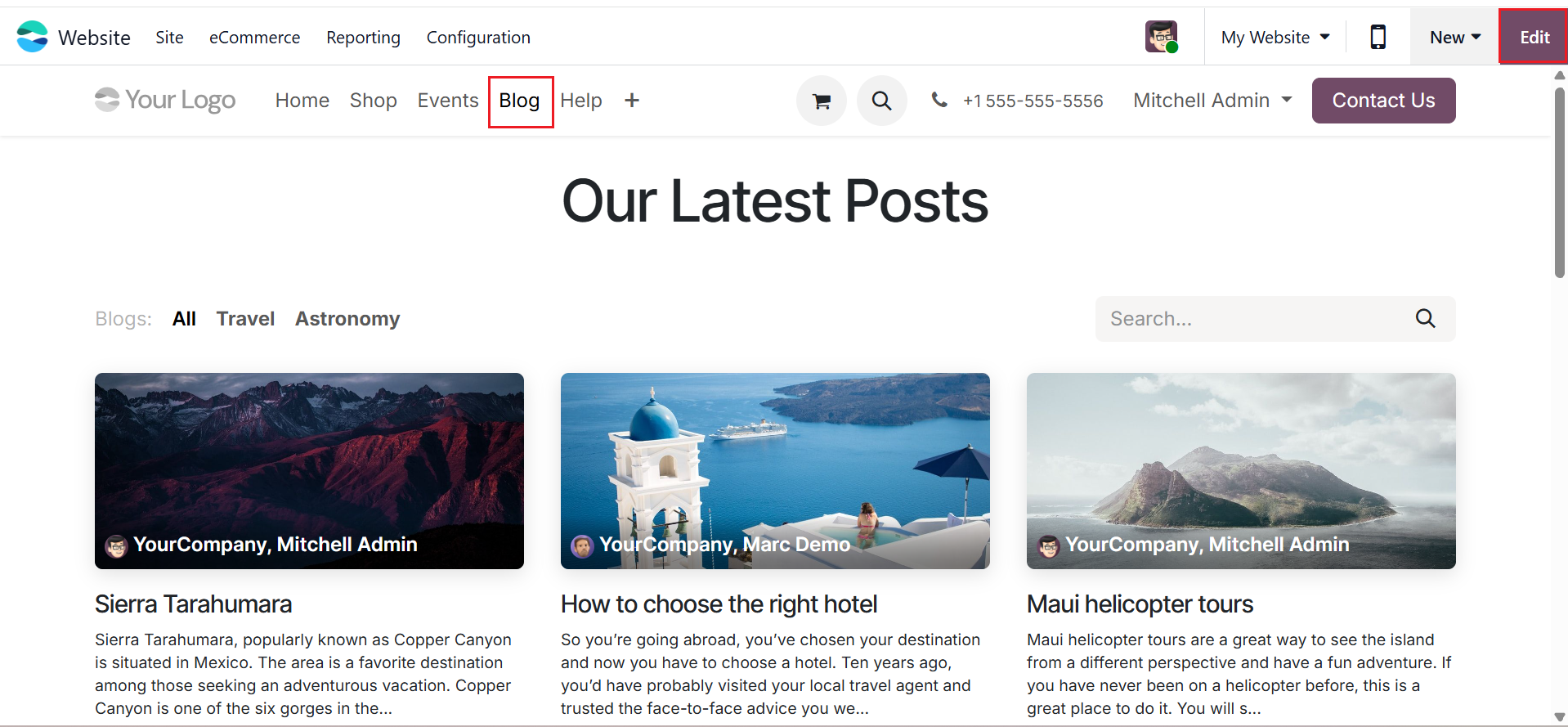
In the Website module, all previously created blogs are displayed. The Blog menu helps you to view all the created blogs, as shown below. The Edit button, located in the top-right corner of the screen, enables customization of the blog page and the blog homepage.
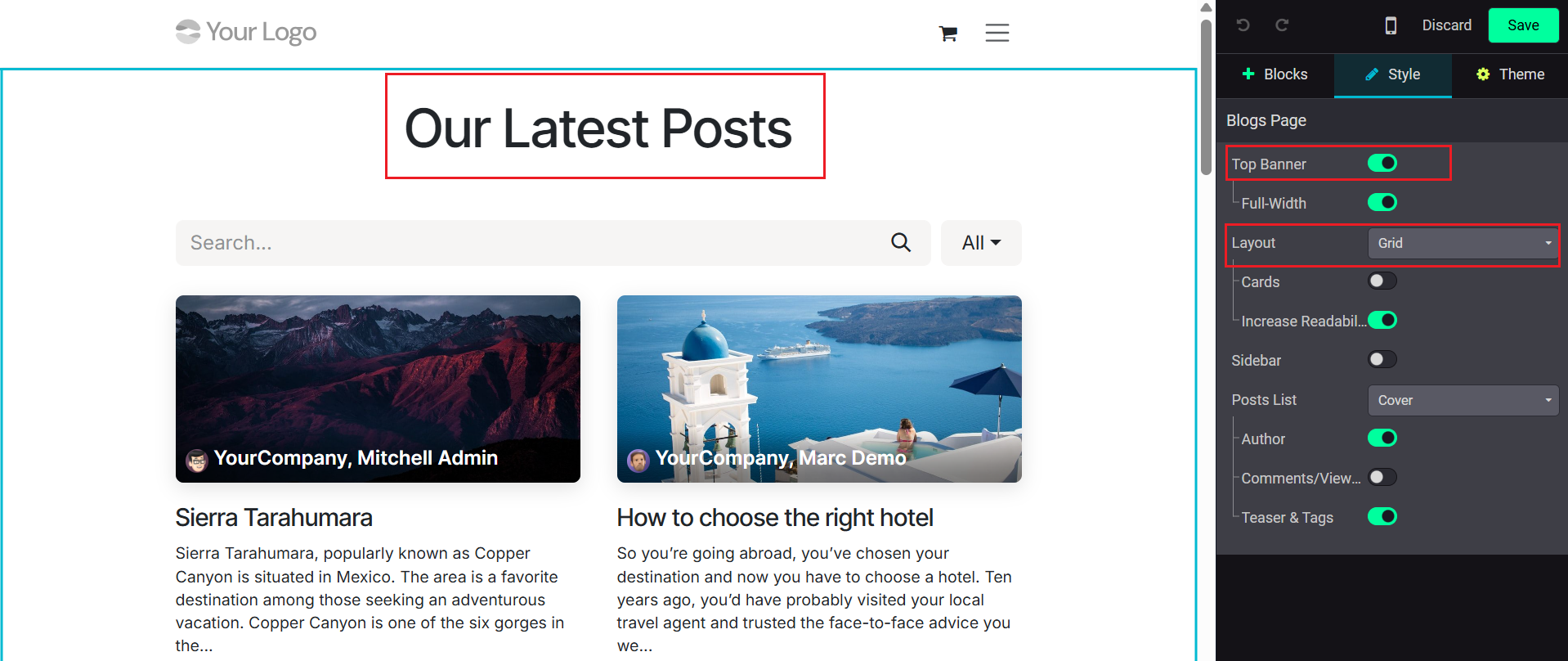
Under the Style section, you can customize the blog page with options such as Top Banner, Full Width, Layout, Cards, Increase Readability, Sidebar, Posts List, Author, Comments/Views, and Tags & Teaser. Enable the Top Bar and Full-Width option to display the title of the latest posts in the top banner, as shown below. The screenshot displays the layout as Grid view.
You can also change the layout to List view as shown below:
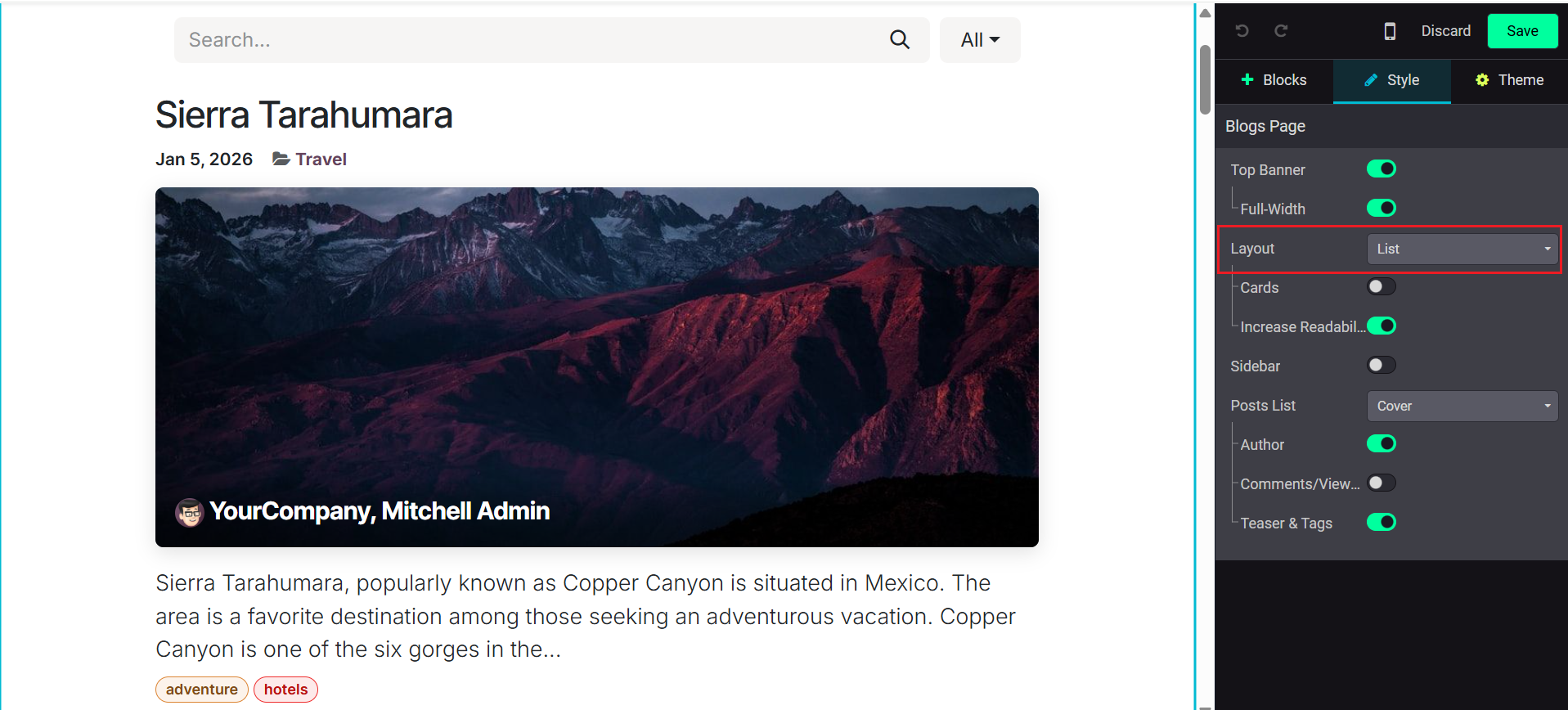
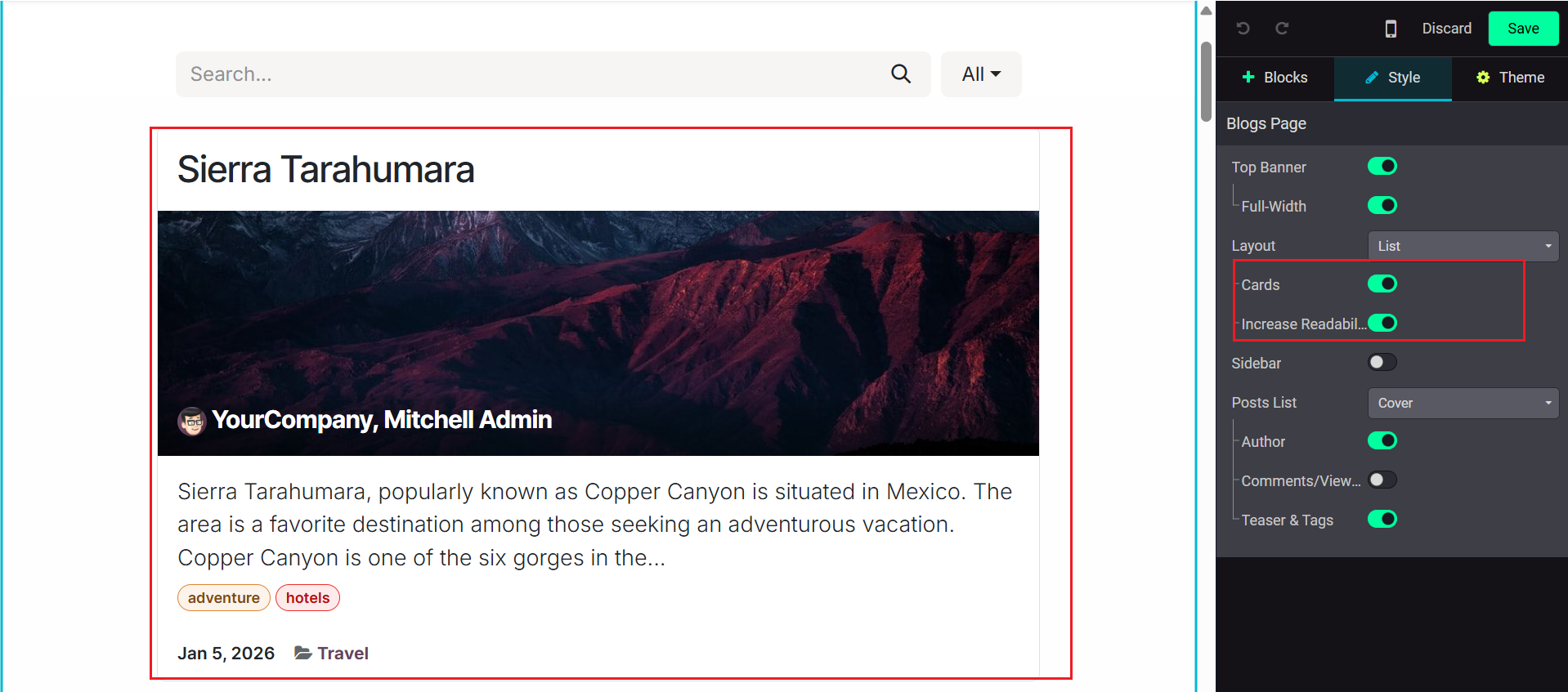
The Cards option helps you to change the blog post to a card form. The Increase Readability option increases the text’s readability.
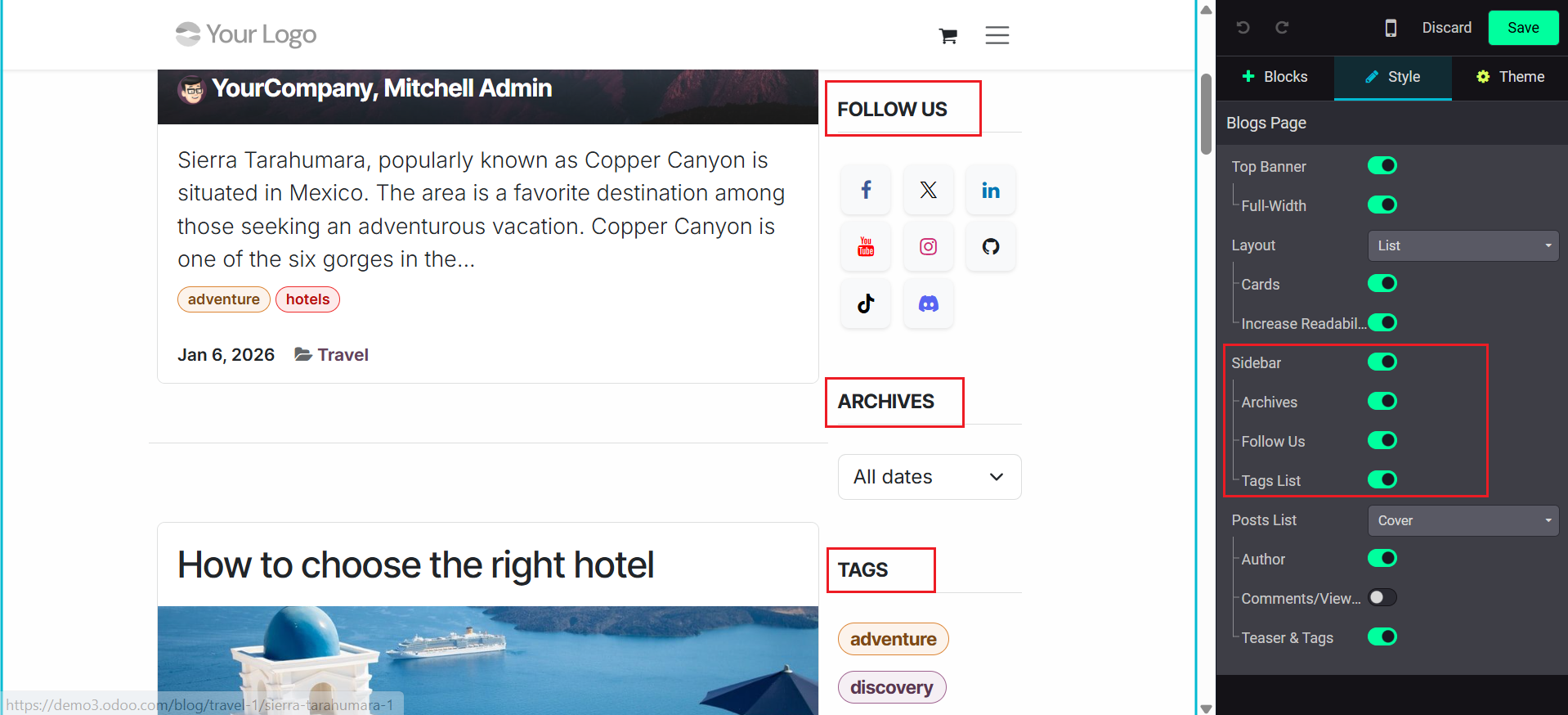
When you enable the Sidebar option, the right side of the screen displays Follow Us, Archives, and Tags options as shown below:
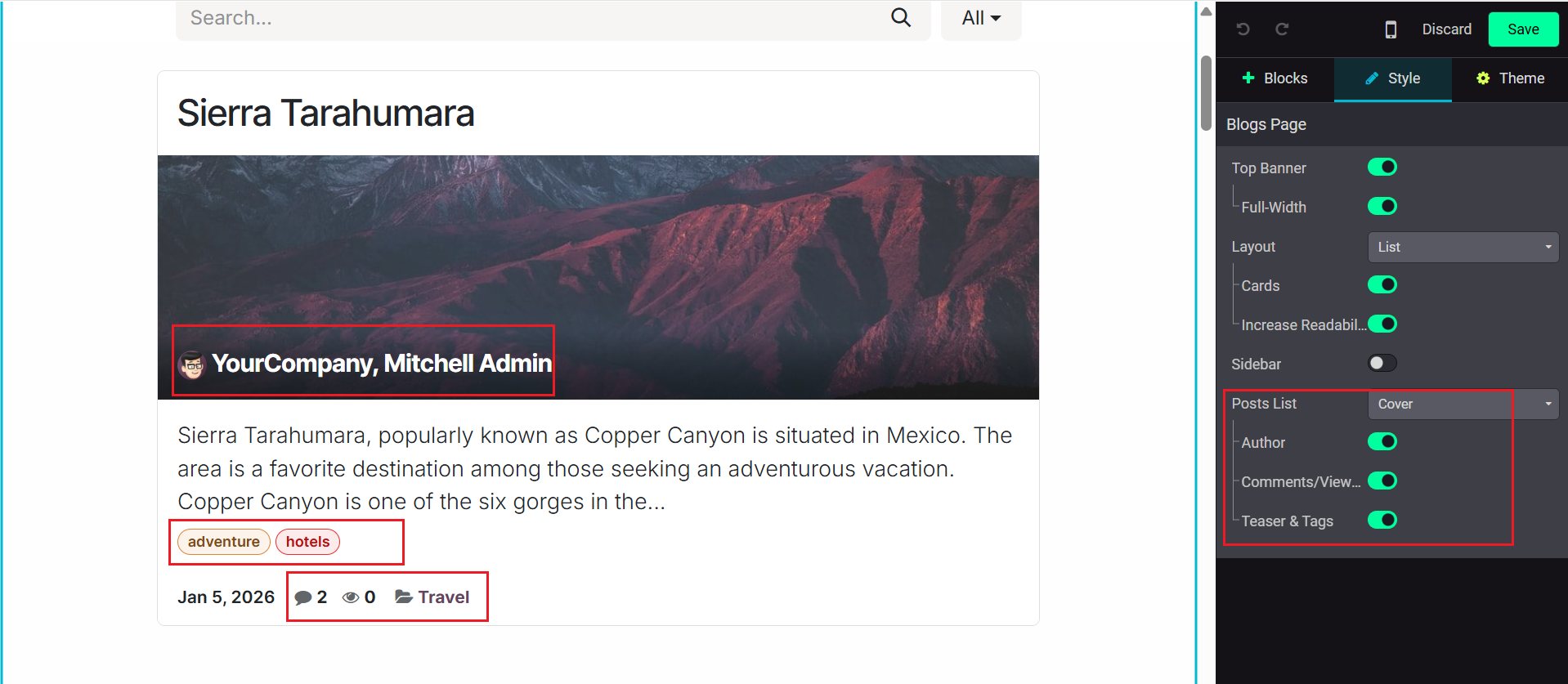
In the Posts List field, select either the Cover option to view the posts’ image or the Uncover option to hide it. You can enable the options such as Author, Comments/Views, and Teaser &Tags, to view these options in the posts as shown below:
Tags
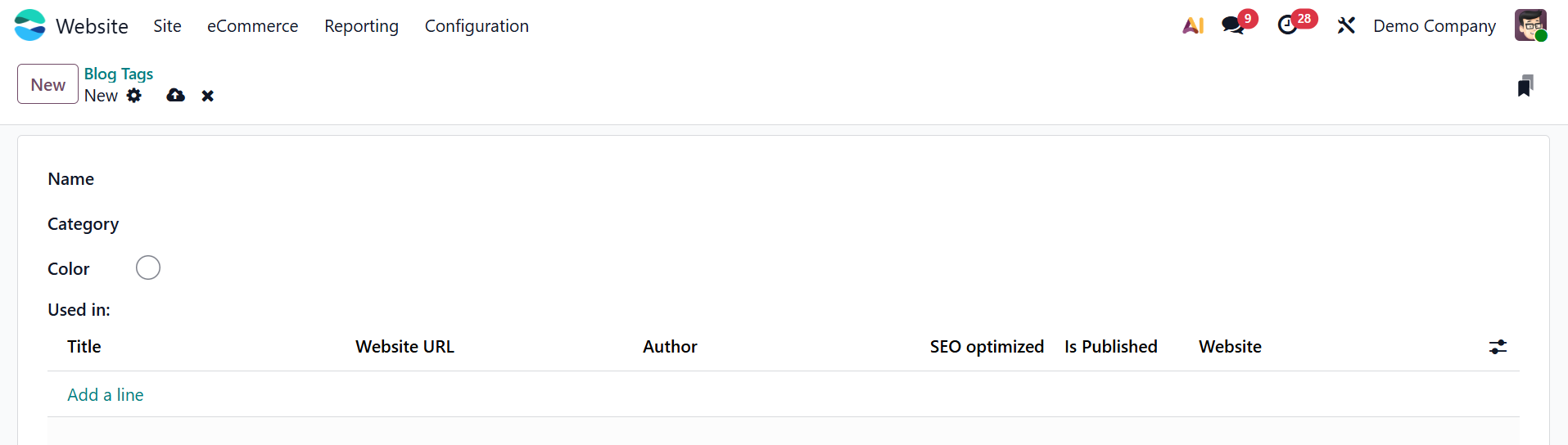
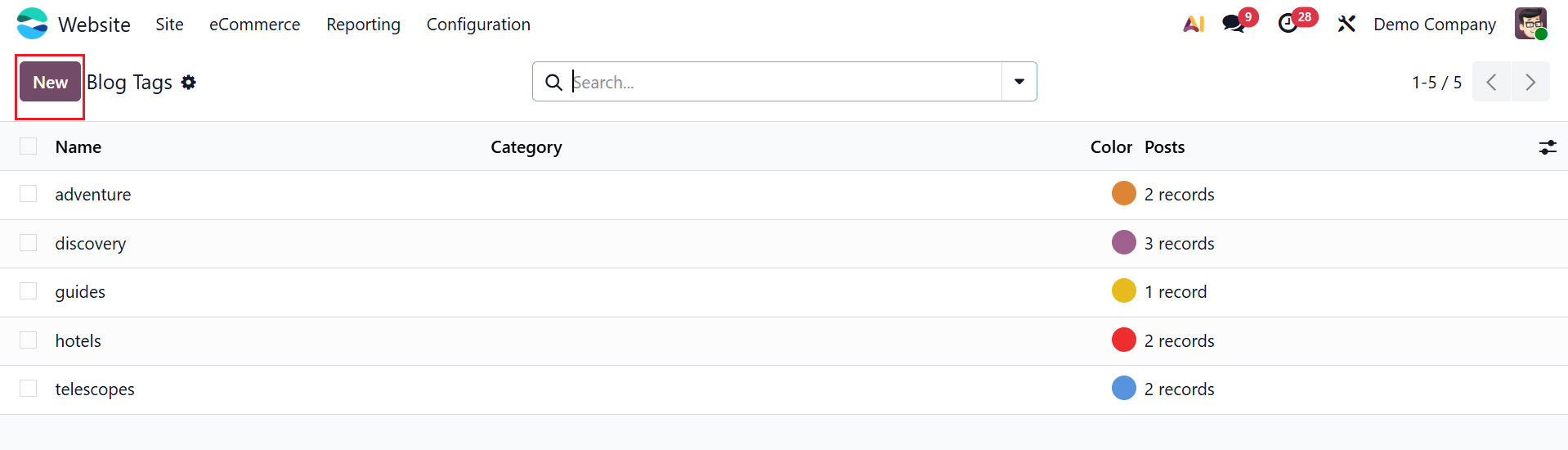
In Odoo 19, Blog Tags are labels added to blog posts to categorize and group related content. They help visitors easily filter and find posts on similar topics. You can view the Blog Tags menu under the Configuration tab of the Odoo 19 Website module. Here, you can see a list of blog tags with details such as Name, Category, Color, and Posts. To create a new blog tag, click on the New button as shown below:
In the Name field, add a title for the blog tag. Select an appropriate Category and Color for the blog tag. Under the Used in field, click on the Add a line button to add tags to the existing blog posts with details such as Title, Website URL, Author, SEO optimized, Is Published, and Website.