Course management
These eLearnings are now very simple to manage thanks to the Odoo 19 eLearning module.
1.1 Courses
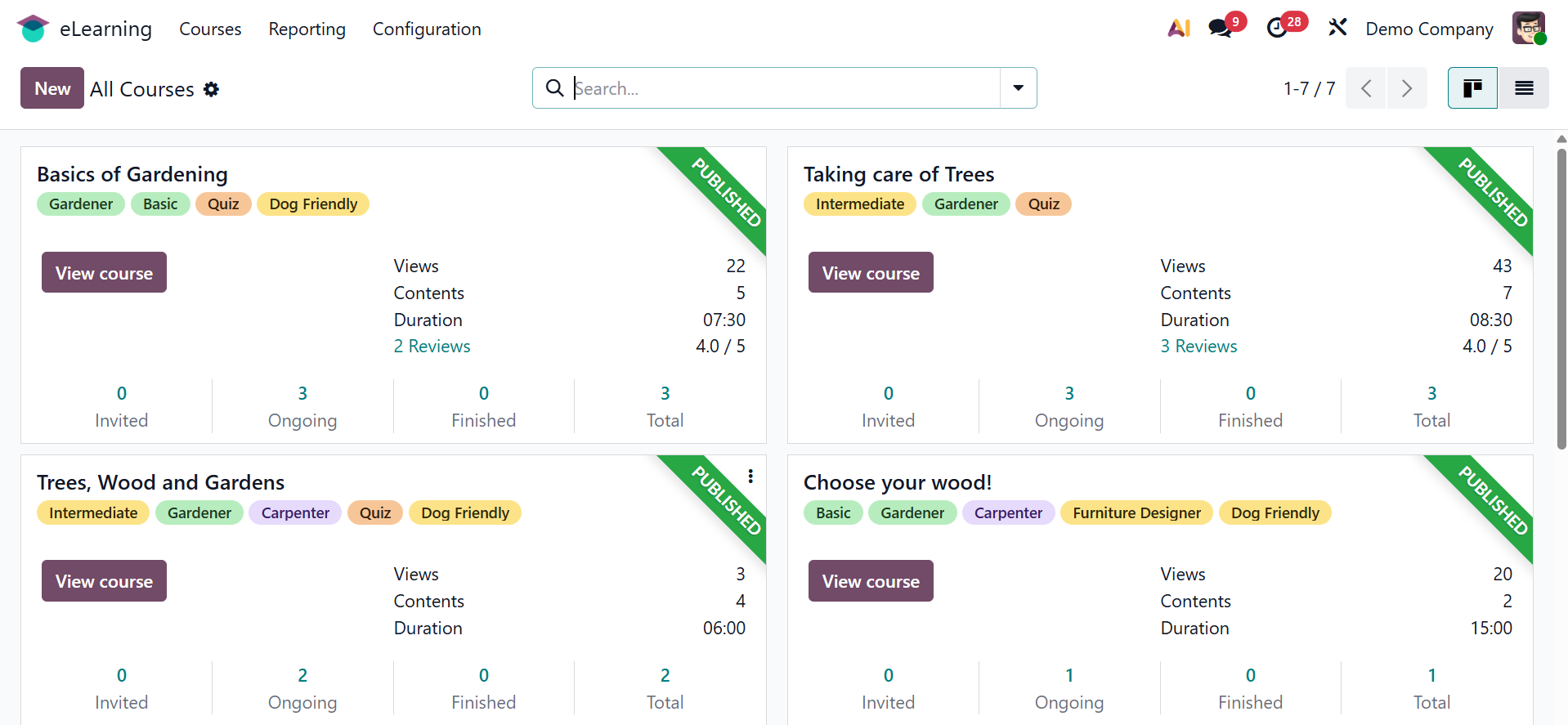
The screenshot above shows the dashboard view. The dashboard displays every course that has been constructed. The course's duration, contents, total views, and user information are all displayed in this view. The number of invited, ongoing, completed, and total participants can all be found on the dashboard. The banners that have been published on the page are also visible.
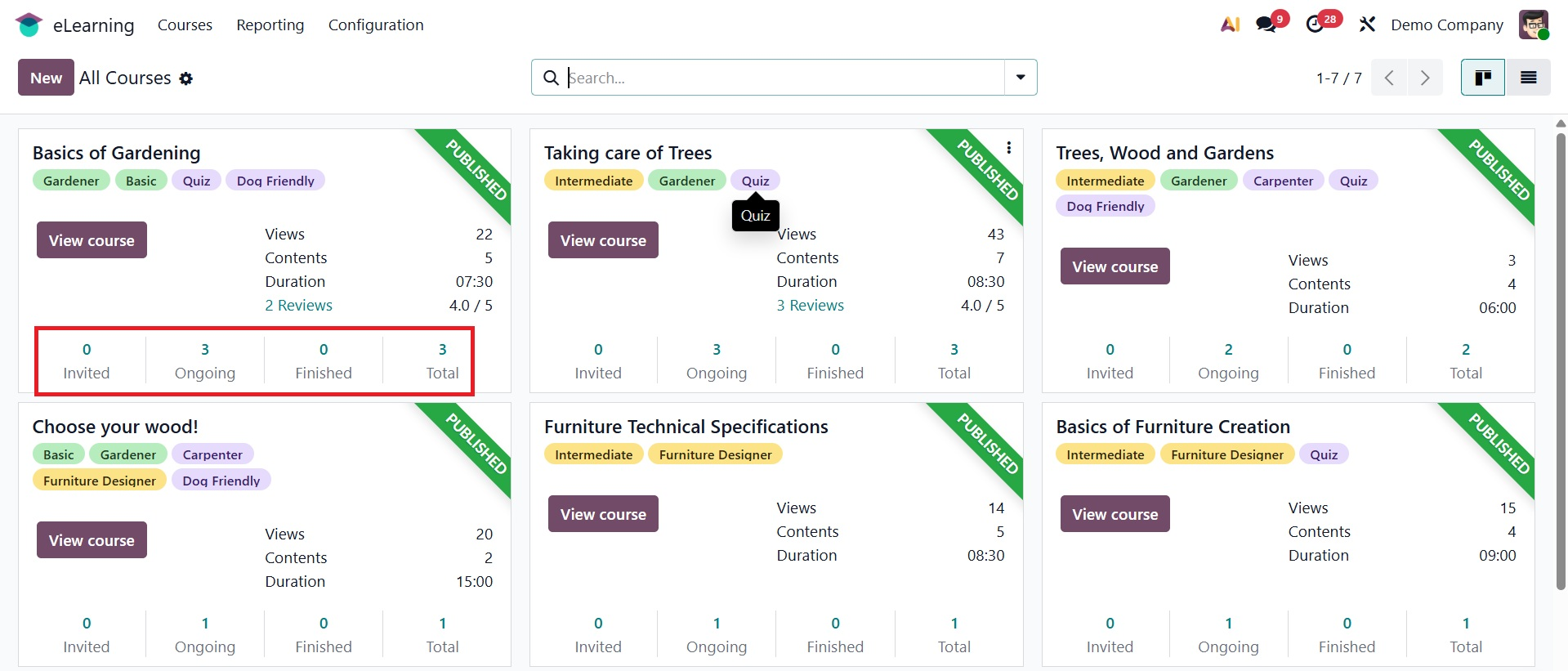
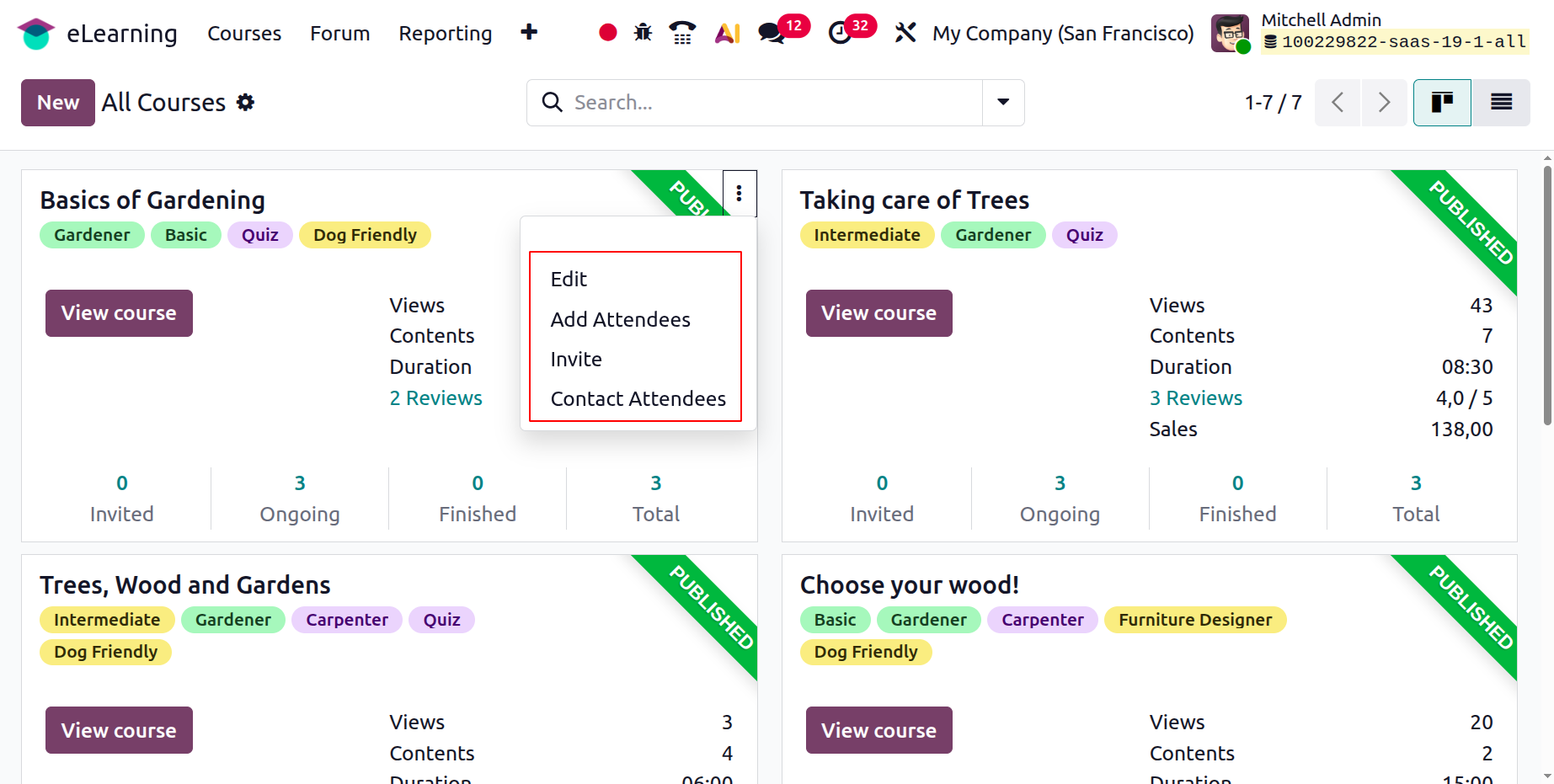
You may access the Delete, Edit, Add Attendees, Invite, and Contact Attendees options by clicking the three dots on the right side of the screen. The produced course can then be viewed by choosing the View Course option.
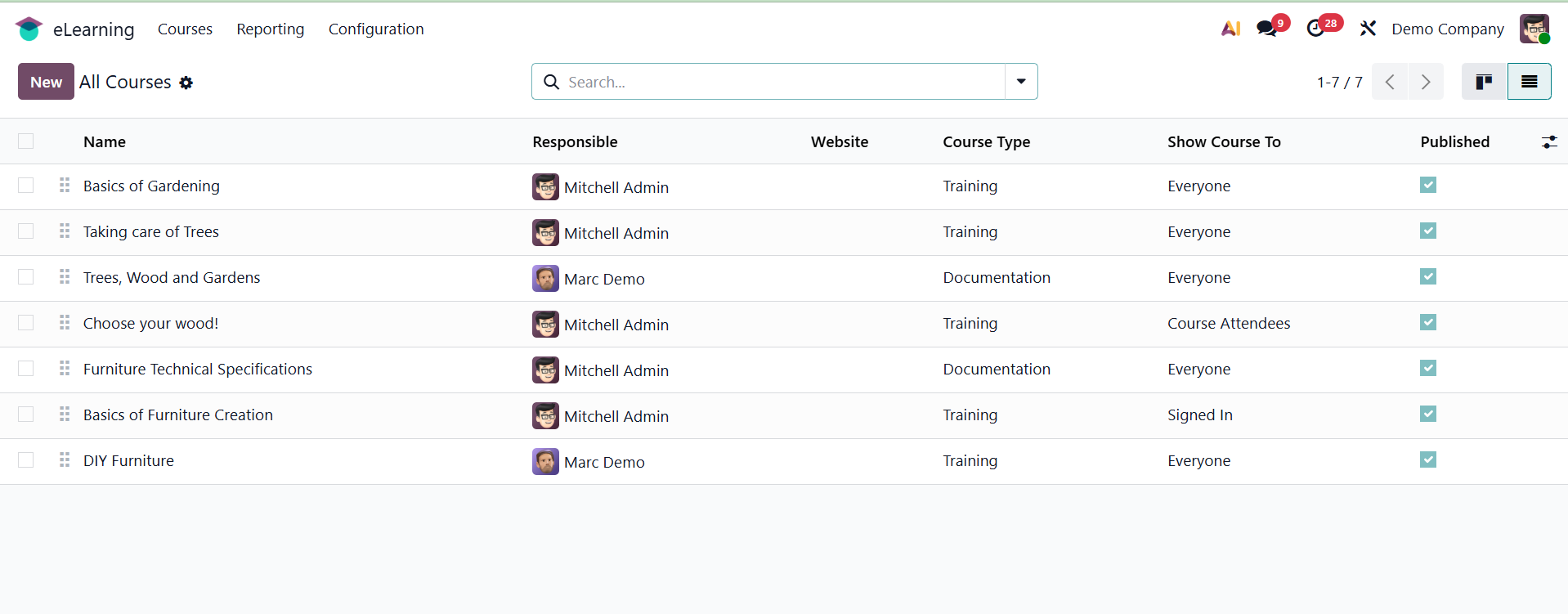
You can also visit the course's List View. Name, Responsible, Website, Course Type, Show Course To, Published, and other details are displayed in the list view.
This panel also has options for Search, Filter, Group By, and Favorites. Click the New button to add a new course. The creation form will then appear.
Select the relevant tags and add the course title. The form view has four tabs. Karma, Content, Description, and Options. This material tab, which has buttons for adding certification, material, and sections, is where the course's contents are entered.
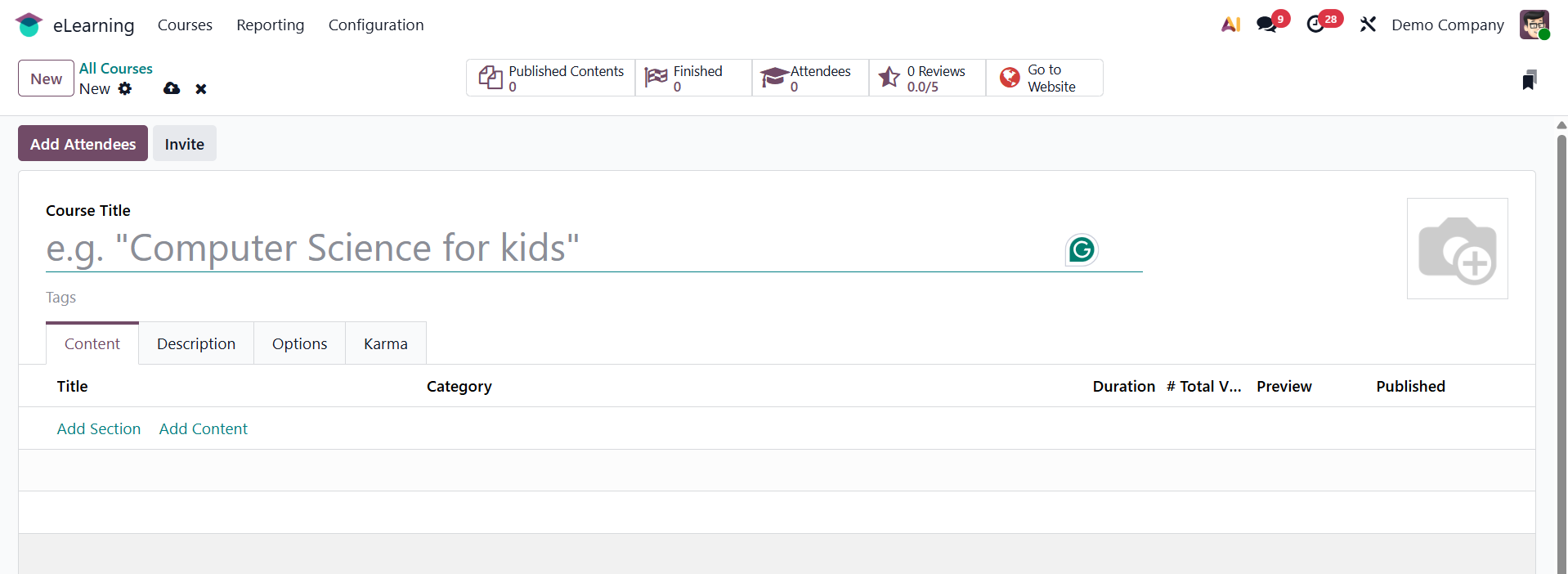
A pop-up window will show up when you click the Add Content button. Show the tags and title of the content. Next, select the Content type by clicking on the Document tab. Pictures, articles, documents, films, tests, and certifications are just a few of the many categories in which the content is offered. You can also select the Upload from device or Retrieve from Google Drive option. If it is selected as Retrieve from Google Drive, then an additional option of document link is available, as shown below.
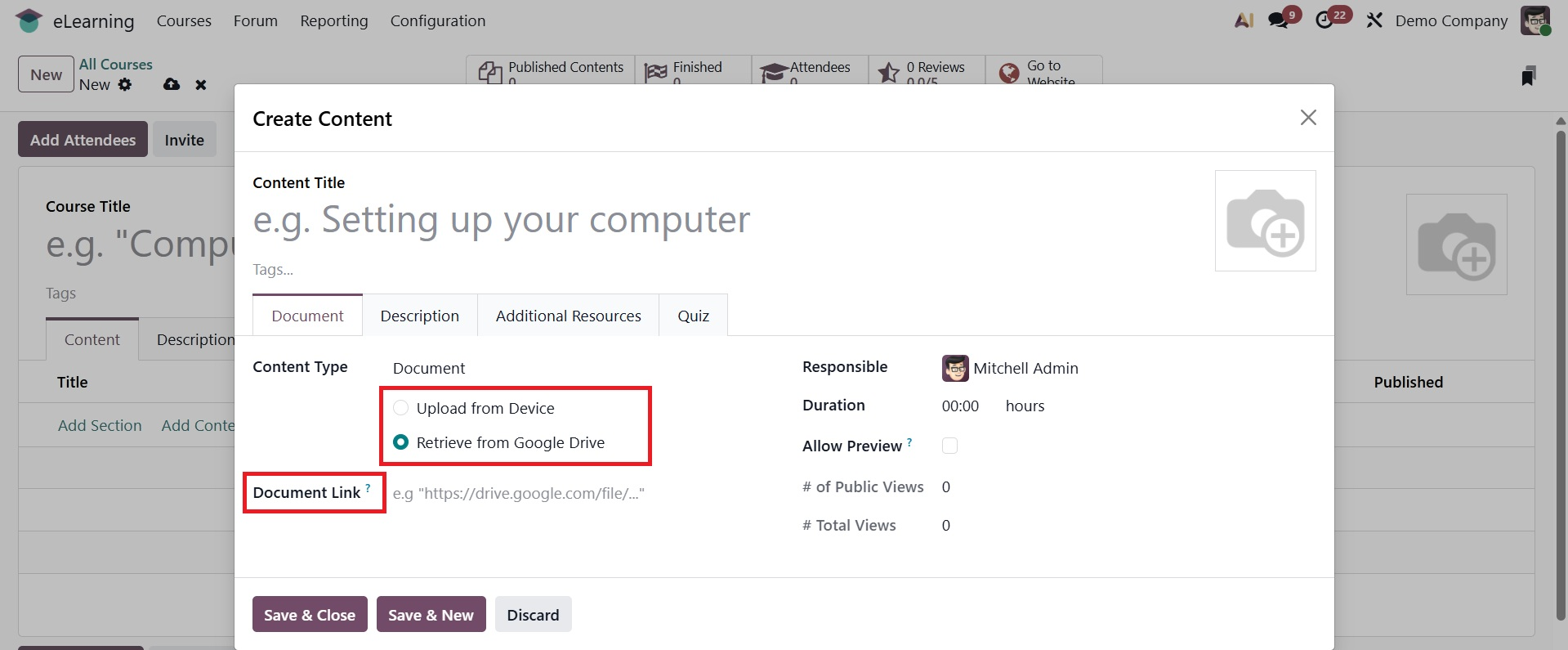
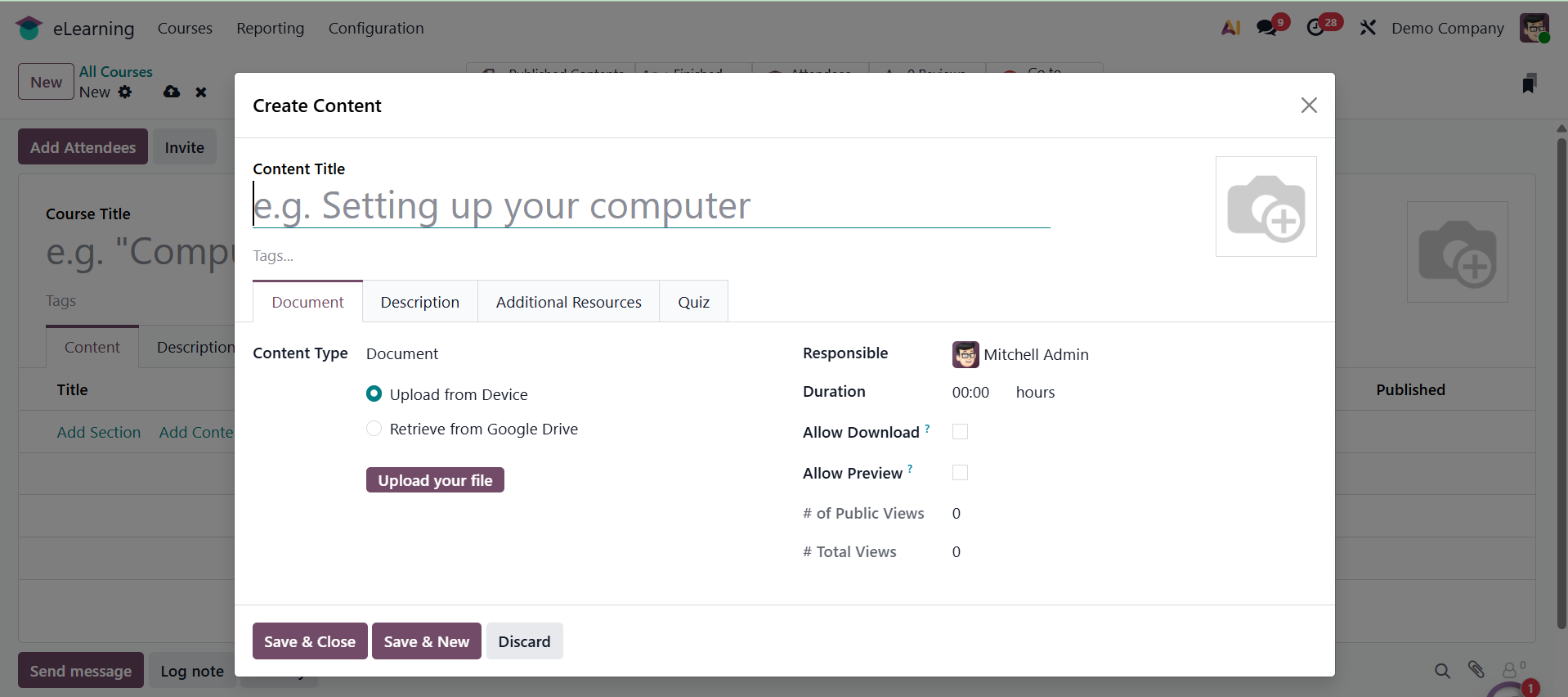
Add the responsible party and the duration of the content. Next, select the Allow Preview option to enable a preview of the material to be displayed. The Responsible and Duration options can all be added here.
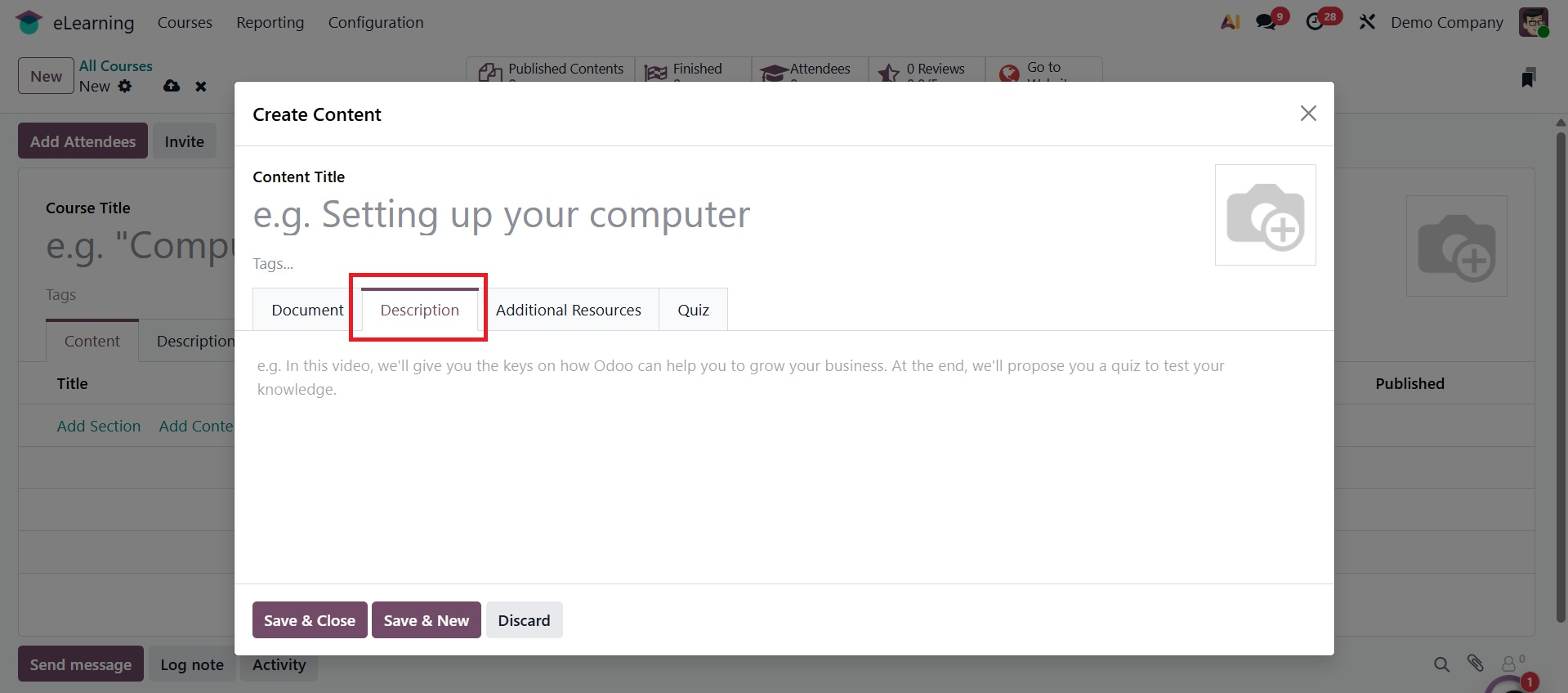
In the Description tab, add a description of the material.
You can add any more materials you like in the form of a file or link by using the "Additional Resources" tab. Once the format has been selected, upload a file or add a link.
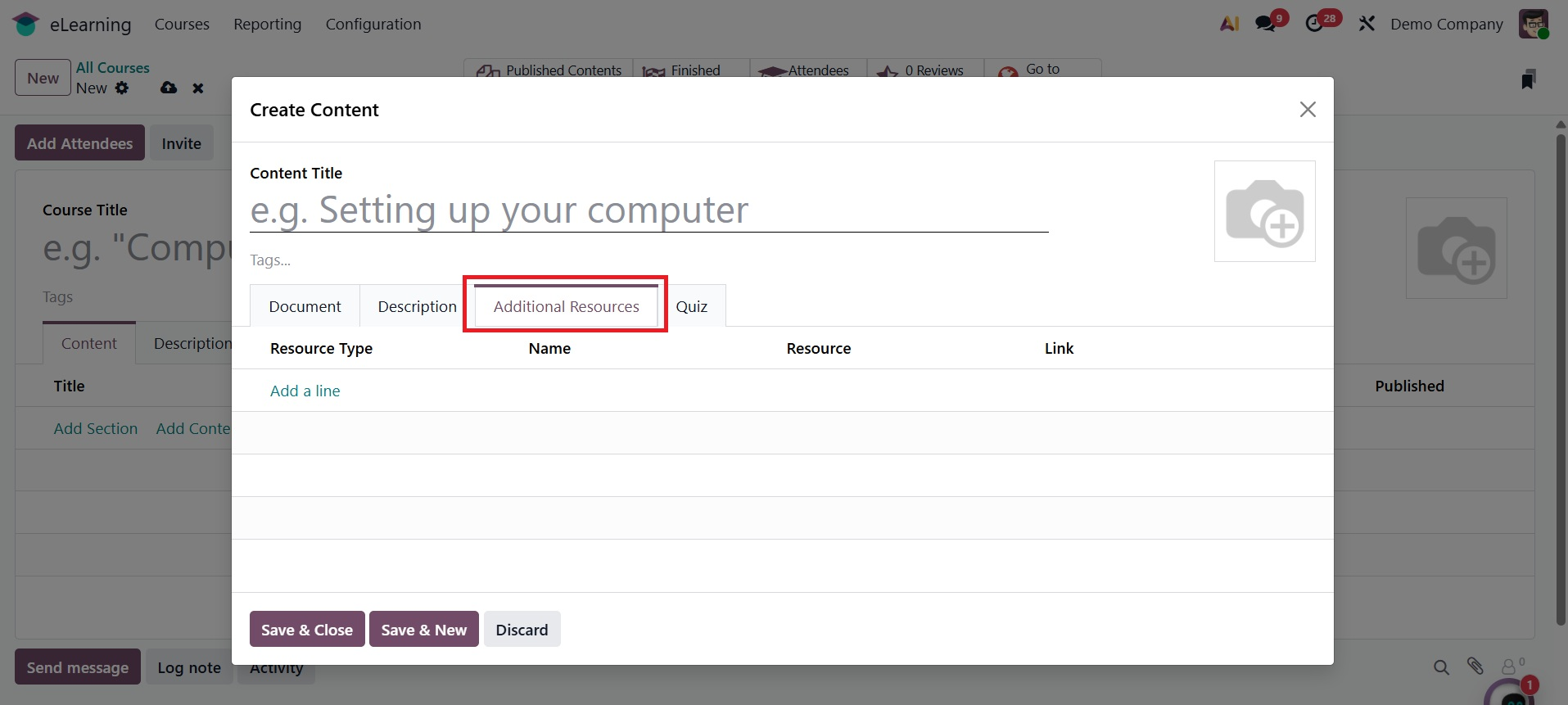
We can customize the questions and points that are given by using the quiz tab. Users can contribute points for their initial attempt prizes under the First section. They can also earn points for their second try incentives in the Second Try section. Finally, users can add points for their third, fourth, and more attempts under the POINTS REWARDS section.
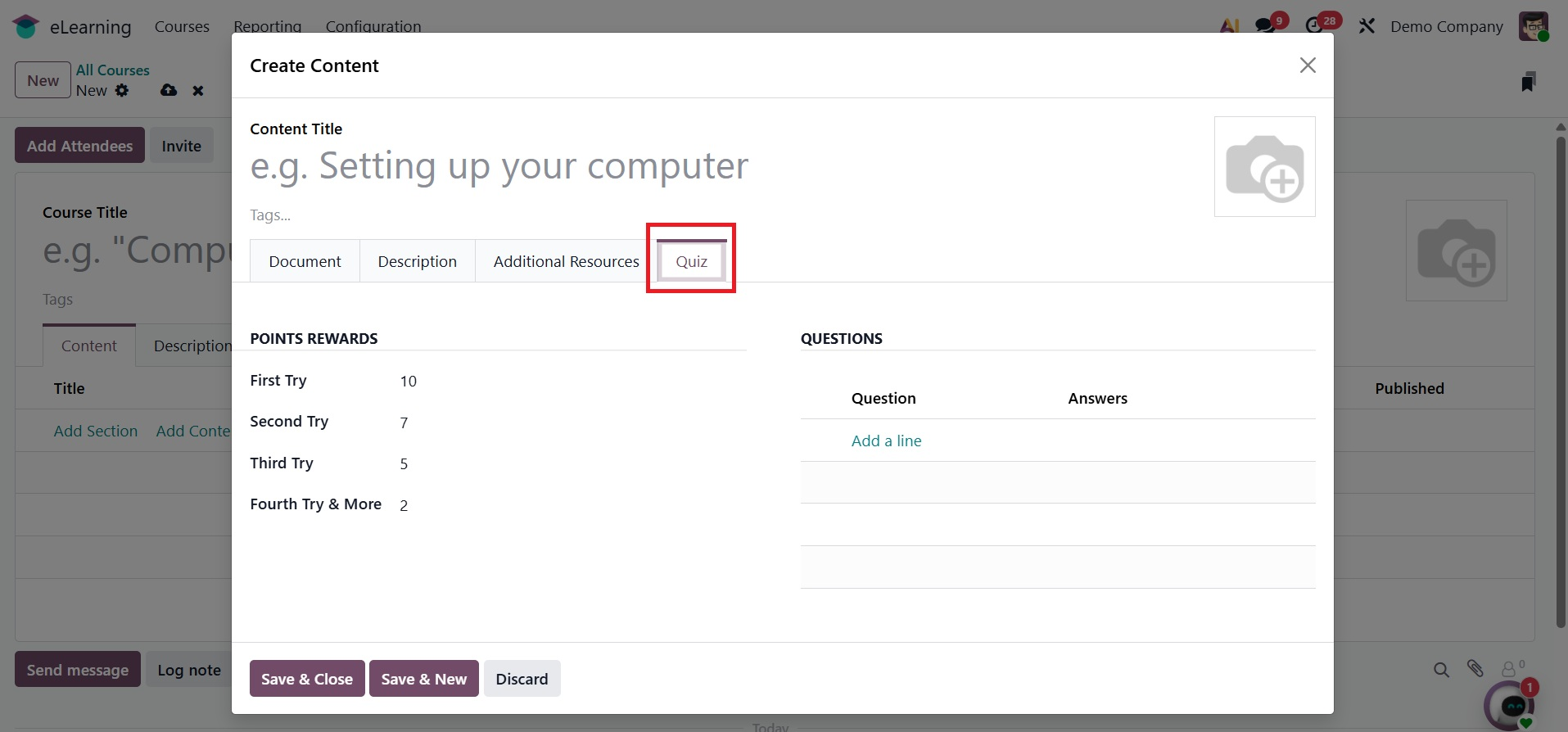
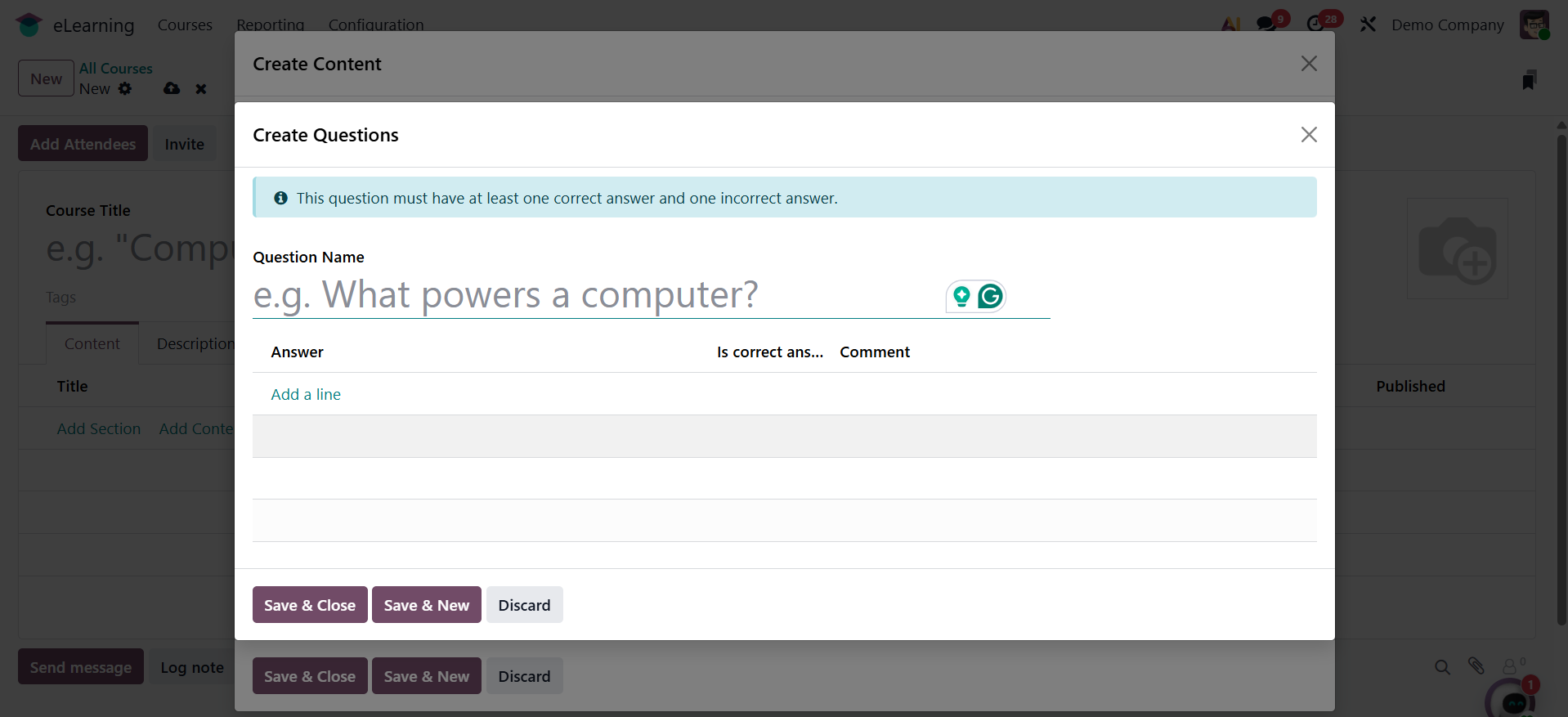
Use the Add a Line tool in the QUESTIONS area to create quiz questions and answers. Add options in the Answers area after you've added questions. Check the Is Correct box to make sure the response is accurate. There must be at least one right response to a question. To terminate the session, click the Save & Close option. To add a new question, click the Save & New button.
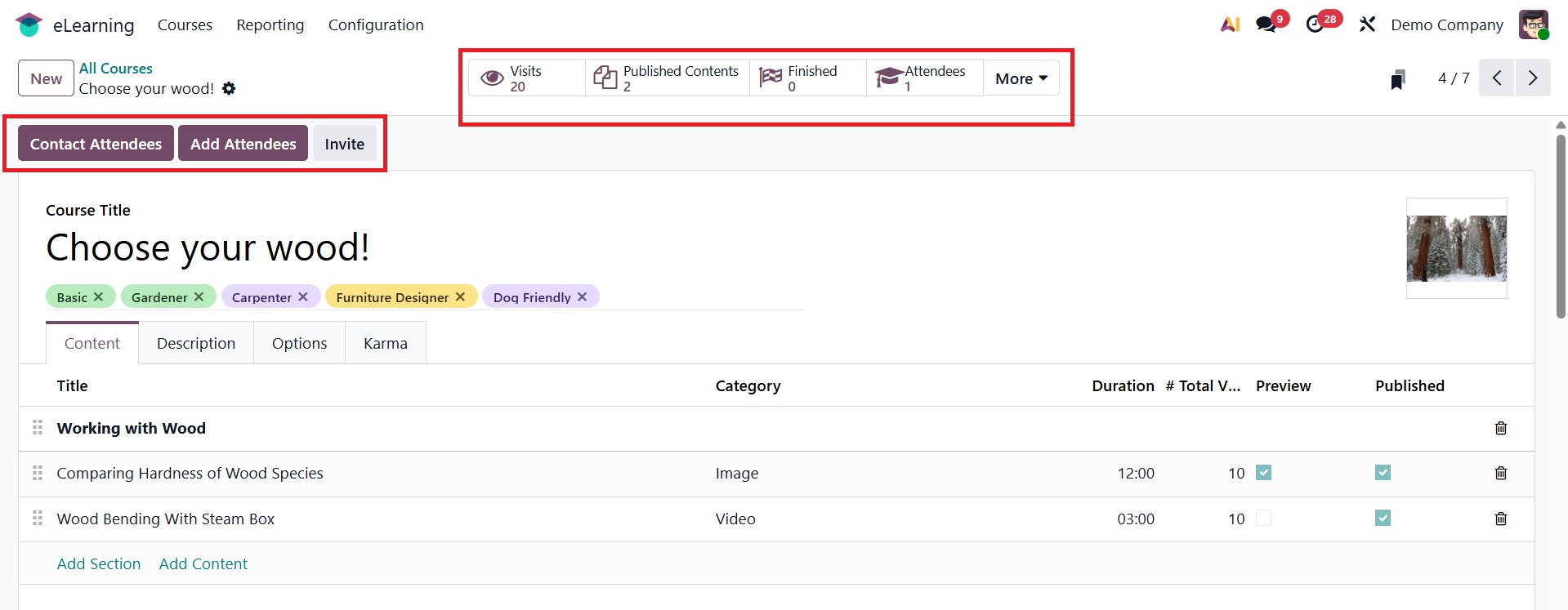
Two buttons appear after the course has been saved: Invite, Add Attendees, and Contact Attendees. Smart tabs include Published Contents, Finished, Attendees, Reviews, and Go to Website.
By choosing the Contact Attendees option, you can get email marketing. Click the "Send" button.
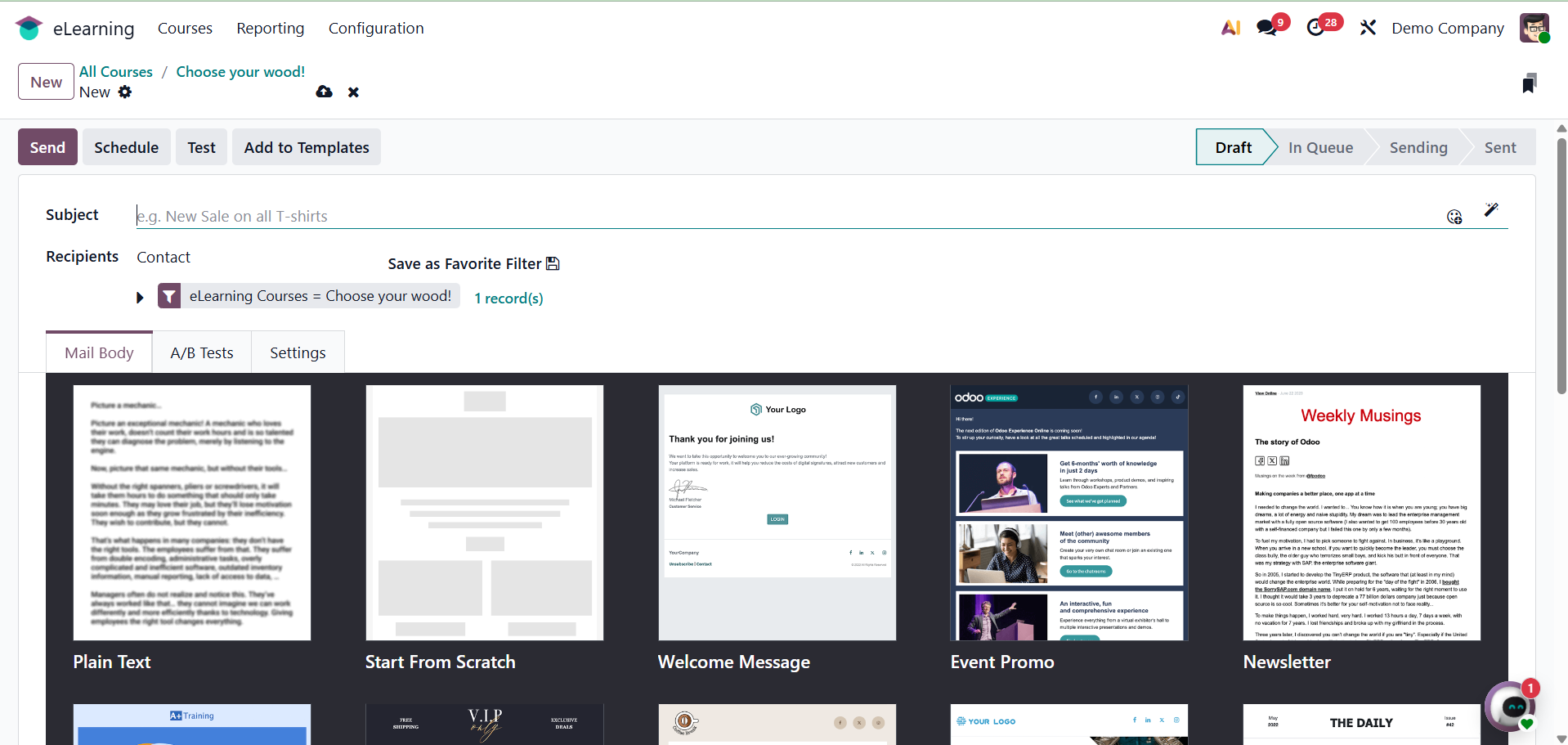
Clicking the Add Attendees button creates a pop-up window and notifies users via email that they have been enrolled in this particular course. Click the Send button to send the email.
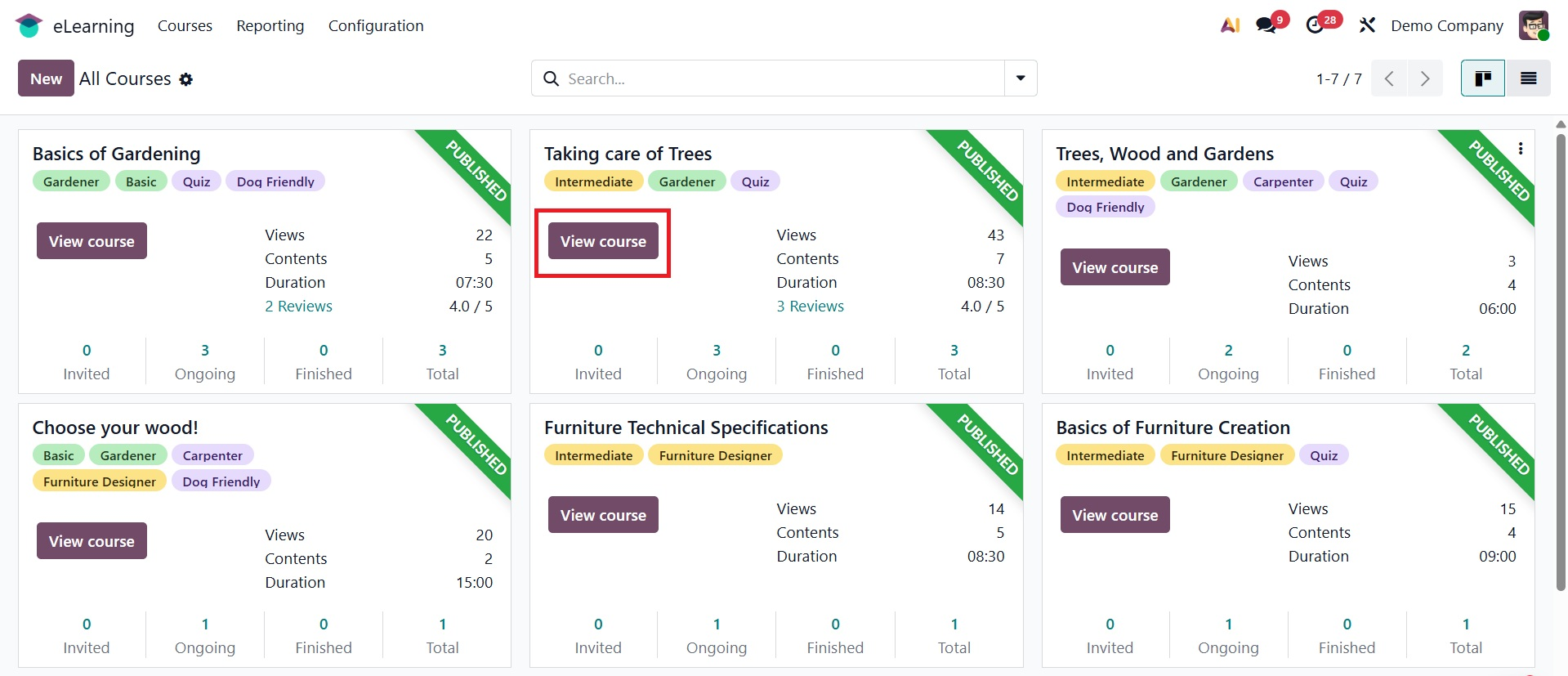
The dashboard provides access to the created course. You can view the course online by clicking the View Course icon on the website that appears after clicking the button.
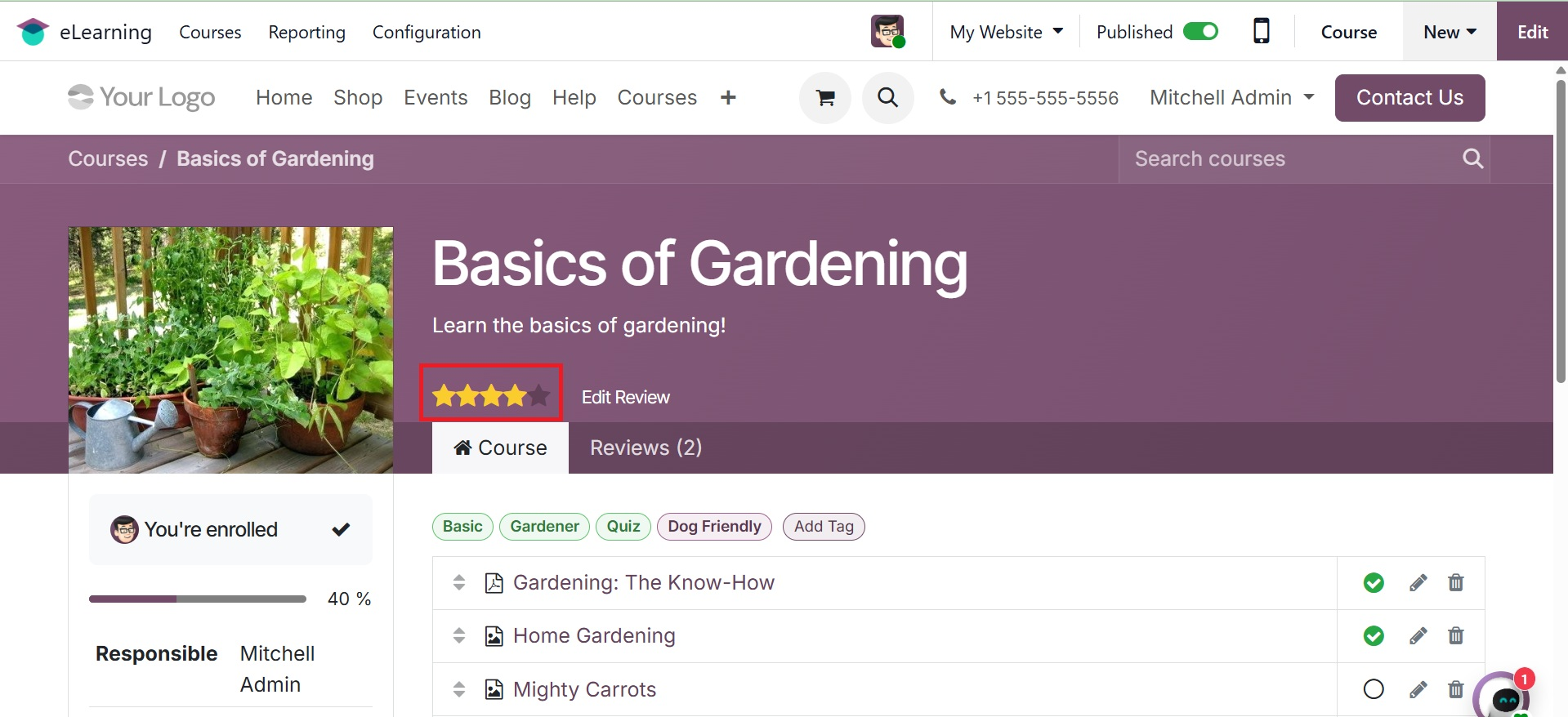
This is how the generated course appears on the website. This view displays all of the certifications and supporting documents. User reviews can be added to the course using the Add Review tool.
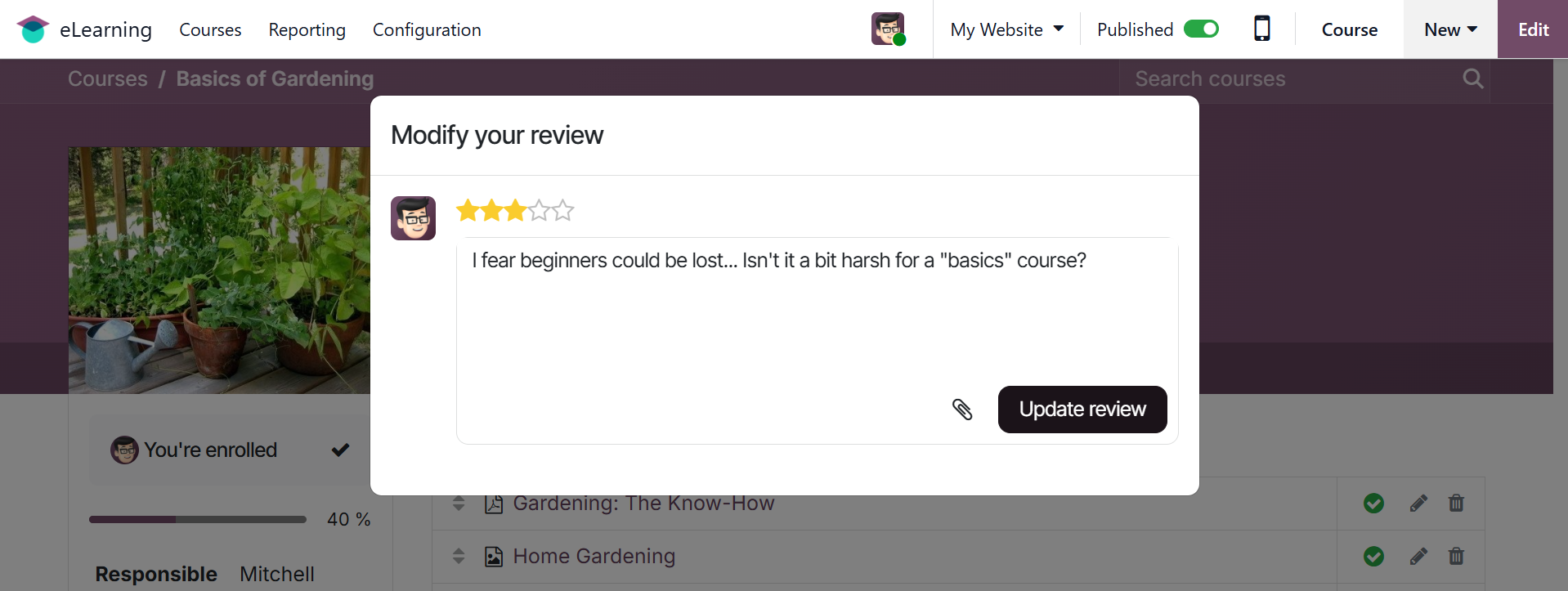
The pop-up to add reviews will show up as soon as you click the Add Review button. Put a comment in the box and add stars. Attachments can also be added. Next, press the "update review" button.
The page will be updated with the review. You have the ability to change the review. You can comment on the review using the Review tab.
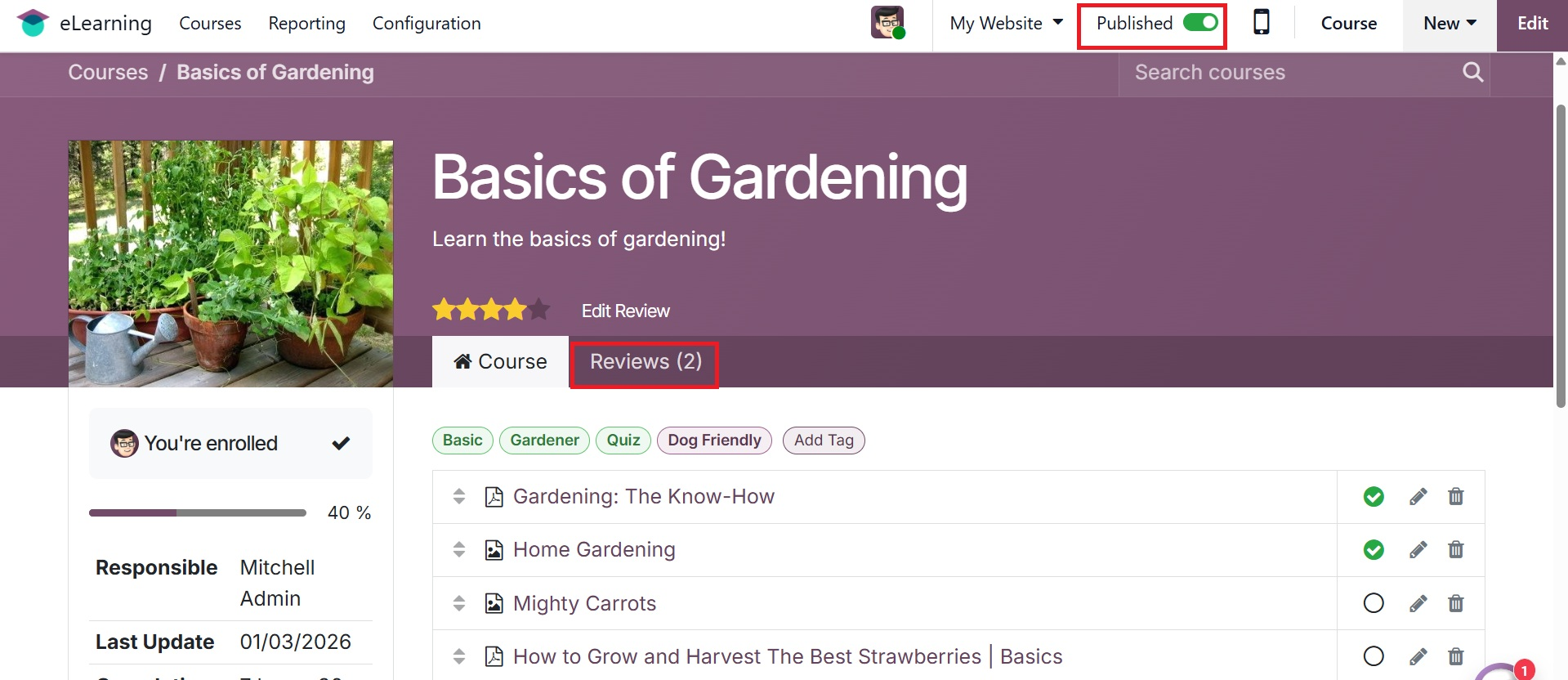
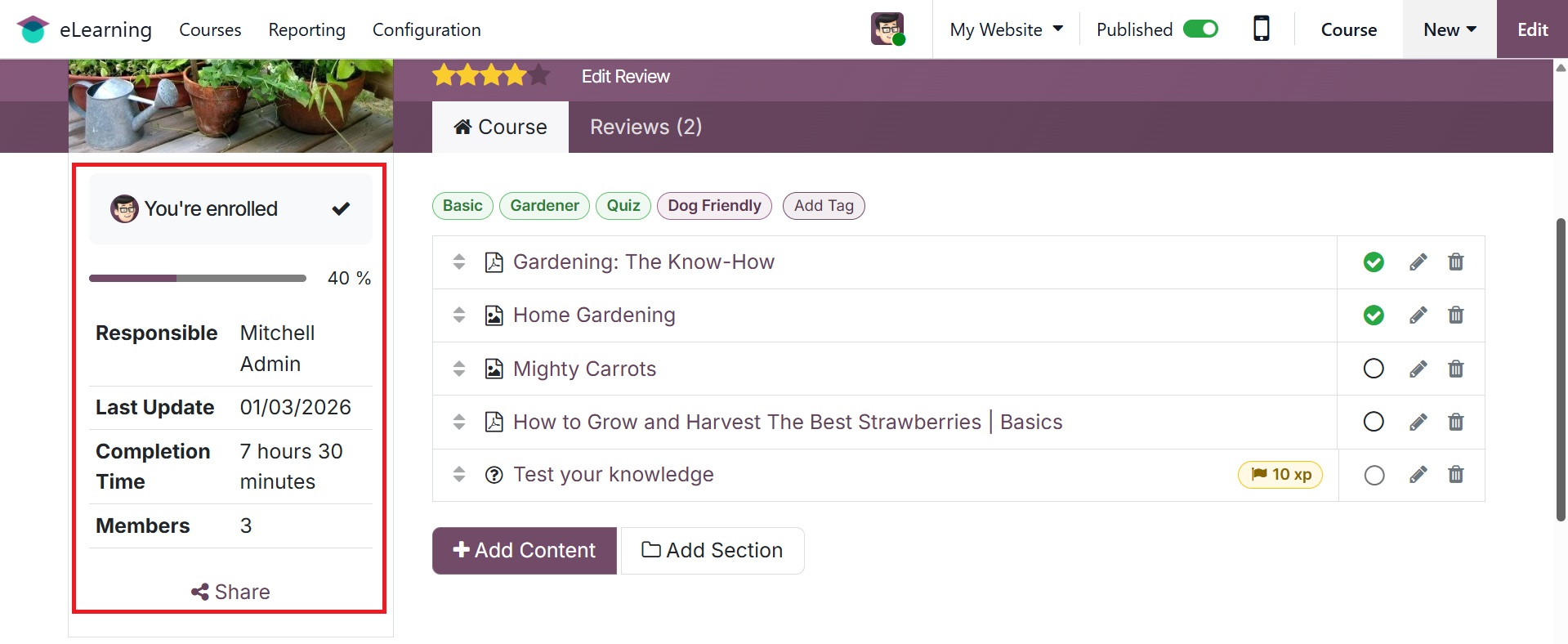
The number of members, the date of the most recent update, and the accountable party are displayed on the right side of the screen.
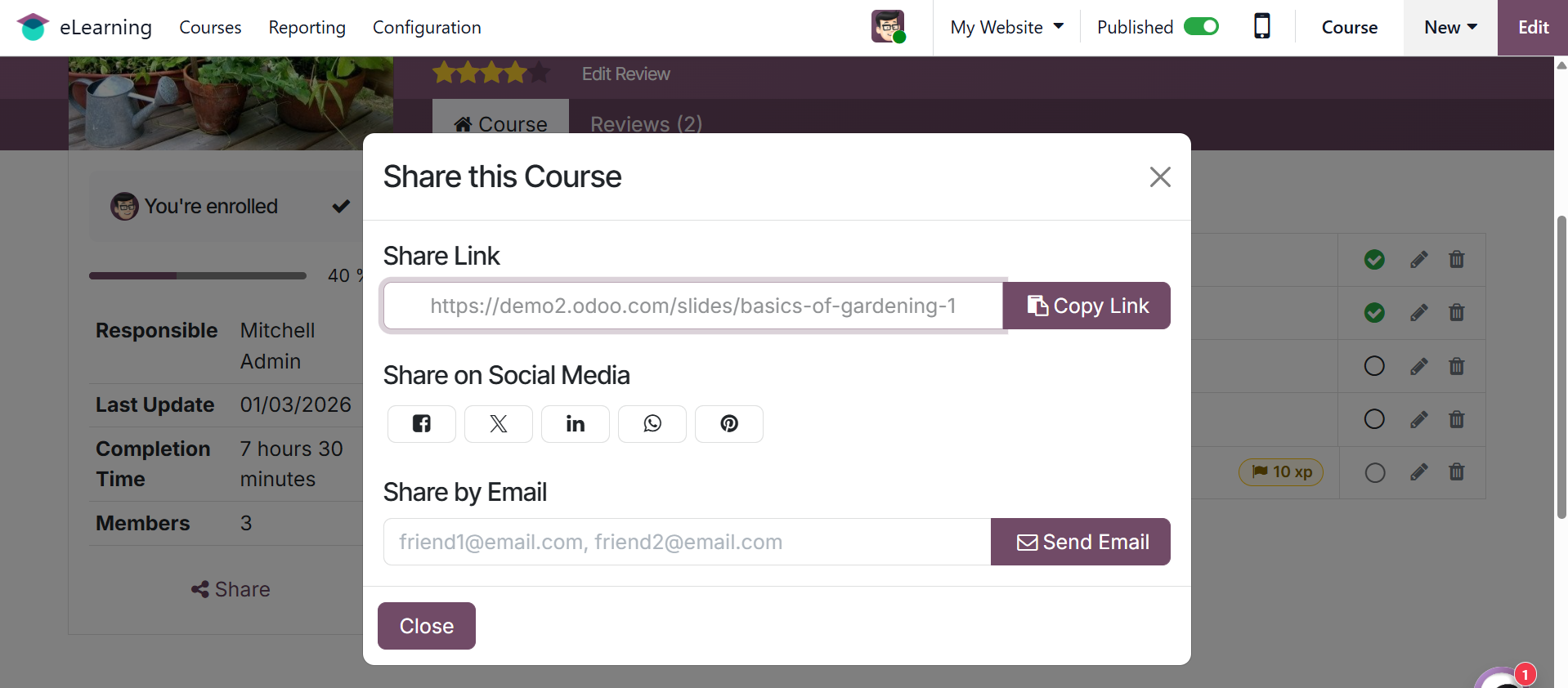
You can share the course URL by selecting the Share option.
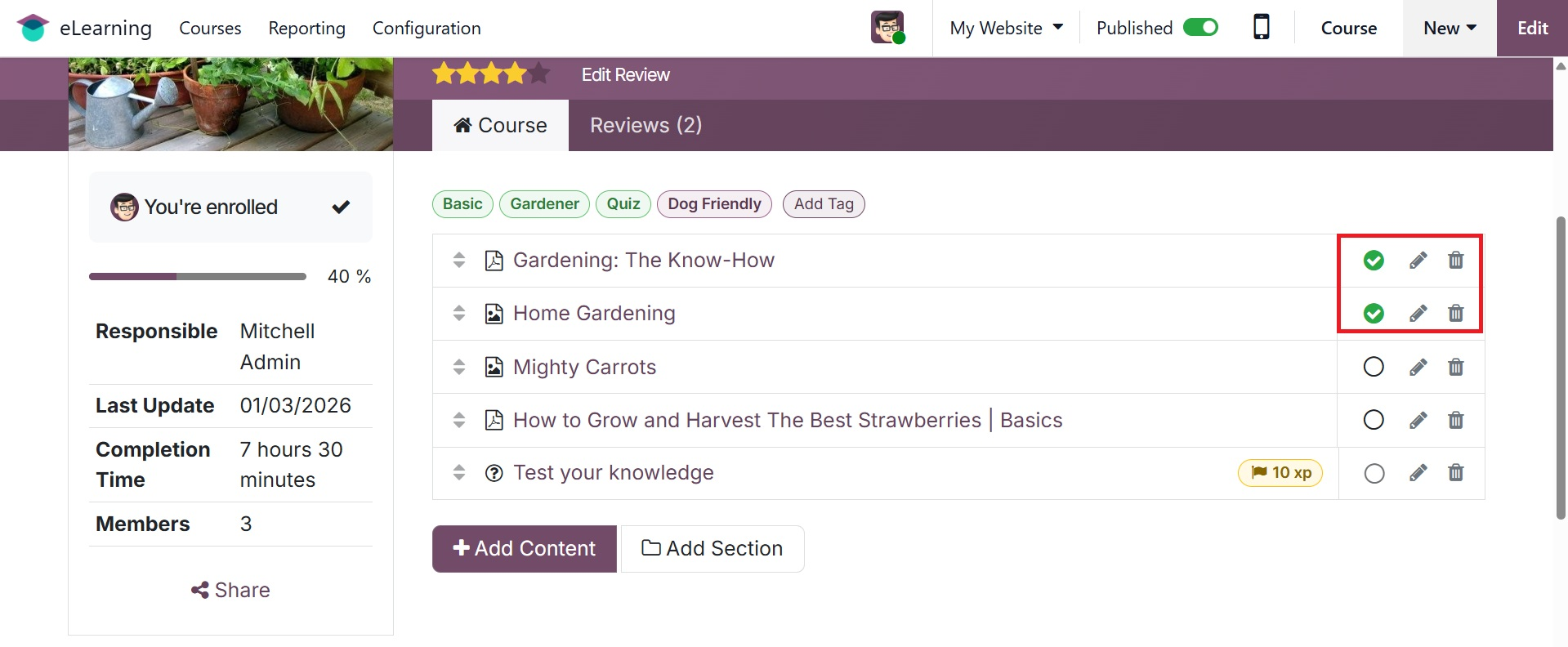
Now let's move on to the course part. It shows all of the certificates and created products. The generated content could be altered or taken down from the website. To modify the content, click the edit symbol. The edit sign has a delete button that makes it easier to remove content.
To start a certification program, click on the programs. Clicking the +upload Content option will allow you to upload content from the website. Clicking the +Add Content button will open a new window, as shown in the screenshot.
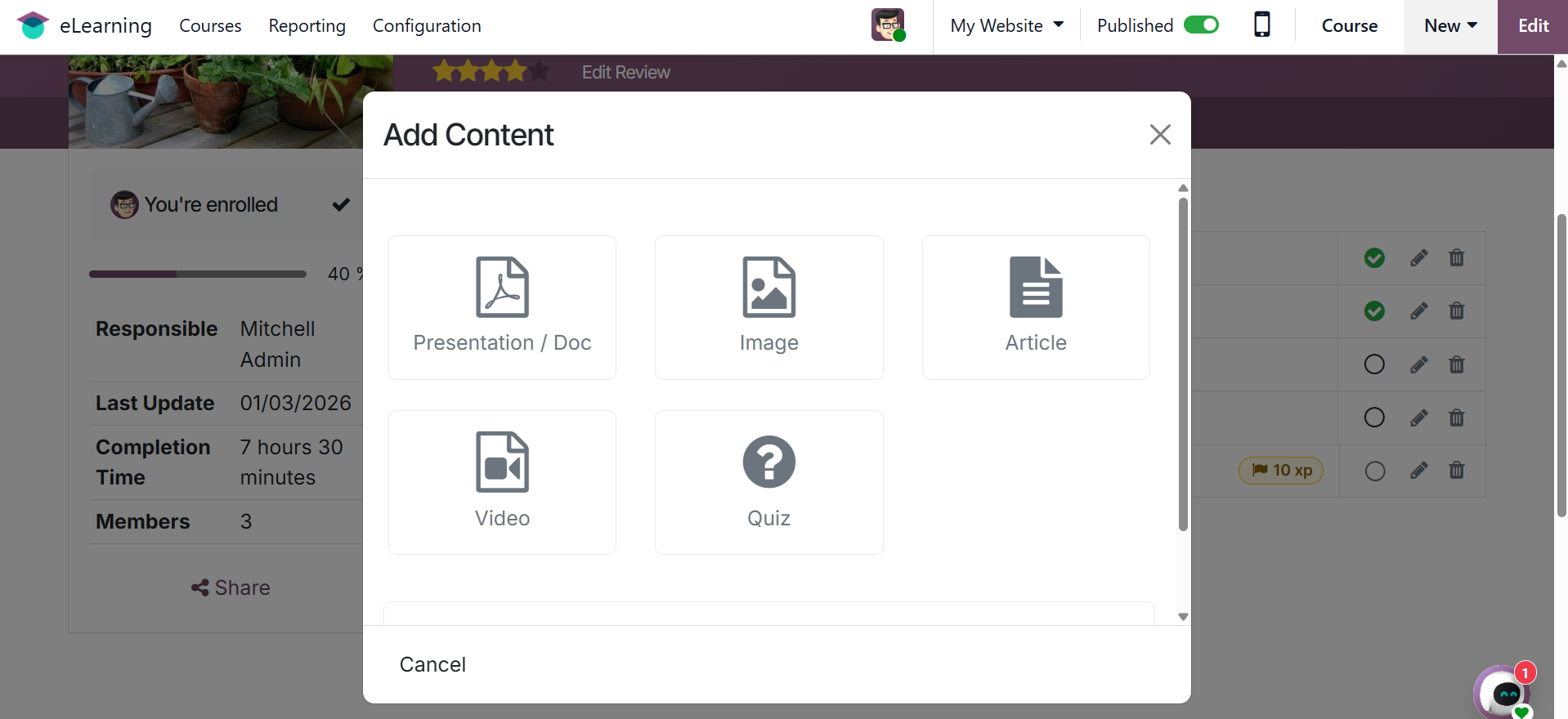
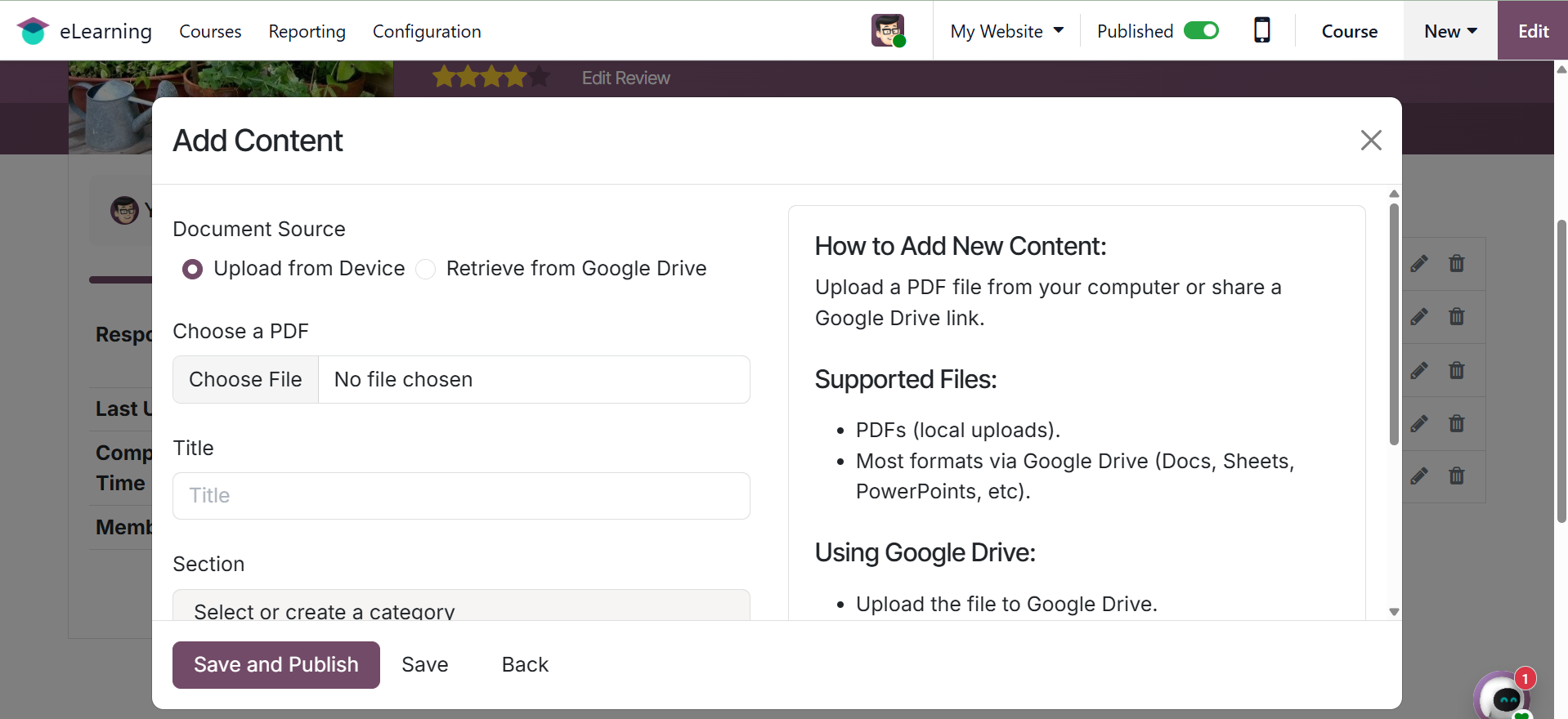
By selecting the relevant Content Type from the pane above, users can produce content from this. Next, include content details such as the section title, tags, and estimated time of completion. then select "Save & Publish" from the menu.
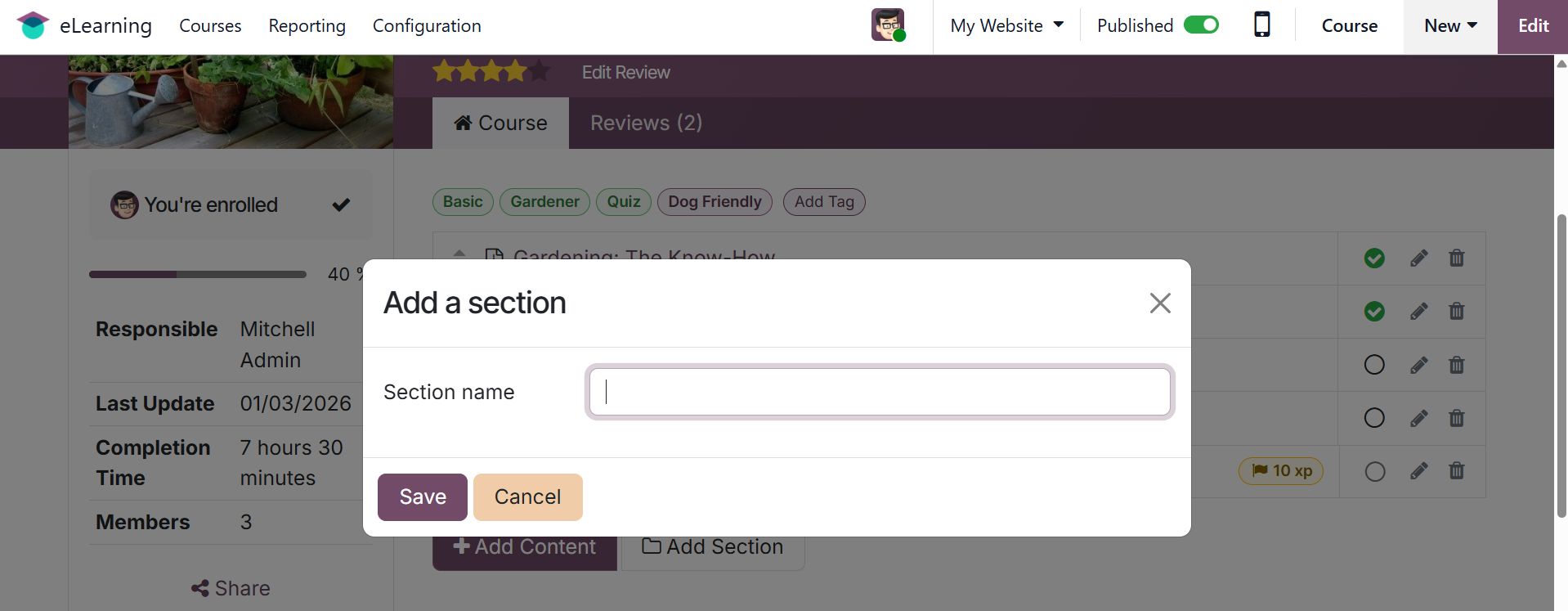
By choosing the +Add Section button, you can add a new section. Click "Save" once the section name has been added.
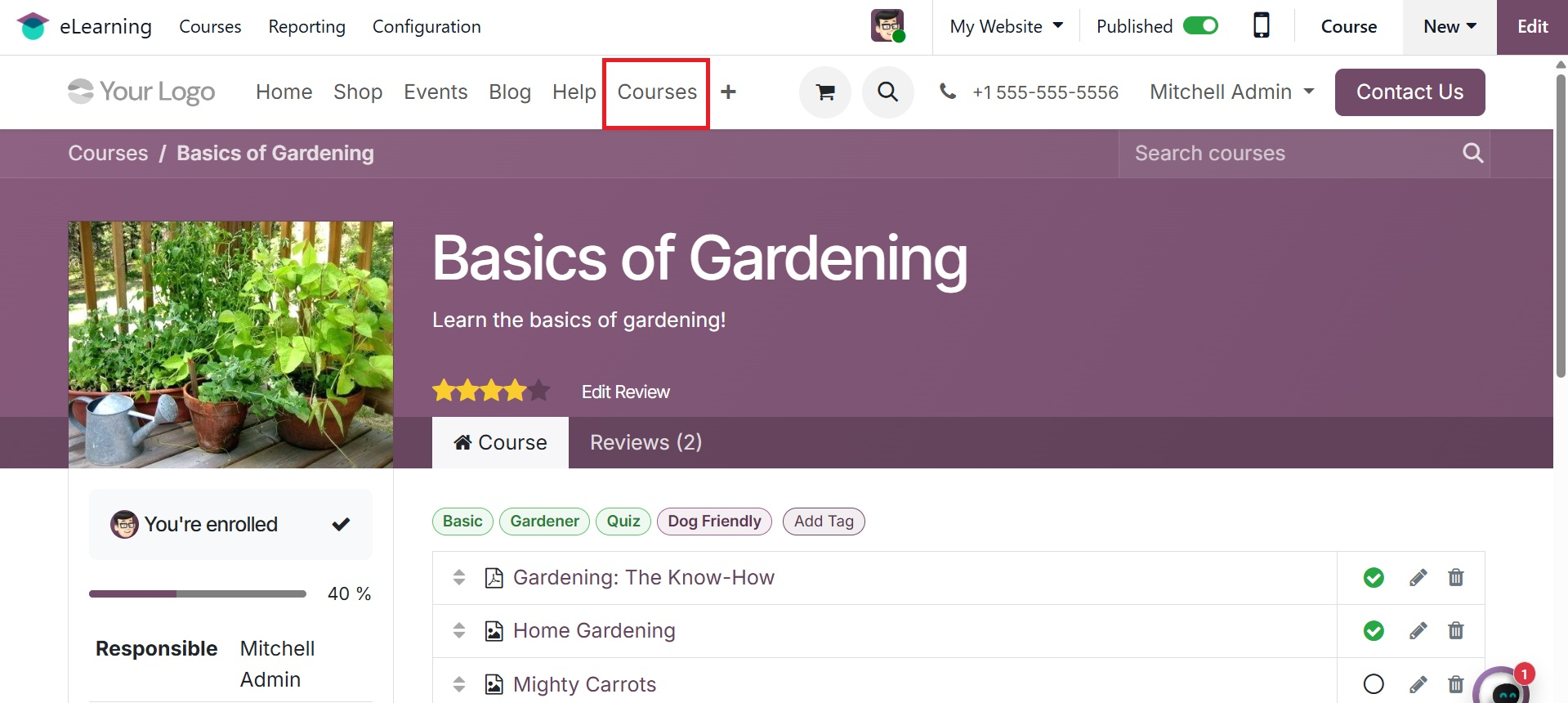
So go back to eLearning and choose the course you created again. This shows several smart tabs.
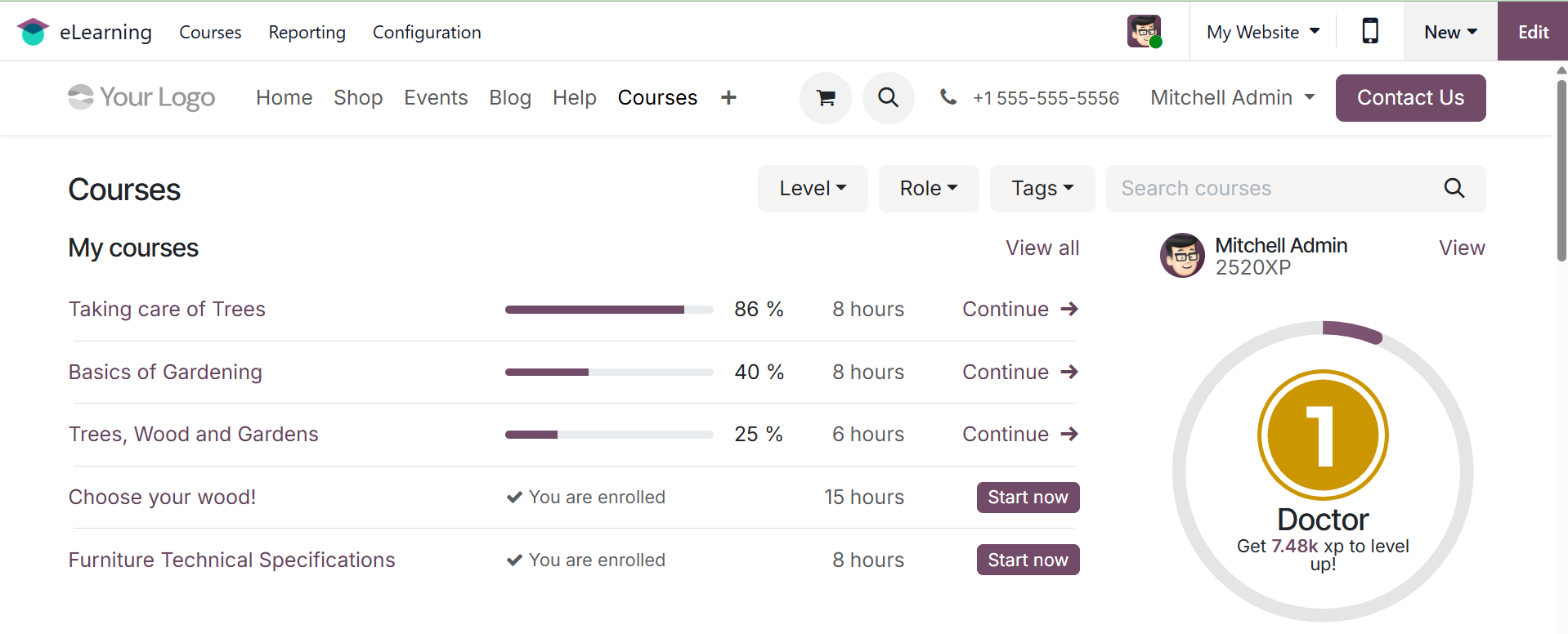
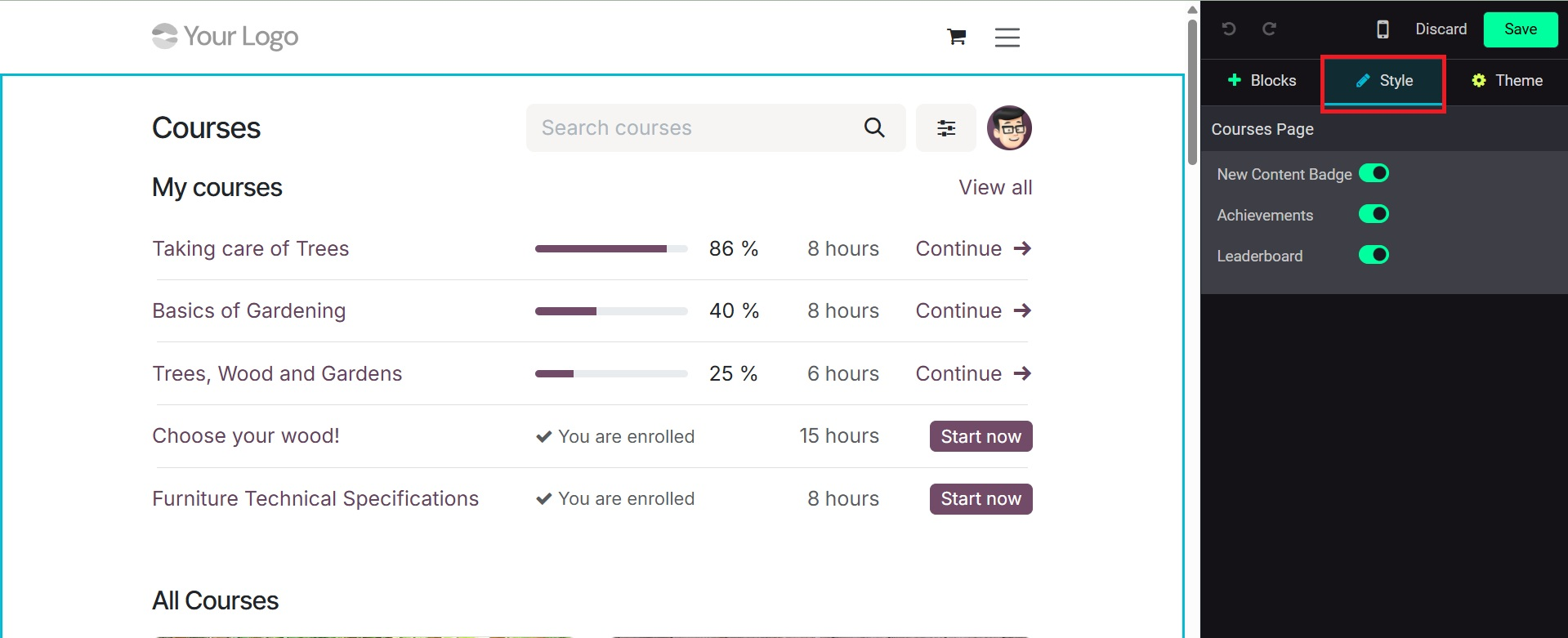
The website's courses option offers a preview of every course that has been created. It is possible to modify the Course page. To access the change options for that, click the Edit button in the upper right corner.
On the right side of the pane, information about the login person's current rank is shown. Regarding points, badges, and other prerequisites for moving up to the next tier.
The STYLE section allows you to add customizations.
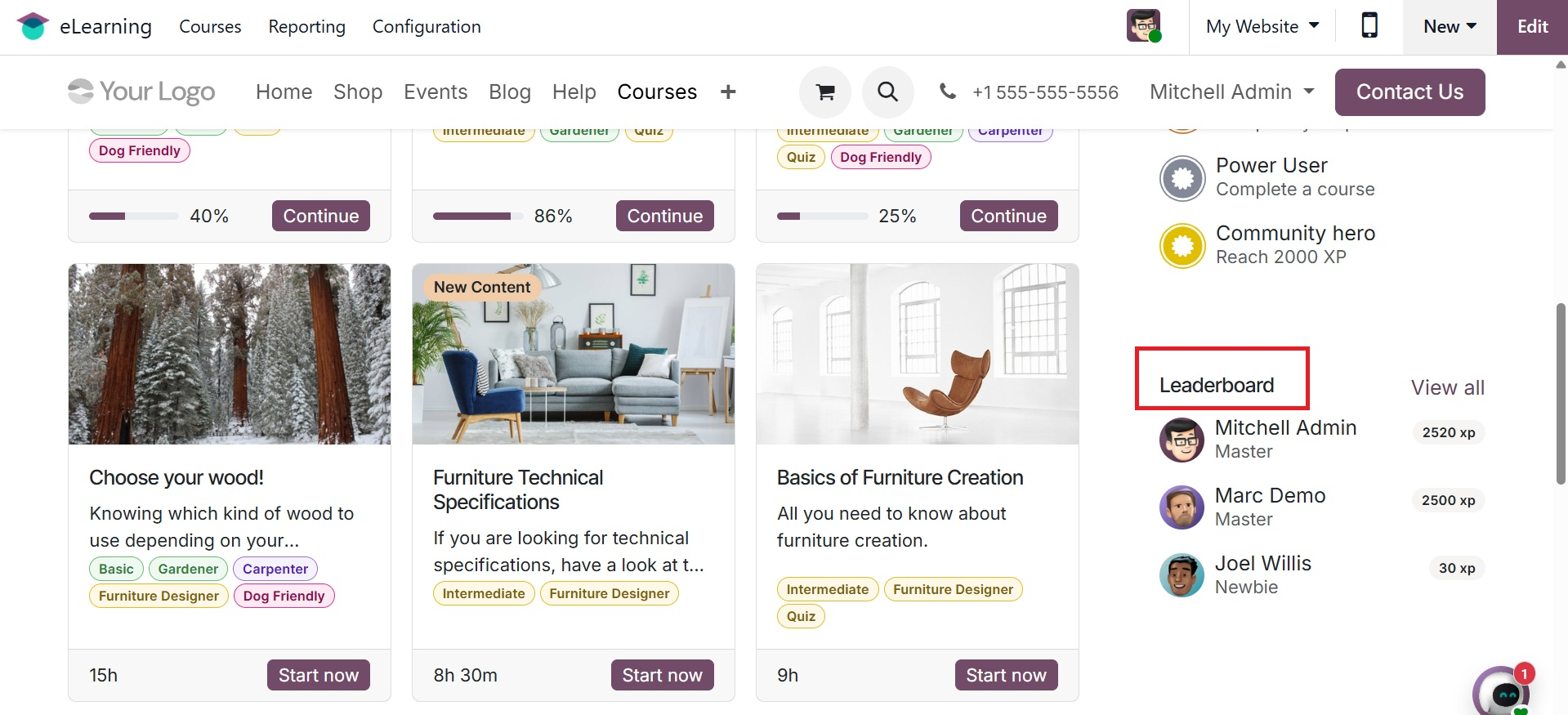
If the Leader board option is activated from the Customize menu, the leader board will show up on the course page as seen below.
1.2 Content
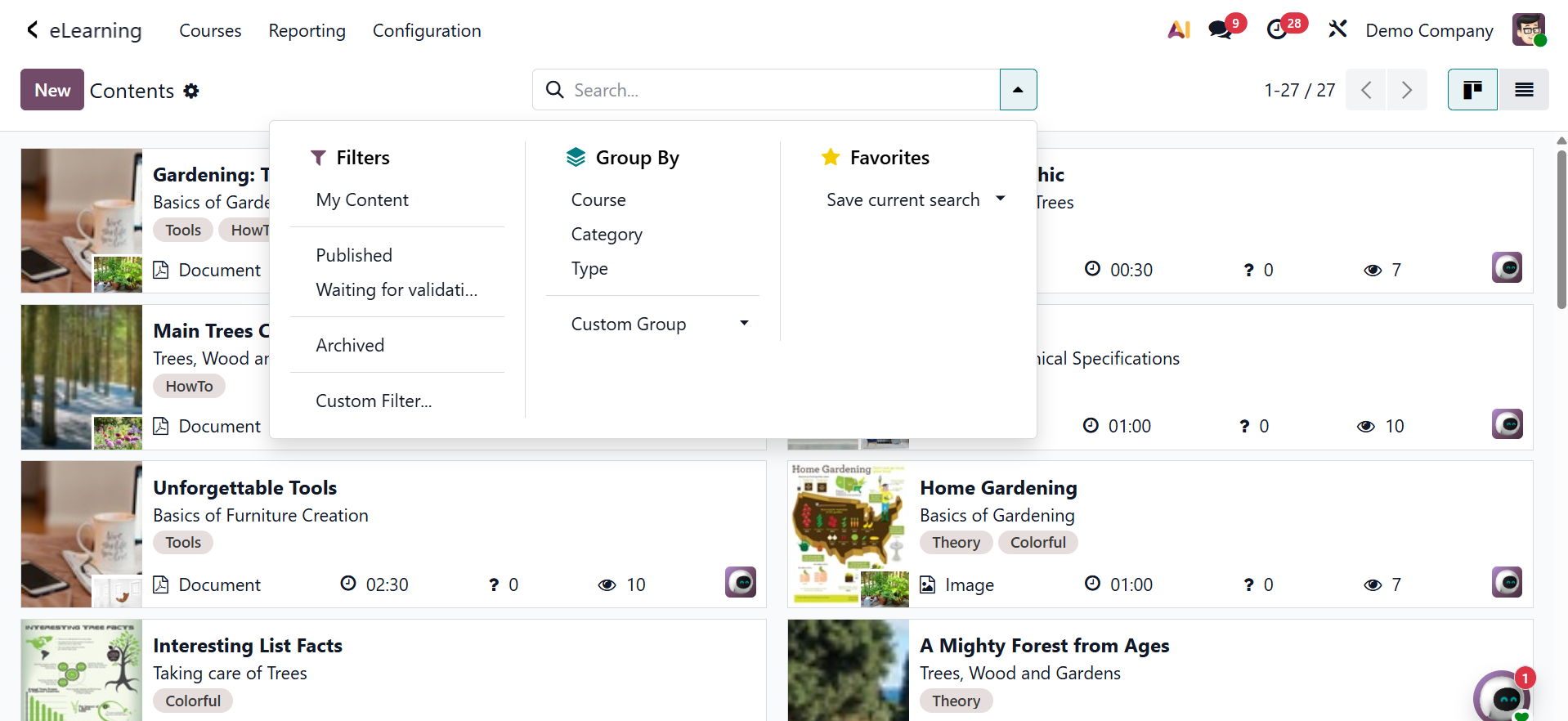
The Contents menu item under the Courses menu contains all of the generated content. As you can see below, a kanban view of all the generated content is available.
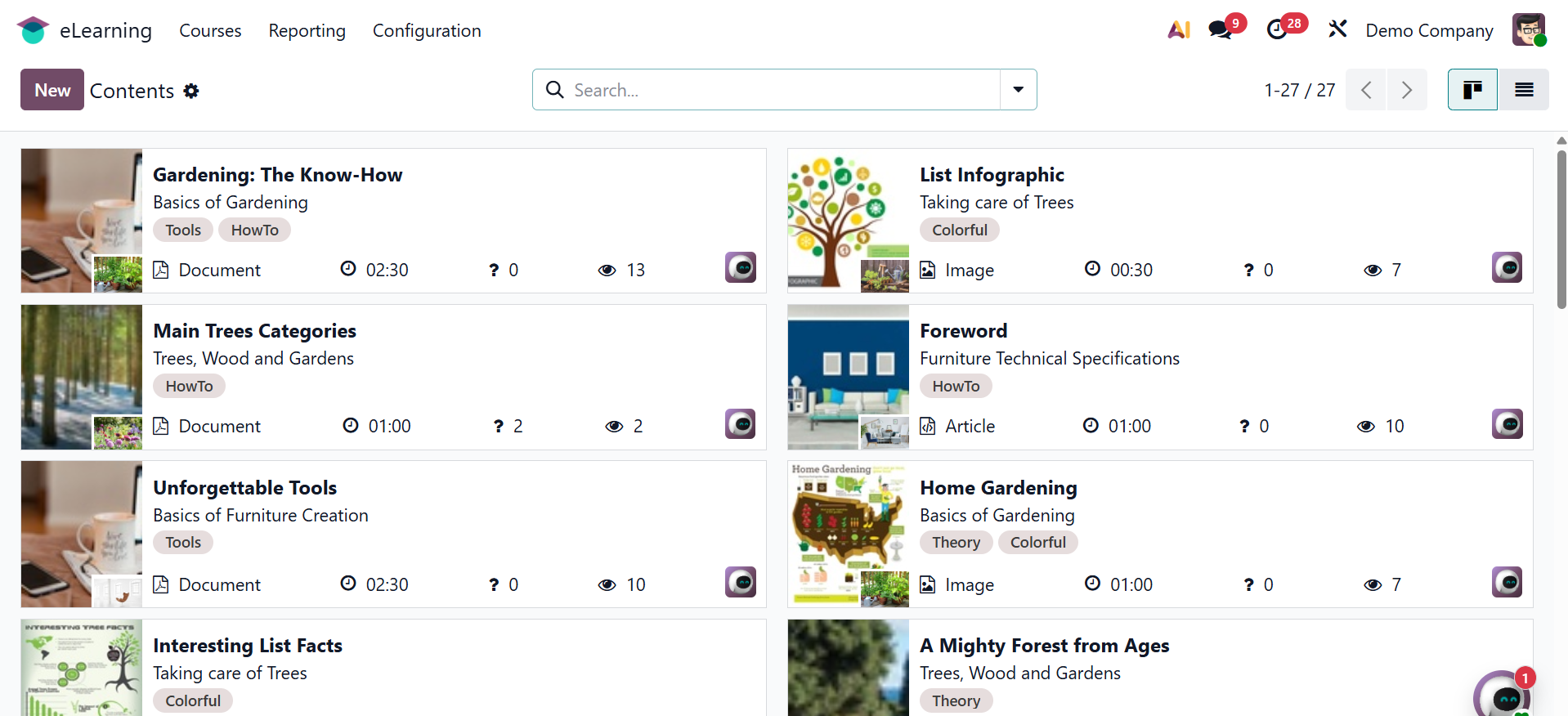
The content page offers search, group by, filter, and favorite options. Content can be sorted by Archived, My Content, Published, and Waiting for validation. It can be arranged according to Type, Category, and Course. Additionally featured are the custom group and custom filtering. By choosing the store's current search option, you can save the search as a favorite.
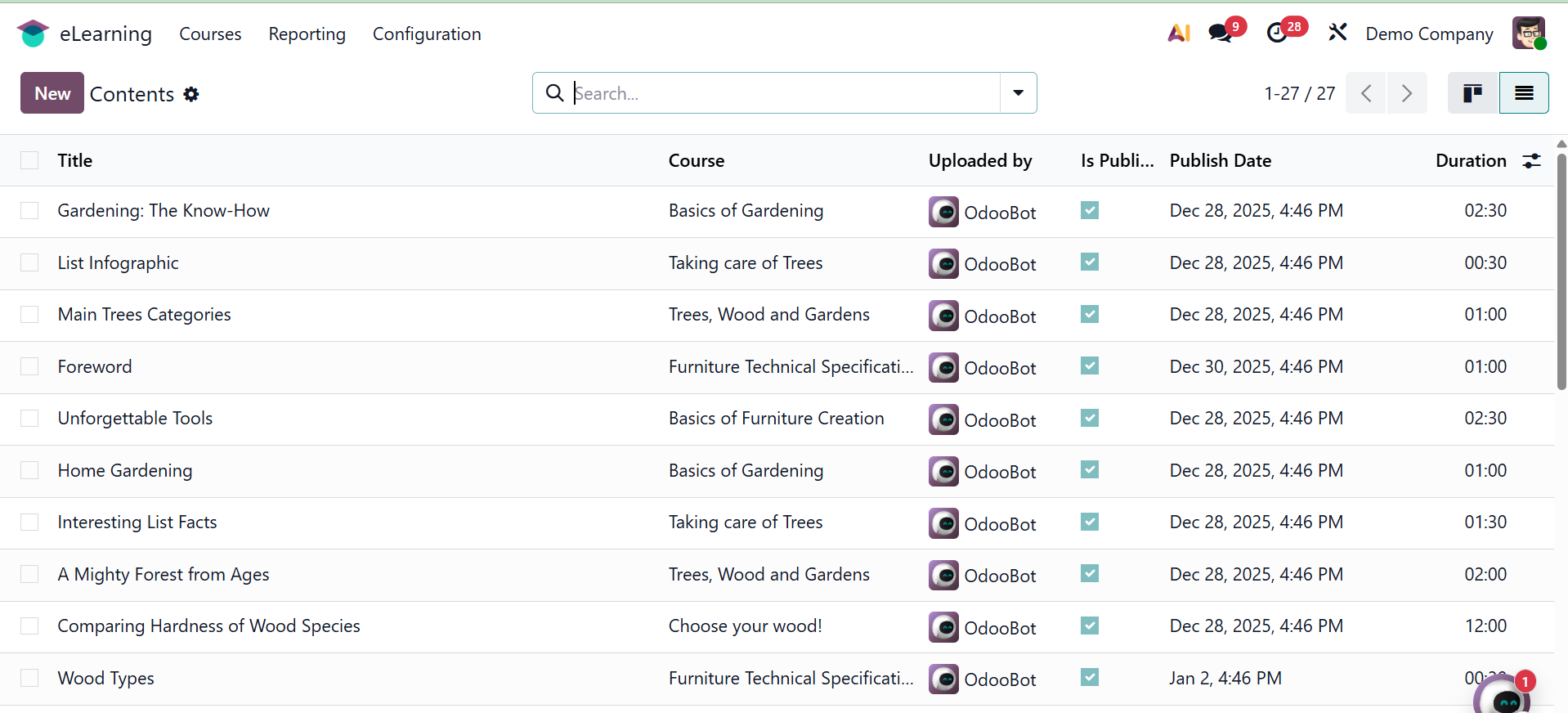
The contents list view shows information such as Title, Course, Uploaded by, Is Published, Publish Date, and Duration.
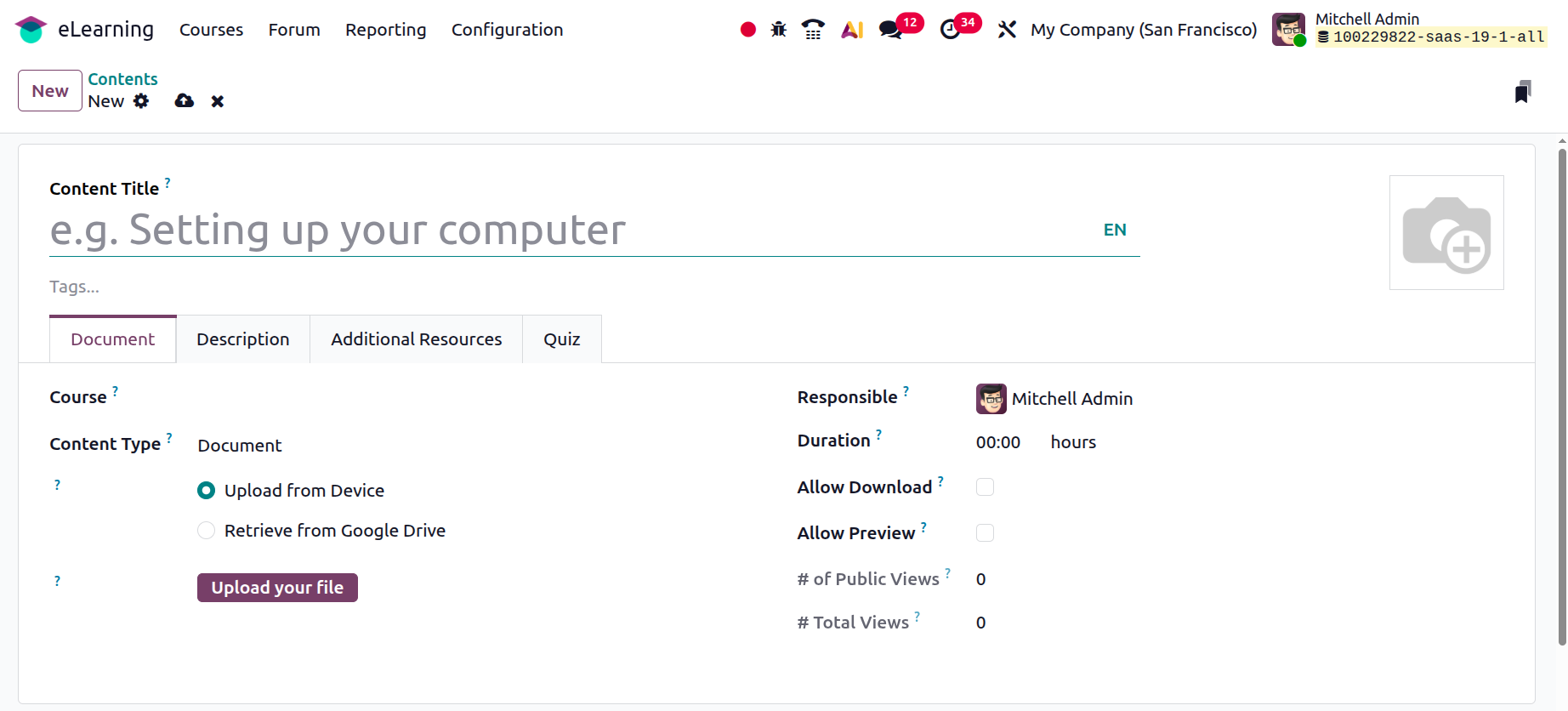
You can add new things by using the New button.
1.3 Certification
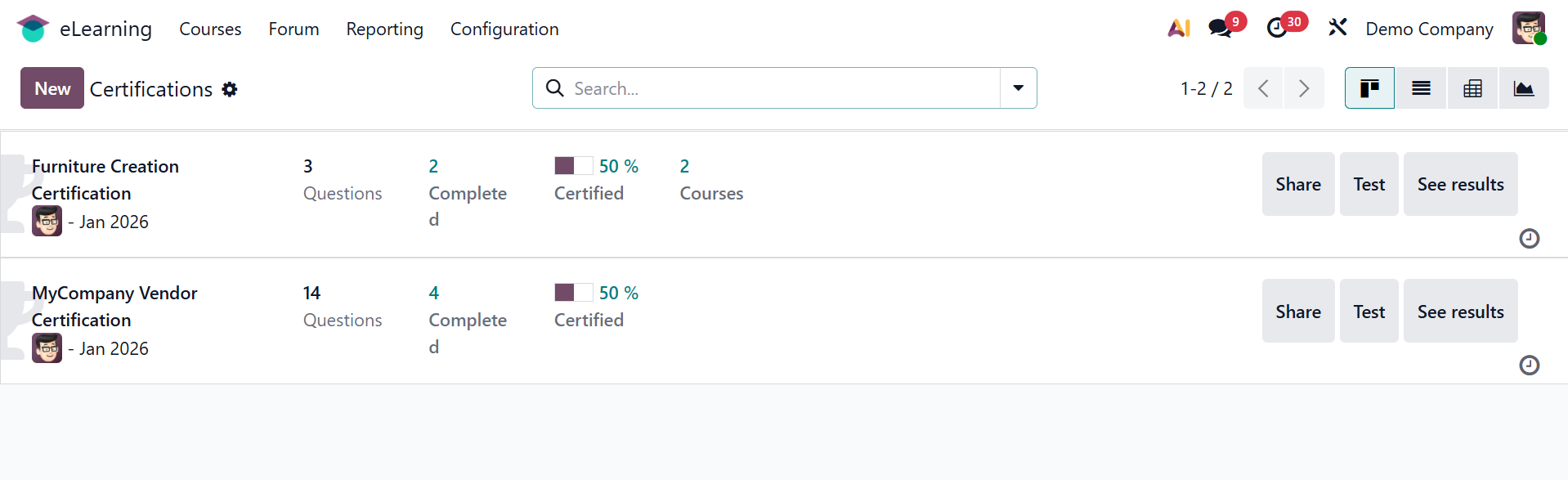
You will see the option in the courses menu after activating the certificates option from the settings page alone. The certification name, responsibility, restricted to, questions, and other revisions are all listed on the page. List, kanban, pivot, and graphical views are also available for viewing the page.
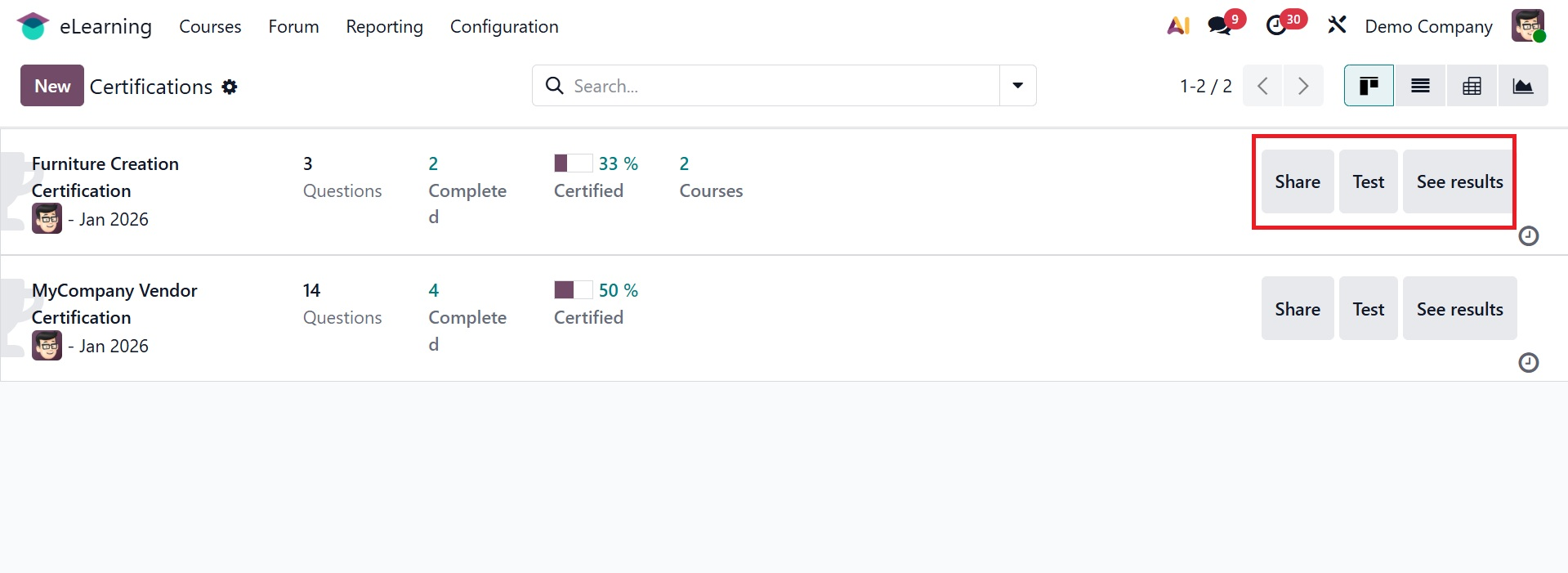
Each certification's options to Share, Test, and View results are displayed once the certification's data (such as average time, number of questions, courses, etc.) are accessed from the Kanban view. All certificates are displayed collectively in the certification field.
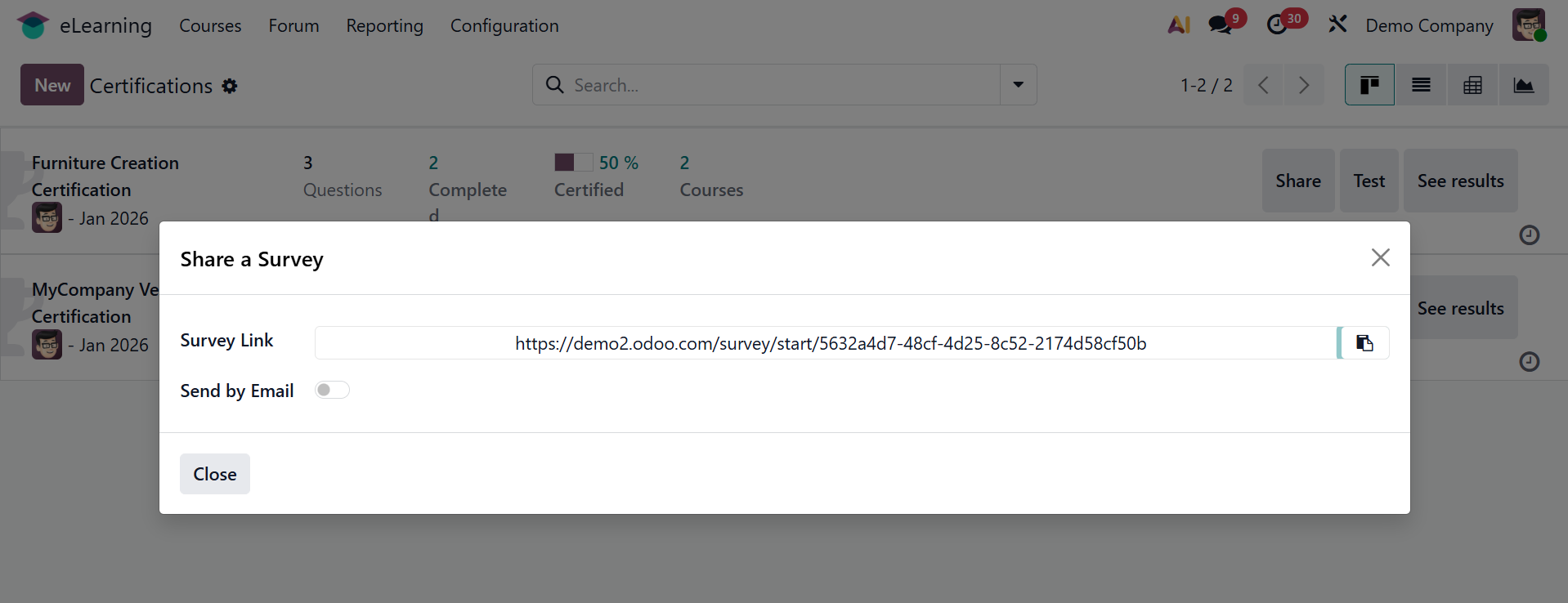
The survey URL appears in a new popup window that you can send after selecting the Share option.
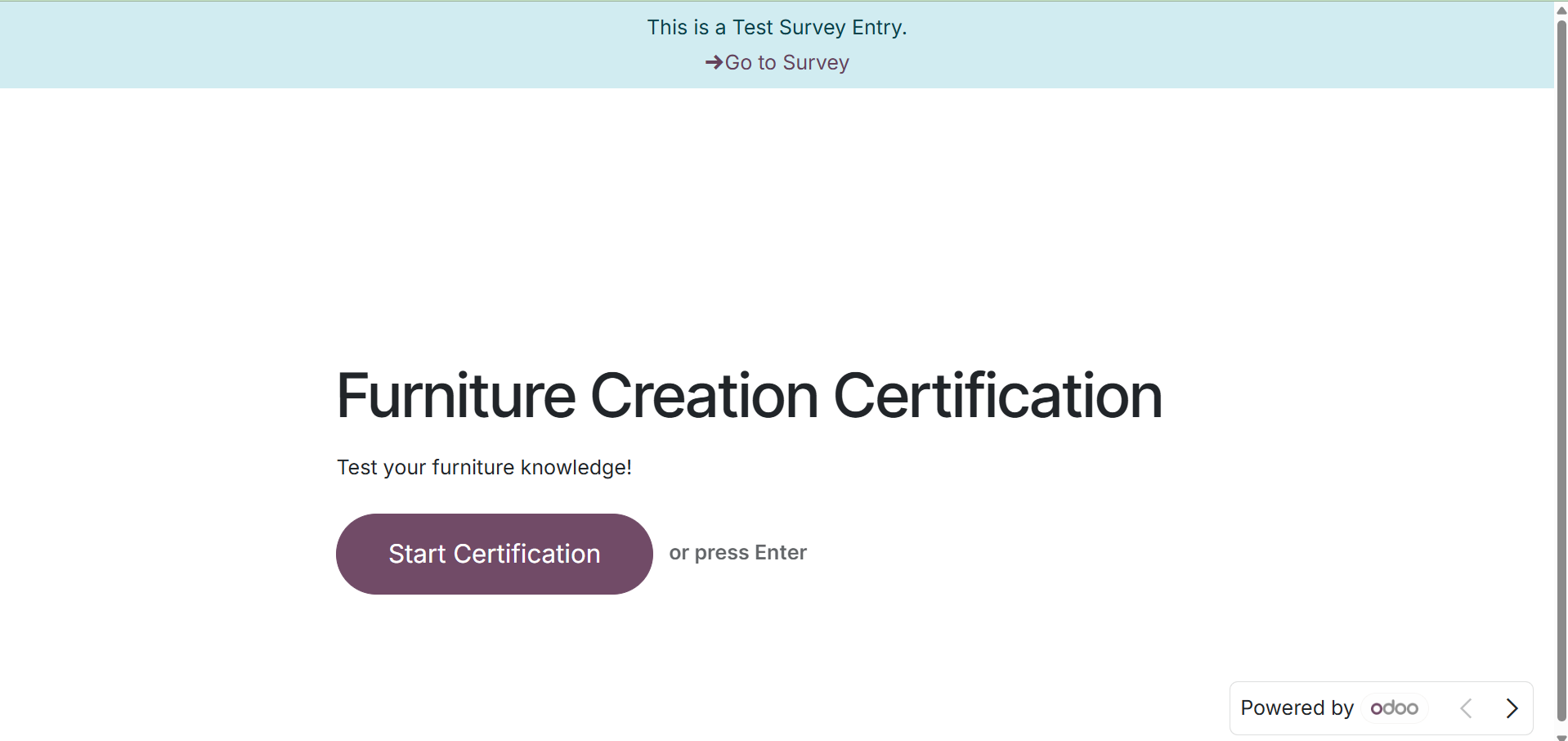
By selecting the Test button, the user can evaluate the certification program. By choosing the Start Certification option, users can start testing.
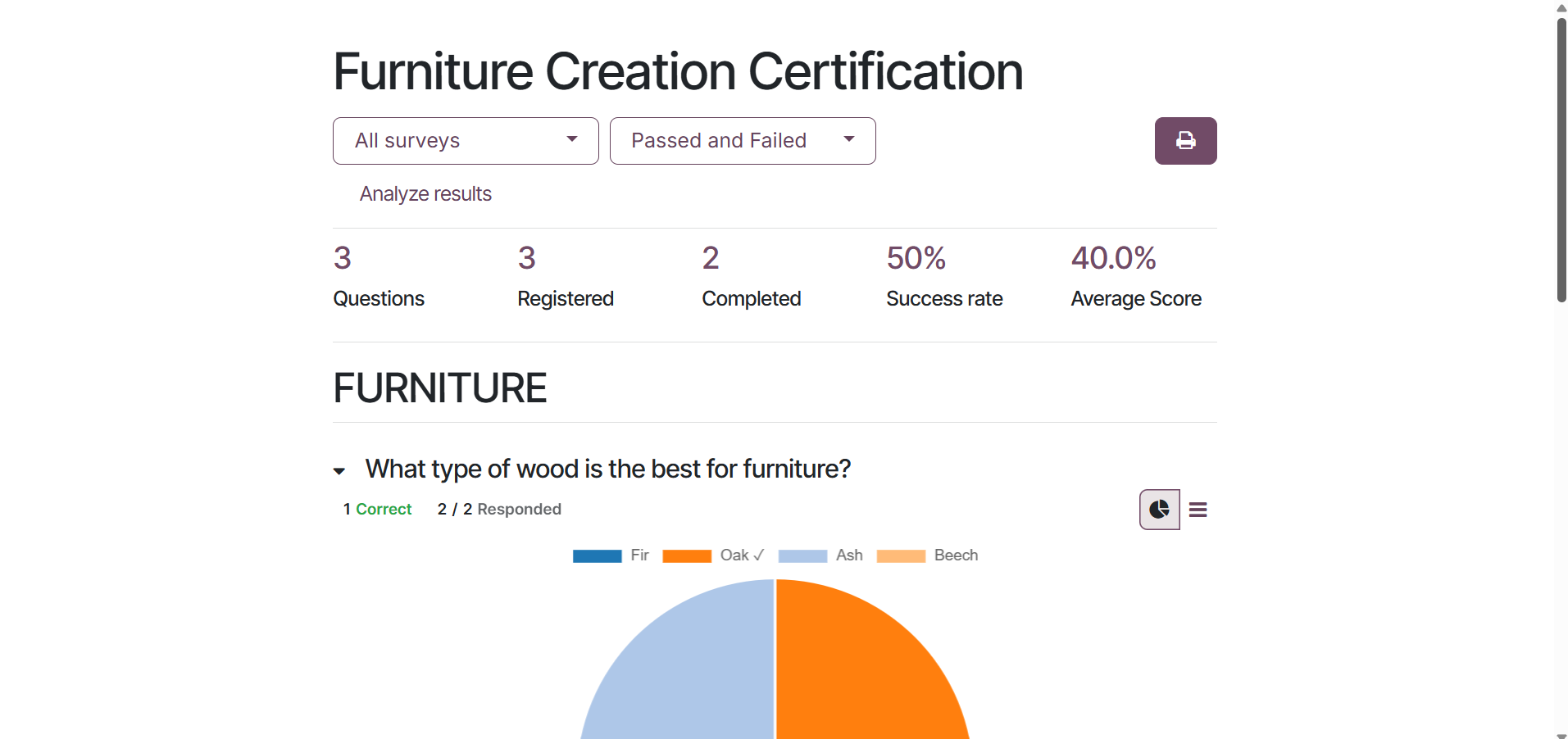
By choosing the "See Results" option, you may then look at the result summary, user response, and other information displayed on the screen.
List view, pivot view, kanban view, and graph view are some of the viewpoints that are offered.
To begin a new certification, click the New button.
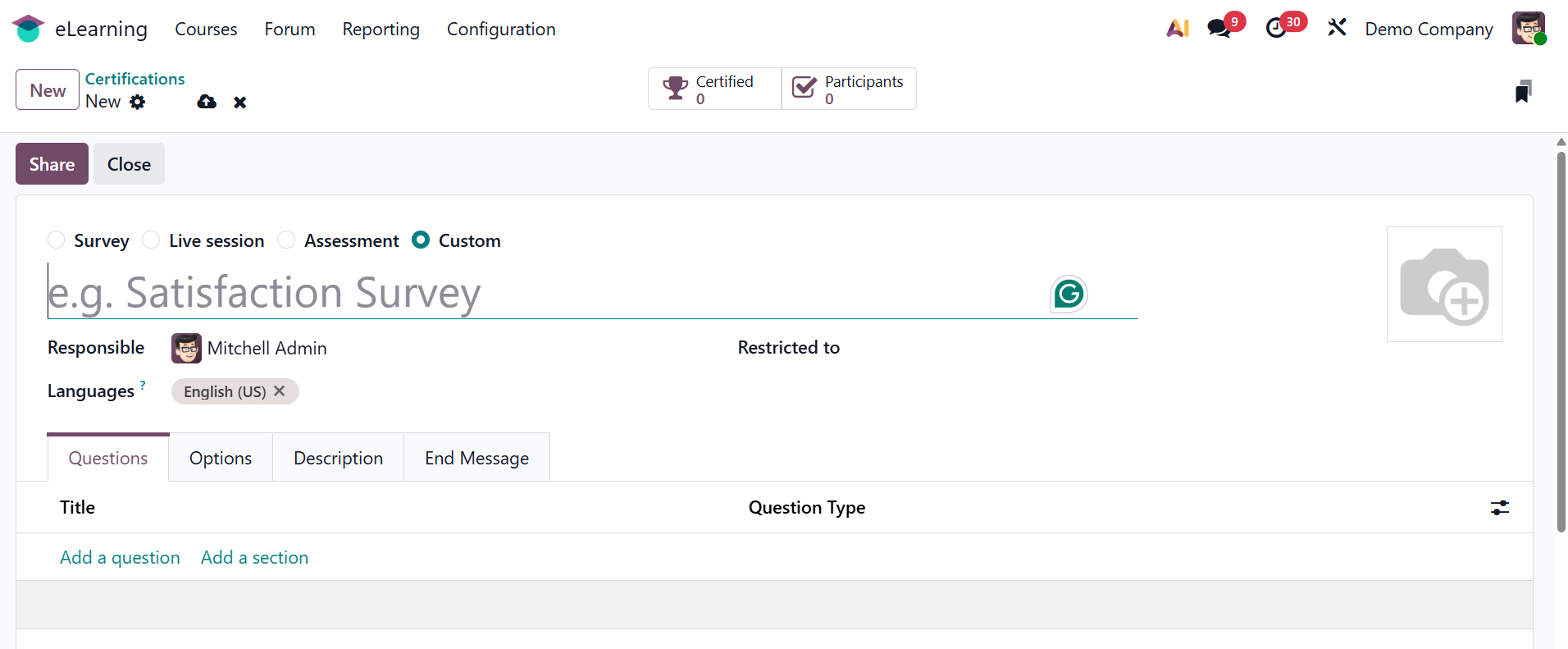
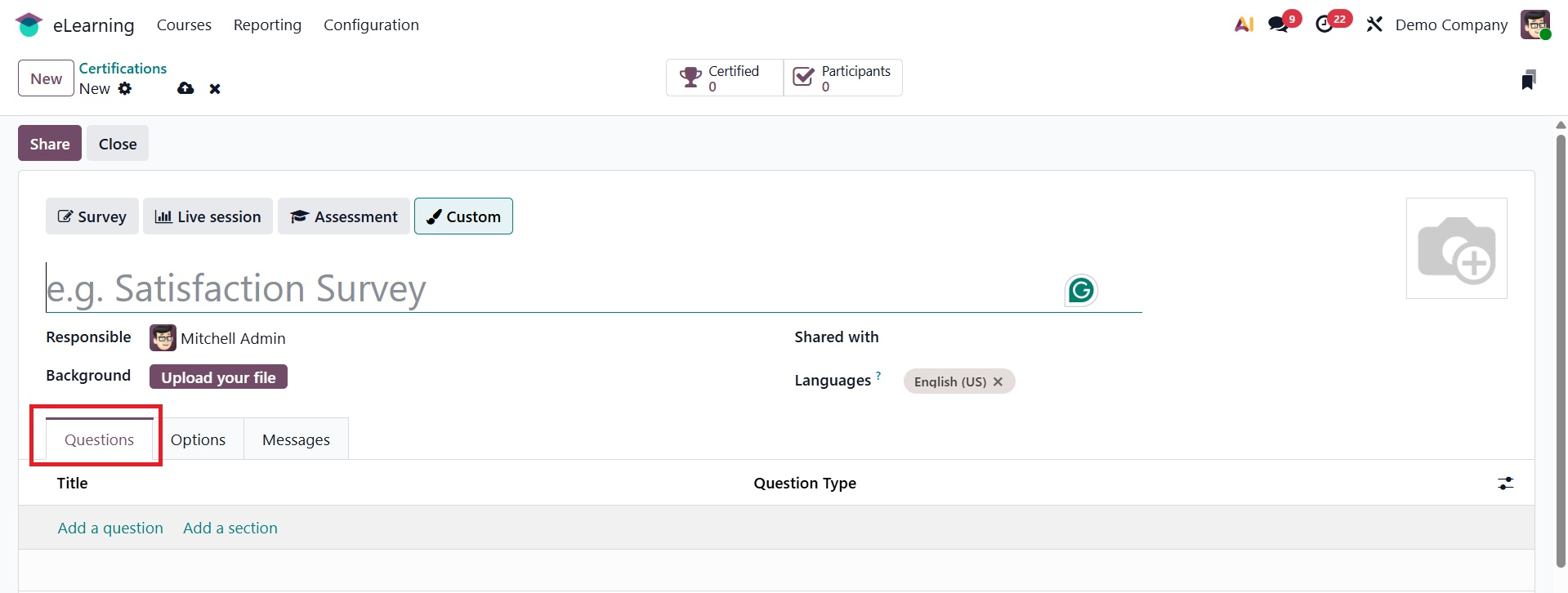
The certification name, the responsible, and restricted to options can be entered here, and all the information can be added appropriately. Options like Add Section and Add Content are available under the Questions tab. Click Add a section to add a section to your certification, as illustrated below.
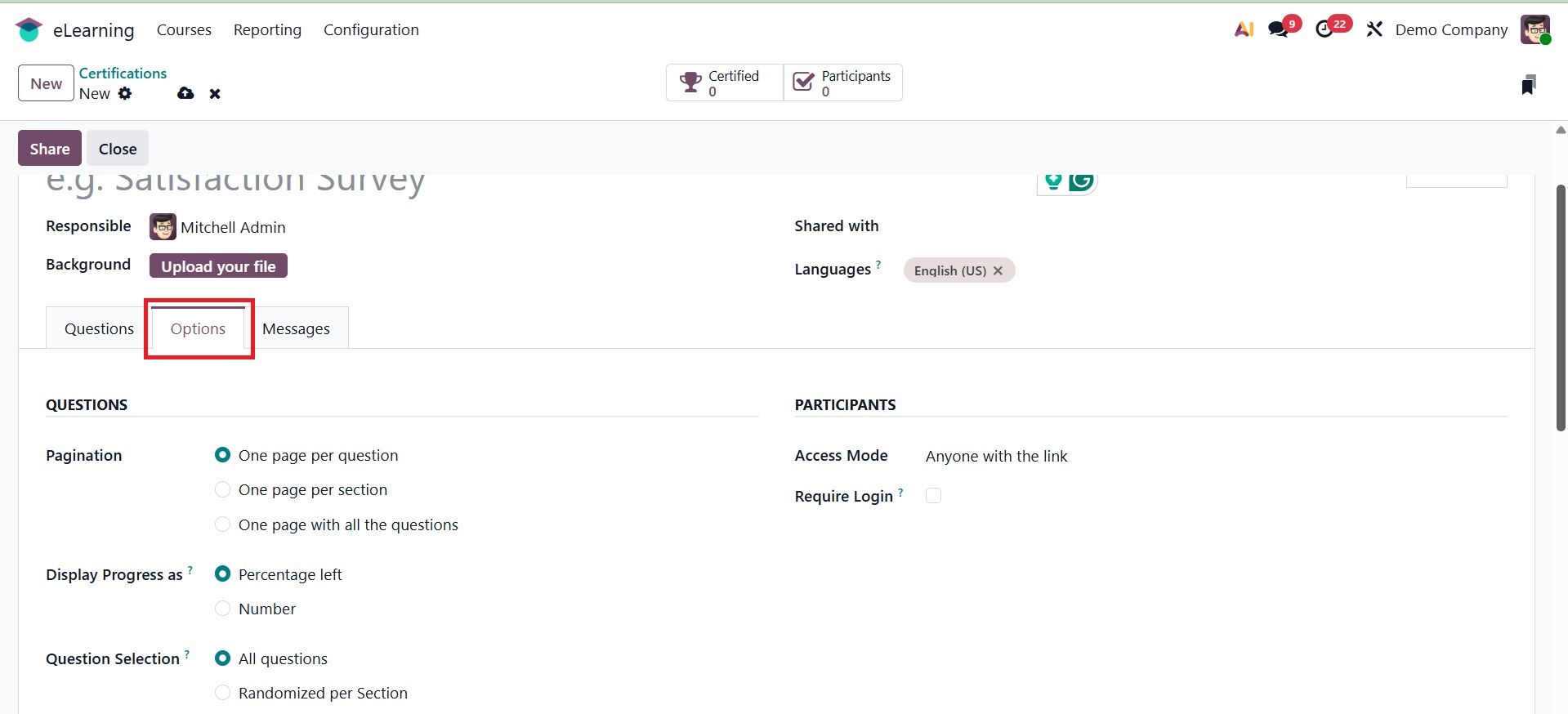
Questions, Participants, and Time & Scoring are the three areas under the Options tab. One page per question, one page per section, or one page containing all questions are among the pagination choices available in the Questions section. You have two options under the Display Progress: Percentage left, which shows the percentage of questions that need to be answered, or Number, which shows the number of questions that need to be answered. To determine the questions for participants, you can choose Randomized per Section or All questions in the Question Selection section. Permit roaming so that participants can go back to the previous page. You can specify Access Mode in the Participants area to allow either invited individuals only or anyone with the link. To have participants log in while responding to the questions, turn on the Require Login option.
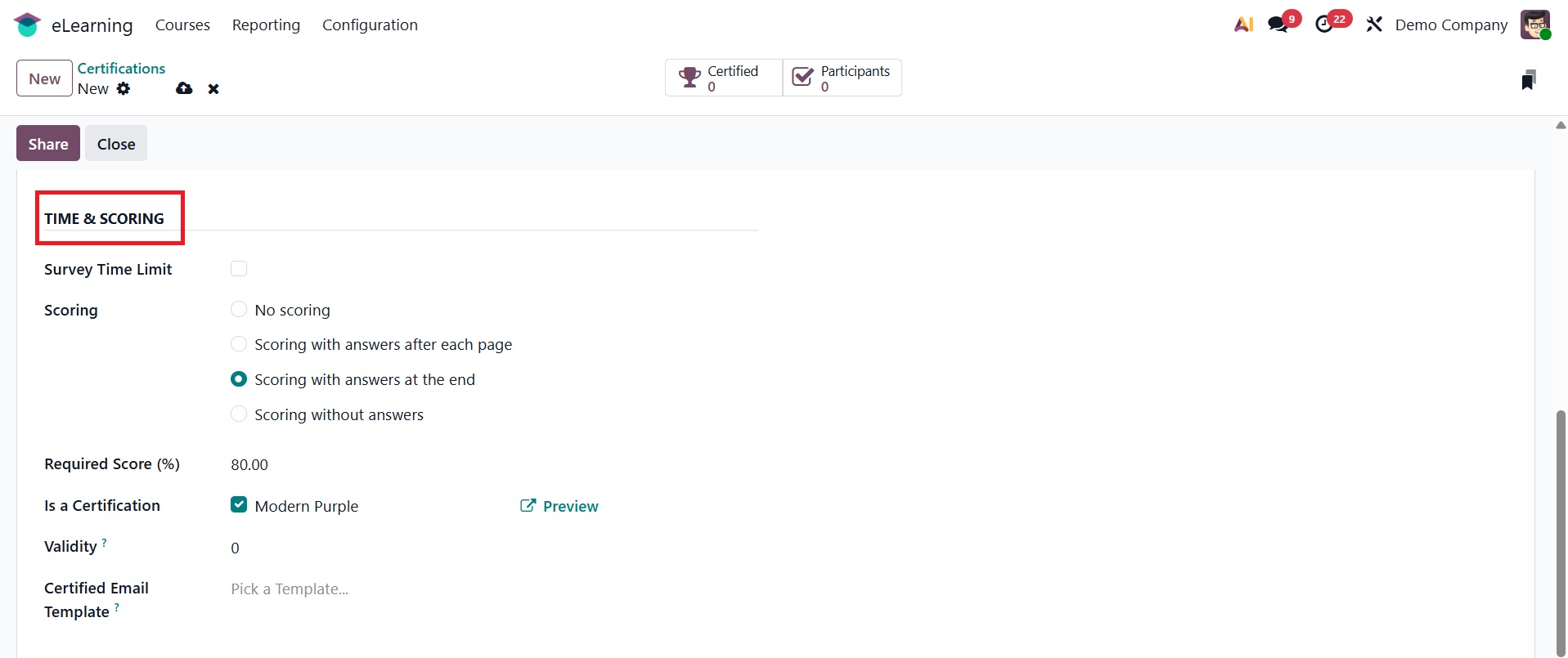
Add a time limit using the Survey Time Limit option in the Time & Scoring section. You have three options for scoring: no scoring, scoring with answers at the end of each page, either scoring with or without answers at the end. Add the percentage score needed to obtain the certificate under the Required Score (%). You can choose the certificate's theme from the choices in the "Is a Certification" option. To specify how many months the certificate will be valid, use the Validity option. Choose a predefined email template from the Certified Email Template option to have it sent automatically once the process is finished. After saving it, the certification is prepared.
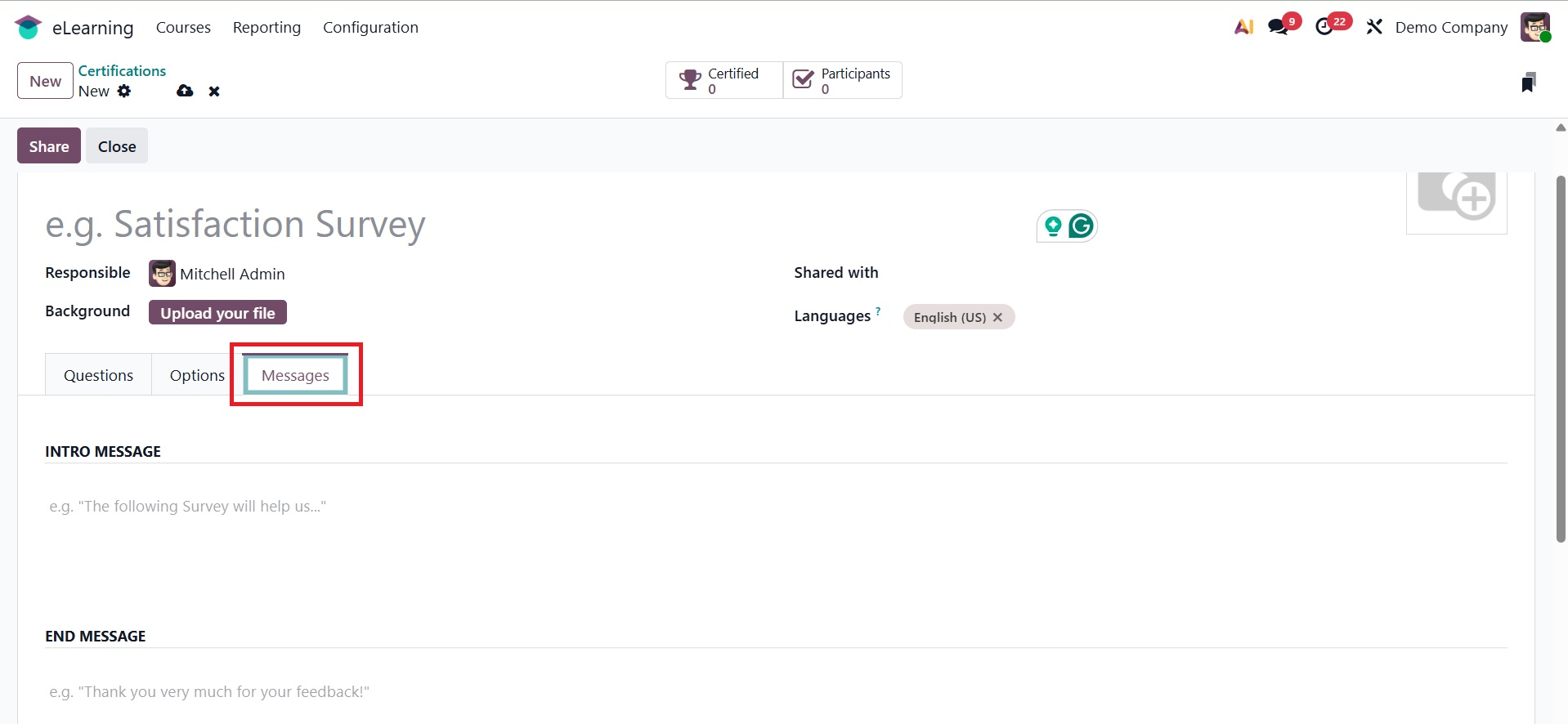
Under the Messages tab, you can add intro message and end message, as shown below.
Finally, you can save the data.