Customizing Job Postings
Users of Odoo's website builder have the option to include thorough job descriptions and other relevant information. Employers have the authority to specify the duties, requirements, and any other special requirements that are required of candidates. Using the many editing options under the "Edit" section, the job post's layout and appearance can be customized to reflect the company's identity and aesthetic.
Then, by dragging and dropping construction components from the right panel, you can easily customize your Job portal using the editing tools, which include numerous Blocks, Style, and Theme tools. As shown in the screenshot below, I simply changed the job post name to "Sales Manager" for a straightforward demonstration.
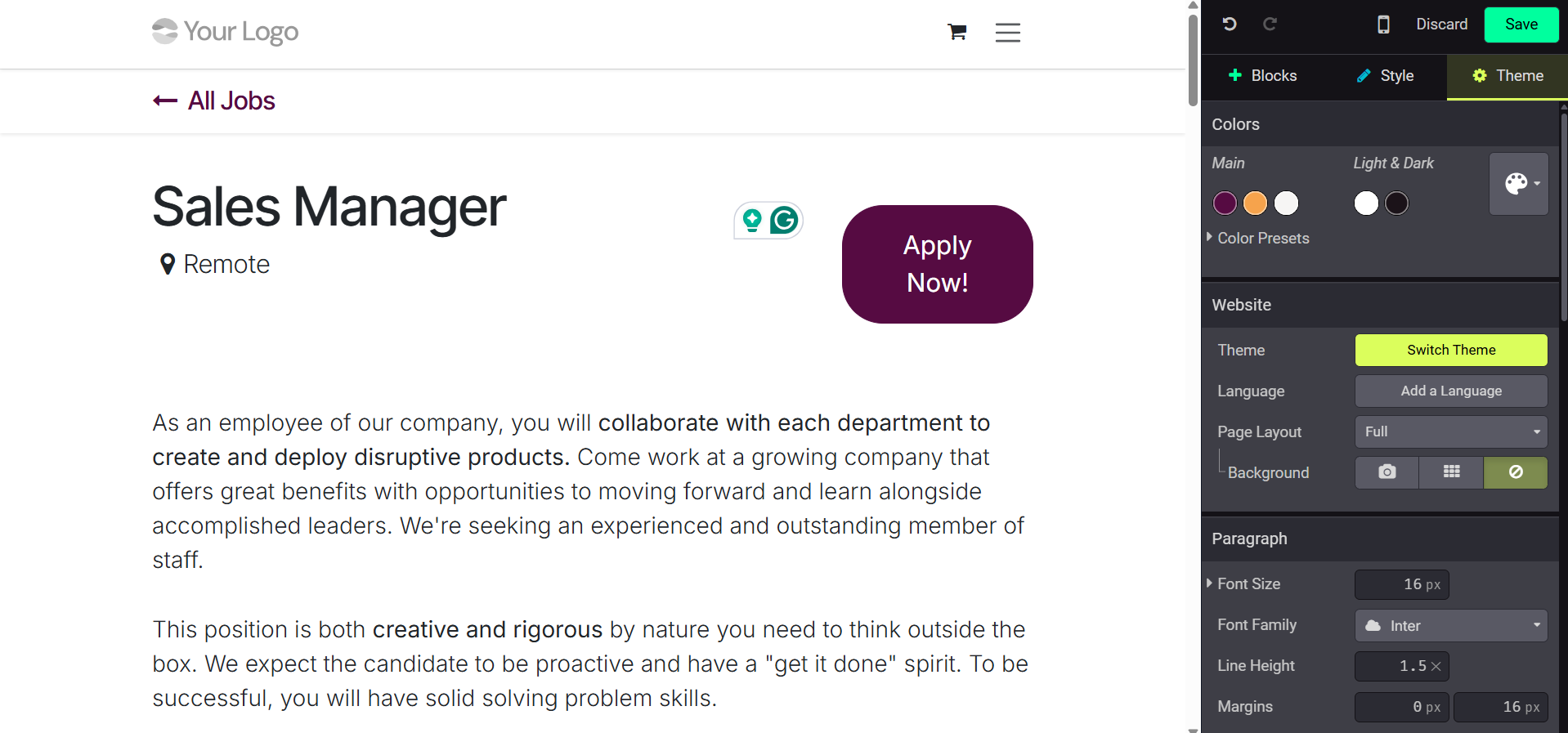
You can alter pages as necessary after selecting a theme from Odoo 19's built-in options or the Odoo App Store. Additionally, you can modify the website's content using the text tools that are typically used in documents, such as font size, color, italics, bold, underlining, etc. Click "Save" to implement the layout and design after you're satisfied.
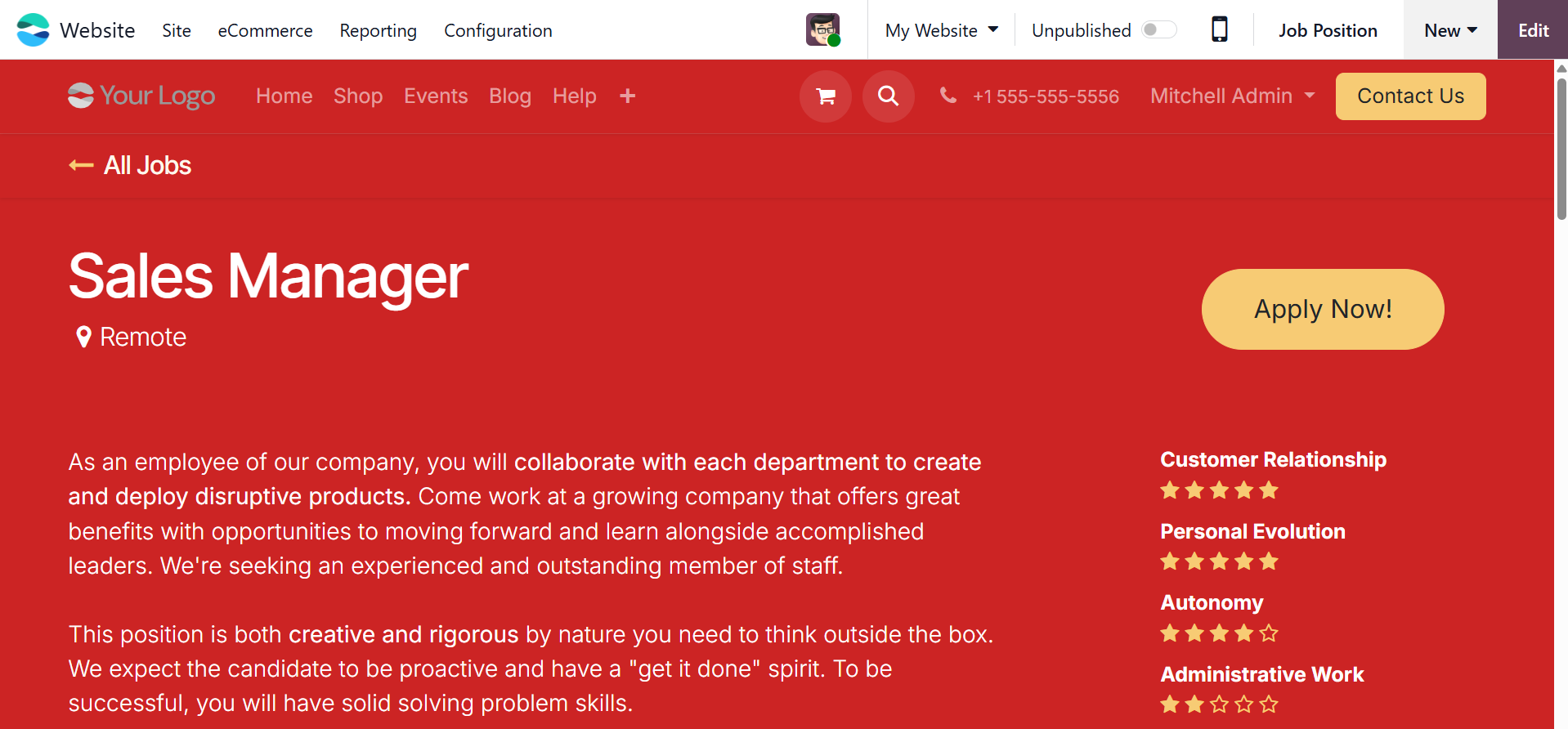
These job ads are instantly accessible on the company's website following the online job generation and interface design. Because these postings are dynamic, they are always subject to change. As shown in the screenshot below, users can modify the job posting by selecting the Job Position button, which launches a comprehensive editing window.
Odoo 19's job editing page allows users to customize a number of crucial job-related fields. Among these is the job title, which is the position's formal title. Users can establish an email alias to receive resumes, set the job location and industry, and designate the position to a certain department on the "Details" tab. These fields aid in the creation of Odoo application records. The hiring company, the target number of interviewers, the employment type (e.g., permanent, temporary, full-time), and whether to post the job online can then be specified.
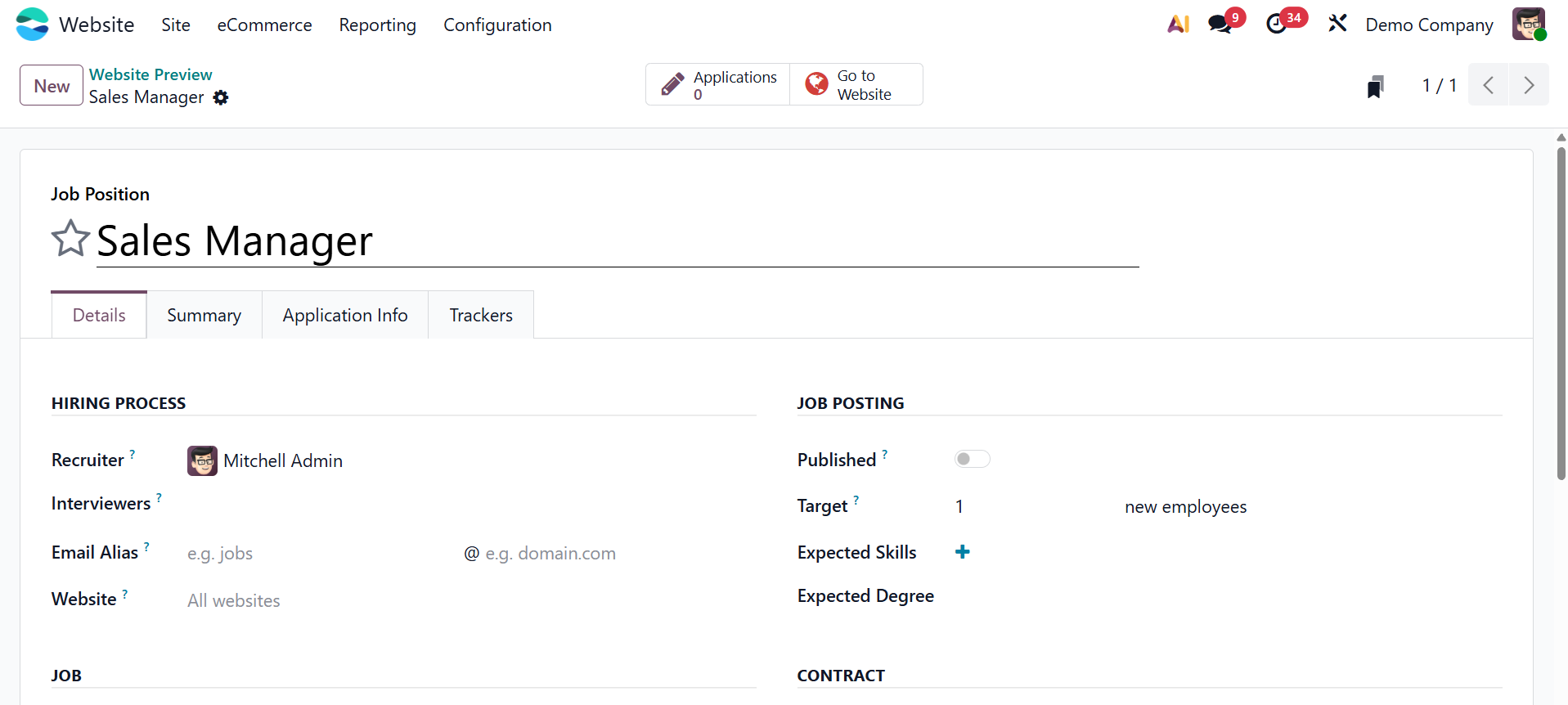
Choosing the listing's website, designating a recruiter and interviewers, attaching an interview form for applicants, and connecting a contract template for job offers are further choices. Additionally, you can include the candidate's Expected Skills, working schedule, salary range, and mission date.
- Expected Degree: Indicates the minimal or ideal level of education needed for job applicants.
- Company: This information, which is particularly helpful in multi-company settings, identifies the firm entity providing the job post.
- Department: Identifies the internal team or department inside the business to which the position belongs.
- Job Location: Indicates the actual or virtual location where the work will be done.
- Employment Type: Describes the type of work, including contract, internship, full-time, and part-time.
- Contract Template: Establishes the predetermined provisions of the employment contract that will be used when a candidate is hired.
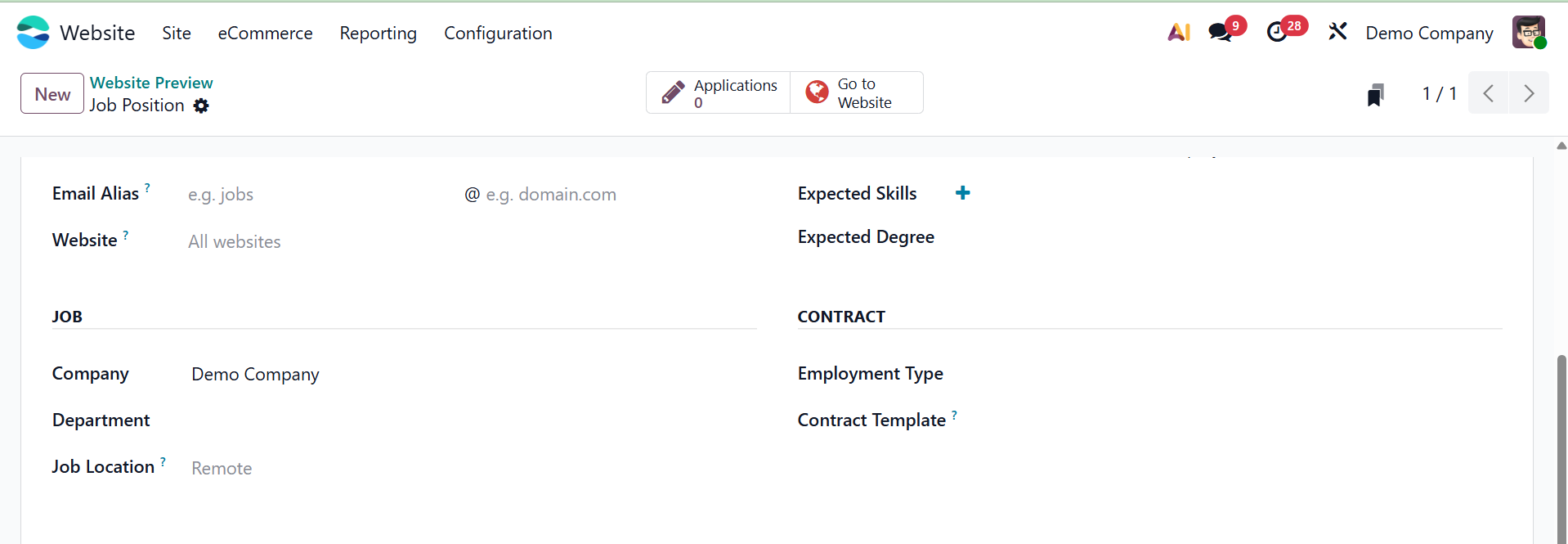
By using the "Published" button in the upper-right corner of the form display, you can control a job posting's visibility from the Odoo backend. By toggling this button, you can quickly publish or unpublish the job posting without navigating the website's interface. This provides a quick and useful way to manage the availability of job postings, ensuring that candidates can only see them if you give them sufficient details.
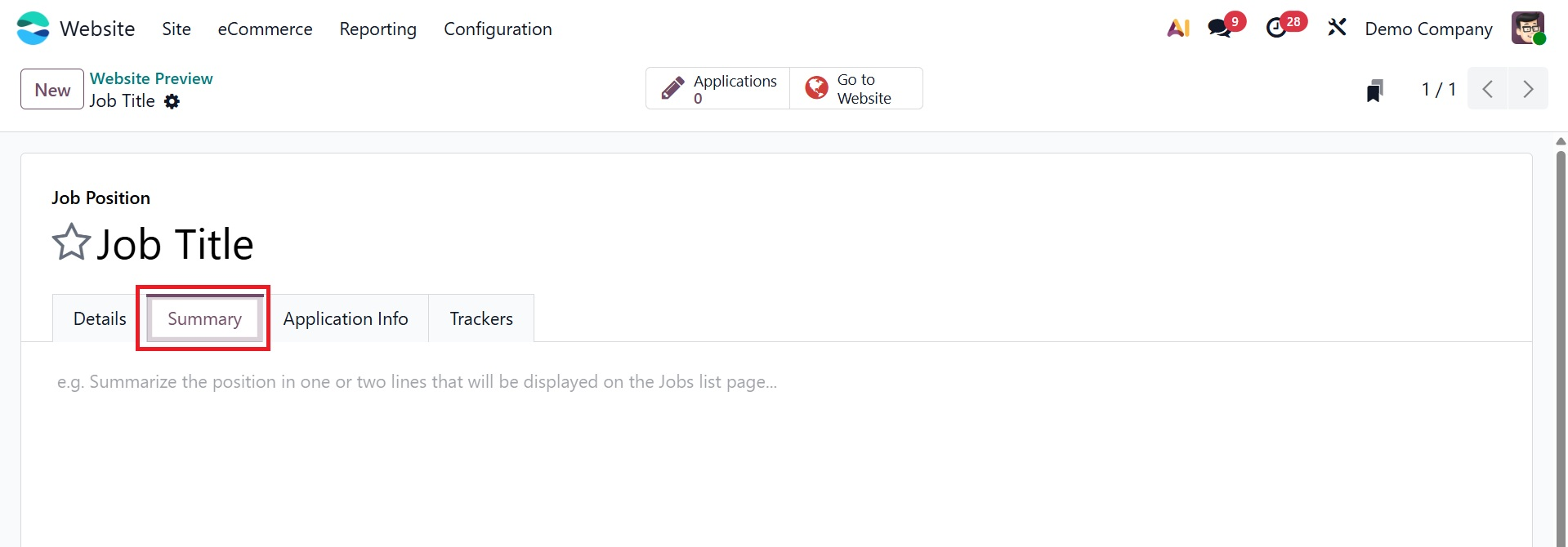
The "Summary" page offers a concise synopsis of the main facets of the job role, assisting internal teams and candidates in comprehending the goal and extent of the work.
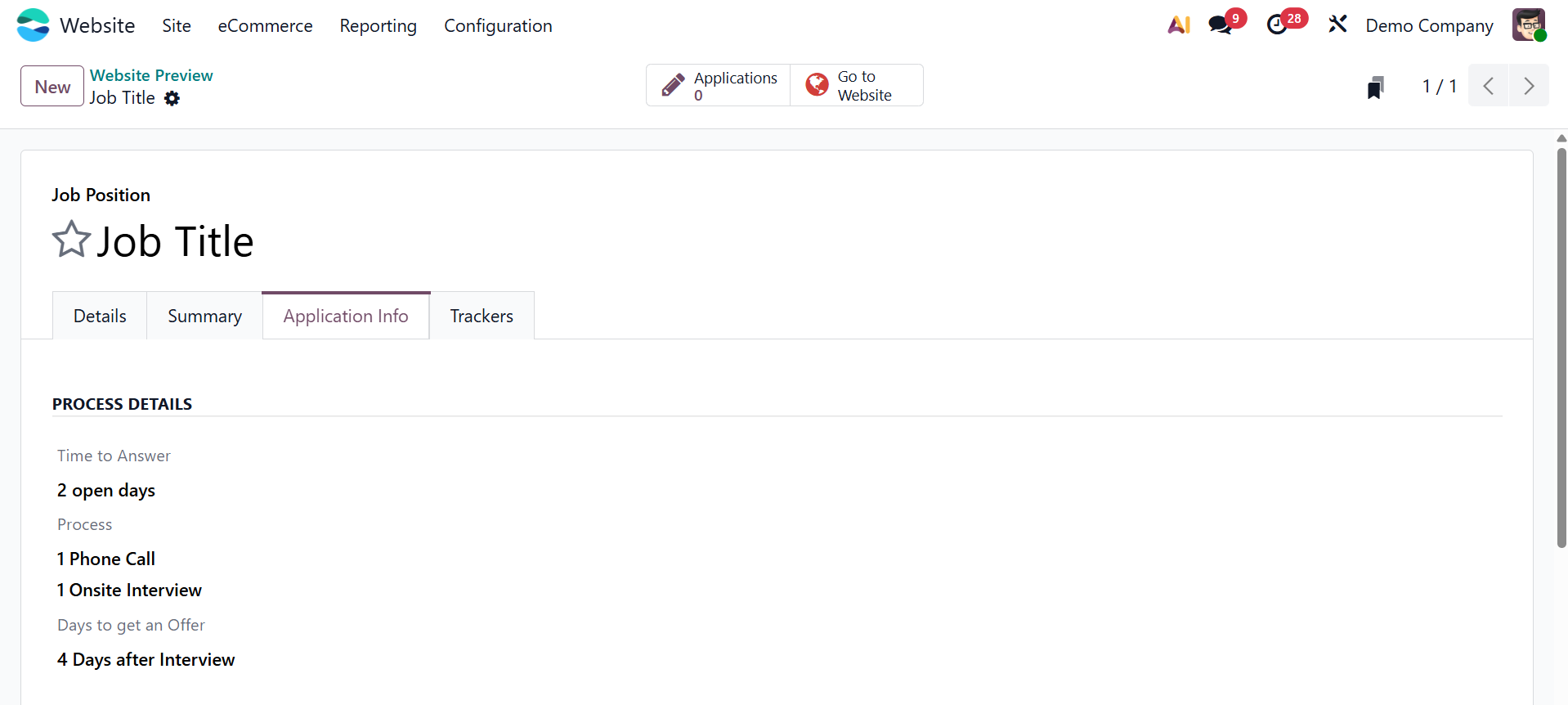
Managing incoming job applications is the main focus of the "Application Info" page. In order to provide consistent and well-organized application administration, it enables you to specify the interview process, including response time, process steps, and projected days to receive an offer.
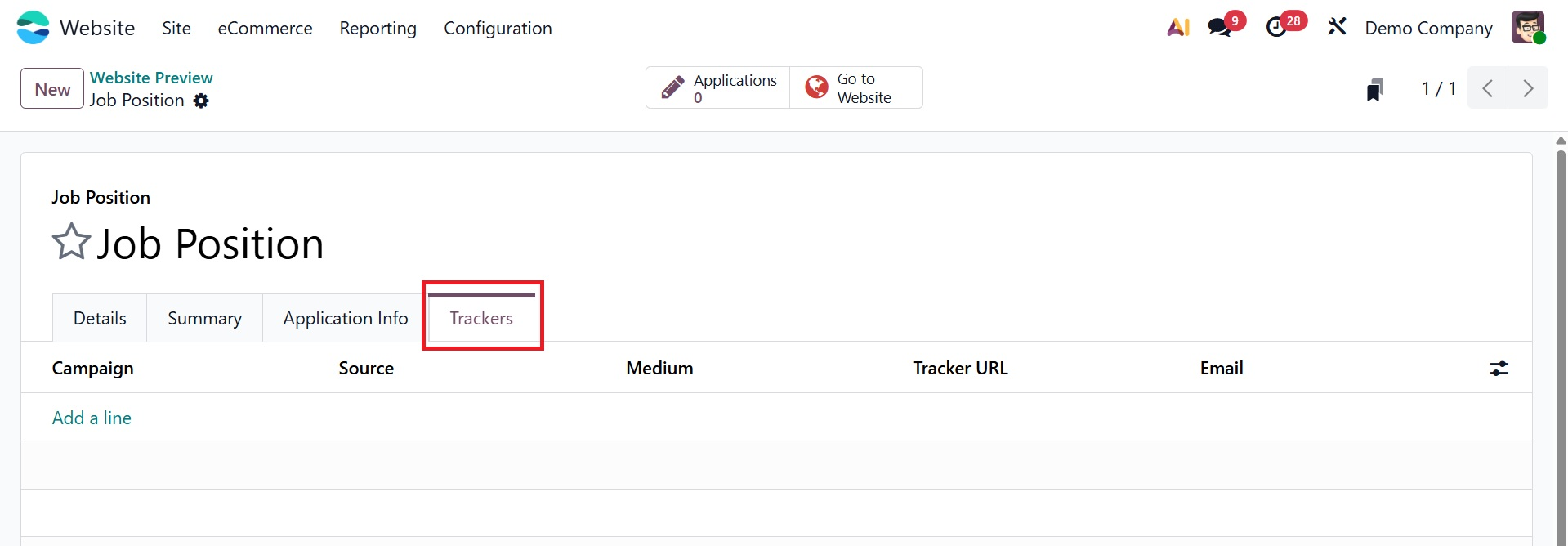
To add and manage monitoring scripts or analytics tools (like Google Analytics or conversion trackers) to track visitor activity, job application performance, and recruiting efficacy on the job posting page, use the Trackers tab in the Odoo online job website preview page.
For quick access to recruitment and employment-related information, after creating the position, click the "Go To Website" button to check and apply to the job posting website. Additionally, you may monitor and manage the Job Position under the "Jobs" option from the "Site" page using the backend of the Odoo 19 Website module. You can review, edit, or update job ads as needed by seeing the list of all your website's job postings, as demonstrated below.
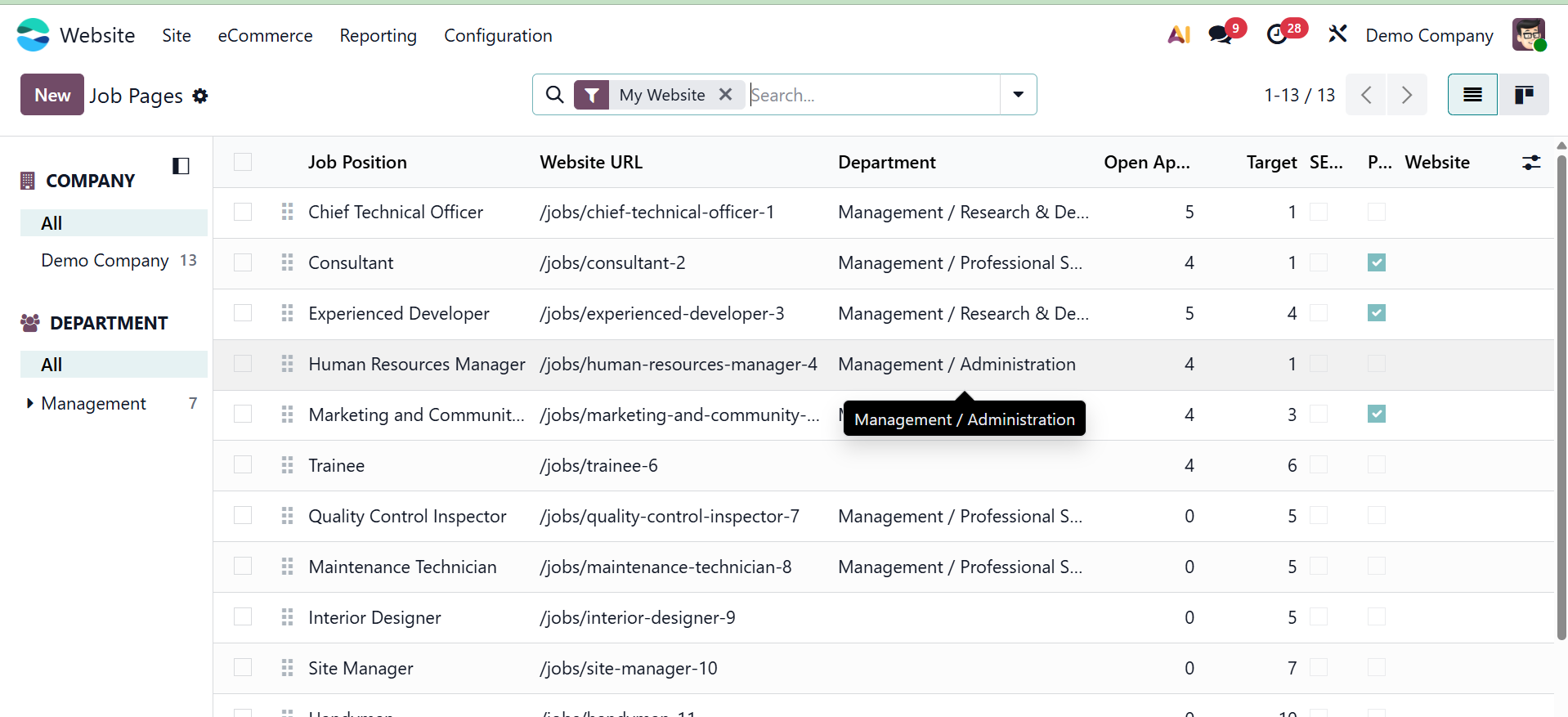
You can access the form view by just clicking on the column to see additional information about the specific employment vacancy.