How Smart tabs can be added to a Form
For the immediate tasks that can be completed, the Odoo19 applications' use of smart tabs is essential. You can define many smart tabs of operations that can be used for direct functions using the Odoo19 Studio module. You can set the Smart Tab by selecting the Studio programs for any module, as shown in the screenshot below. After that, the editing window will show up. The plus symbol shown in the screenshot below can be chosen here.
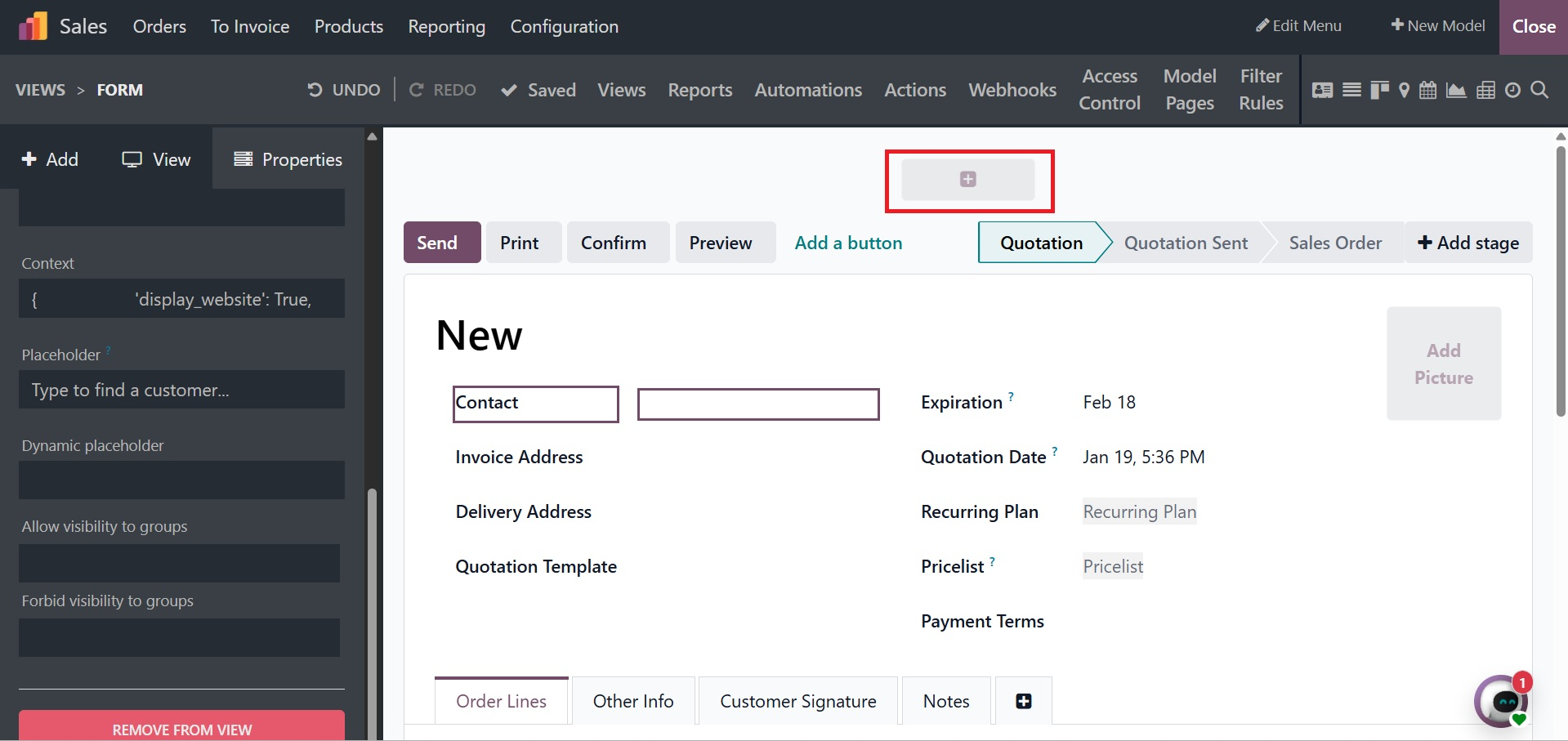
The settings box will appear when you click the plus symbol to add the smart tabs. In this instance, choosing the Label and defining the Icon first is feasible.
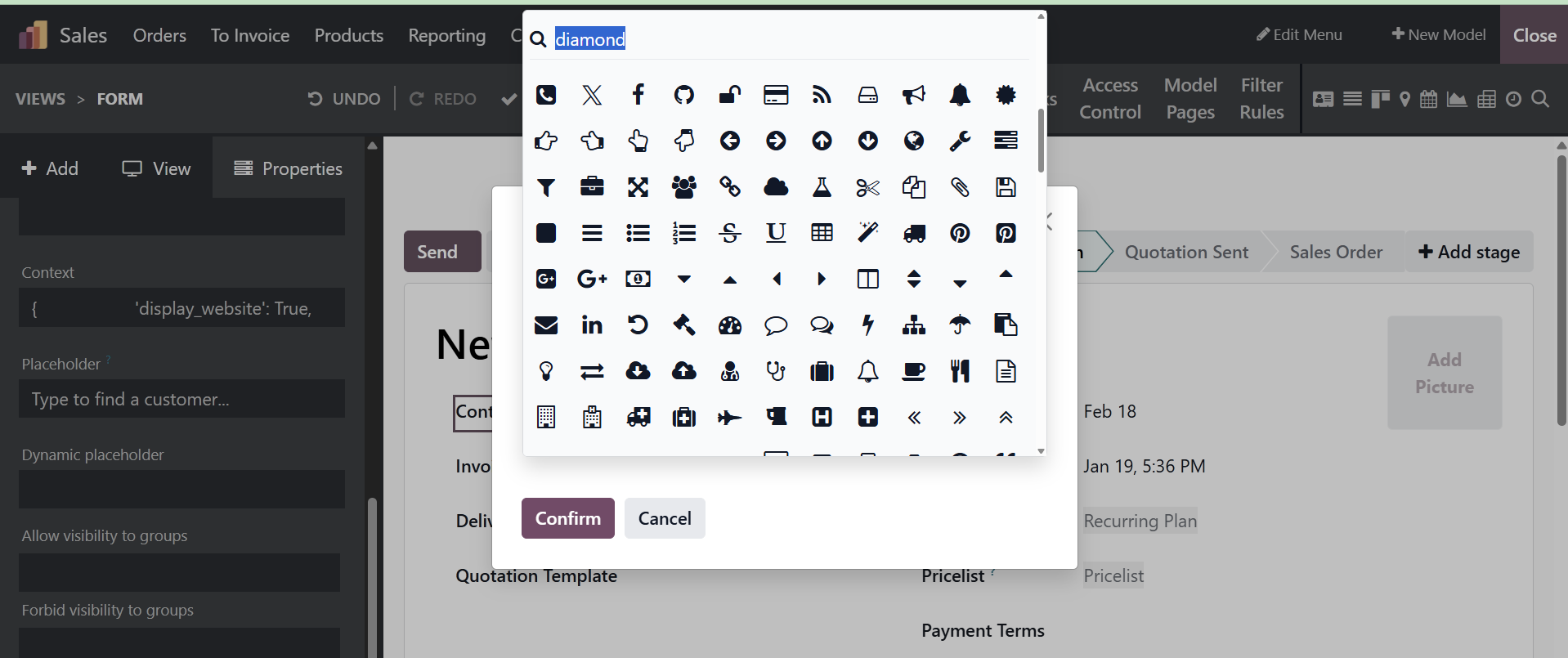
Additionally, choose a relevant field from those listed for the platform that will serve as the foundation for the smart tab action.
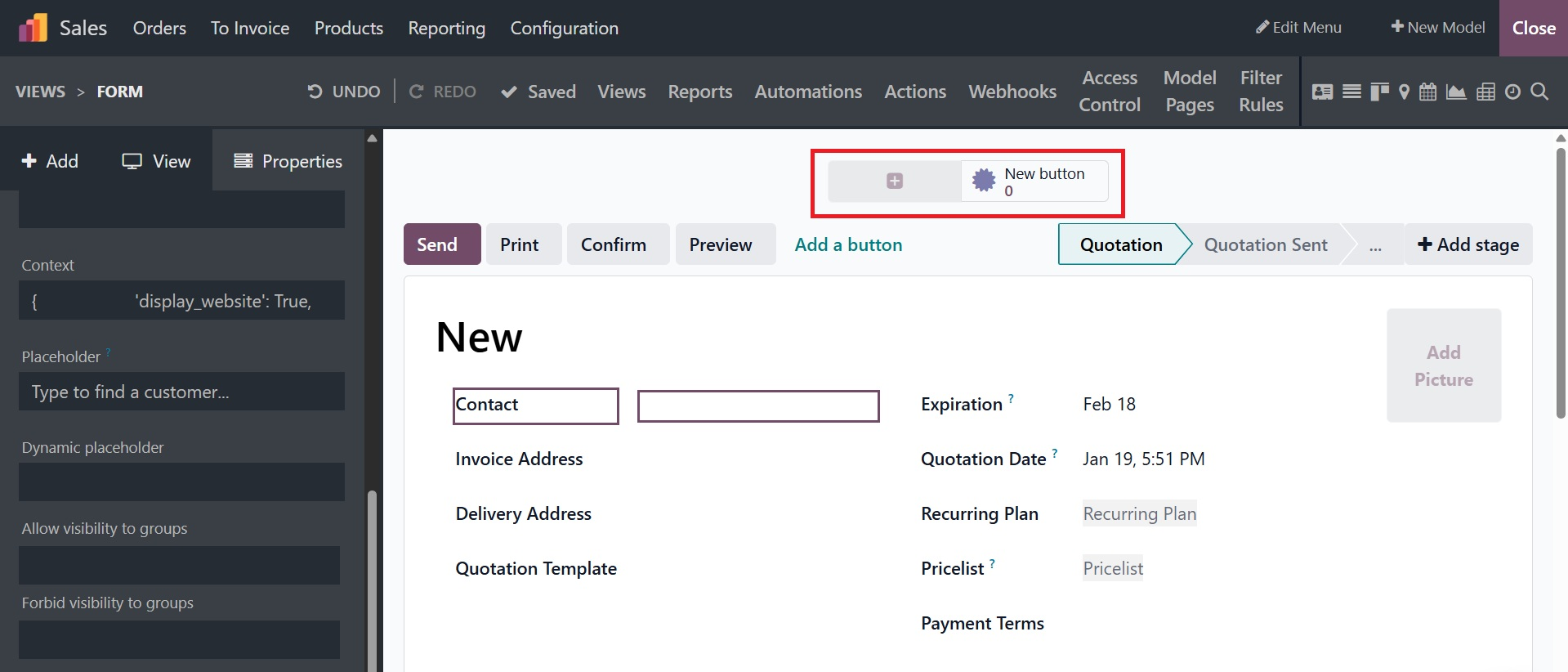
The necessary Smart tab will eventually be specified by clicking the Confirm button. You may also configure a lot of smart buttons for a certain menu of both newly developed and existing apps using the Studio module. Let's move on to the section that describes the Pipeline Stage Configuration capabilities of the Odoo19 Studio module.