Managing Multiple Websites
Odoo 19 ERP enables businesses to manage multiple websites from a single platform with ease. This advanced capability is particularly useful for organizations that operate multiple brands, regions, or business models. Each website can be customized independently with its own theme, layout, branding elements, and domain configuration.
The Website module in Odoo 19 provides fine-grained control over headers, footers, pages, menus, and operational settings for each site. At the same time, all websites remain fully integrated with other core Odoo modules such as eCommerce, CRM, and marketing tools. Enhancements in Odoo 19 include an improved website editor, advanced SEO configuration options, optimized eCommerce performance, and better scalability to support growing traffic and content needs. These features help businesses strengthen their online presence and manage multiple digital channels efficiently.
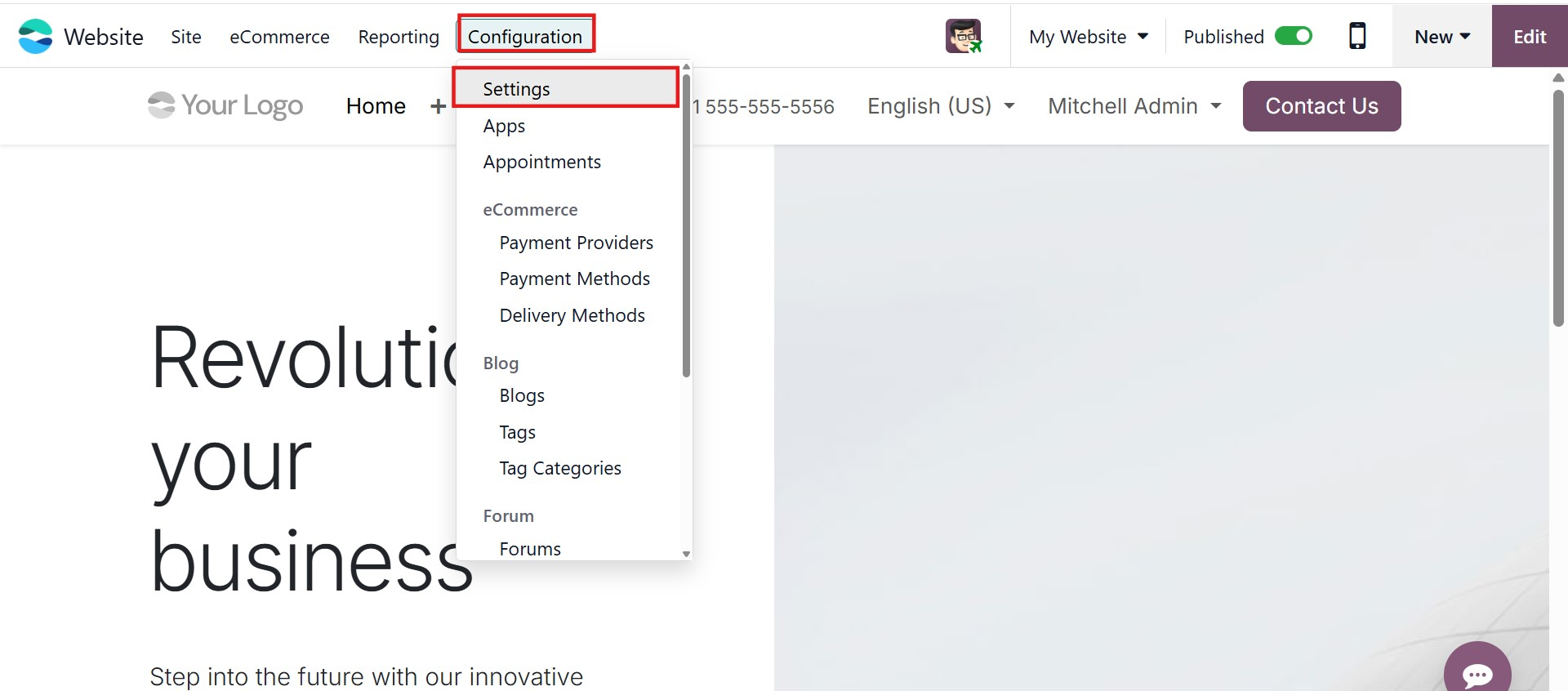
To create and manage multiple websites, navigate to Website → Configuration → Settings. The Settings window allows you to configure website-specific options and manage multiple sites from one interface.
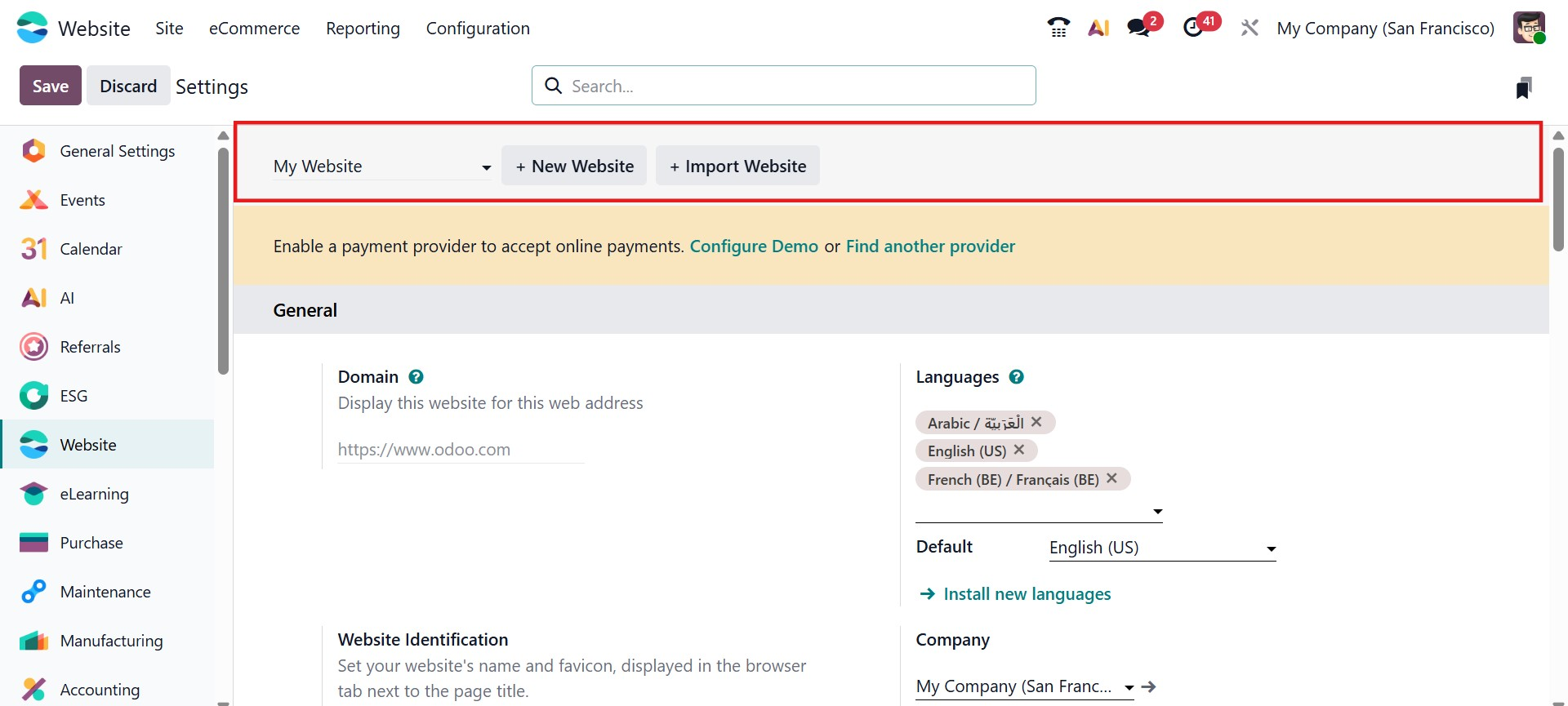
Within the Settings window, you will find the + New Website option located under the Select the Website to Configure section. Clicking this option opens a pop-up window where you can create a new website.
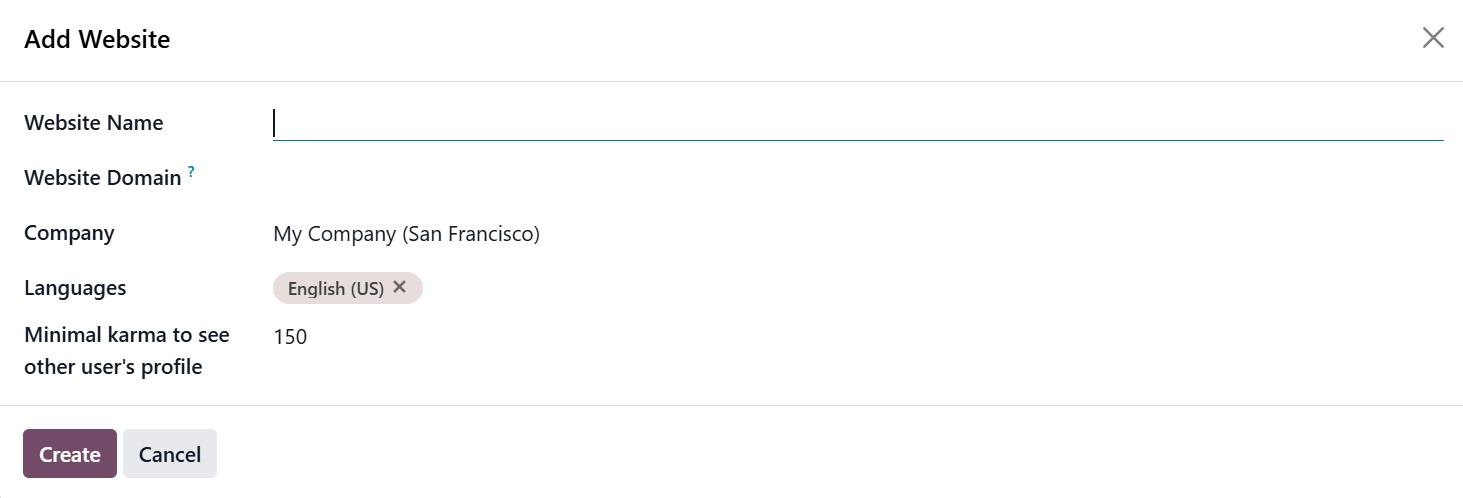
In the pop-up form, enter the required details such as the Website Name and Website Domain. Select the appropriate Company from your Odoo 19 environment and choose the languages the website should support. You can also define the Minimal Karma level for user profile visibility. After filling in the details, click Create to proceed.
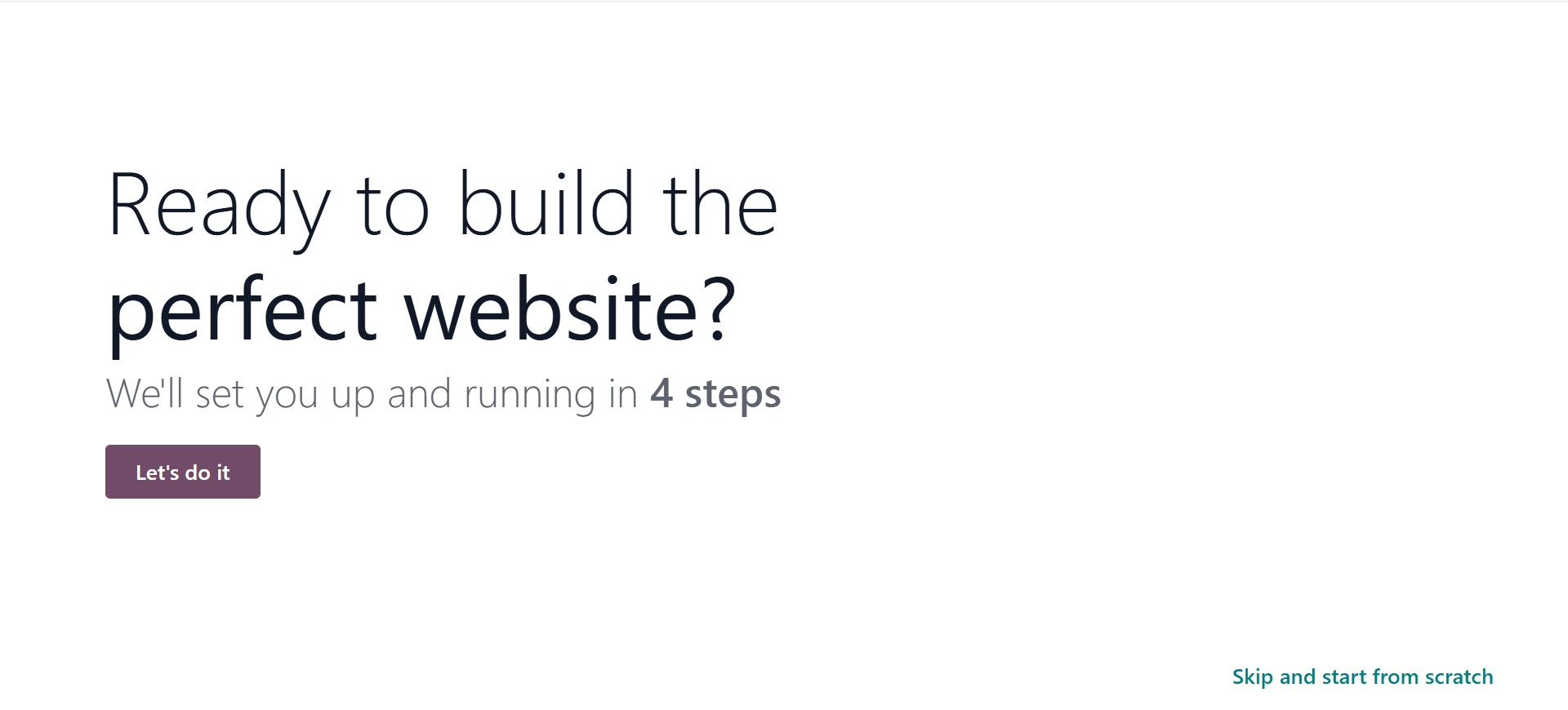
Once created, a website configurator window appears with a guided setup message encouraging you to begin the website-building process. Clicking Let’s do it launches the next step, where you define the type of website you want to create and specify its primary purpose.
This guided configurator is especially helpful for beginners, but it also provides a quick and structured setup process for experienced users.

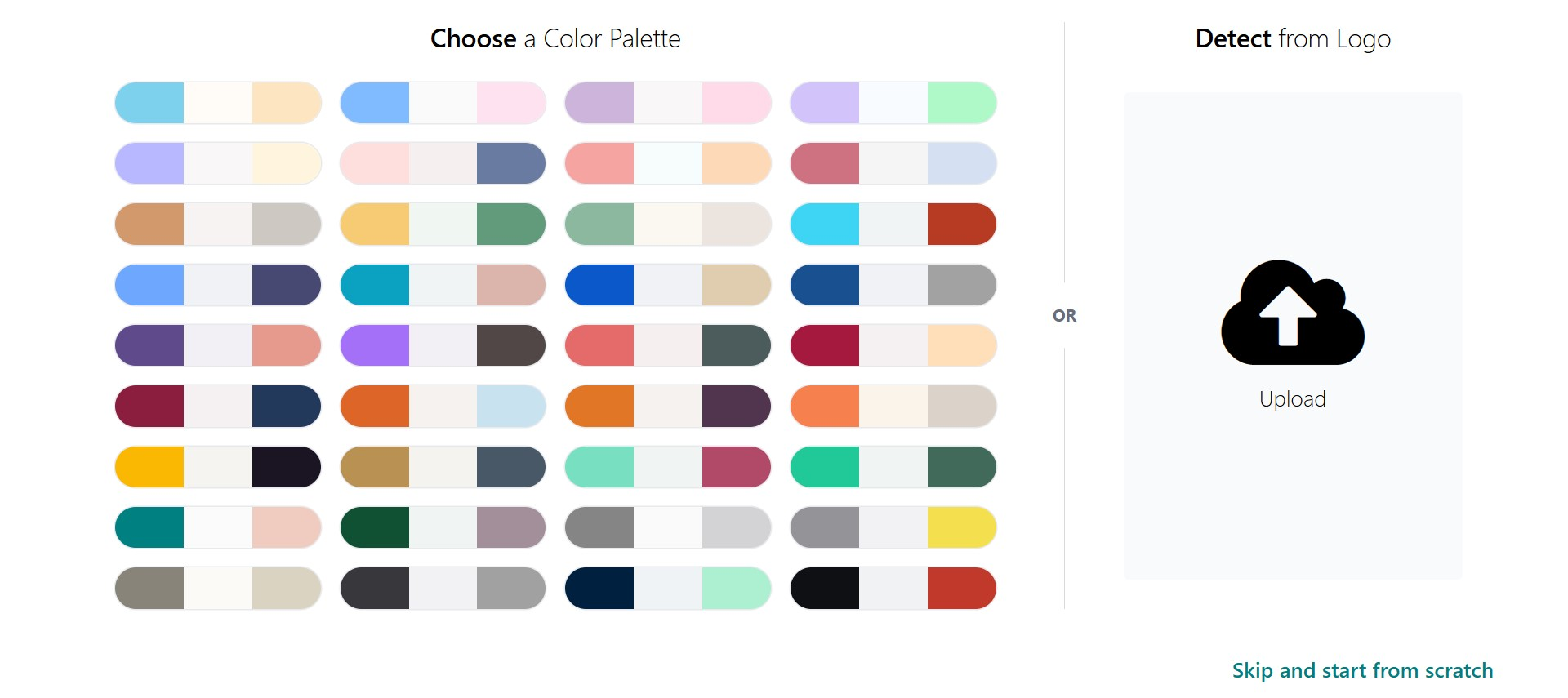
The configurator then allows you to choose a predefined color scheme or upload your company logo. If a logo is uploaded, Odoo 19 can automatically analyze it and suggest a color palette based on its dominant colors, helping maintain visual consistency and brand identity.
Next, you can select from a list of predefined pages and features to include on your website. This step reduces the need to build every page manually and accelerates the website creation process. After confirming your selections, click Build My Website. The system will then generate your website, which may take a few moments to complete.
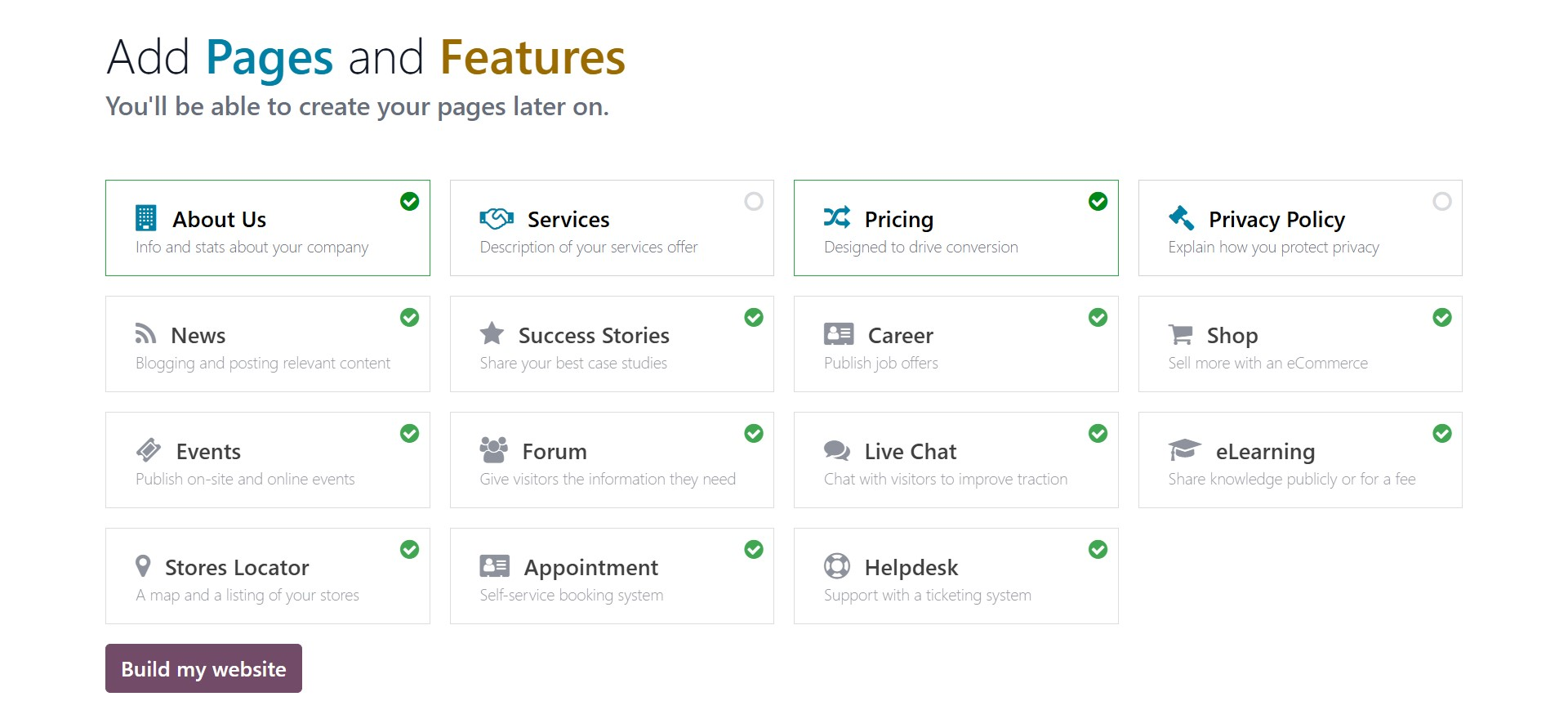
After initiating the website setup process, you are first prompted to choose your preferred Online Catalog layout. This step allows you to select how products will be displayed on the Shop page. Odoo provides multiple predefined catalog designs, including grid-based layouts, category-focused views, sidebar filter designs, and image-highlighted displays. Selecting a catalog layout defines the structure and user experience of the eCommerce listing page from the beginning.
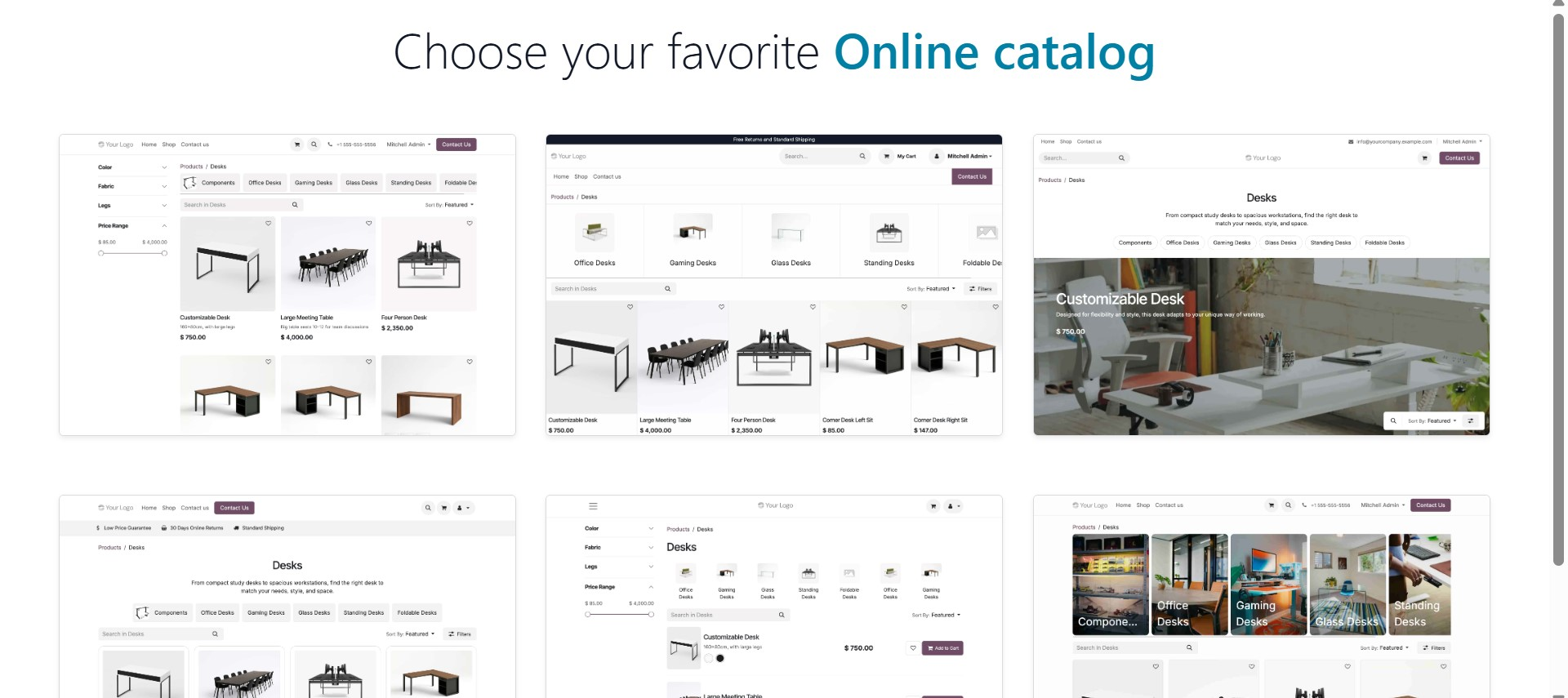
Once the catalog layout is selected, Odoo 19 introduces another configuration step: Choose your favorite Product Page. In this stage, you select the layout of the individual product detail page. The available options vary in structure, including different image placements, thumbnail arrangements, pricing section positions, and Add to Cart button designs. This ensures that the product presentation aligns with your branding and usability preferences.
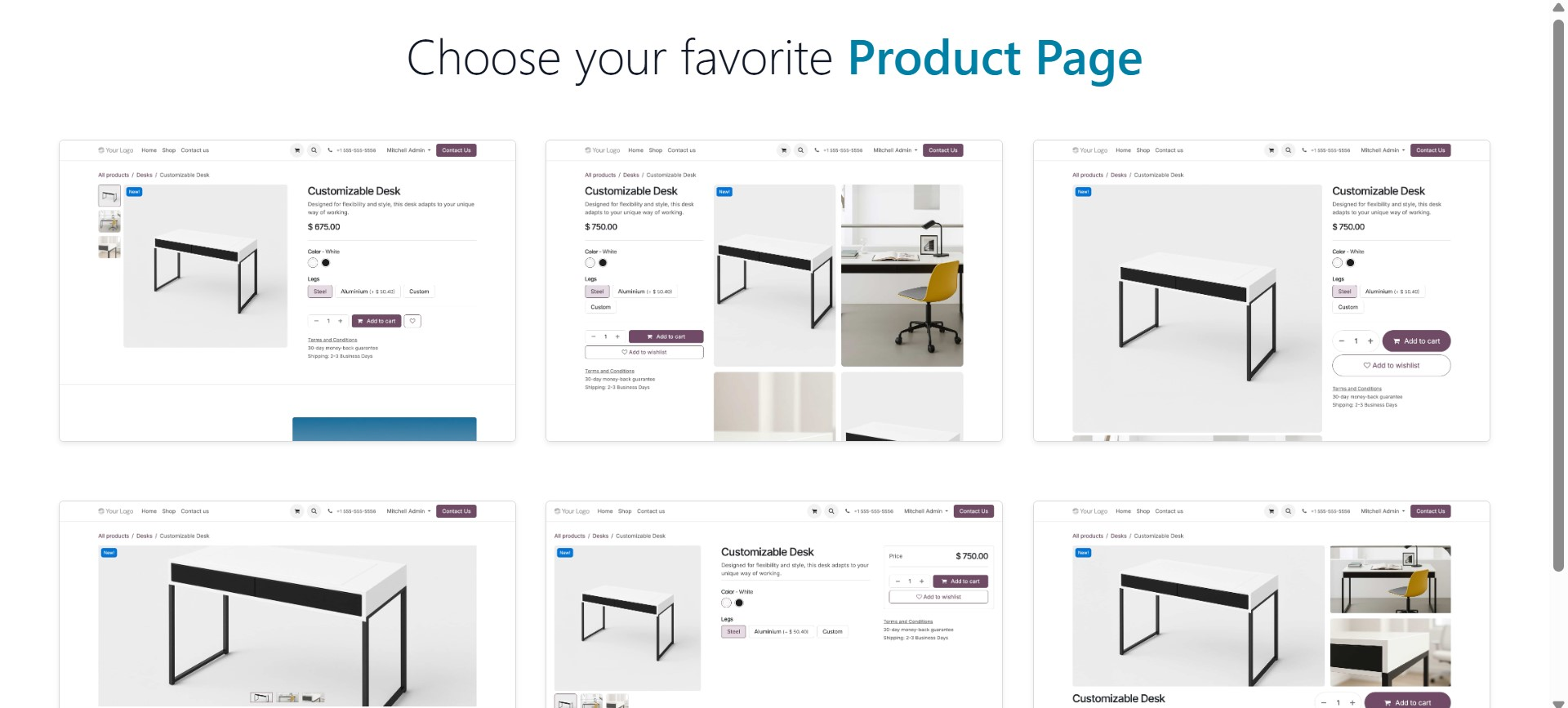
After confirming both the Online Catalog and Product Page layouts, the system proceeds to the Add Pages and Features screen. Here, you can select predefined pages such as About Us, Services, Pricing, Privacy Policy, News, Success Stories, Career, Shop, Events, Forum, Live Chat, eLearning, Stores Locator, Appointment, and Helpdesk. Enabling these options reduces the need to manually create each page later.
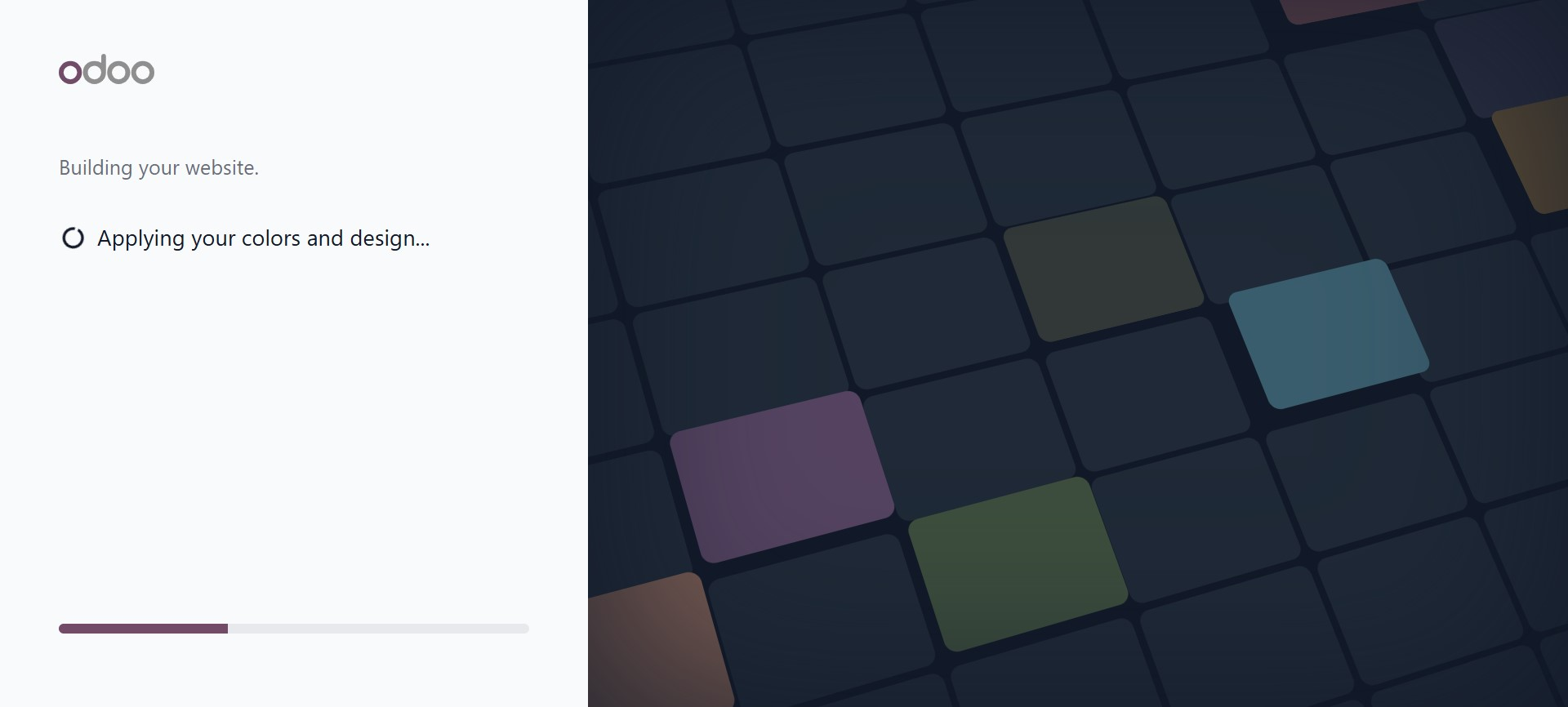
Once the required pages and features are selected, Odoo will then begin generating the website structure. During this process, a loading screen displays progress messages such as applying colors and design elements.
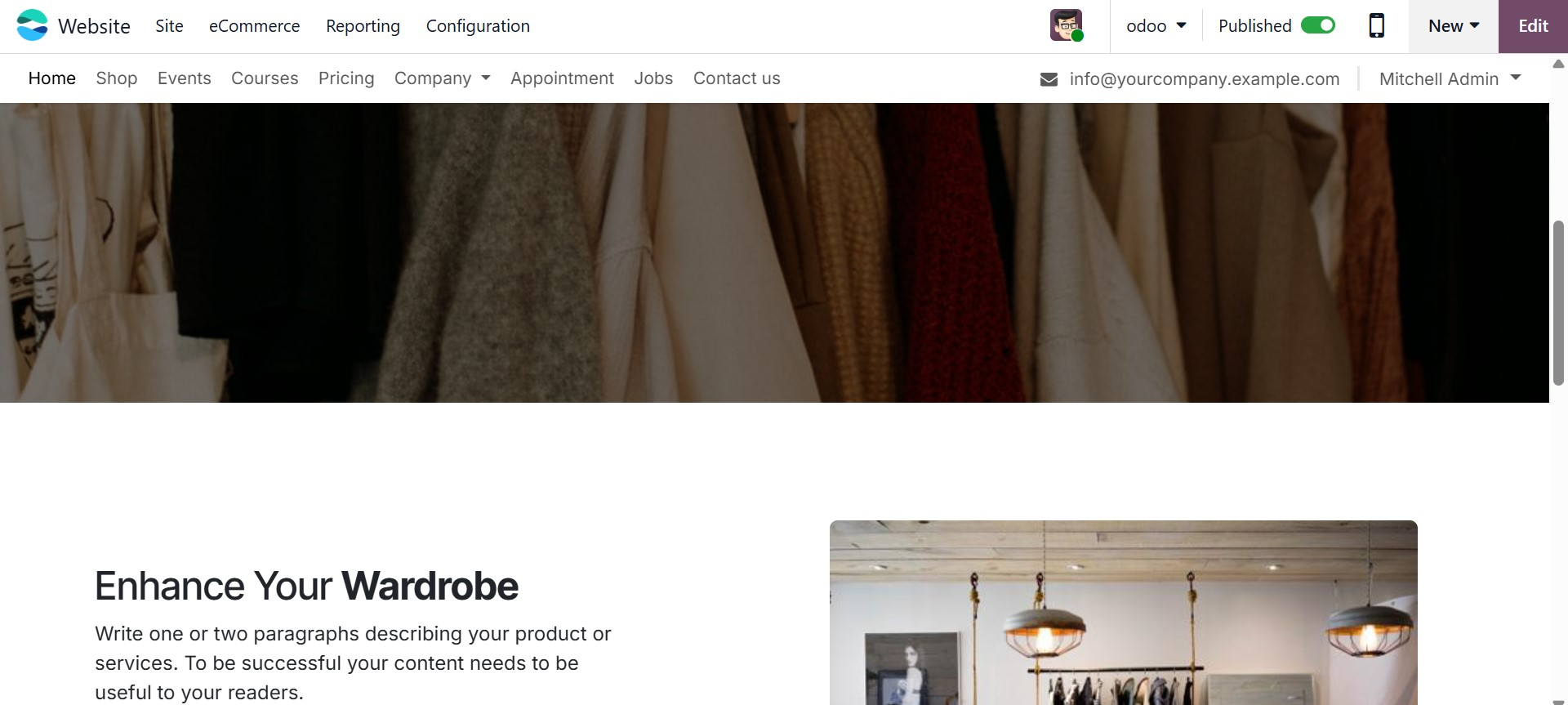
Once the website is ready, you can customize the homepage using a step-by-step guide. The left panel displays the predefined website structure, while the right panel provides a collection of drag-and-drop building blocks. These blocks can be placed anywhere on the page and customized instantly using the editor.
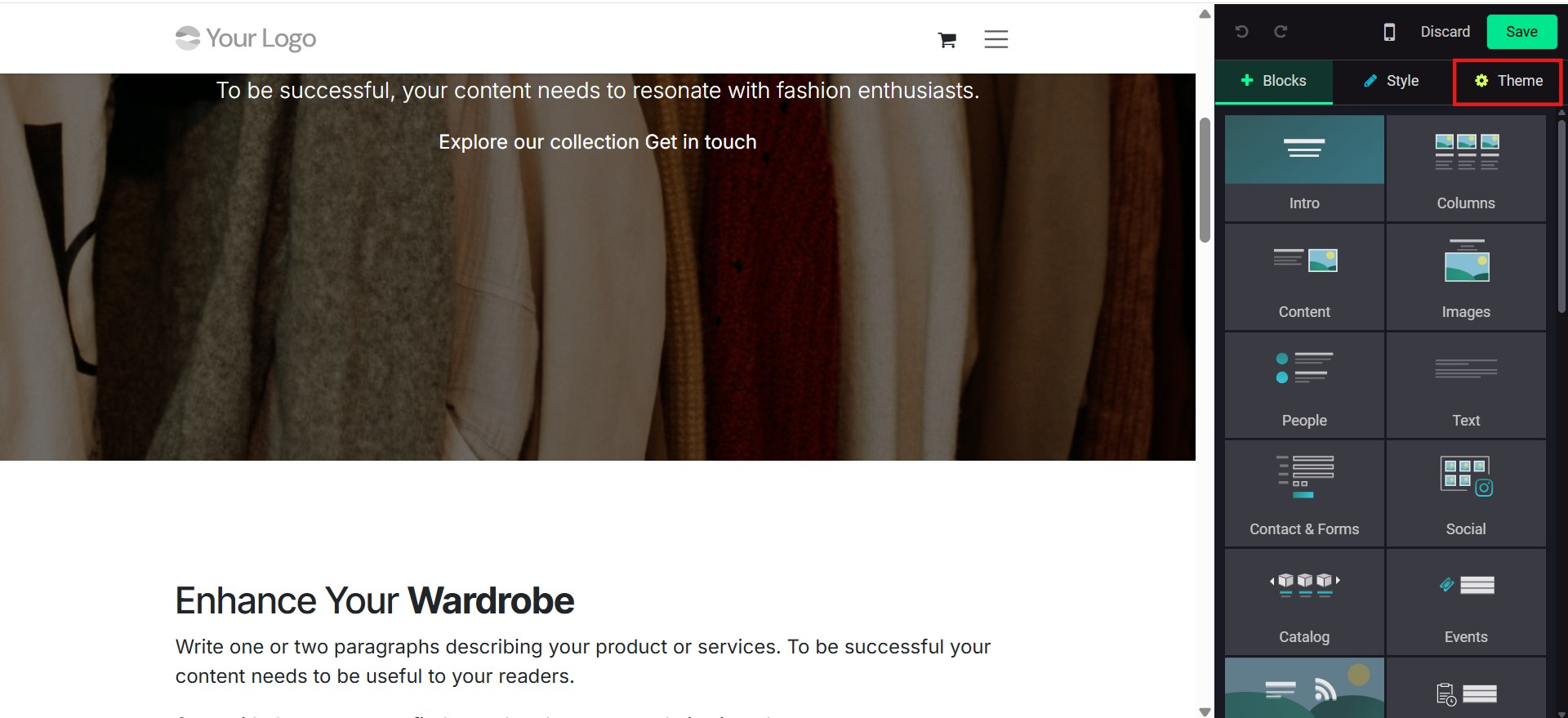
To modify the overall appearance, click the Theme button. This opens theme customization options, allowing you to adjust layouts, colors, fonts, and styles to match your brand identity.
In addition to creating a new website from scratch, Odoo 19 also provides an Import Website option directly from the Settings window, next to the + New Website button. This feature allows you to replicate an existing external website inside Odoo.
When you click Import Website, the Website Configurator opens with an Import your Pages and Products screen. Here, you must enter the Website URL of the site you want to import. You can also enable the Import Products option if you want Odoo to attempt importing product-related data along with the pages.
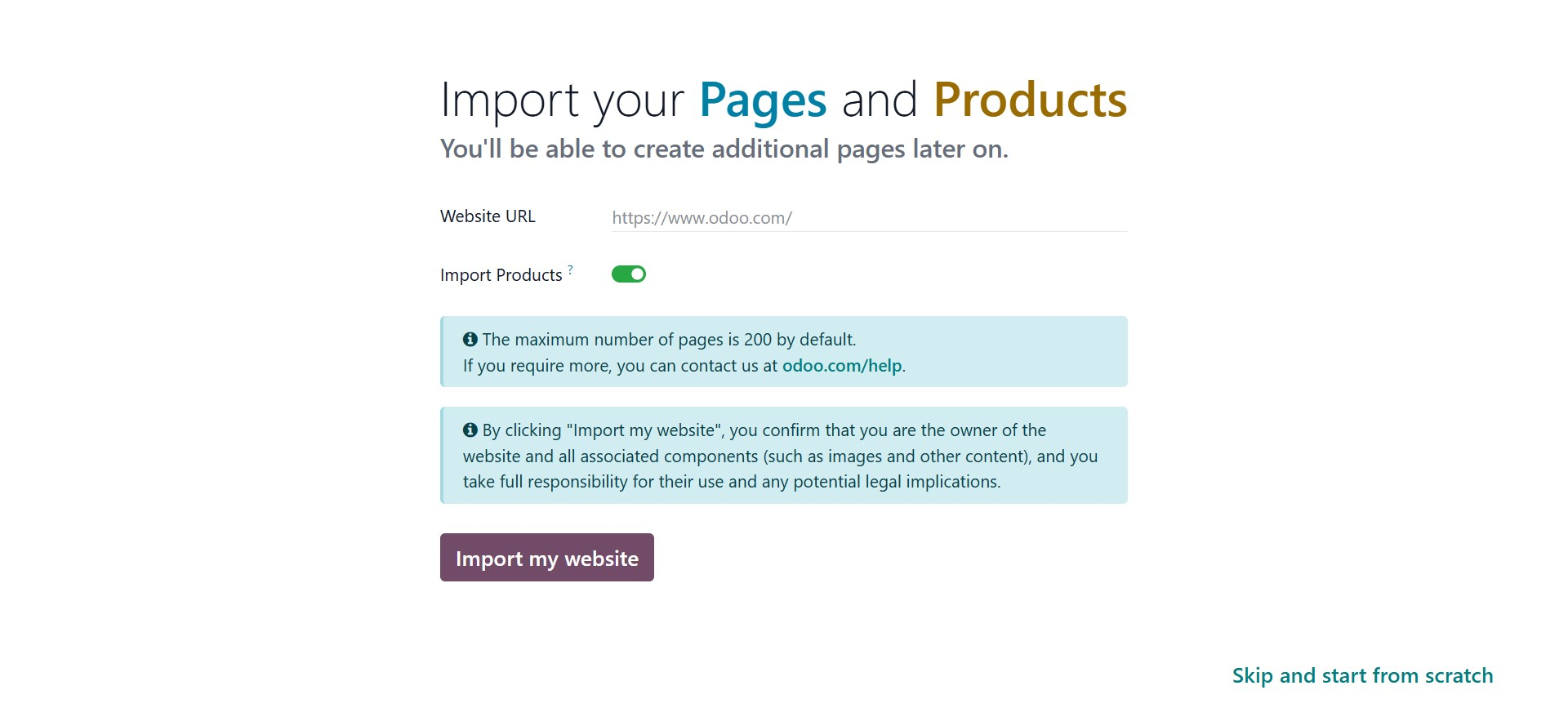
The system informs you that, by default, up to 200 pages can be imported. If additional pages are required, you may contact Odoo support. Before proceeding, you must confirm that you are the rightful owner of the website and its associated content, including images and other media, and that you accept responsibility for any legal implications.
After entering the required details, click Import my website to begin. Odoo 19 will then analyze the provided URL and recreate the website structure as accurately as possible within the platform. Alternatively, you may choose Skip and start from scratch if you decide not to proceed with the import.
This import functionality is particularly useful for businesses migrating from another platform to Odoo 19, as it significantly reduces the time and effort required to rebuild an existing website manually.