Loyalty
Odoo 19's extensive set of company administration capabilities enables companies to easily include loyalty programs into their websites. Gift cards and eWallets are supported by the Loyalty option, which is located under the eCommerce menu in the Website module.
These characteristics are acknowledged as successful marketing techniques that can greatly increase online sales and client retention. Businesses may develop and manage aesthetically pleasing and customisable gift cards and eWallets, improving the buying experience and promoting repeat purchases, thanks to Odoo 19's integration of eCommerce features with loyalty capabilities. These options will be available only once you activate the option from the settings.
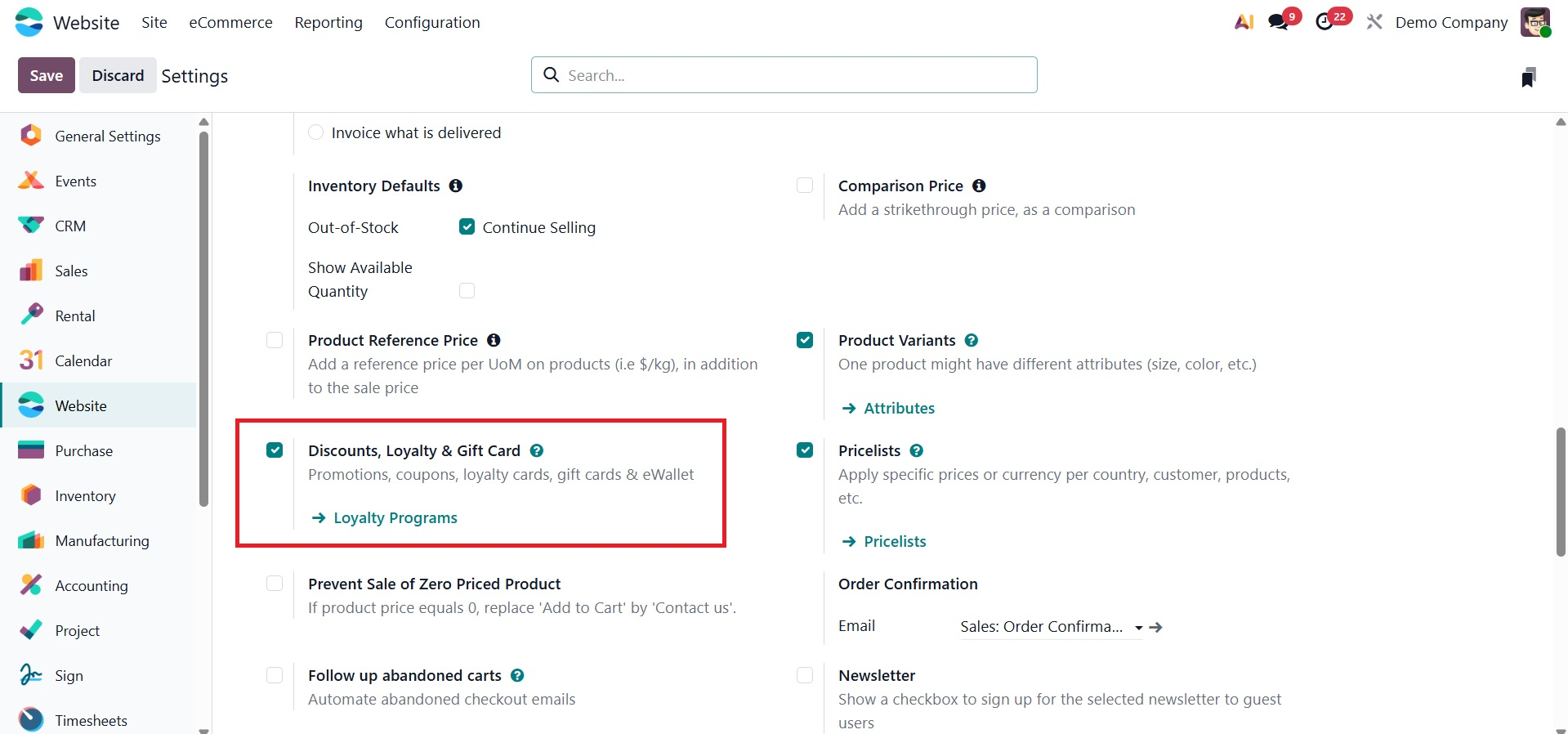
1.1 Discount and Loyalty
To improve client engagement and increase sales, the website can also offer a variety of promotional programs like Buy X Get Y, Next Order Coupons, Promotions, and Discounts. However, you must first access the website settings in order to use these services. Once enabled, you may make a new promotion by going to the promotional programs section and selecting the New button. This enables you to specify the kind of promotion, terms, and incentives that will then be visible and applicable on your website during the checkout process.
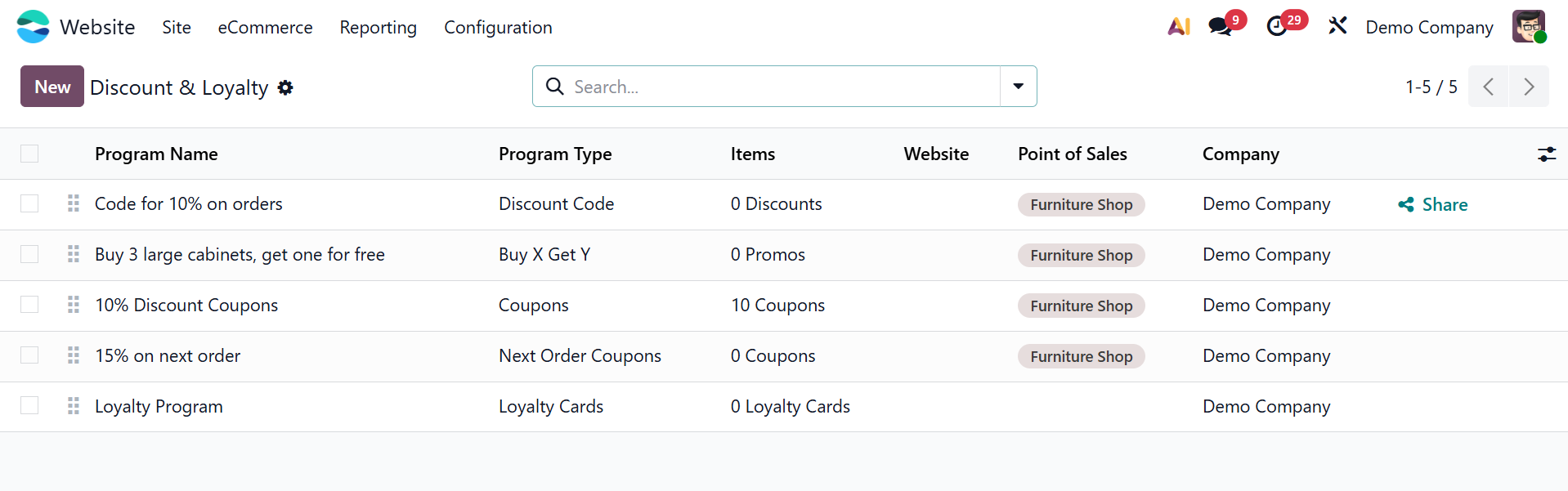
To tailor the promotion to your company's requirements, you may add the relevant Rules and Rewards within the design window. The new one can be created using the New icon, as shown below.
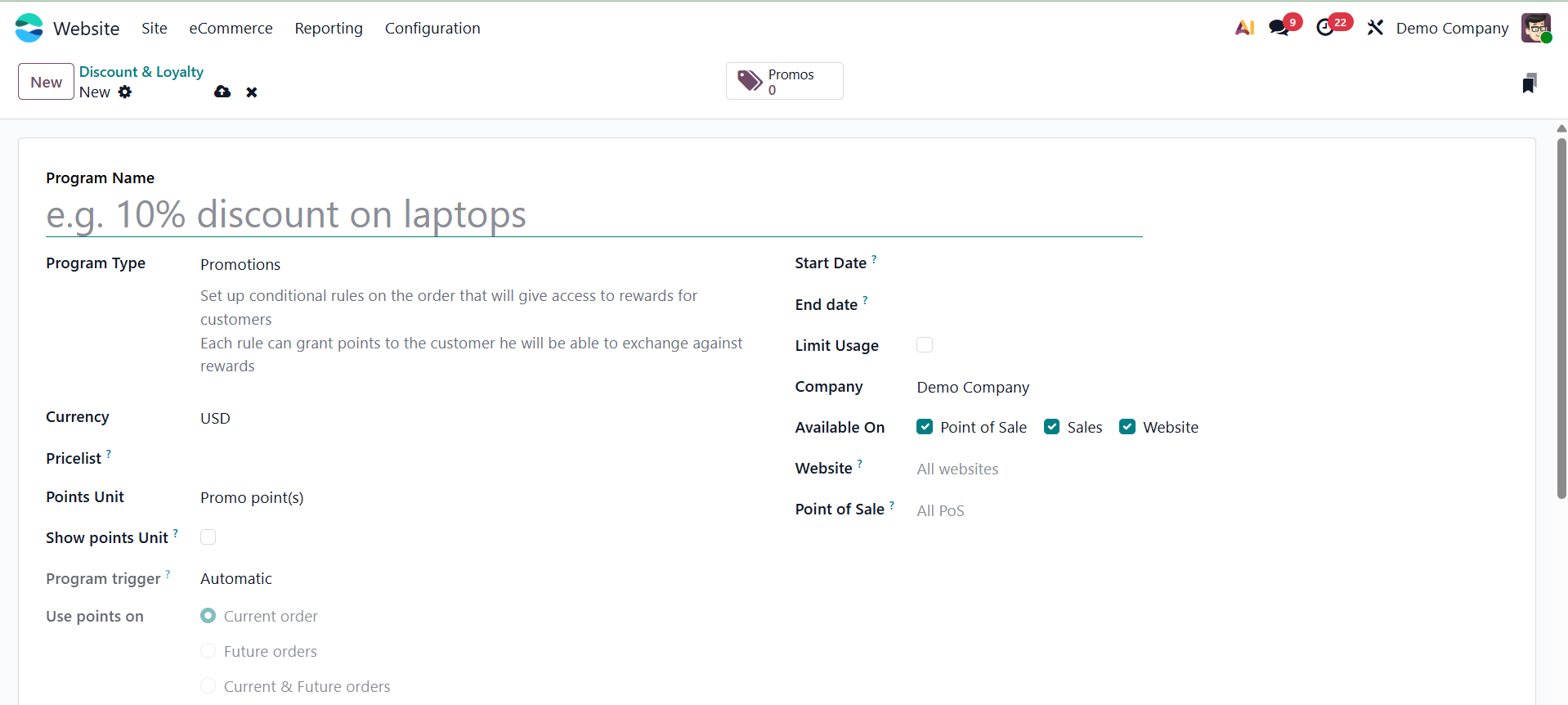
There, you can provide the program name, program type, currency, price list, points unit, show points unit, start date, end date, limit usage, company, available on, website, and point of sale options, respectively. Here, the program type can be selected accordingly.
1.2 Gift Cards and eWallets
The Gift Card option is located under the Loyalty section of the Website module's eCommerce tab. The Gift Cards & eWallets window is accessible through the Gift Cards & eWallets menu, as seen below.
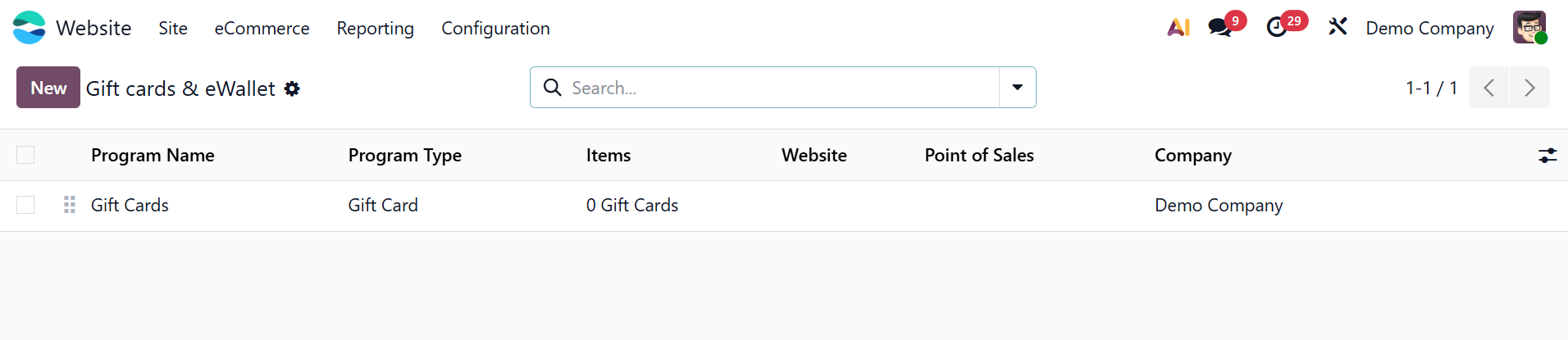
The Code, Balance, and Status of each preconfigured gift card are shown in this window. Click the New button to start a new gift card. The creation window will look like the picture below.
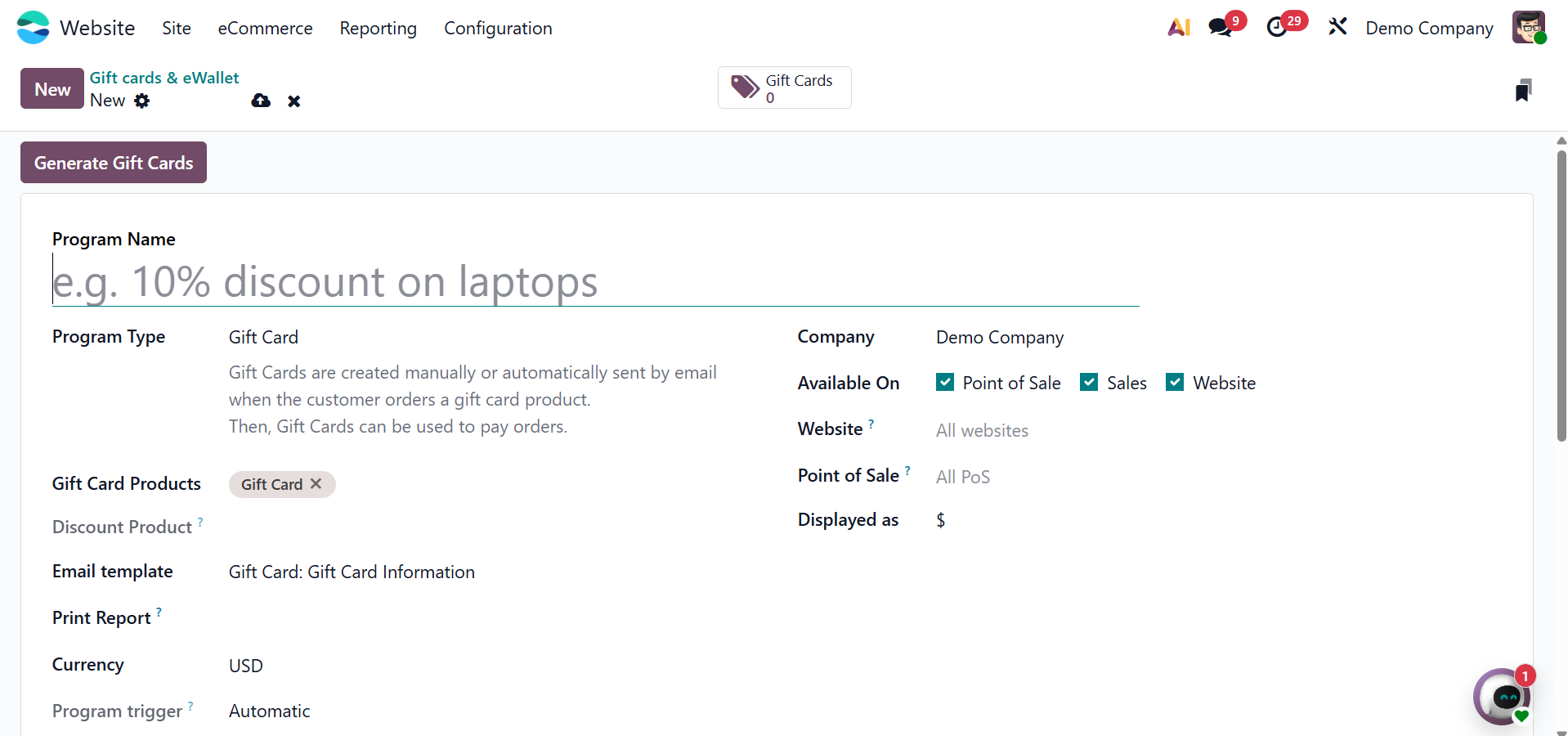
The program name can be entered in the Program Name area of the Gift Card Creation window. Next, select the program type (eWallet or Gift Card). A secret code for transactions will be given, and the gift card will be created automatically. Additionally, you can enter the Partner details in the corresponding areas, along with a description, the Initial Amount, and the Balance. Save the data after all the information has been entered.
You can add discounts or promotions straight from the cart page.
Payments can also be processed and online orders can be shipped from the back end. The Configuration menu contains these settings. Let's examine these options in more detail.