Orders
1.1 Orders
Odoo 19's Orders area, found under the Website module's eCommerce menu page, offers a simplified way to manage all sales activity coming from your online store. Submenus like Orders, Unpaid Orders, Abandoned Carts, and Customers are included in this area. It was created to improve the e-commerce order management experience. It gives businesses total access to client purchase information, unfinished transactions, and possible leads, enabling them to monitor performance and improve sales tactics right within the Odoo platform.
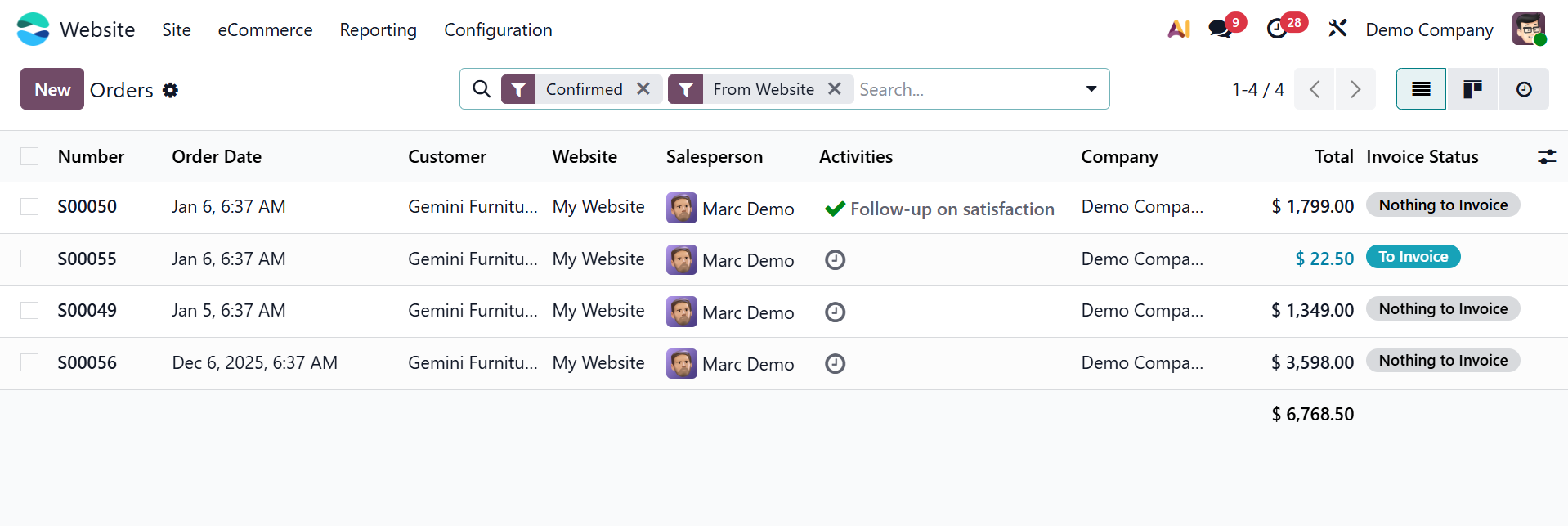
A list of every order entered into the system is displayed in the Orders pane, as seen in the picture above. Important information including the order number, order date, website, customer, salesperson, responsible company, next activity, total amount, and invoice status are all included in each entry. Any order can be chosen by users to explore and investigate its details in further depth.
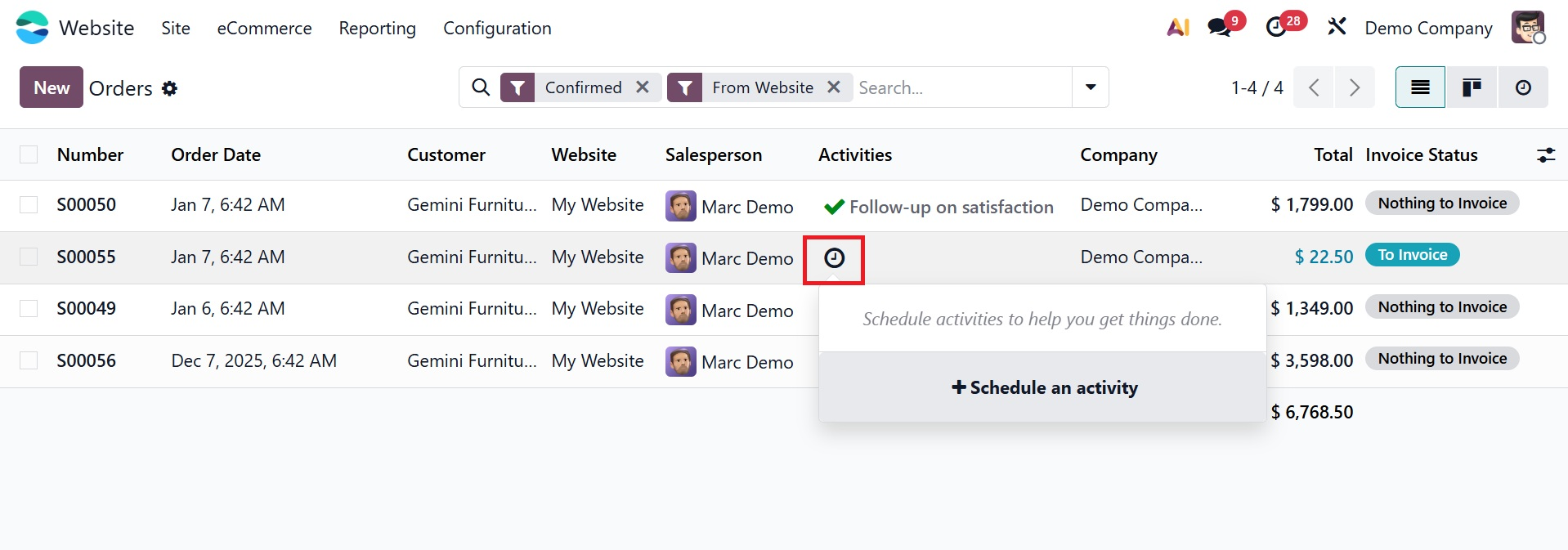
By selecting the Next Activity icon, activities can be scheduled straight from the Odoo window. This action launches a wizard where users can define and assign activities by choosing the Schedule an activity option.
To effectively find certain information, Odoo also offers a number of pre-configured and customisable sorting capabilities. This is the only use for the Filters, Group By, Favorites, and Search options.
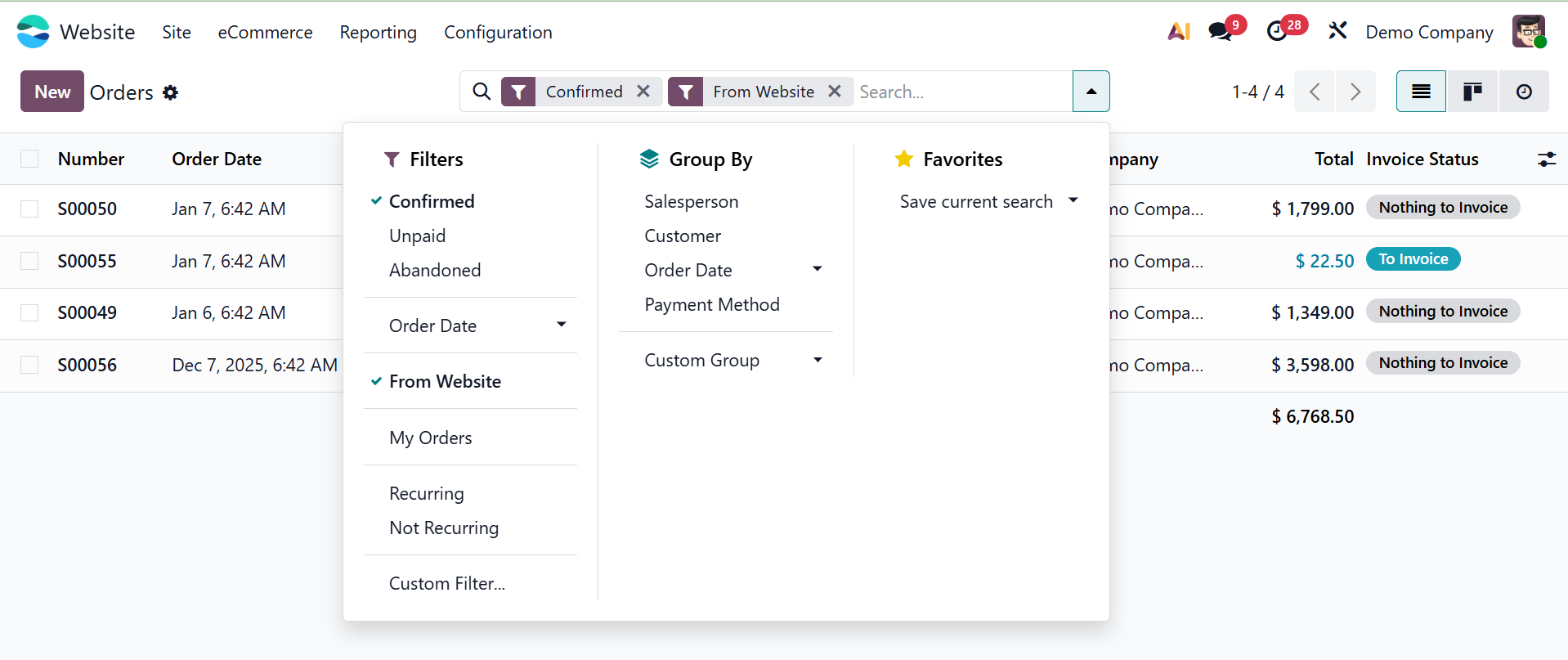
Confirmed, Unpaid, Abandoned, Order Date (Month, Quarter, Year), From Website, My Orders, and Add Custom Filter are some of the default filters available in this box. When the confirmed filter is chosen, only confirmed orders will be shown. When necessary, these filters can be used to improve the shown data.
Orders can be grouped by Salesperson, Customer, Order Date, and the Add Custom Group option under the Group By options. Furthermore, the system offers flexibility in the presentation of the order information by supporting various view types, such as List, Kanban, and Activity.
Now that the Orders tab has been cleared, let's investigate the Unpaid Orders filter.
1.2. Unpaid Orders
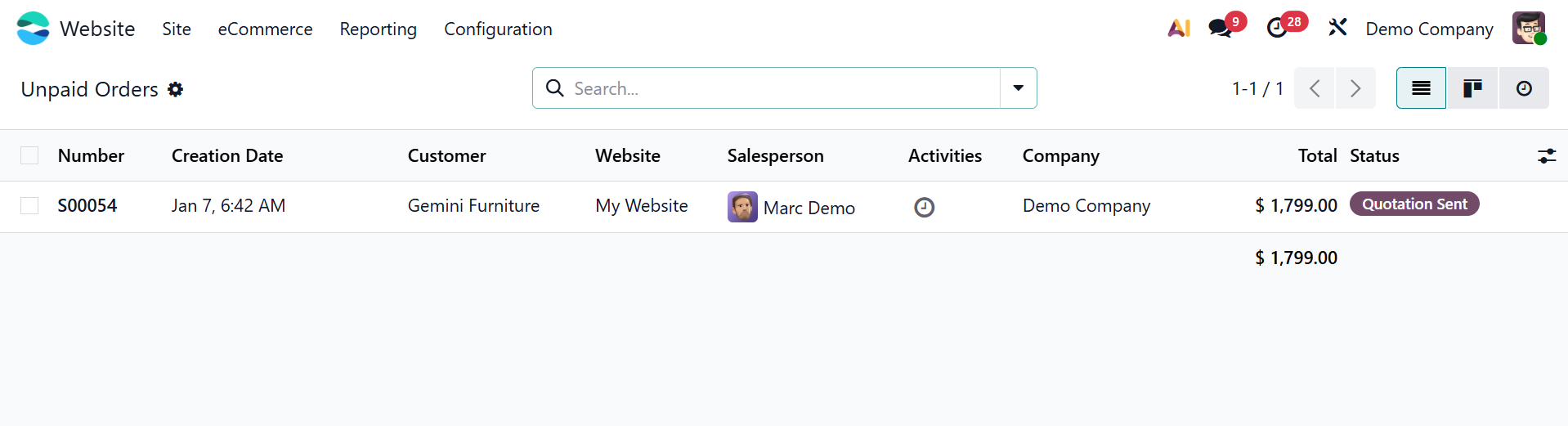
All unpaid order information gathered from the eCommerce website will be kept up to date under the Unpaid Orders window in order to promptly identify outstanding orders and take the necessary action. This window can be accessed by clicking on the Unpaid orders option.
Now, let's examine Abandoned Carts, the following menu item.
1.3. Abandoned Carts
Odoo 19 tracks and shows abandoned cart data under the eCommerce tab of the Website module, much like Odoo 19's Abandoned Carts feature. Users can browse and examine guest orders in this window, including items that have been added but not yet verified or bought.
Understanding consumer preferences, behaviors, and possible pain spots as well as determining the advantages and disadvantages of your goods and services are all made possible by the Abandoned Carts function. You can interact with these clients by sending them tailored emails about their abandoned carts.
By sending recovery emails to clients, Odoo 19 enables you to automate this procedure. You must set up an email template in the Website Settings in order to accomplish this. Once set up, the system will send recovery emails automatically using the pre-approved template. As seen in the screenshot below, this option can be enabled in the Website module's Settings window under the Email & Marketing menu.
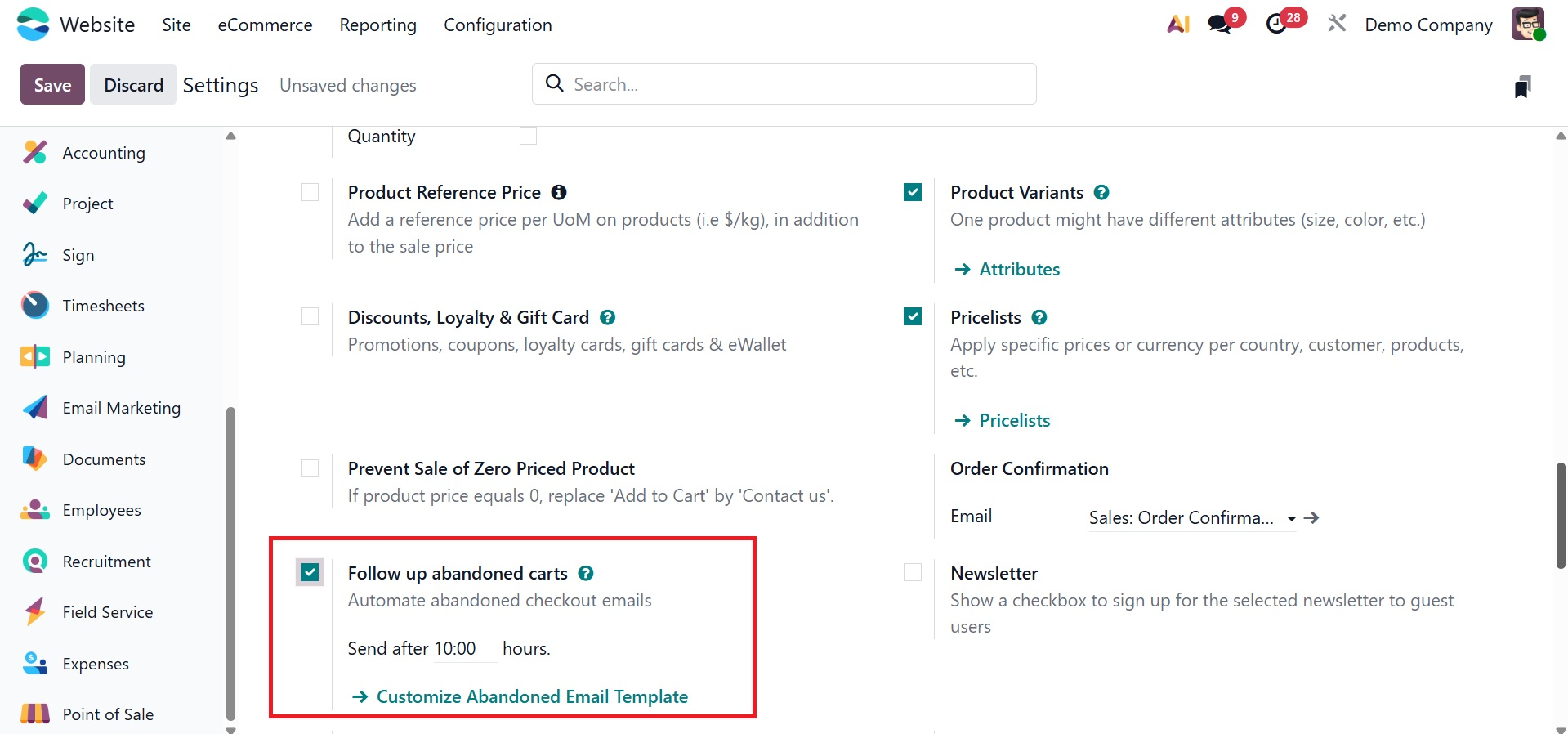
You can choose the email template and the number of hours that the recovery email will be sent.
Go to the eCommerce tab and choose the Abandoned Carts option to open the Abandoned Carts window.
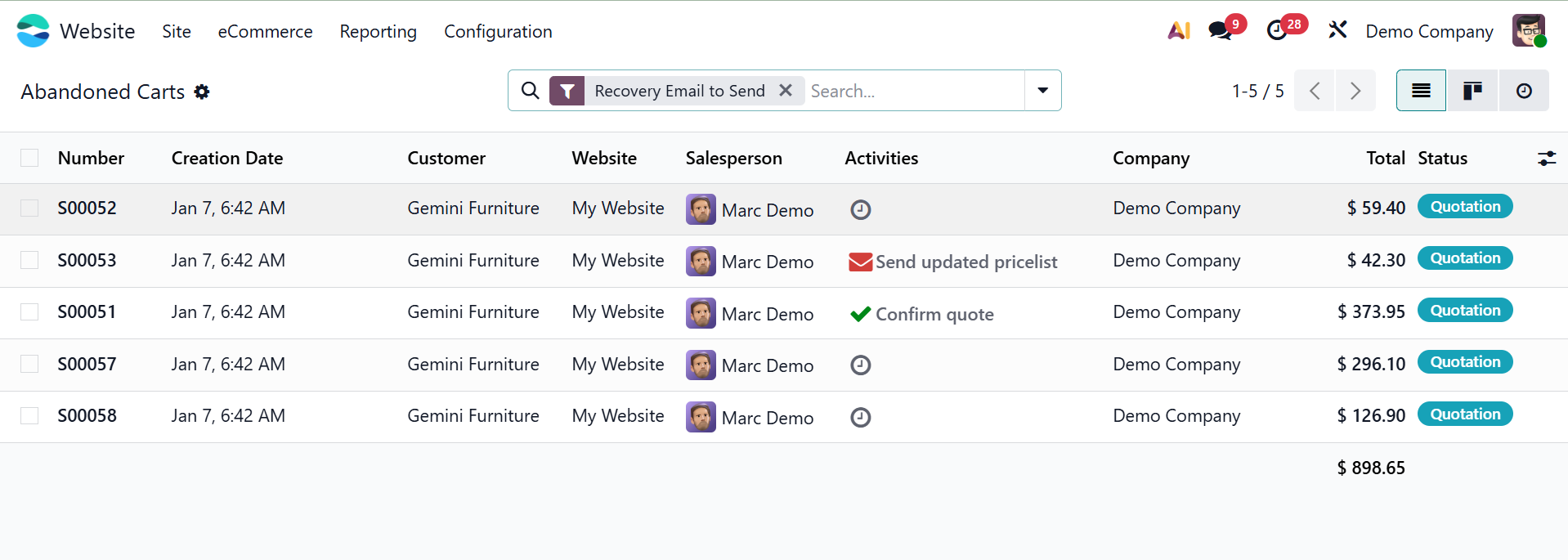
A summary of all abandoned cart records may be found in the Abandoned Carts window. Important details like the Number, Creation Date, Customer, Salesperson, Next Activity, Company, Total, and Status are displayed for each entry.
Activity, List, and Kanban views are available for viewing the records. By clicking on the salesperson's picture that appears in the window, users can also start a direct discussion with the designated salesperson. Users will be able to speak with the salesman immediately through a chat pop-up wizard.
Each record can also be chosen to view and examine the abandoned cart's specifics in further detail.
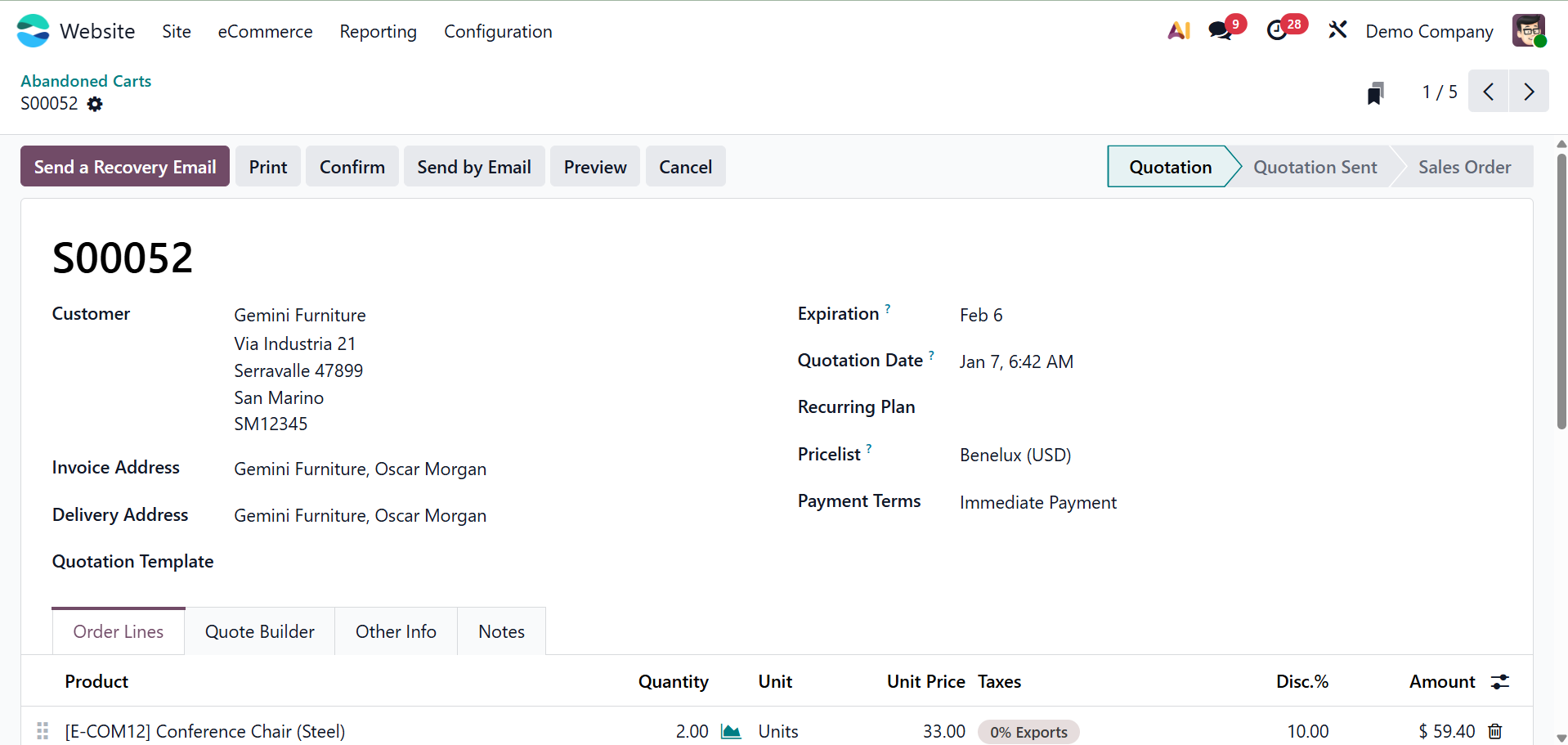
All relevant information is shown for inspection inside each abandoned cart record. The window contains further action options including Send a Recovery Email, Confirm, and Cancel. On selecting the send a recovery email, you will get a window, as shown below.
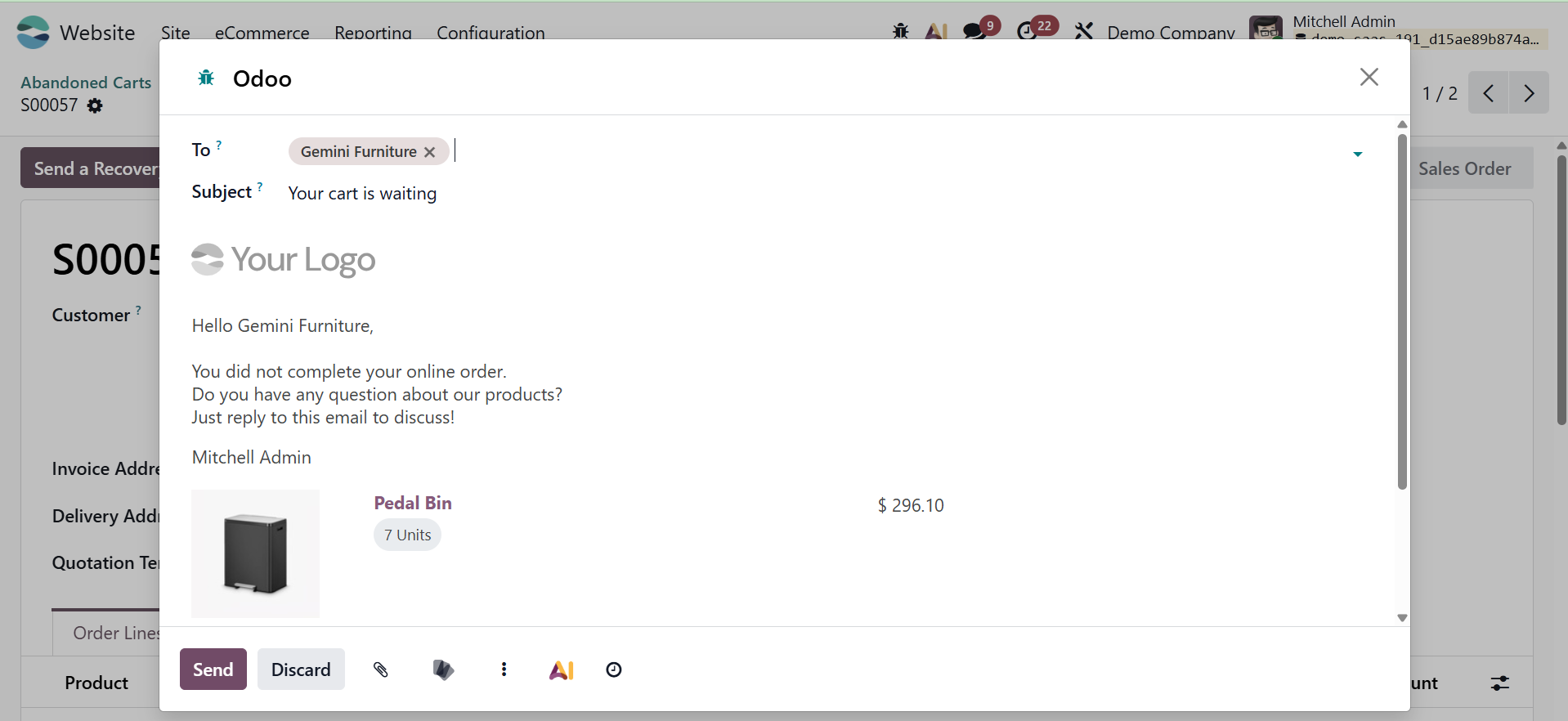
Here, you can provide the To address, subject, and the contents regarding the product. And finally, go for the Send icon.
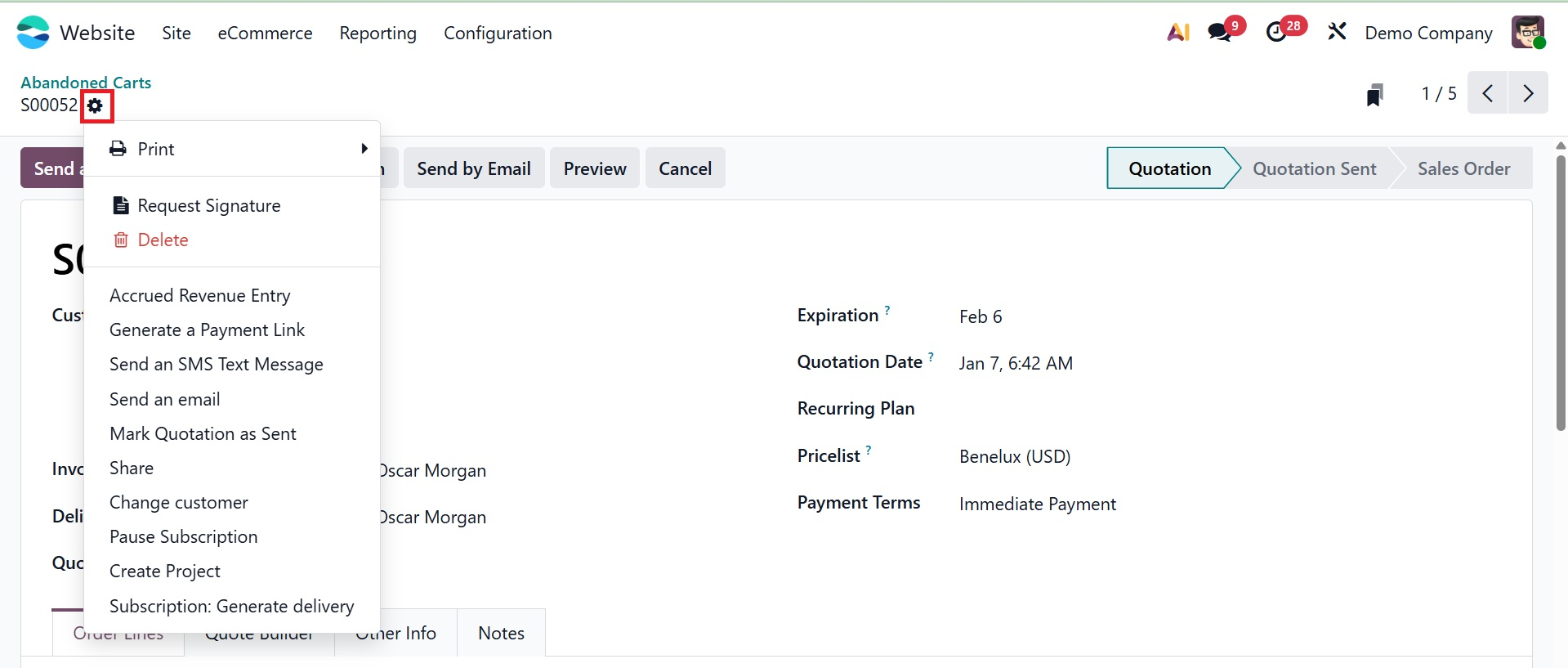
The Print and Action buttons in the upper right corner offer additional features. Two submenus are available to users under the Print button: Quotation/Order, Return Receipt, and Pickup. Delete, Accrued Revenue Entry, Generate a Payment Link, Share, Mark Quotation as Sent, and Send a Cart Recovery Email are just a few of the options available through the Action button.
1.4 Customers
Lastly, the Customers menu, which is found on the eCommerce tab of the Website module, allows for the central management of all customer data. Let's take a closer look at this window.
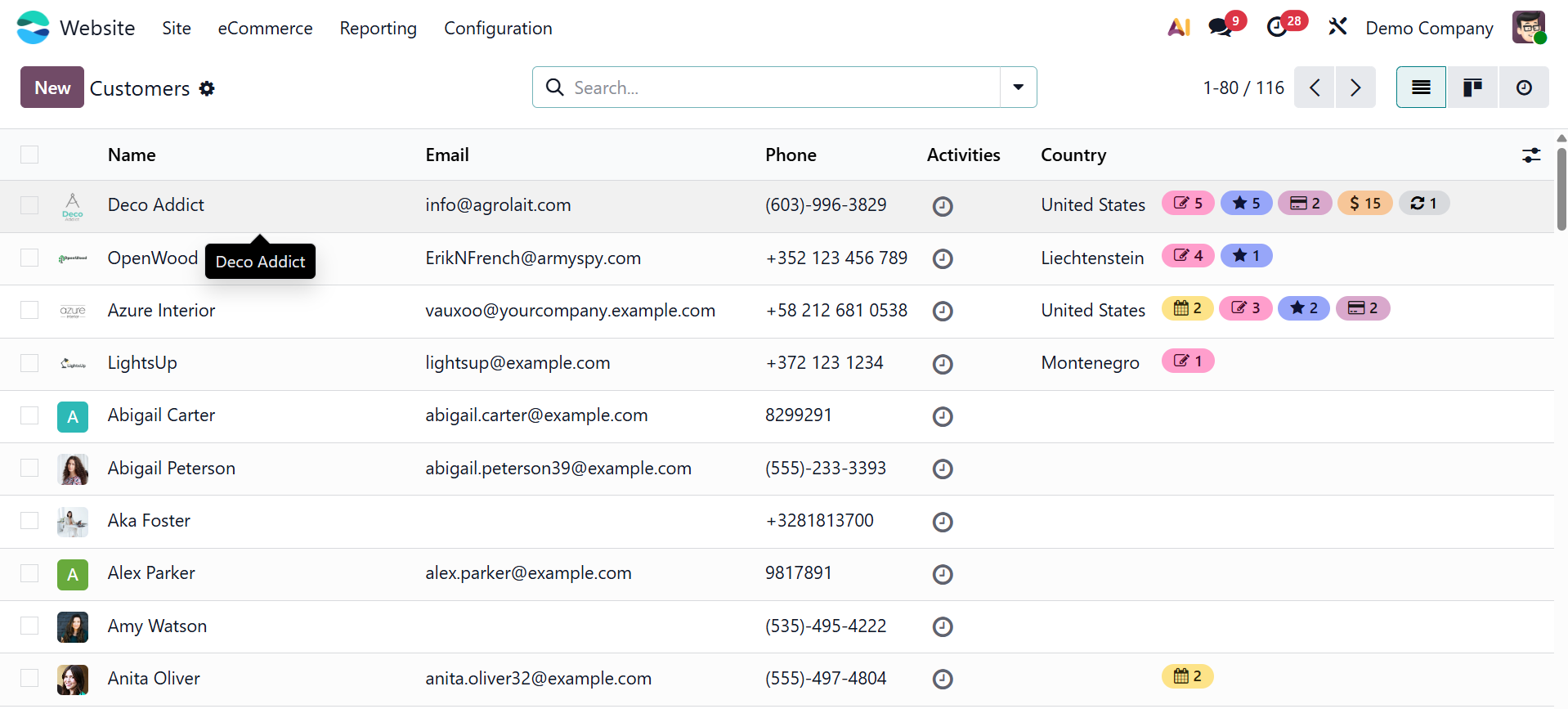
List, Activity, and Kanban views are available for the Customers window. Each customer's information is shown in the Kanban view as a card with their photo and important details highlighted. Just choose the matching card to view more specific information about a customer.
Additionally, the window provides a number of pre-configured and customized sorting tools, including as Search, Favorites, Group By, and Filters, which enable users to effectively filter and classify client data.
Individuals, Companies, Customer Invoices, Vendor Bills, Subcontractors, and Archives are the basic filters that are accessible. Using default groupings like Salesperson, Company, and Country, users can further arrange the view.
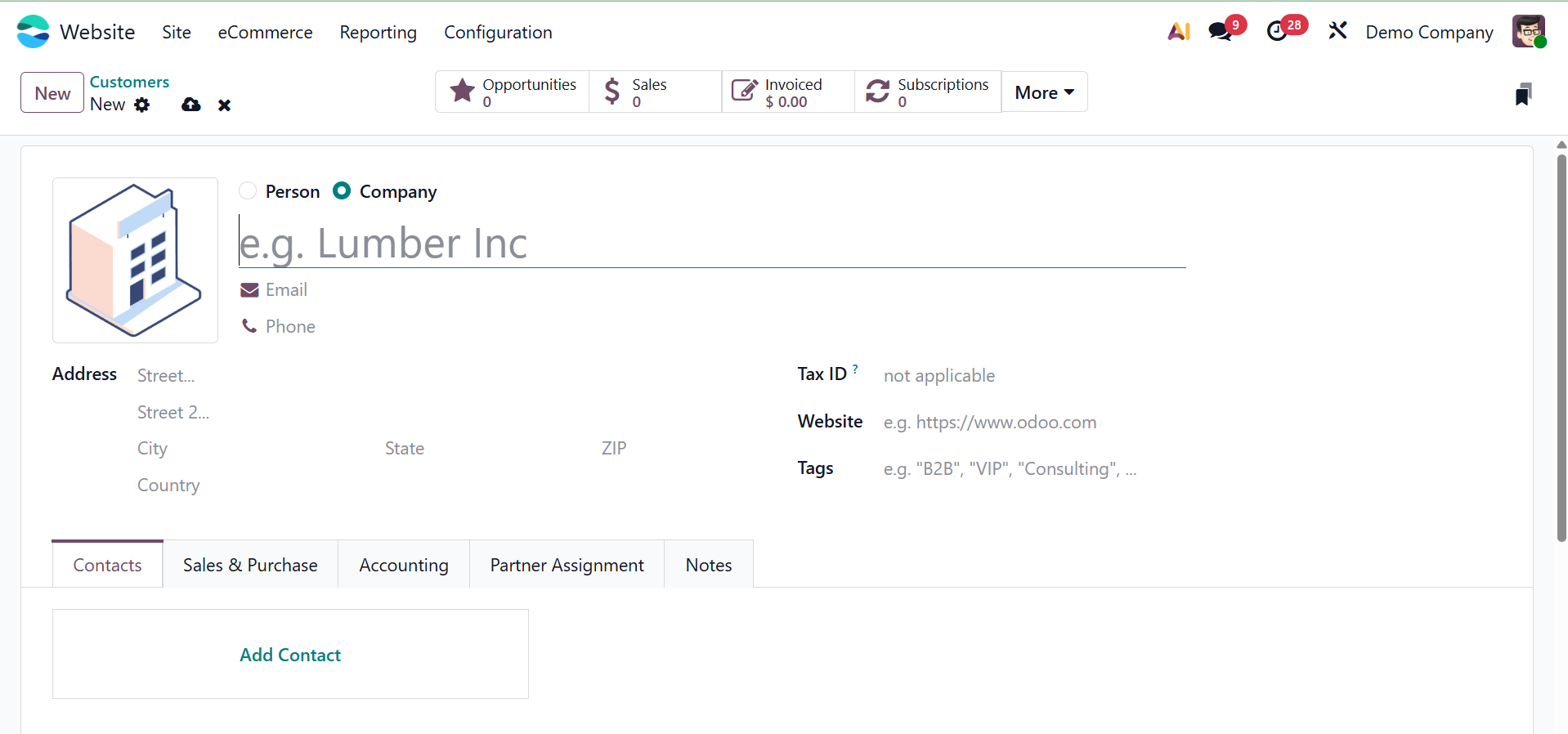
Click the New button to add a new client. As seen in the picture below, this will launch a customer creation form.
The features included in the Website module's Orders tab have already been covered. Let's now look at how the module handles and supports tasks related to product management.