Filter rules
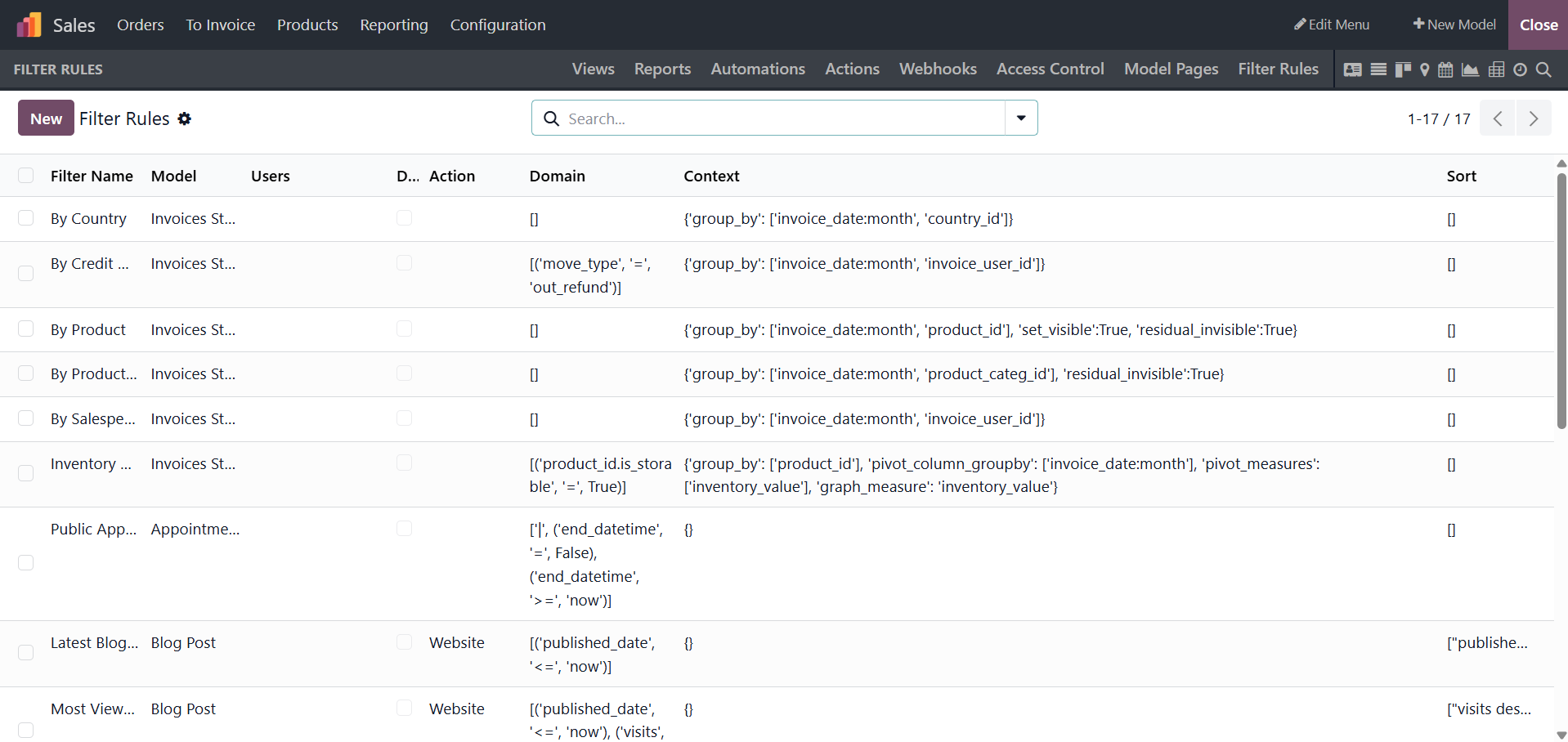
One unique tool for configuring apps is the Filter Rules option in the Odoo19 Studio module. Additionally, the Filtering components of the various menus of the apps created with the Odoo Studio module will benefit from this menu's sophisticated operations features. Each defined filter rule will be shown in the Filter Rules menu along with the filter name, model, user, default filter, and action. Additionally, the defined Filter Rules' Default Filter action can be turned on or off.
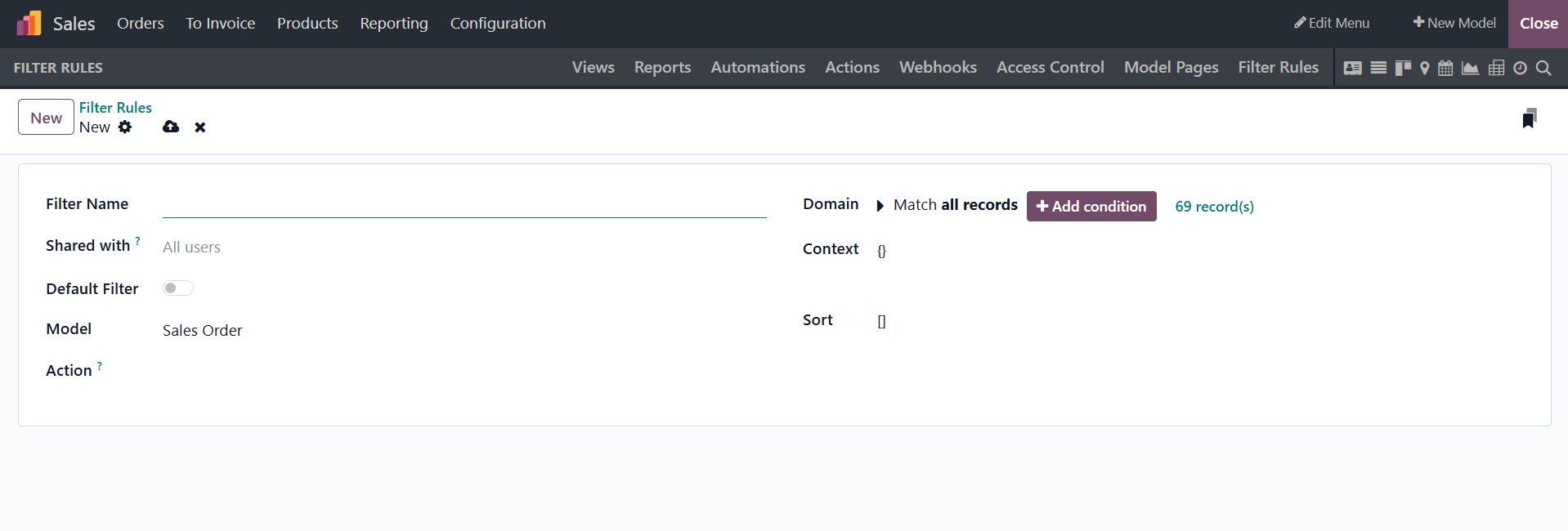
As seen in the screenshot below, you can choose the make and definition shown with a form to create a new Filter Rule. The Filter Name and the Available for User, Model, and Action that the Filter Rule should start must first be established by this component. Additionally, you can choose Default Filter, which will set the appropriate Filter Rule as the default when the software is used. If the option is defined as Active, it will become active. The functional aspects of the aforementioned websites will be considered when selecting your own Filter Rule, which you can change by utilizing the Add Filter option.
Additionally, the Context will be distributed in accordance with the Filter Rule specified in the relevant Domain. It is also possible to describe the descriptive part of the context. Along with the description, the Sort information for the applicable Filter Rule will be defined.
Both the filter configuration and the functionality of the program will benefit from this. All of the Filter Rules made on the Odoo19 platform for the newly generated apps can be changed or removed in accordance with the specifications using the same menu.
We will currently be able to comprehend the Filter Rule menu, which is located on the Odoo Studio module webpage. When it comes to the new applicant's particular tools for the section that follows, which explains the Odoo19 Studio module's website and menu, it is an excellent tool.
By offering intelligent, context-aware support, Odoo's artificial intelligence (AI) boosts productivity across all apps. While maintaining the traditional Odoo interface, it enables users to work more quickly, make wiser decisions, and automate repetitive processes.
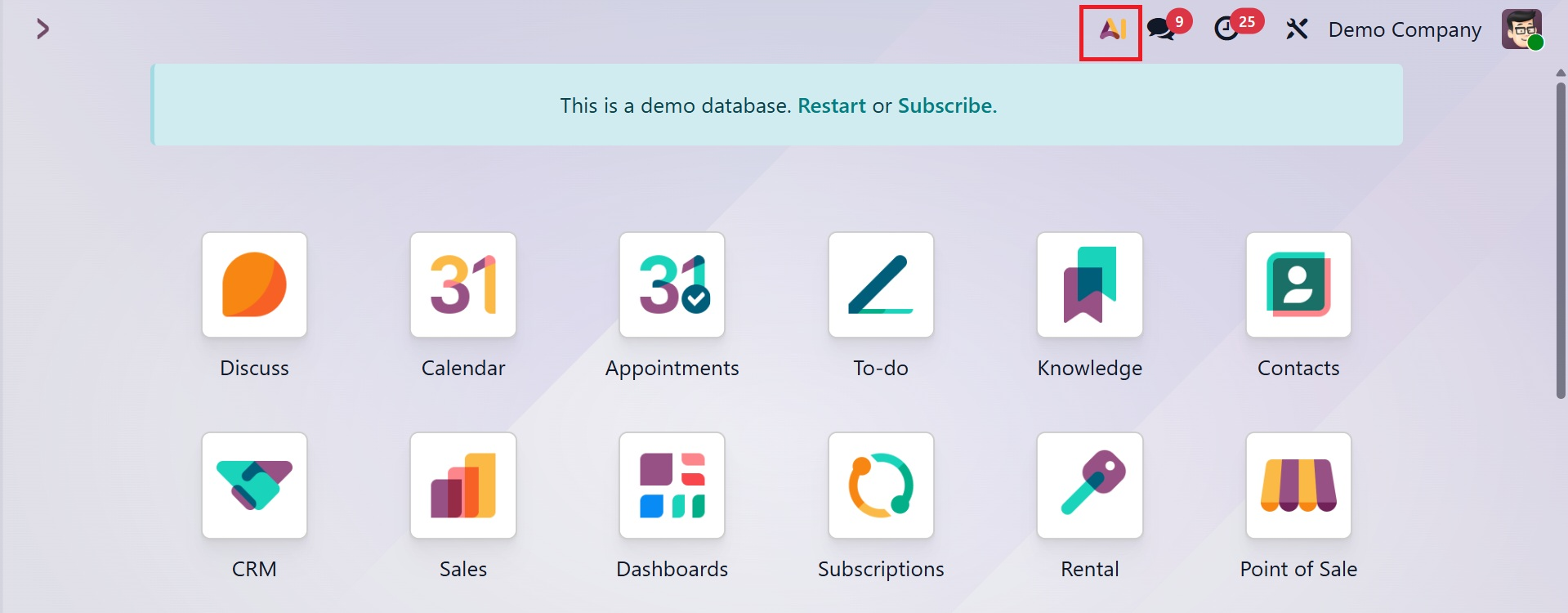
You can also use the AI button to initiate a chat with the Ask AI assistant. Regardless of the app the user is using at the moment, the AI button is accessible across the database and is situated in the upper-right corner of the screen.
A dialogue window with the Ask AI agent opens after you click the AI button. Either pick on one of the pre-configured message prompts or make a request in the message area.
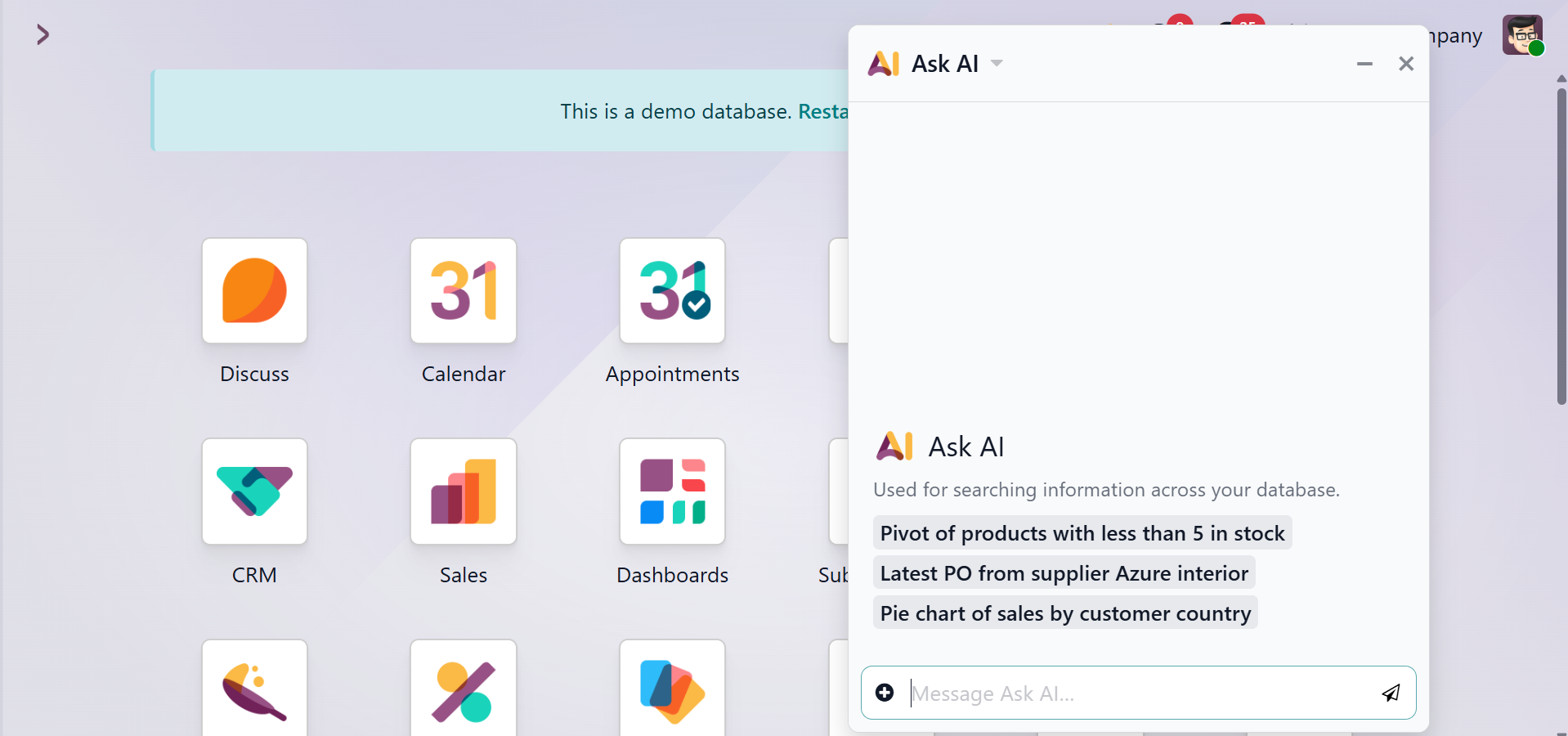
A popup with suggested conversation starters is displayed when the AI button is pressed. Depending on where the button was clicked in the database, different prompts appear.
Users can get help anywhere in an Odoo database with the Ask AI capability. It can respond to inquiries, broaden perspectives, and enhance content since it comprehends natural language.
Press Ctrl + K to launch the command palette and input a prompt from anywhere in the database. After entering a prompt, click the AI symbol or press Enter. This initiates a dialogue window with the Ask AI agent.
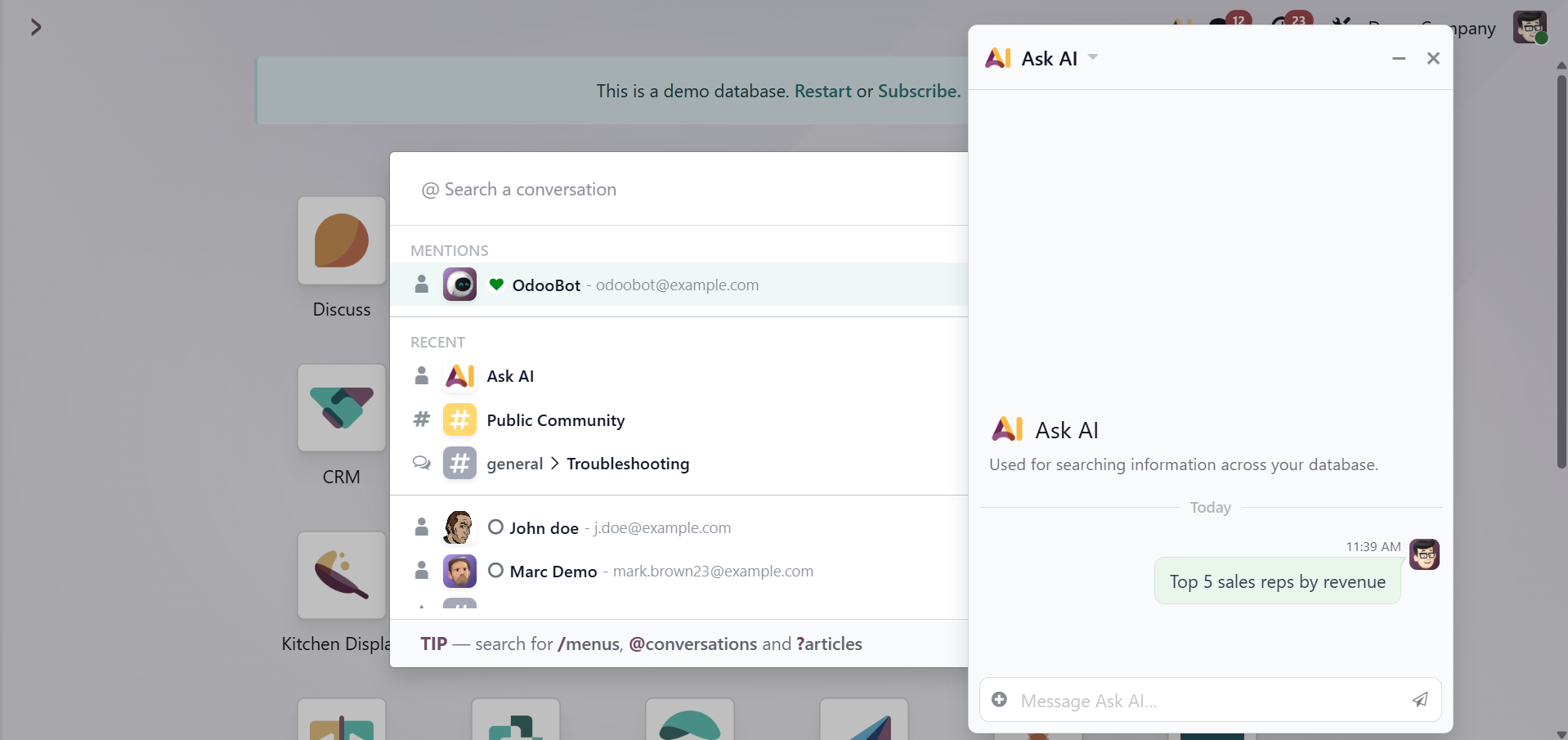
The Ask AI agent is told not to show a user a mistake. It replies that it can't finish the request at that moment if it can't finish the desired query.
To sum up, the Odoo19 Studio module is a great tool that will give you essential functional and operational characteristics, allowing you to implement tools that are especially suited to your requirements. Additionally, the Odoo19 studio module is a remarkable and obvious tool for business management with Odoo19 because it can update both the configurational and operational modules.
This chapter will only offer a synopsis of the studio module. The Studio module allows users to tailor their Odoo experience to specific business requirements through module building, view refining, report production, setting setup, and automated workflow implementation. For a more detailed explanation, refer to the Odoo 19 Studio book.