Settings
The Website module's Settings page provides a wide range of sophisticated capabilities to improve and personalize the e-commerce experience. Go to the Website module's Settings menu to access these settings. This panel is divided into several parts, each of which has options that are specific to a particular facet of your online store. The following are the primary configuration sections:
- Configure payment method: Allows you to set up and manage online payment providers used for customer checkouts on the website.
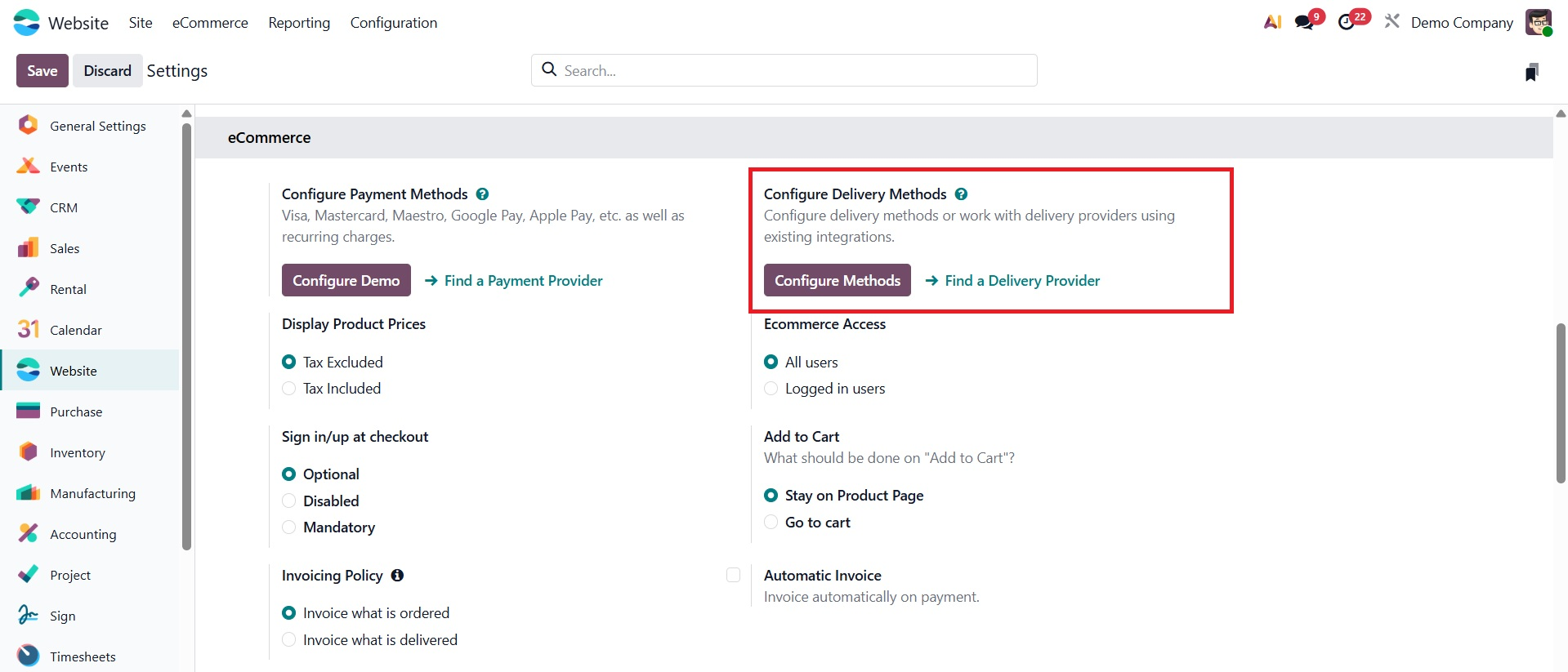
- Configure delivery method:Enables configuration of shipping methods and carriers available during the e-commerce checkout process.
- Display product price:Controls whether product prices are visible to website visitors in the online store.
- E-commerce access: Defines who can access the e-commerce shop, such as public users, portal users, or logged-in customers only.
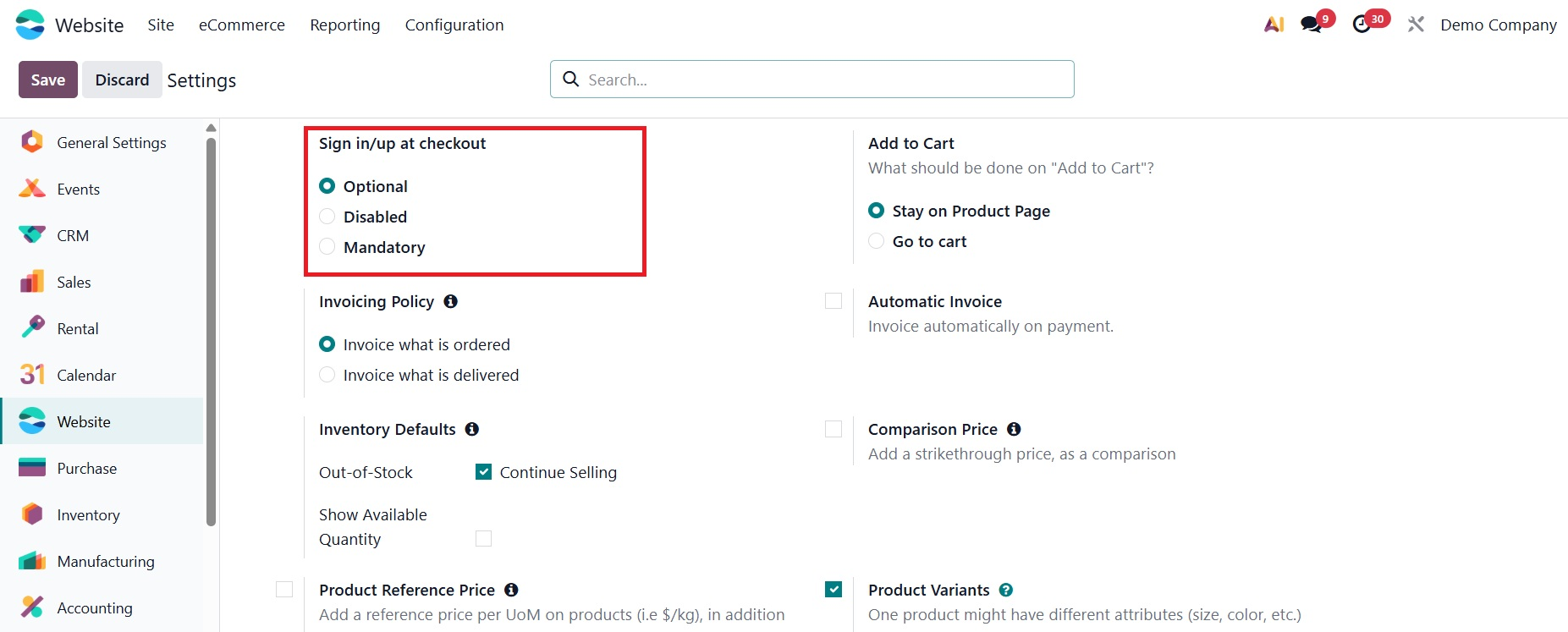
- Sign in/up check out: Manages elements pertaining to the checkout process's experience and flow.
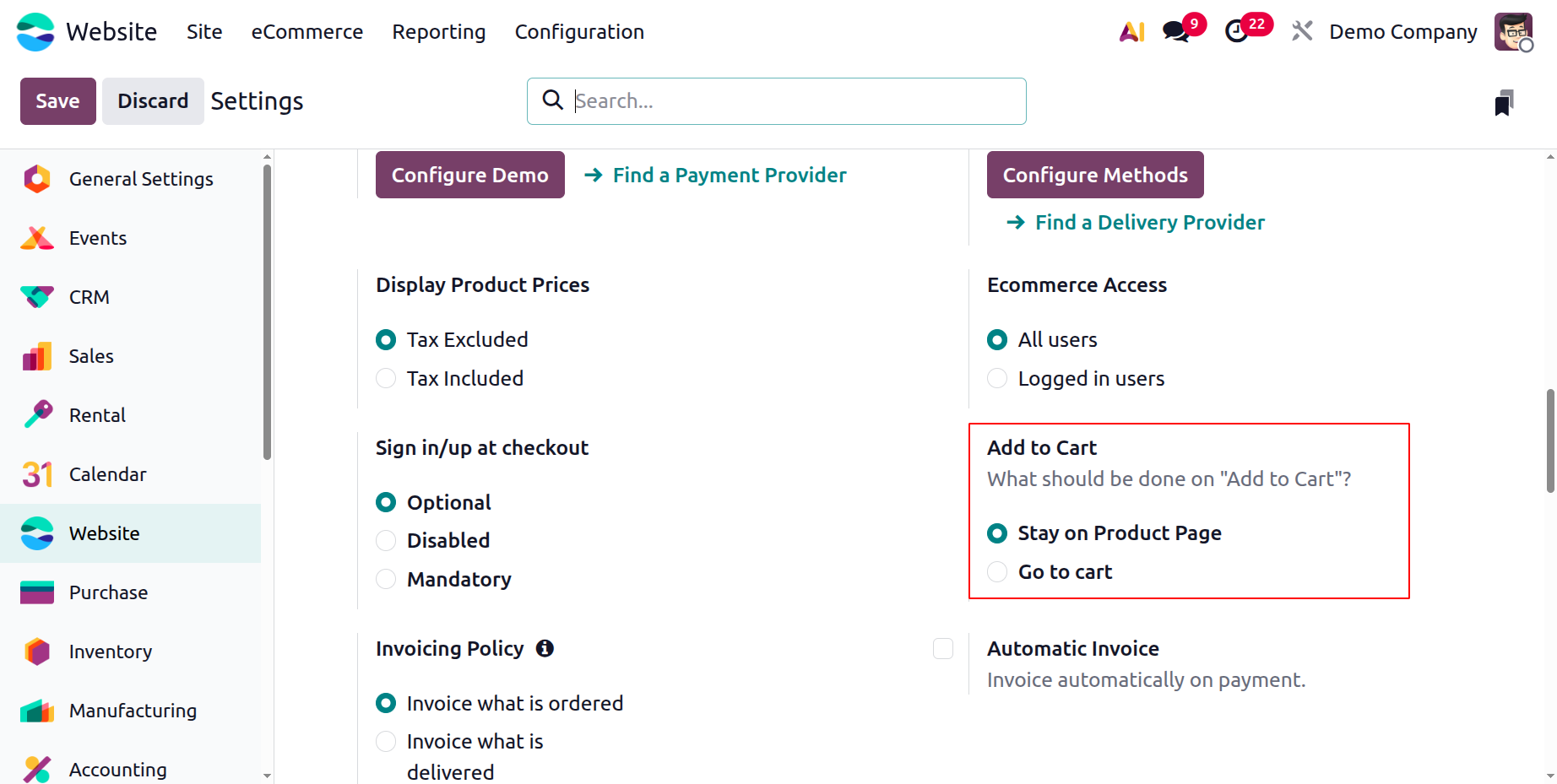
- Add to cart: Enables or disables the ability for customers to add products to the shopping cart from the website.
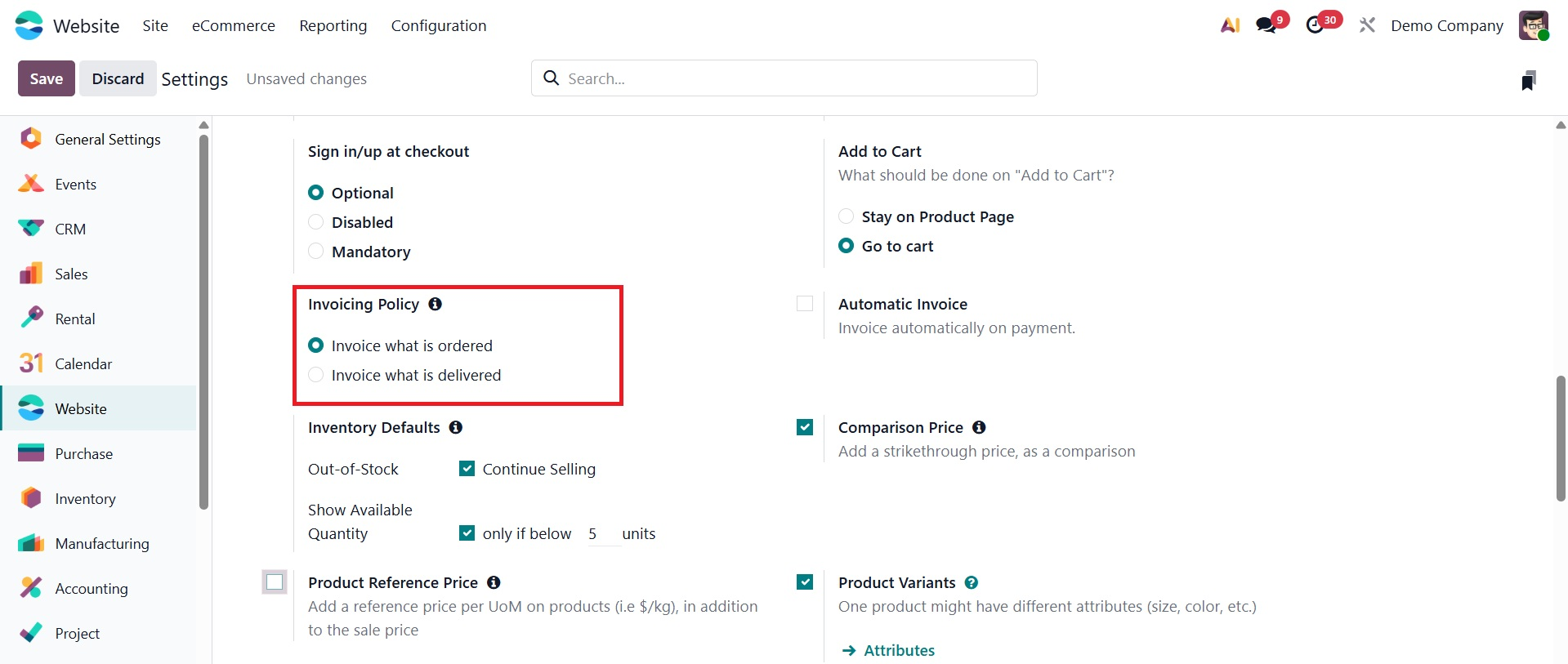
- Invoicing policy: Determines when invoices are generated, either based on ordered quantities or delivered quantities.
- Automatic invoicing: Automatically creates customer invoices upon order confirmation or payment, reducing manual invoicing effort.
- Inventory default: Sets the default inventory behavior for products sold online, such as stock availability and reservation rules.
- Comparison price: Displays an original or reference price alongside the current selling price to highlight discounts.
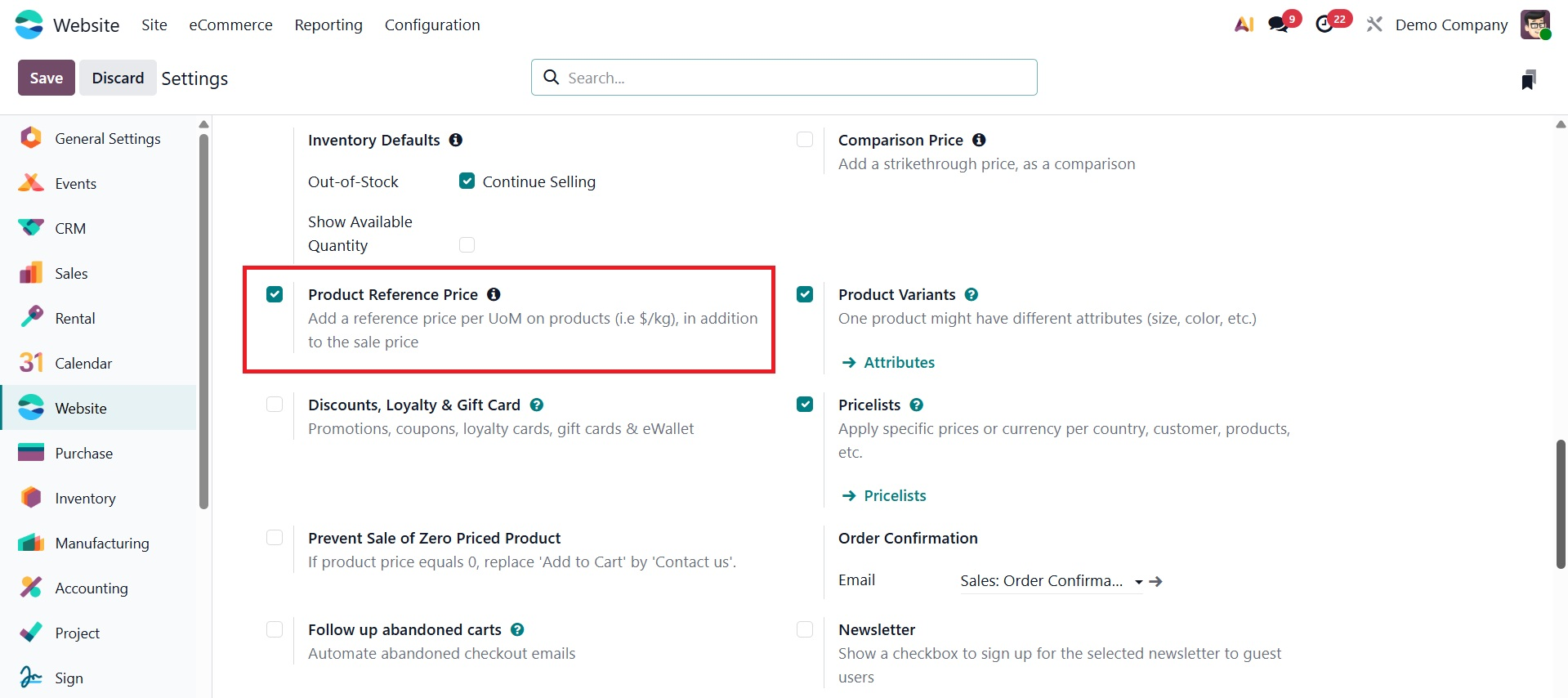
- Product reference price: Shows a base price (for example, price per unit or per measure) to help customers compare product values.
- Product variants: Allows customers to select different variations of a product, such as size, color, or configuration, on the website.
- Discounts, loyalty, and gift cards: Enable promotional programs, loyalty rewards, and gift card usage in the online store.
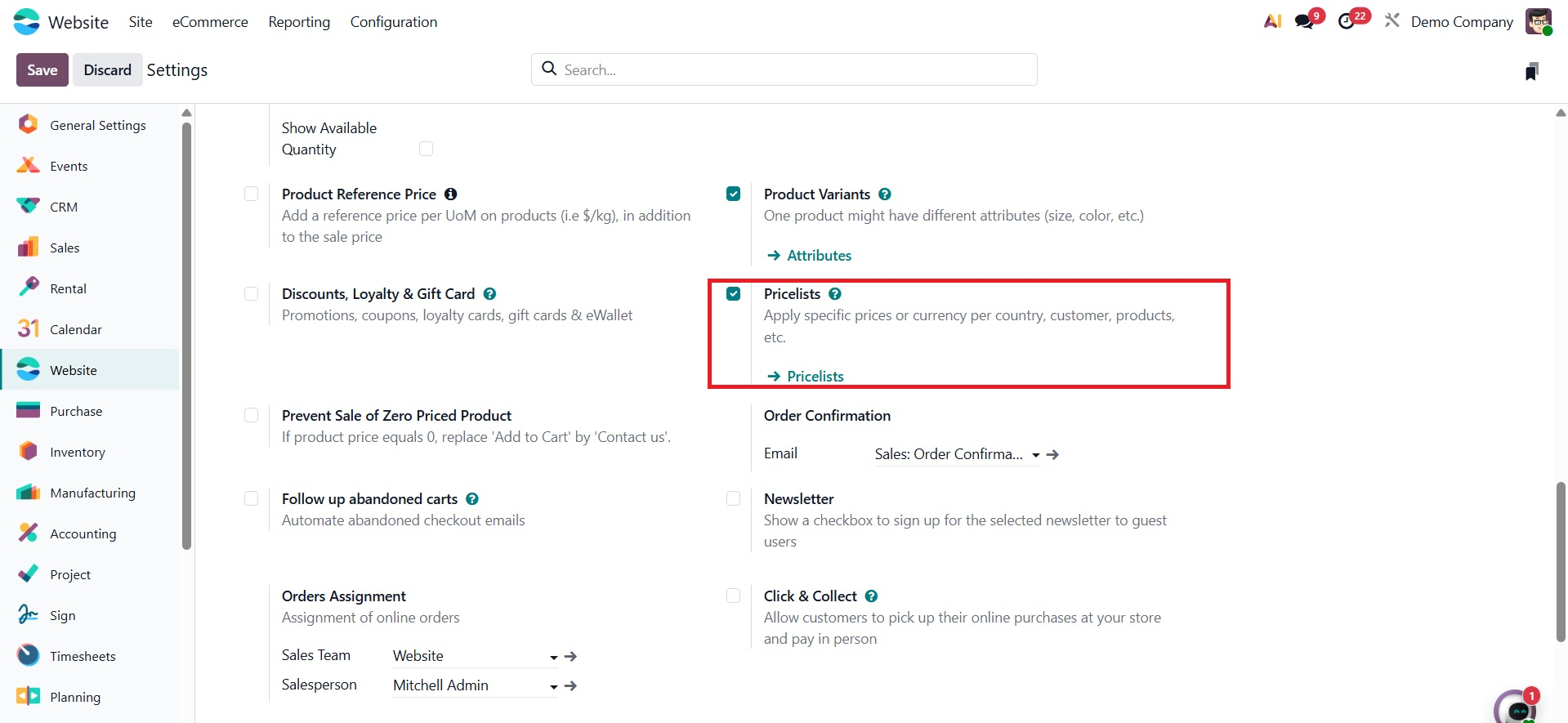
- Pricelists: Allows different pricing rules for customers, regions, quantities, or promotions in e-commerce.
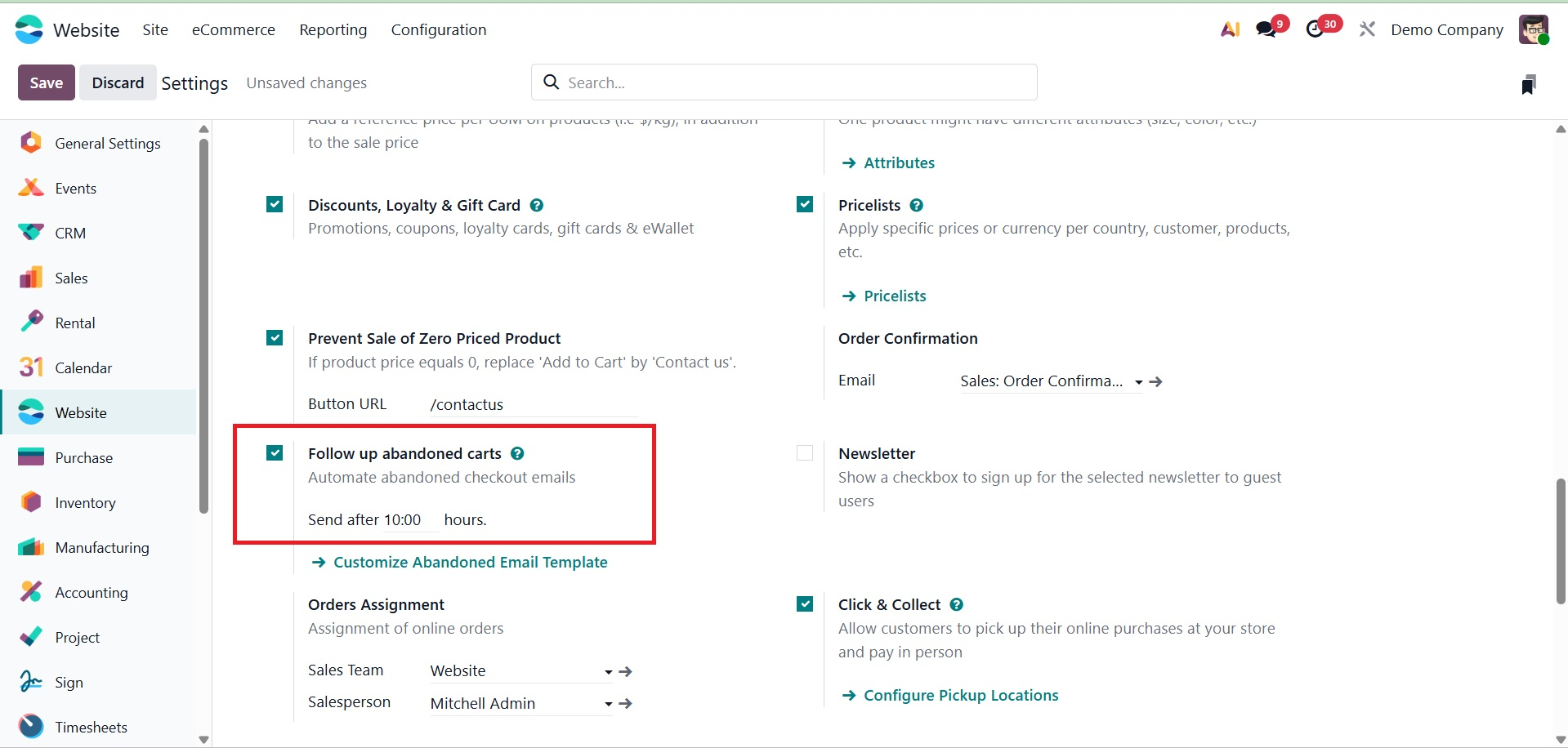
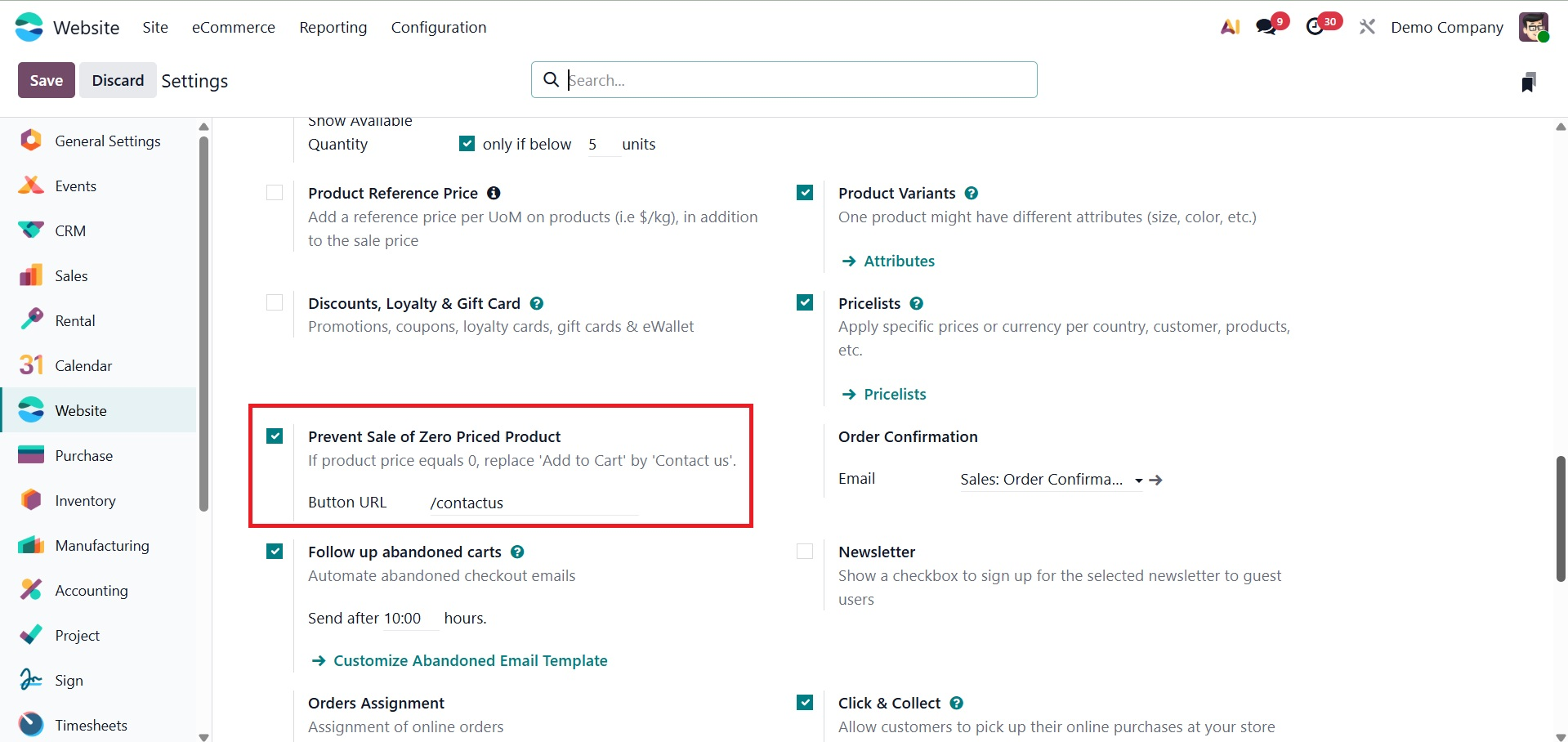
- Prevent Sale of Zero-Priced Product: Blocks customers from purchasing products that have a sales price of zero.
- Order confirmation: Controls the confirmation behavior and messaging after a customer successfully places an order.
- Follow up abandoned carts: Automatically sends reminders or follow-up emails to customers who leave items in their cart without completing checkout.
- Newsletter: Allows customers to subscribe to marketing emails and newsletters directly from the website.
- Order assignment: Automatically assigns online sales orders to specific sales teams or salespersons.
- Click and collect: Enables customers to place orders online and pick them up from a physical store or warehouse location.
This stage can be customized to collect information such as delivery preferences, gift messages, or any other fields required for your business. It comes after the delivery address form. You can customize the form to meet your needs by turning on this configure delivery method option in the Website Settings.
How customers log in throughout the checkout process is managed by the Sign In/Up at Checkout parameter. Customers can place orders as guests and then register using the same email address to follow their order if it is set to Optional.
Guest checkout is permitted without creating an account if it is set to Disabled (Buy as Guest).
Before placing an order, consumers must sign in or create an account if the setting is set to Mandatory (No Guest Checkout).
When a customer adds a product to their cart, you have control over what happens. After pressing the Add to Cart button, the consumer will remain on the product page and continue browsing if the Stay on Product Page option is enabled. As an alternative, you can use the Go to Cart option, which, after a product is added, leads the buyer straight to the cart page. Additionally, the Let the user decide (Dialog) option allows users to examine their cart or continue shopping by displaying a pop-up.
In order to facilitate thorough customer selection, customers have the option to showcase product prices, offer a comparison price together with discounted rates, and enable product variations like color or size. Customers can use the wishlist option to save their preferred products for later purchases. Inventory Defaults assist control how inventory information is shown on the website.
Users can also show discounts directly on the product pages and enable the Product Reference Price field for internal management.
Discount, loyalty, and Gift cards programs can be combined to promote recurring purchases. The Product Comparison Tool improves the decision-making process by allowing customers to evaluate several products side by side. Last but not least, the platform has the ability to Prevent Sale of Zero Priced Product, which guarantees that any item without a predetermined sales price cannot be added to the cart or bought. This feature keeps prices accurate throughout your website and helps prevent unintentional orders of things priced at zero. By checking the Prevent Sale of Zero-Priced Product checkbox in the Shop section of the Website settings, you can activate this.
When combined, these capabilities provide a thorough toolkit for tailoring product behavior and presentation to particular business requirements.
The Pricelists feature in Odoo 19 lets you control product pricing according to different criteria. To manage various pricing requirements, you can set up a single pricelist with several rules rather than developing distinct pricing kinds. These guidelines can be used to determine prices using formulas, offer discounts, or define particular product prices. Conditions like minimum quantity, date range, or consumer groups can also be specified. With a single pricelist, you can handle various pricing schemes such as country-based pricing, special offers, and volume discounts.
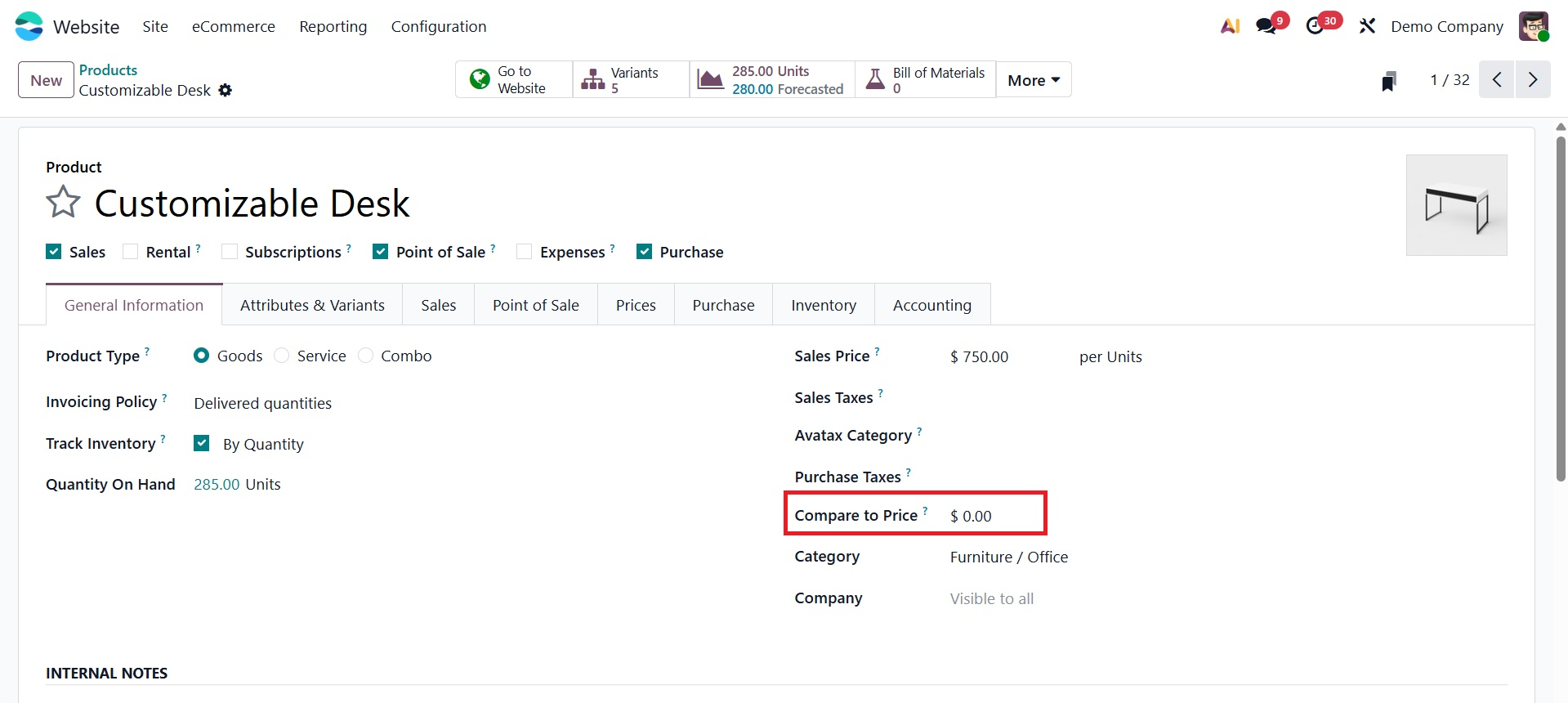
Turn on the Comparison price function to display a strikethrough or comparison pricing (for promotions, for example).
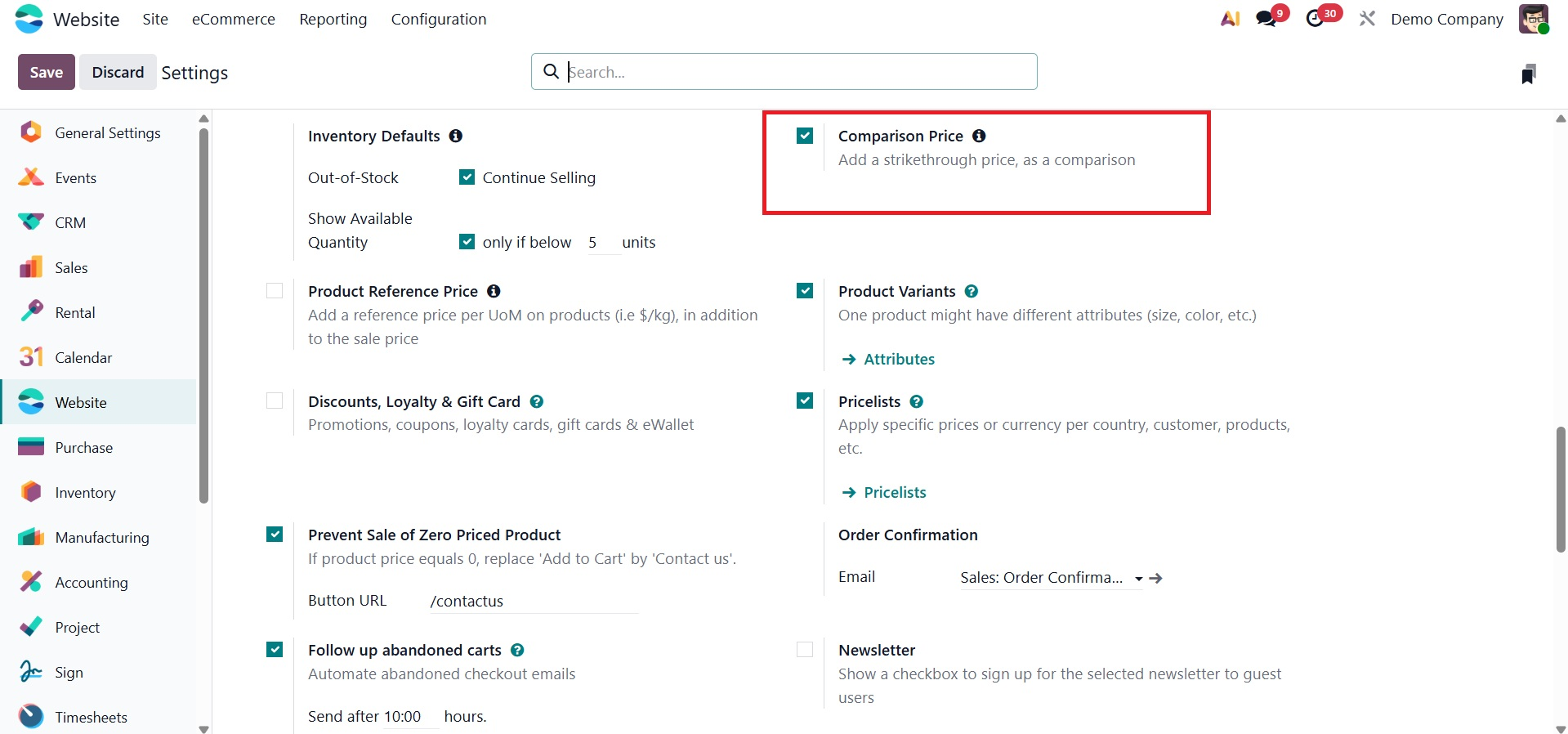
Once enabled, the product form will have a new field called Compare to Price that allows you to compare the original price to the current selling price.
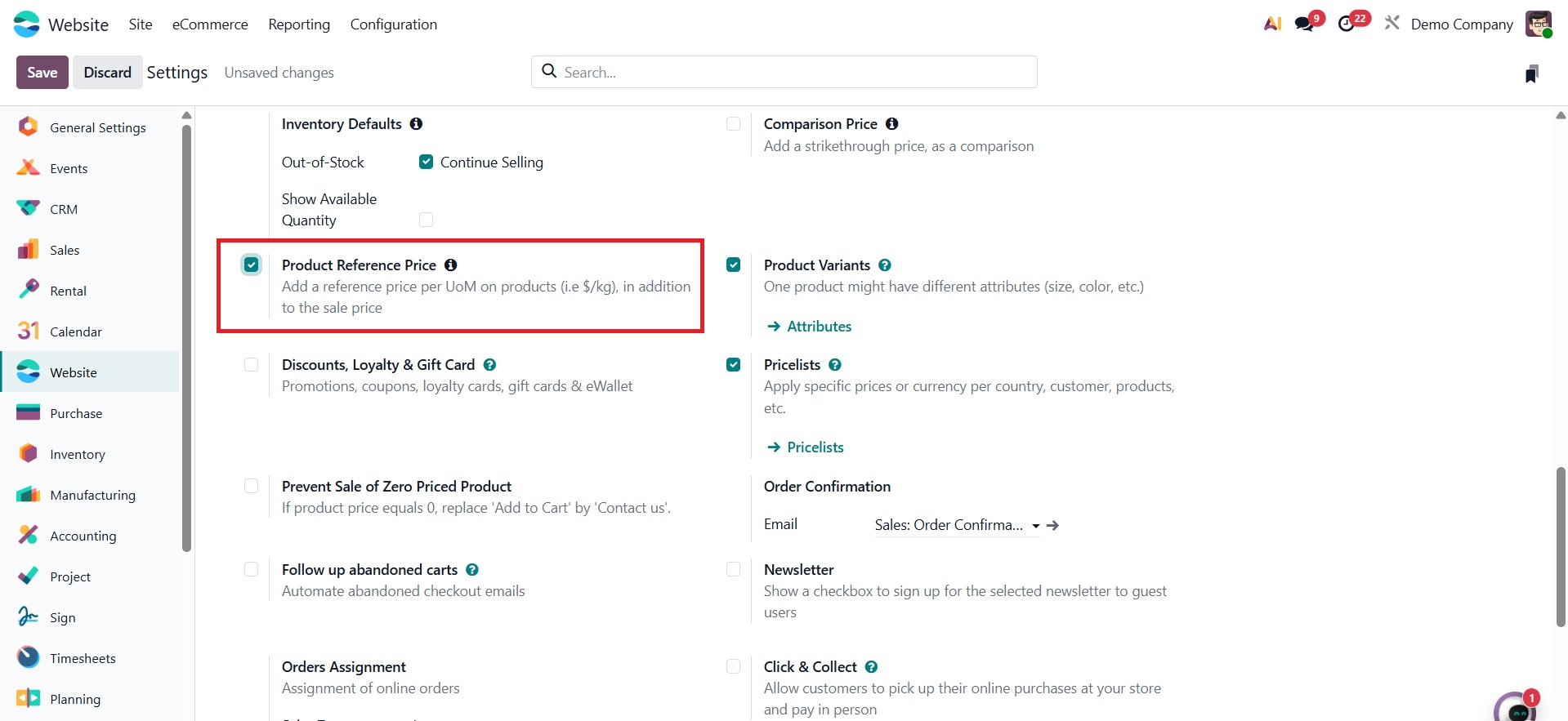
You can establish a price per unit of measure using the Product Reference Price option found in the Website Settings ‣ Products section. When selling goods in bulk or by weight, this function is particularly helpful. The unit price will be prominently shown on the product page once it has been activated.
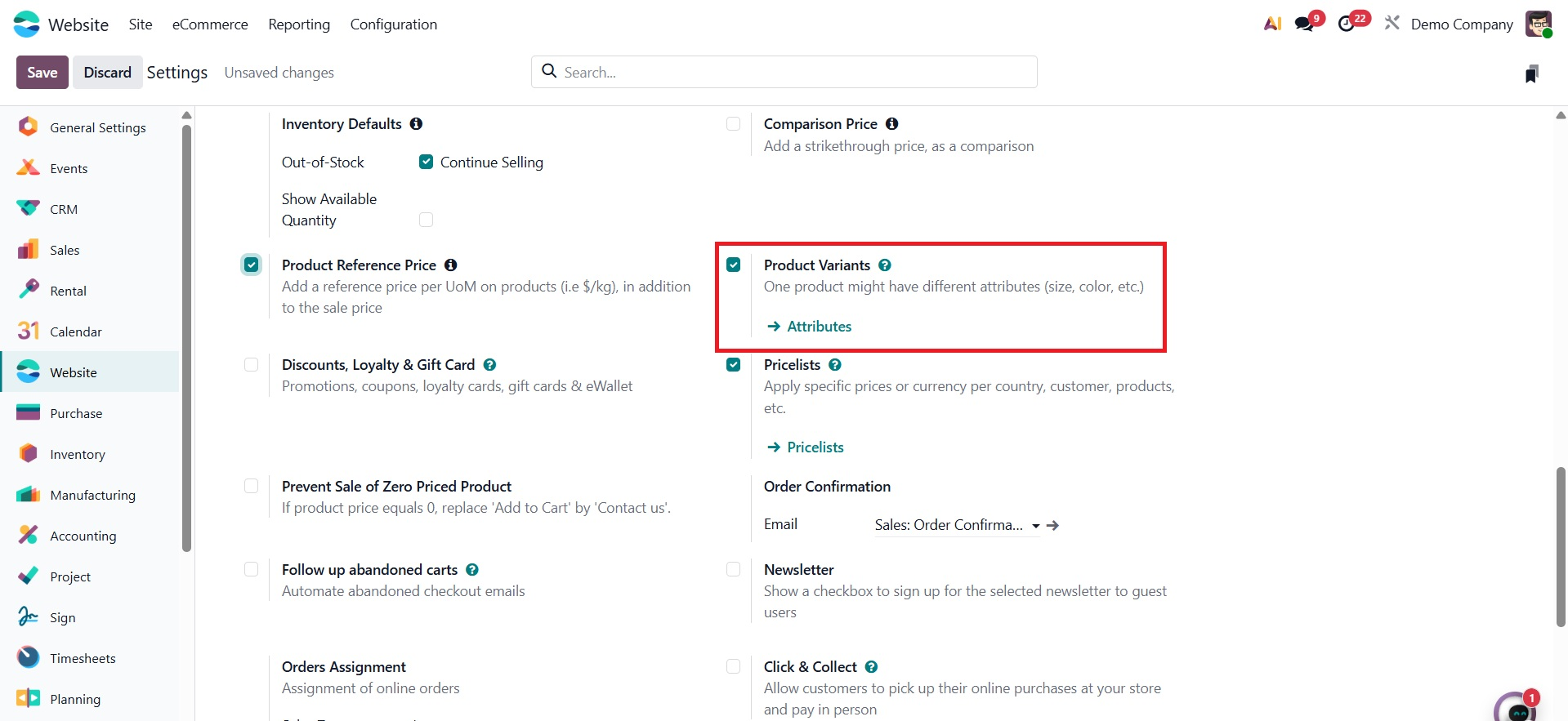
Turn on the Product Variants option to control product variations like size or color. This makes it possible to configure different combinations of variants from the product template.
Odoo has a configurable discount engine to increase client engagement and boost revenue.
You can activate Gift Cards, Loyalty, and Discounts under Website Settings.
Two categories of promotional mechanisms exist:
- Discount Programs:Use predetermined criteria to automatically apply discounts.
- Coupon and Loyalty Programs: Give consumers gift cards, loyalty cards, and coupon codes.
You are able to set up:
Minimum amount to be purchased
Products or product categories that apply
Customers that are targeted
Validity durations
Rewards can take the form of free merchandise, a specific sum, or a percentage. It is also possible to activate gift card functionality from the same section.
You can configure the default availability mode for new storable products under Website Settings ‣ Inventory. This comprises: Designating a default warehouse, Enabling the Allow Sale of, Out-of-Stock Products feature permits the sale of products that are out of stock., Real-time product quantity display on the website, and displaying personalized notifications for low-stock thresholds.
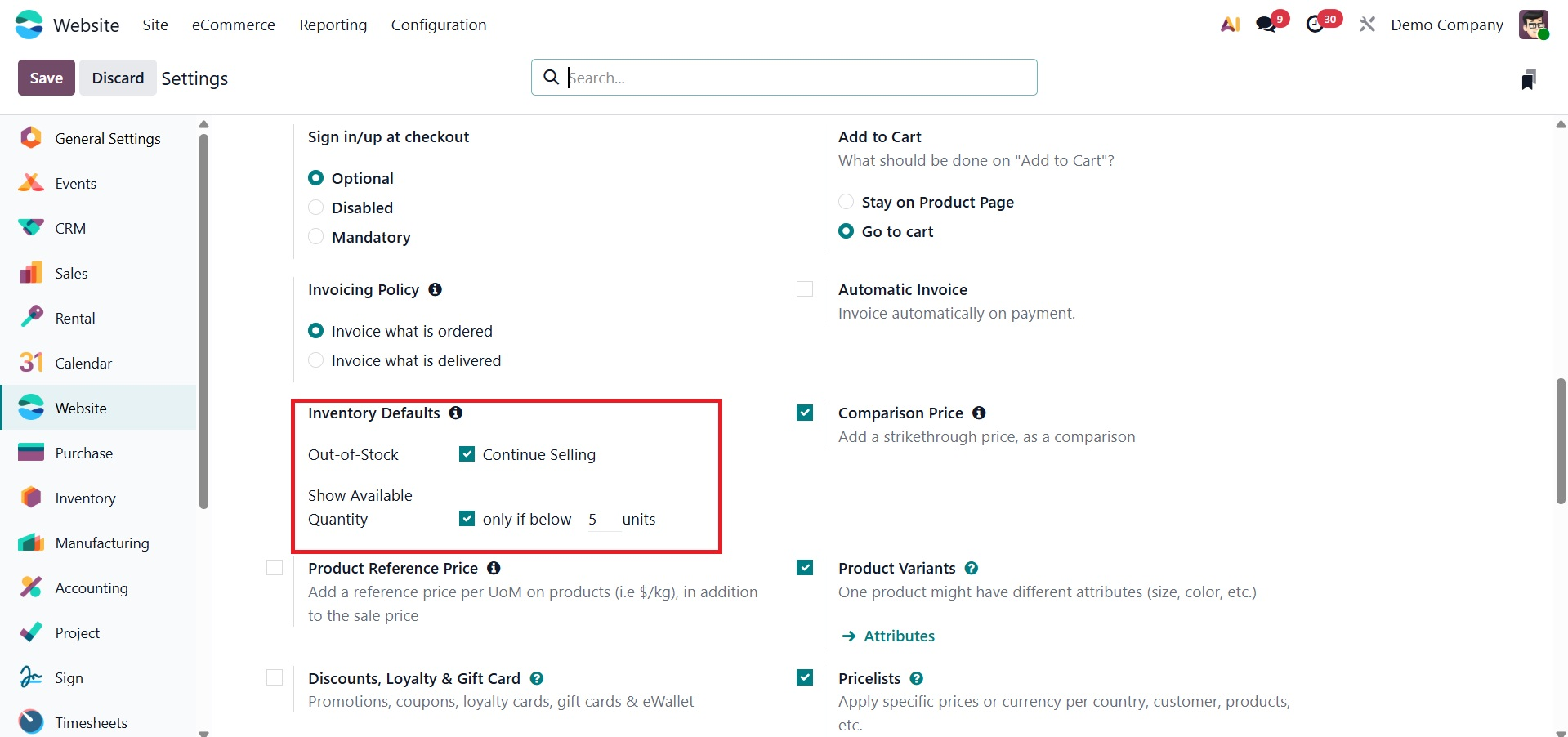
This guarantees that your clients are informed about product availability in a timely and correct manner.
Enable the Wishlist option, which lets customers save items for later, to improve the purchasing experience. The Product Comparison Tool also enables customers to evaluate various products according to their features, assisting them in making well-informed choices.
Turn on the Prevent Sale of Zero-Priced Products option to stop consumers from buying zero-priced goods. When there is no indicated price for the goods, this substitutes the Add to Cart button with a Contact Us button.
- Set the Invoicing Policy to either Invoice what is ordered or Invoice for the ordered quantity under Website Settings ‣ Invoicing.
Invoice what is delivered: Create an invoice based on the actual amounts delivered.
Enabling Automatic Invoice, which creates invoices upon online payment confirmation, is another way to expedite accounting procedures.
- Turn on the Automatically Follow up Abandoned Carts feature to increase cart recovery rates. Customers who did not finish their transaction can now receive follow-up emails from Odoo. For branding and customization, you may also create a unique Abandoned Email Template.