Studio Management
The Odoo19 Studio module, which allows you to design unique apps based on functional needs, is already included with the Enterprise edition of Odoo 19. The Studio module's straightforward drag-and-drop structure will make it possible to develop a variety of features in accordance with the platform's functional needs. You can also develop a variety of applications using the Odoo Studio module according to the operational and functional needs of the business. If you decide to create a new application, choosing the Studio module will enable you to add a "New App," as seen in the screenshot below.
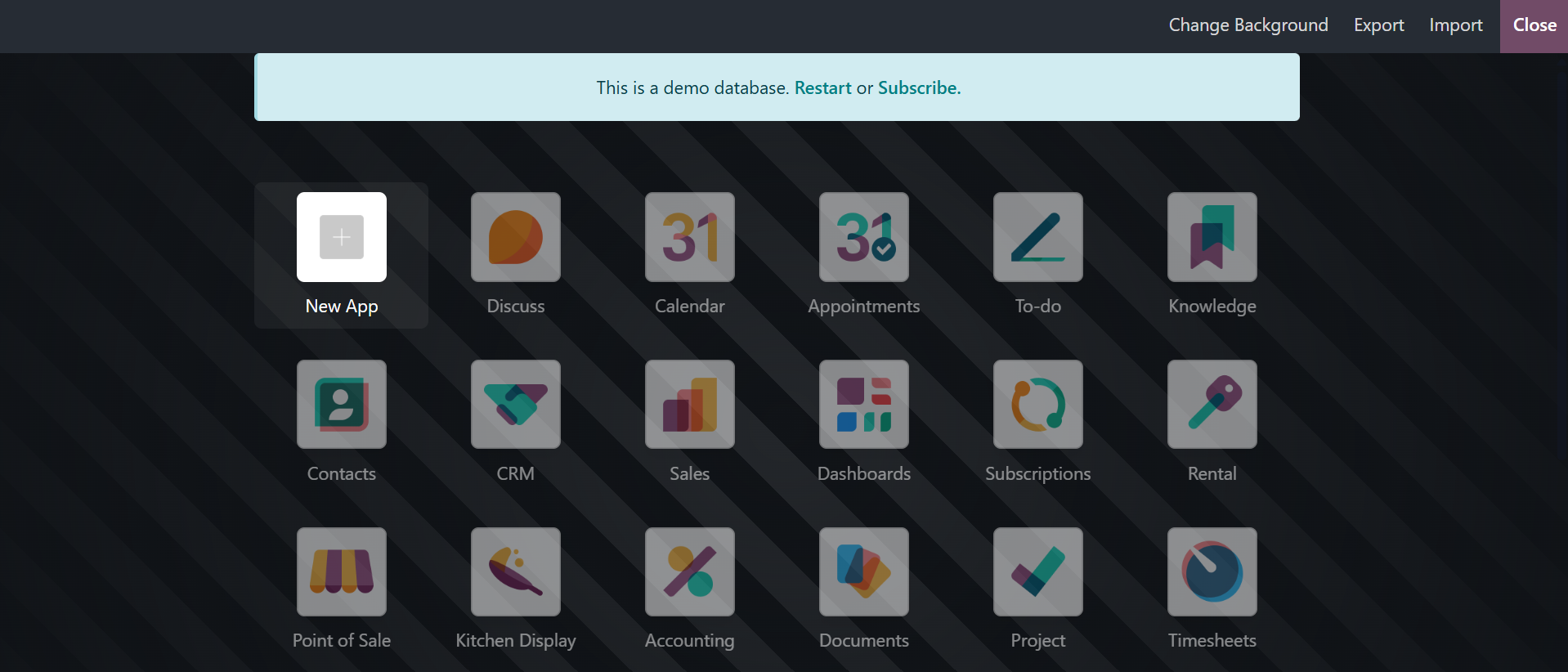
Odoo19 Studio will prompt you to create a new application based on your specifications after you select the Add New App option.
You can start creating new apps based on your requirements after choosing the NEXT option.
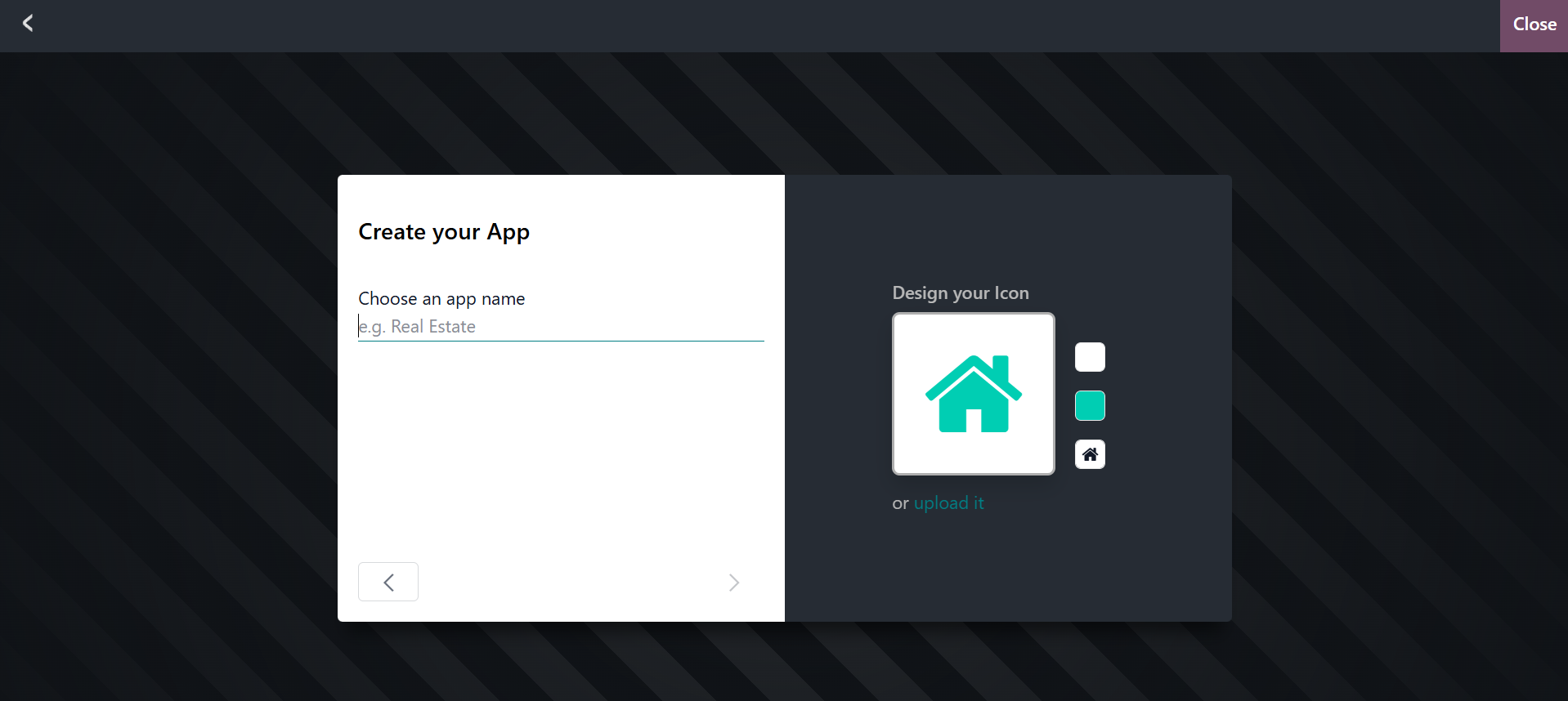
Your new application must first be given a name and an icon. Every other aspect of developing the new application is entirely within your hands, such as using the integrated tools to create these objects or uploading an image from a local server location to use as the icon.
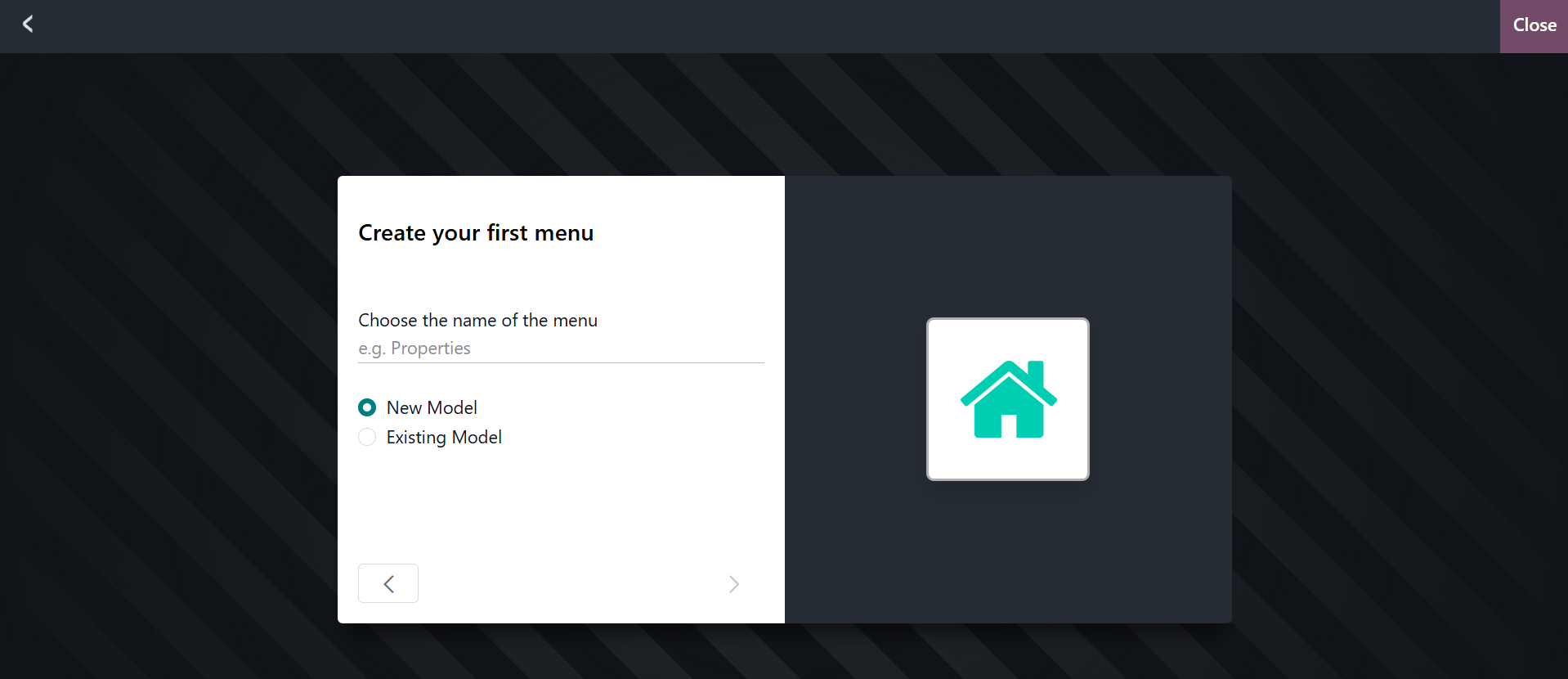
Once the new application's name and icon are supplied, you need to design your first menu after choosing the NEXT arrow, as shown in the screenshot above. As stated in the pertinent section, the First Object Name must be supplied here. Additionally, you need to indicate if the model is new or old. Finally, use the following arrow choice to get to the menu where you can change the Model.
You will see a few suggested features that can be added to the Configuration menu of the model. Depending on the functional and operational needs of the platform, these functions can be enabled or disabled. Based on the suggestions given, a number of features, including contact information, user assignment, date and calendar, date range & Gantt, pipeline stages, tags, pictures, lines, notes, monetary value, company, custom sorting, chatter, archiving, and many more, can be enabled or disabled.
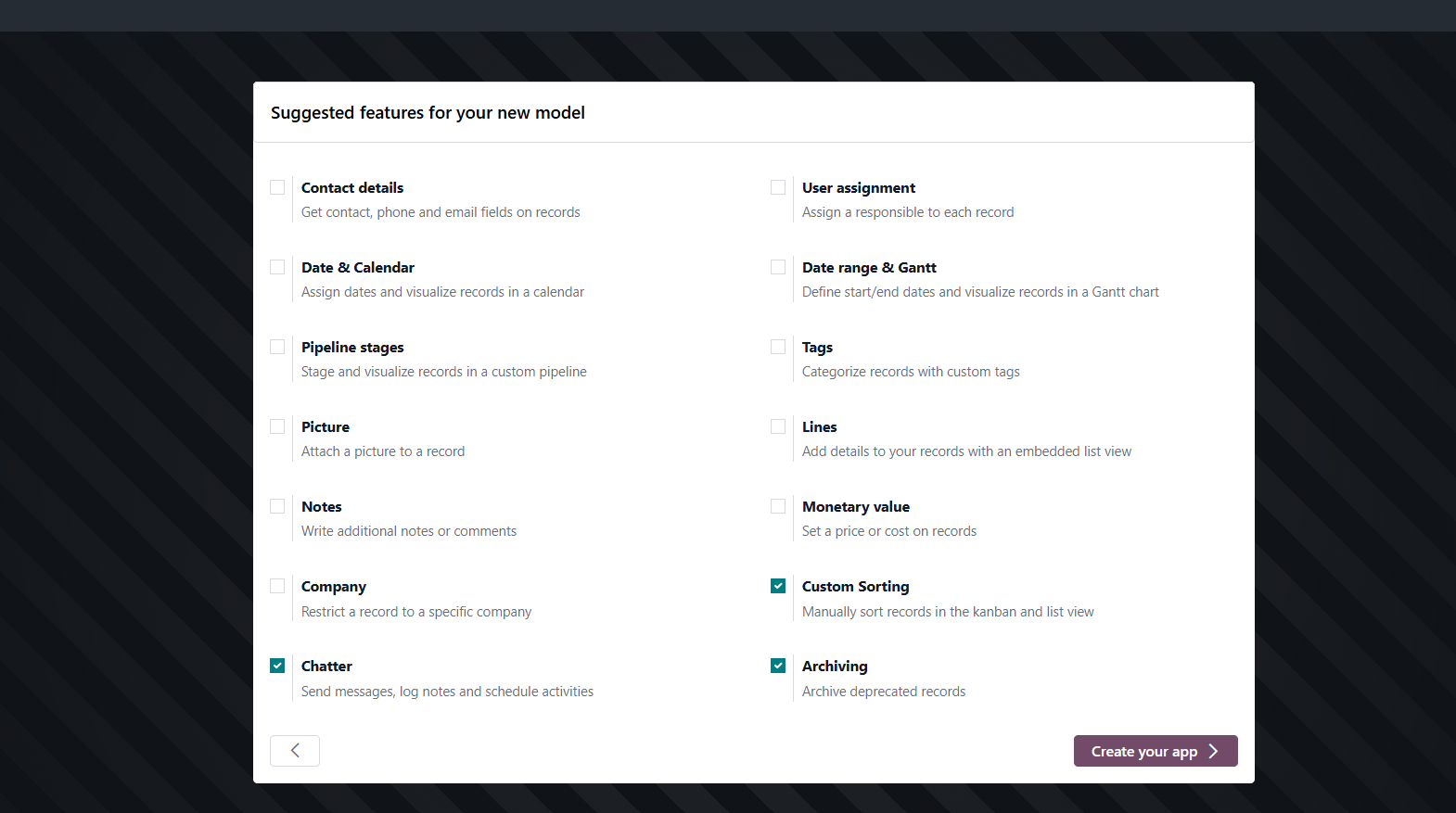
If the customer fills out their information in the application, it will be beneficial if the Contact Details feature is enabled in a particular area where the Contact Details can be provided for the relevant menu. You can designate a committed user or an employee of the organization to be in charge of maintaining and reviewing the record by using the User Assignment tool. The user can choose the date that will appear on the calendar by using the Date & Calendar box. The Start and End dates of the various elements, as well as a view of the dates in a Gantt view, can be expressed using the Date range & Gantt. This will make it easier for you to understand the dates.
This will facilitate your understanding of the established dates. The stage of each defined entry is indicated by the Pipeline stages field, which has been defined in operations. Along with the current stage, which may be altered by selecting the stages, information on the pertinent menu item will be displayed. Additionally, the pipeline's phases can be altered specifically to meet operational needs. The Tags field, which may be detailed in the new application window, will make sure that the described objects have tags associated with them for filtering and grouping purposes.
Whether it is a product or contact information, the relevant entry's photo will be displayed in the Picture box. You can describe any aspect or find the relevant lines of information in the Lines section. The terms and conditions, address lines, product description, or any other component pertaining to the item under description could be examples of this. If the defined notes on the entries are described in the Notes Field, users and other users will be notified while they are working with the pertinent entry. Whether it's a service, product, or entry of any kind, the value of money function will help determine the cost of the specific thing. The worth of the asset or product is contained in this file.
Features like Contact details, User assignment, Date & Calendar, Date range & Gantt, Pipeline stages, Tags, Picture, Lines, Notes, Monetary value, Company, Custom Sorting, Chatter, Archiving, and many more can be enabled or disabled here based on the recommendations given.
Let's say the client completes the application with their details. In that scenario, it will be helpful to allow the Contact Details feature in a particular field where the Contact Details can be set up for the appropriate menu. Using the User assignment tool, you can assign a specific User—such as an employee of the organization—to be responsible for maintaining and keeping an eye on the record.
The Date & Calendar field allows the user to define the date by opening a calendar that they can select from. The Date range and Gantt will be helpful in specifying the beginning and ending dates of the respective features, in addition to a view of the dates in a Gantt view.
This will help you comprehend the dates that have been set. A defined field in operations that displays the stage of the matching defined entries is called the pipeline stage. The information about the item in the associated menu indicates the current stage, which you can change by selecting the phases. Phases of the pipeline can also be specially modified to satisfy operating needs.
The Tags field can be described in the new application window to ensure that the entries being provided have tags associated with them, which will be helpful for both filtering and grouping. The Picture field should be filled up with the image of the pertinent entry, such as a product or contact information. The Lines section can be used to define any aspect, including the product description, address lines, terms and conditions, or any other element related to the entry being described.
The information offered by the defined notes on the entries that can be described in the Notes Field is useful to all other users when working with a specific entry. The Monetary value is filed where the asset or product's value can be expressed, and it will help define the price of the pertinent entry, whether it be a product, service, or entry of any type.
In the Company Field, you can select the company that the associated record is associated with. This will help the company's operations, which include multiple businesses. The Custom Sorting feature of the items being defined will be useful for the menu where all the entities are defined.
It is also possible to preserve and modify the related Custom Sortings. Customers or users will have a Chatter area where they can communicate with each other if the Chatter capability is enabled. The Archiving field will ensure that the associated items are archived so they can be used at a certain period of operation by unarchiving it.
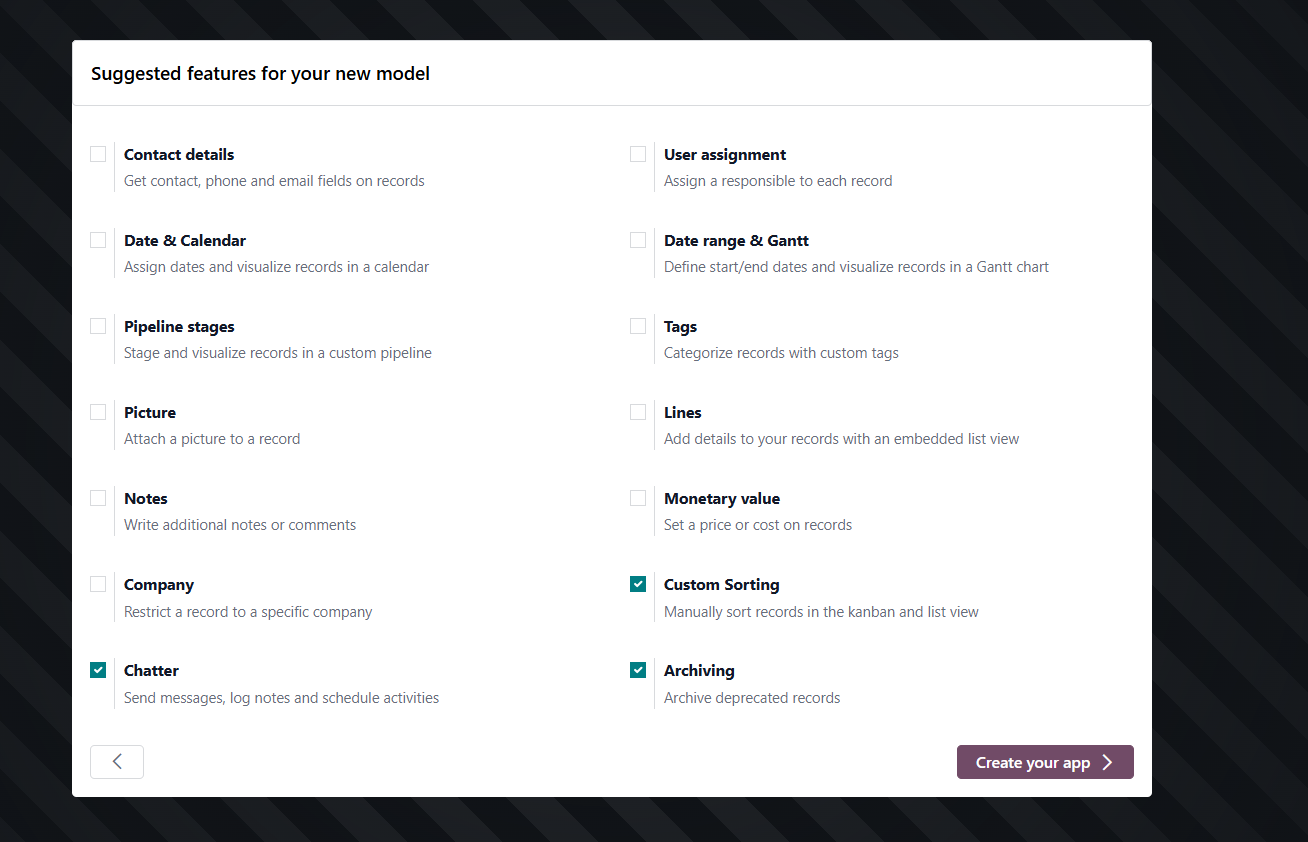
The creation of the new applications will come next, following the selection and activation of the configuration-based options. You can choose the "Create your app" option, which is depicted in the image above. With the initial model, the app's configuration window will open, as shown in the accompanying screenshot.
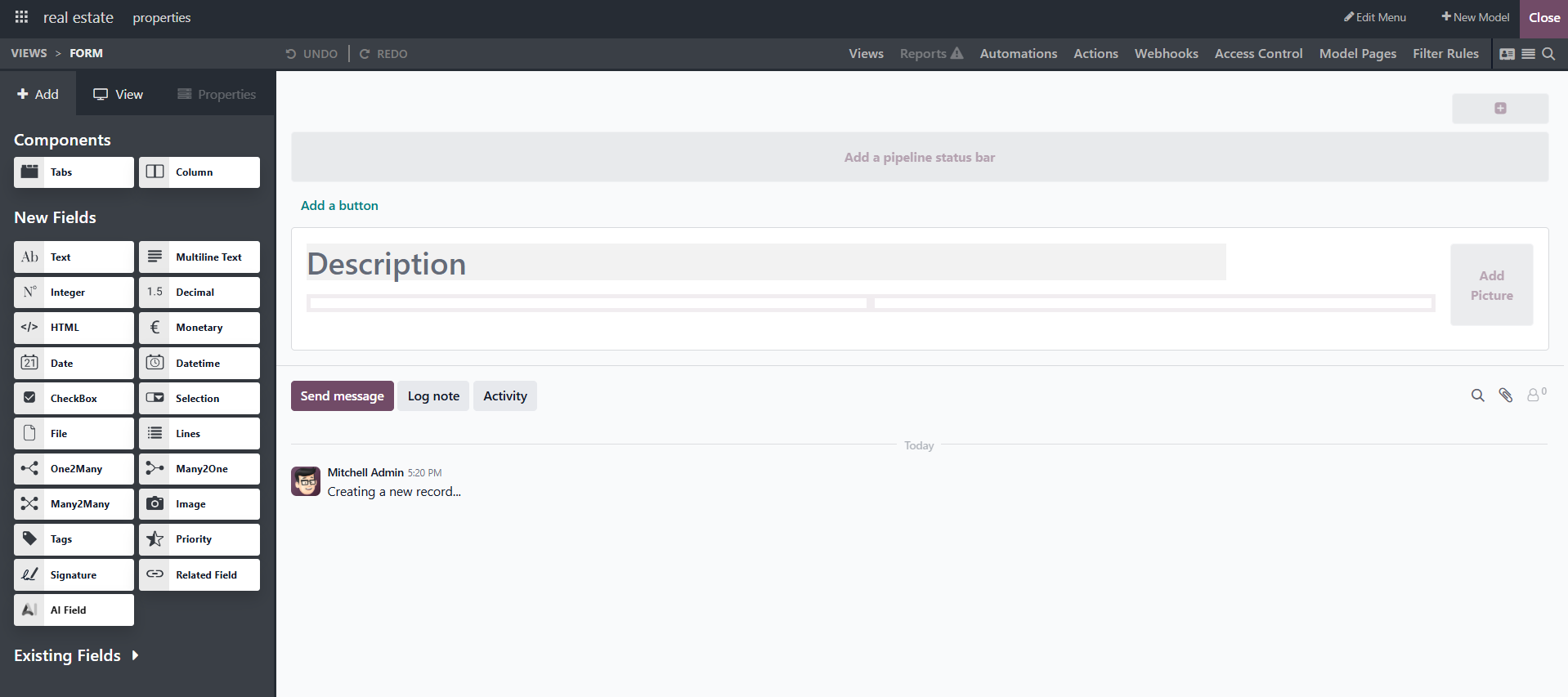
You may decide to include the field here based on the requirements of the activity. As seen on the right side of the screenshot, the first step is to select, drag, and drop the Tabs or Columns needed for the application's activities into the desired area within the Application window. By choosing the appropriate icon from the menu and then dragging and dropping it to the desired spot inside the program, you can add new fields. If you have decided to use an existing model for your application, you can inspect and use all of the established fields based on the required alterations.
Additionally, the Log features of the menu, which are shown on the bottom side of the menu, and the operation stages of the relevant application's menu can be altered in response to requests.
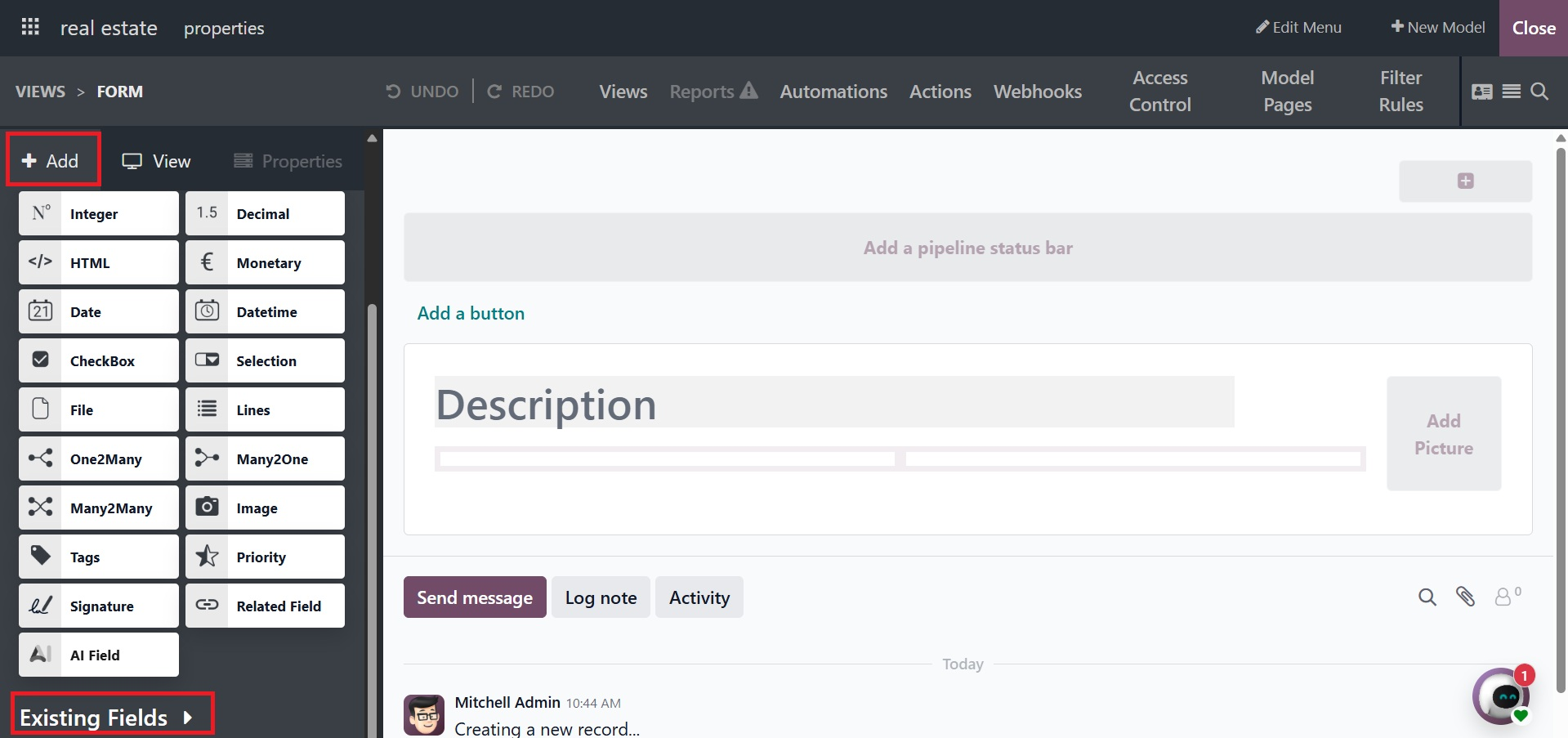
Depending on your requirements, you can add new fields to the program window using the + Add functional menu. Depending on the initial functional requirements of the application, you can add Tabs and Columns. The tabs allow for the incorporation of multiple bits of information into the produced application. Additionally, depending on operational and functional requirements, the application's settings can be organized on the relevant tabs. Depending on the needs and usage of the software, these could be specifically created tabs.
Making several operations columns can also help clarify the various portions of each program menu. Additionally, this will lead to a distinctive arrangement and placement of the associated options in the menus and tabs. Additionally, the Columns can be set up according to the anticipated uses and the application's running needs.
Once the Tabs and Columns have been discussed, you may add them by dragging and dropping the appropriate one onto the operations section of the program. Because of the additional configuration choices for the relevant Tab and Column, the operational elements will be based on your functional requirements. Finally, a description of the fields is required. Here, you can add new fields, make existing fields clearer, and build new fields based on preexisting ones. The New Fields section will show every field that was not mentioned in the application. If the model you have chosen is already in the Studio application, the existing fields are those that have already been defined in that model.
If you select a different model to use, however, no Existing Fields will be shown. By just choosing each field and dragging and dropping it to the appropriate location within the application window, you can configure and use a variety of fields based on the functional and operational requirements of the application. Fields such as Image, Tags, Priority, Signature, Related Fields, Text, Multiline Text, Integer, Decimal, HTML, Monetary, Date, Date & Time, Check Box, Selection, File, One2many, Many2one, Many2many, and many more can be specified.
- Image:uses a URL to display an image. Although a default value can be established, the value cannot be manually changed.
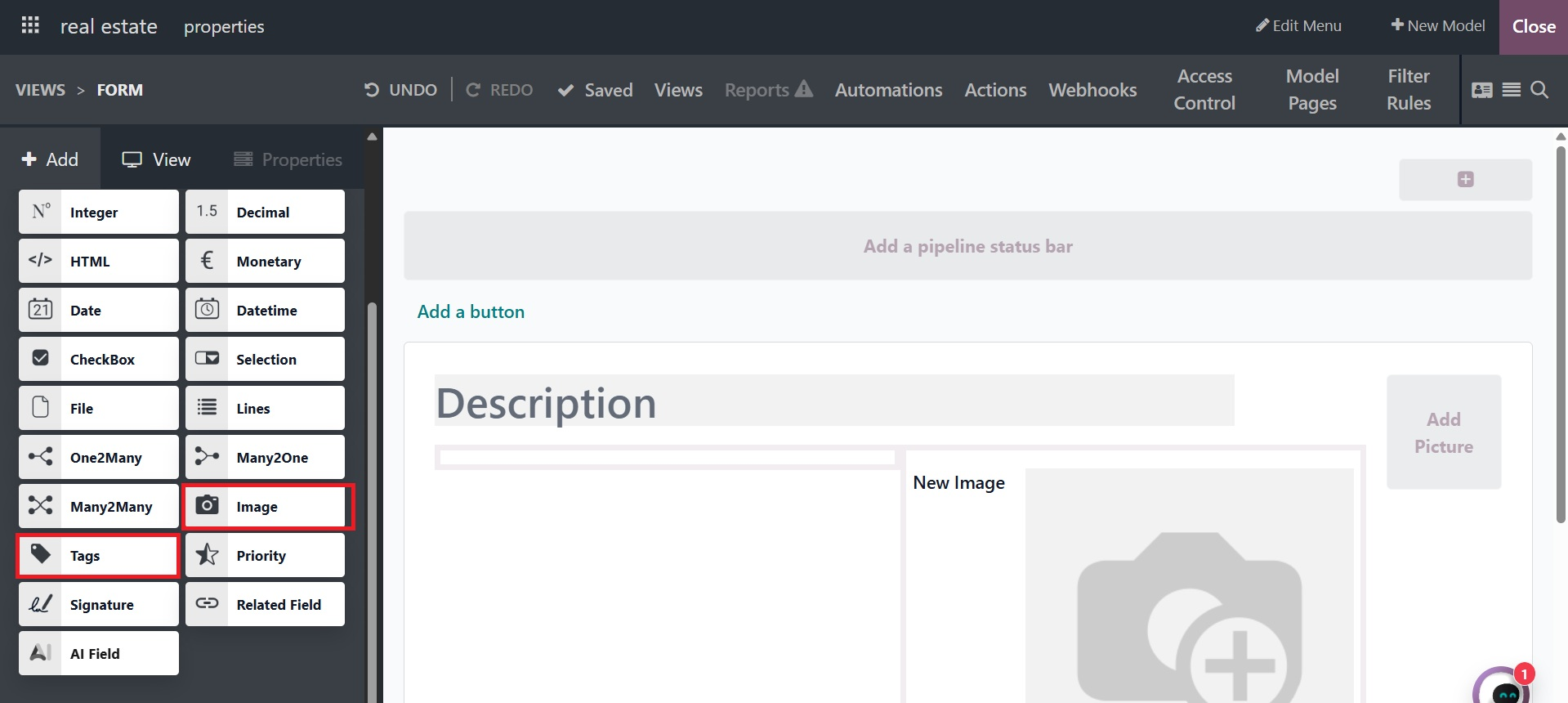
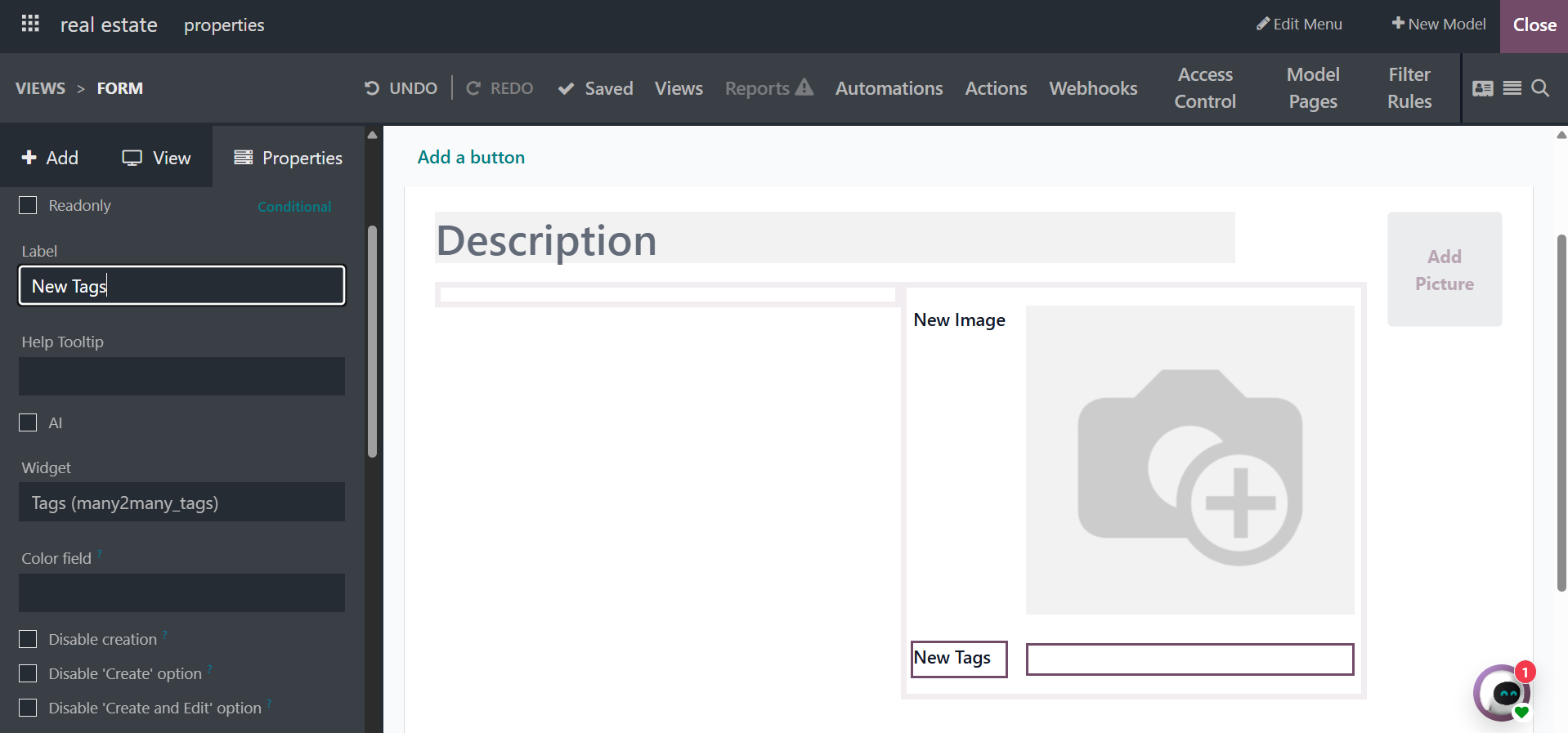
- Tags: Discussions in the Odoo Community are categorized by tags, which facilitates the discovery of pertinent subjects. The image and tags that were added using the choices are shown below.
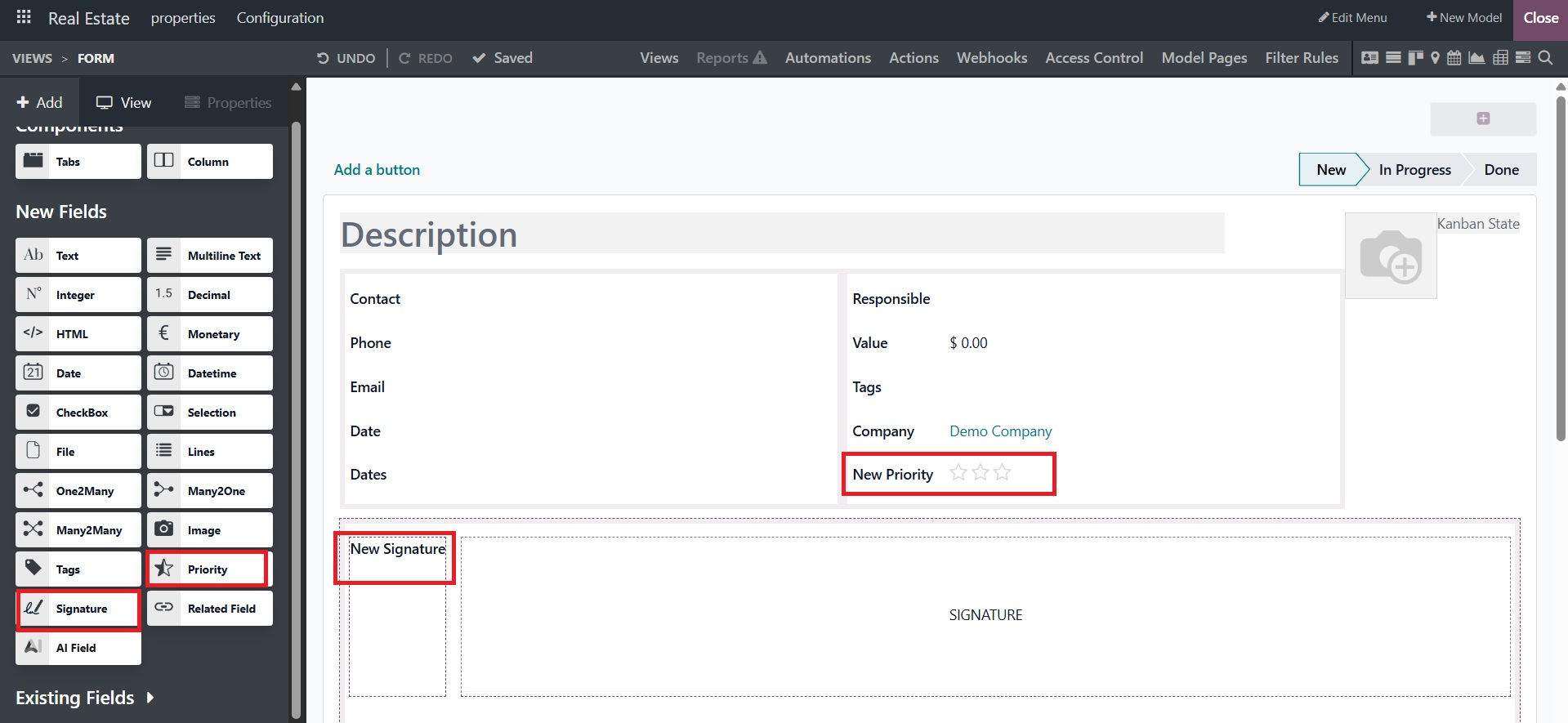
- Signature:The form can be electronically signed using the Sign area. This field type is a File field, and by default, the Sign widget is chosen. As a result, the effects listed under File apply to the File, Image, and PDF Viewer widgets. The screenshot below shows the newly additional choices.
- Related Field: Since no relationship is established between models, a Related Field is not a relational field in and of itself. It retrieves and displays data from another record using an established relationship.
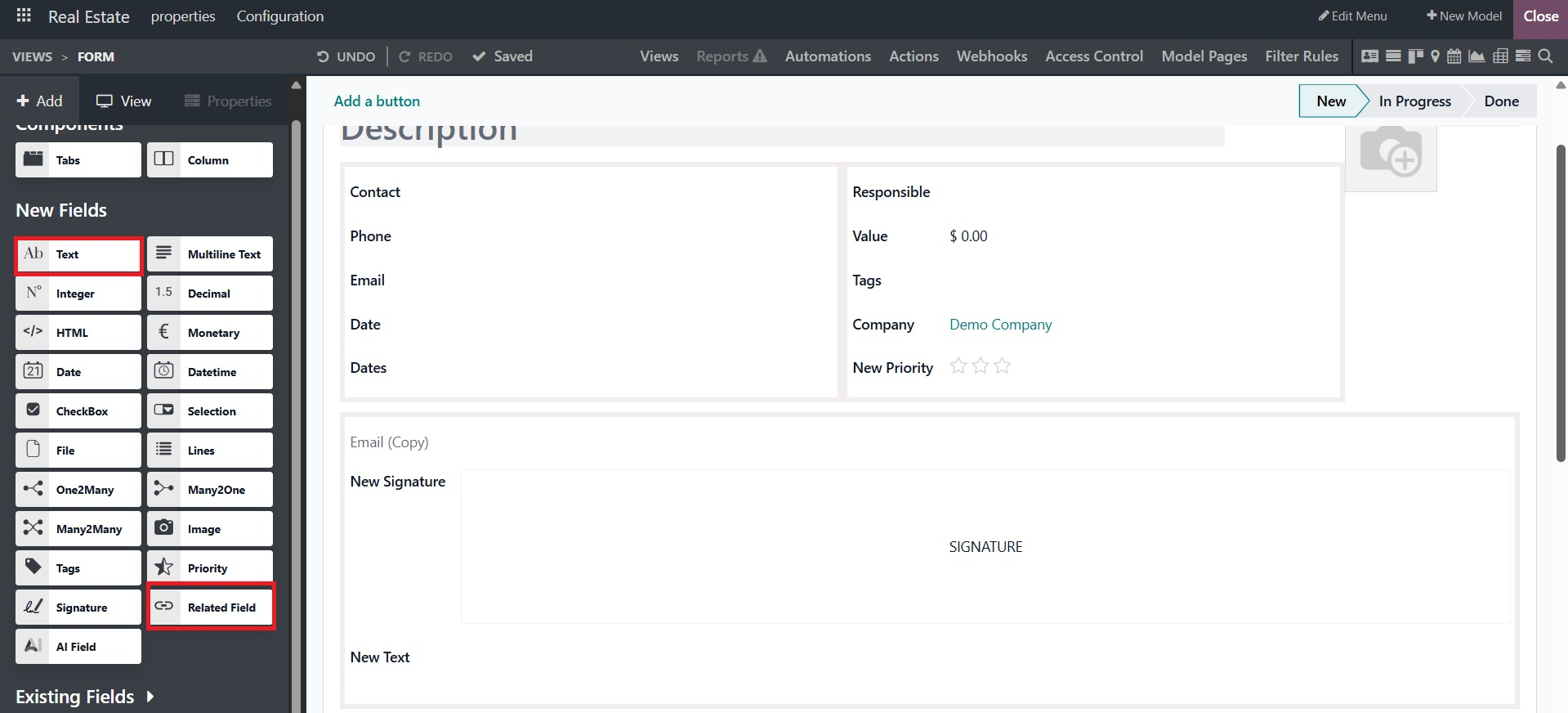
- Text: Short text with any character can be entered in the Text area. When completing the field, one text line is shown. You can see the added text choice below.
- Multiline text: Longer text with any kind of character is entered in the Multiline Text area. When completing the field, the user interface displays two text lines.
- Integer: All integer numbers are entered into the Integer field. The screenshot below shows these possibilities.
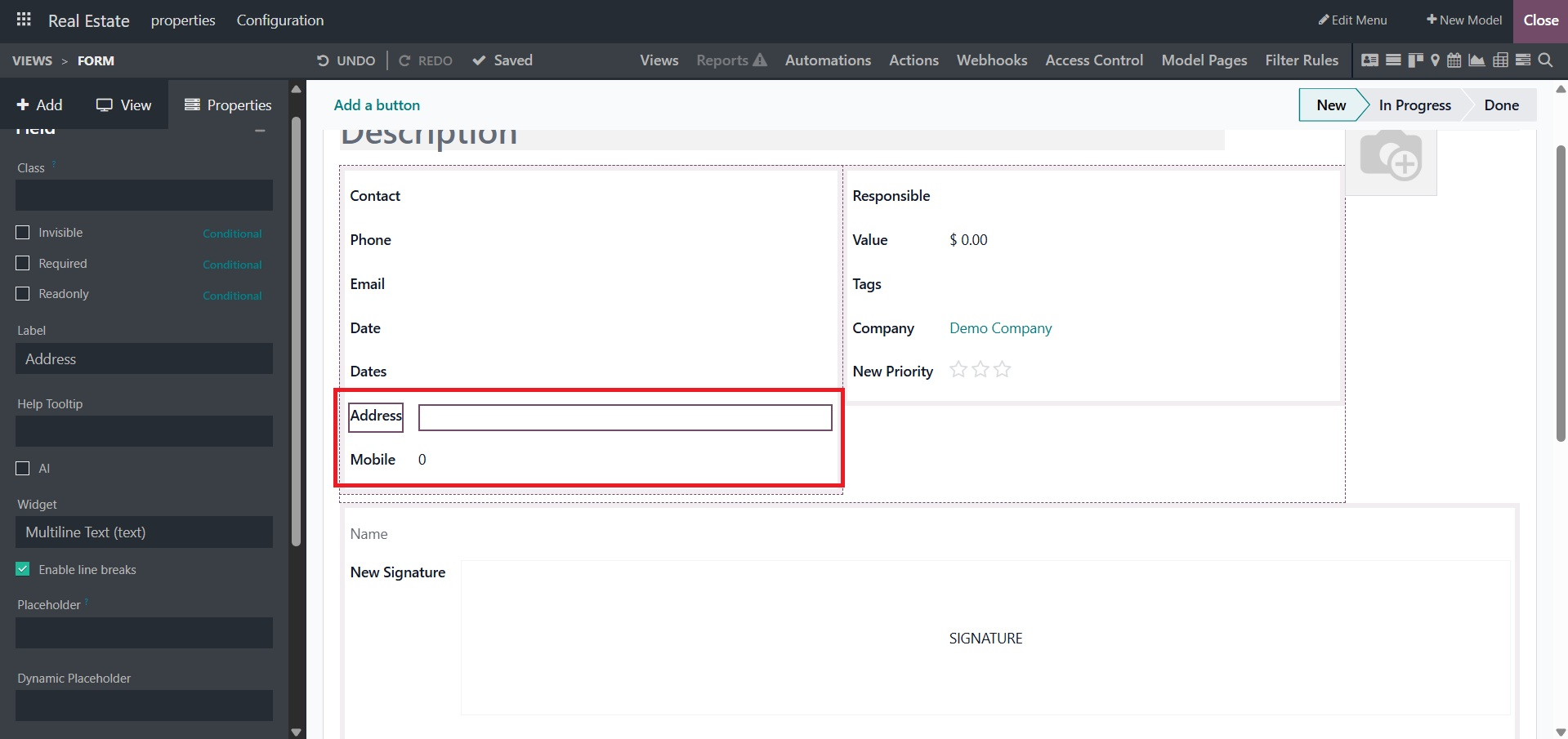
- Decimal: All decimal figures are entered into the Decimal field.
- HTML: Text can be added to the HTML field and altered with the Odoo HTML editor.
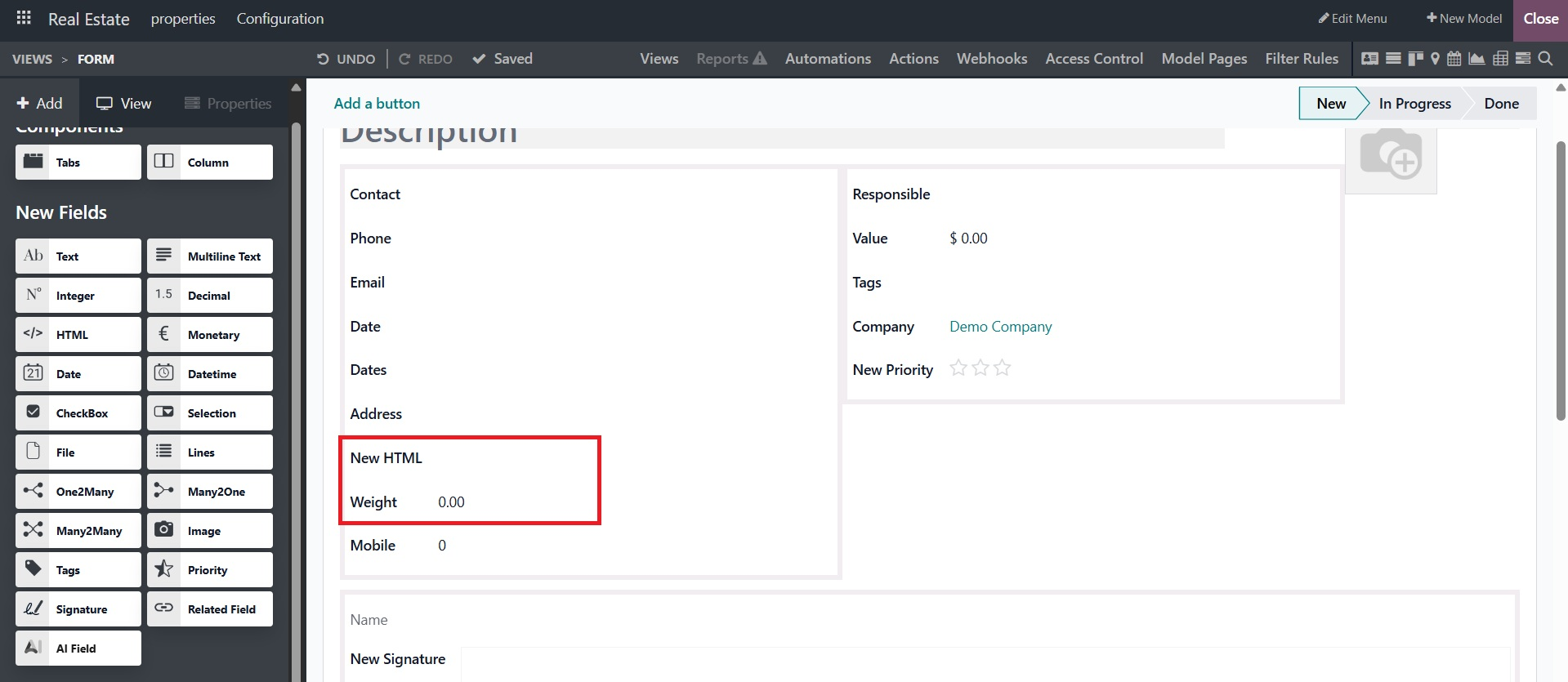
- Monetary: All monetary values are entered into the Monetary field.
- Date: To choose a date on a calendar, utilize the Date field.
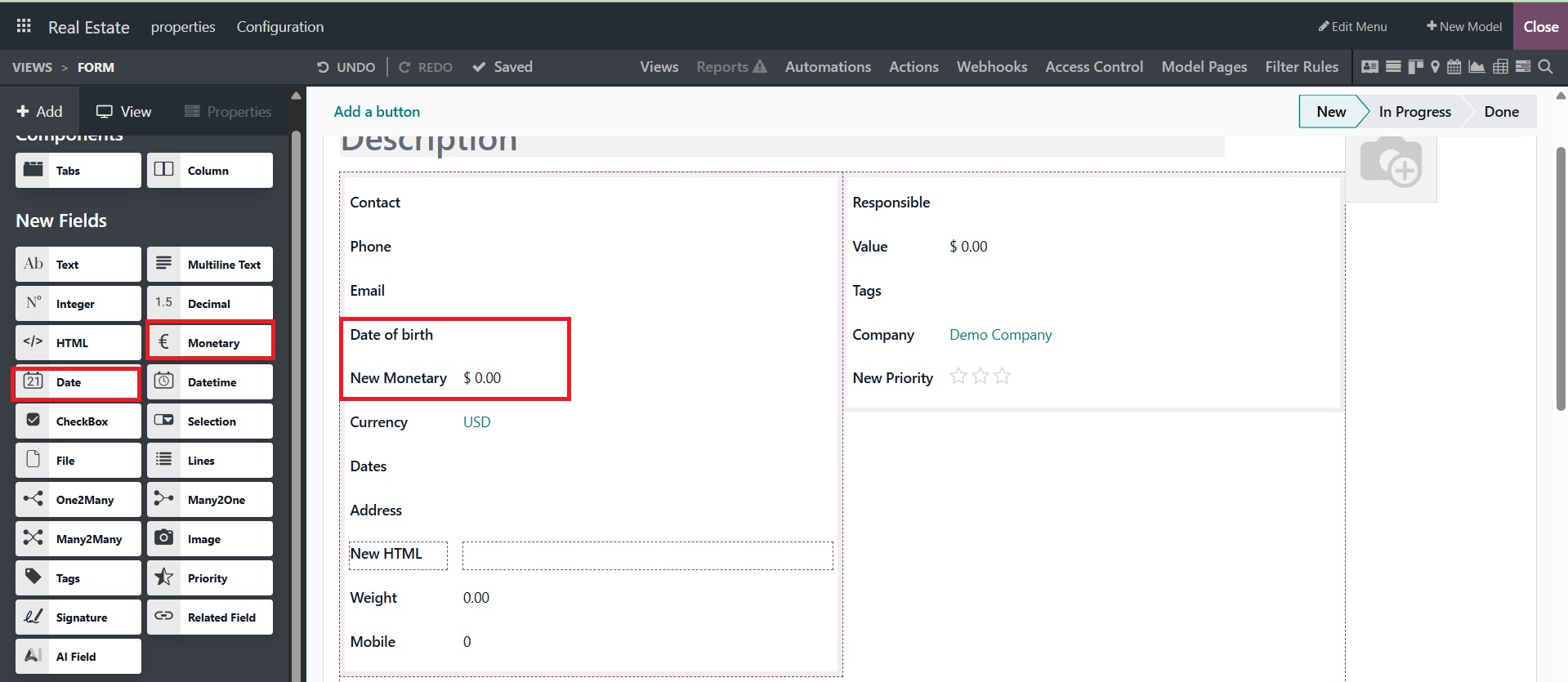
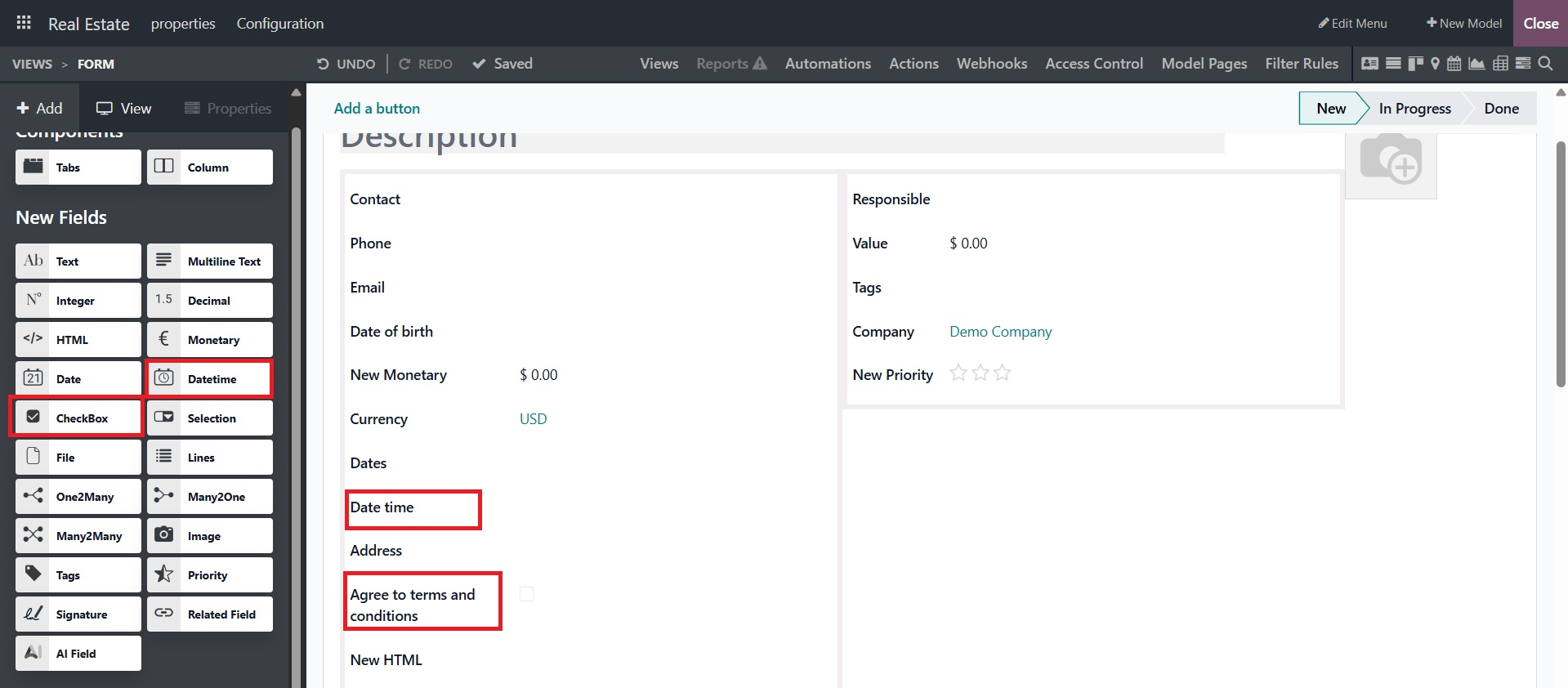
- Date and Time: You can choose a time on a clock and a date on a calendar using the Date & Time box. If no time is specified, the user's current time is utilized automatically.
- Checkbox: When a value should only be true or false, as indicated by checking or unchecking a checkbox, the Checkbox field is utilized.
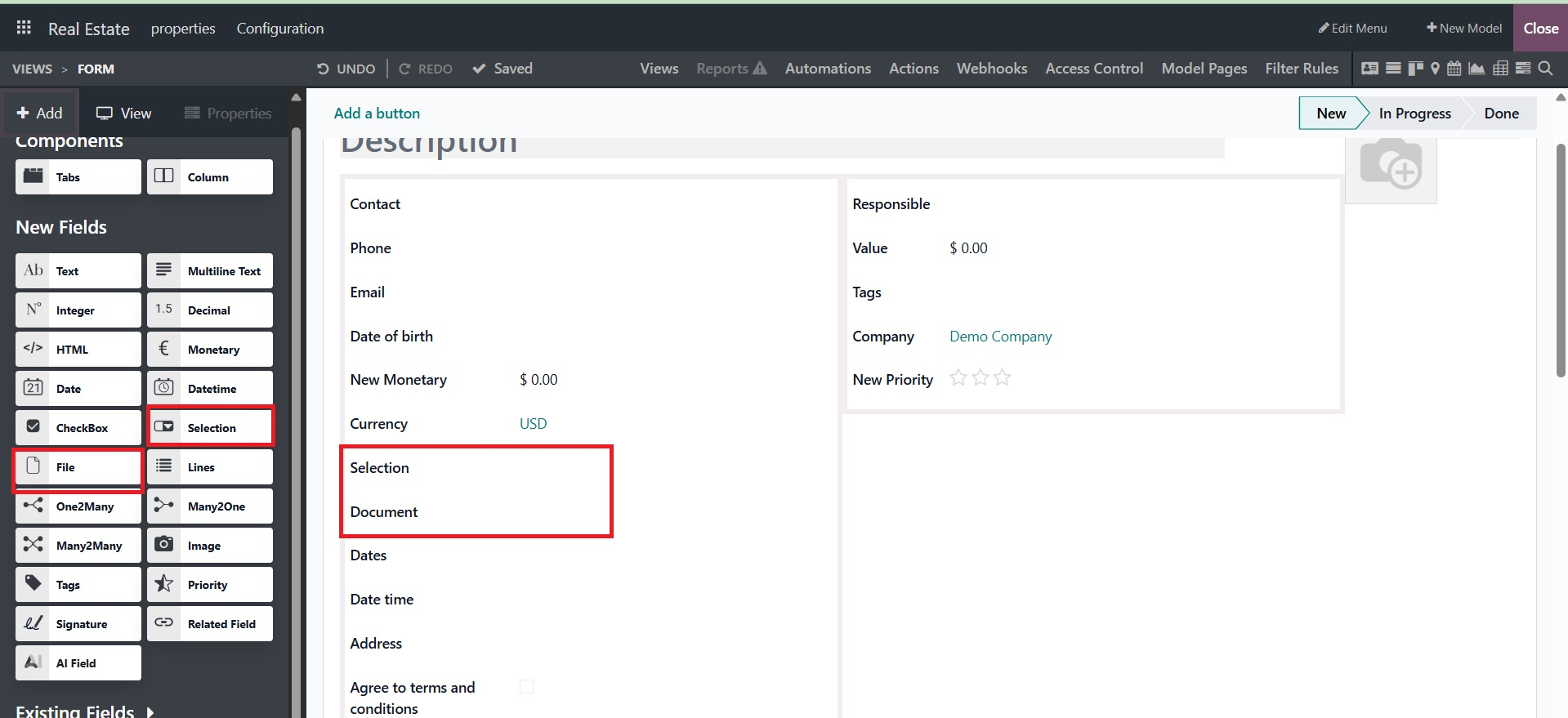
- Selection: When users need to choose one value from a set of predetermined values, they use the Selection field.
- File: You can sign a form (Sign widget) or upload any kind of file using the File field.
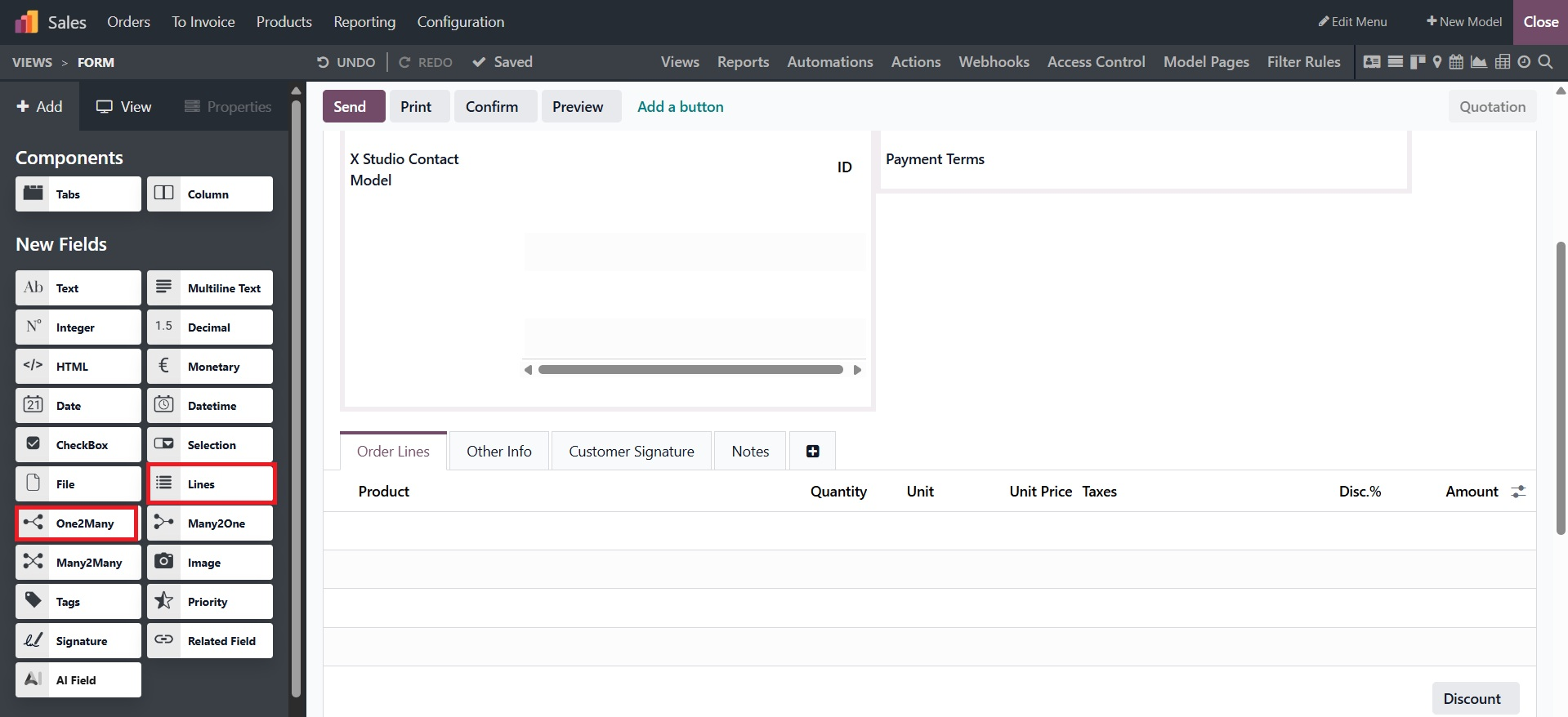
- lines: A table with rows and columns, such as the product lines on a sales order, can be created using the Lines field.
- One2Many: The current relationships between a record on the current model and several records from another model are shown using the One2Many field.
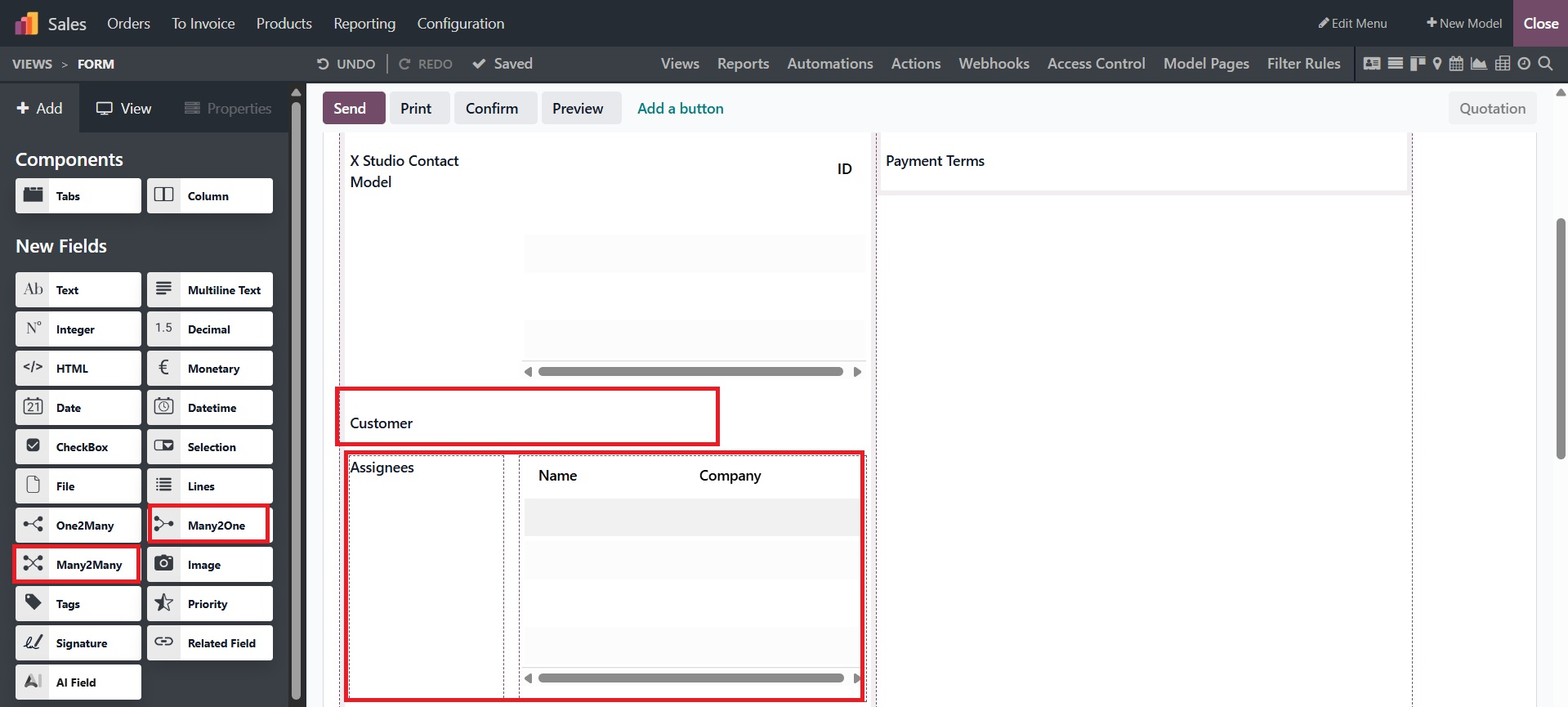
A record (from a different model) can be linked to the record being changed using the Many2One field. The record being edited then shows the name of the record from the other model.
numerous records from one model can be linked to numerous records on the current model using the Many2Many field. Similar to Many2One fields, Many2Many fields can employ Domain, Disable creation, and Disable opening.
All of the fields that are not part of the New Fields will have definitions in the Existing Fields.
Since we selected an already-existing module for the application that was built, the Existing Fields will be defined. All of the specified fields in the module will be shown in the Existing Fields section over here. You can enter values for fields like happy, abandoned cart, access warning, activity, activity state, Action Needed, Activity exception, Activity Stage, Activity Type, Attachment count, color, Created by, Created On, Display Date, Followers, High Priority, Icon, ID, Is Follower, Last Updated Date, Last Updated Time, Main Attachment, Next Activity, add product, amount before discount, amount to pay in PoS, attachment count, authorized transaction, available quotation document, average rating, cart quantity, cart recovery email already sent, closable, commercial entity, contract in exception, country code, created by, created in app rental, creation date, currency rate, customizable PDF form field, default sales price include, delivery amount, delivery cost should be recomputed, delivery message, delivery method, delivery set, display late, display name, and so on.
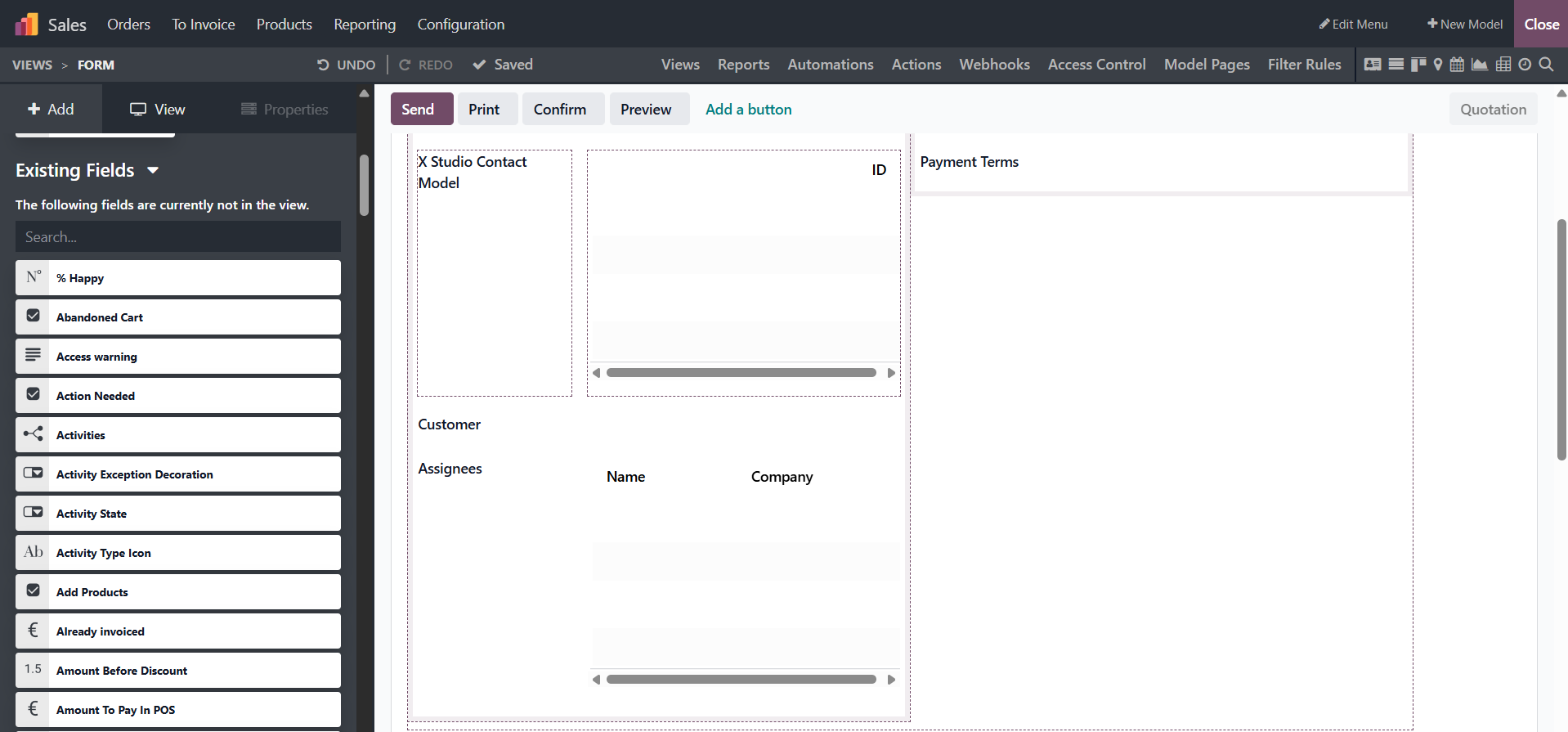
The model we have chosen already defines these fields. Additionally, every field may be used more than once, depending on the operating tools' capabilities.
By dragging and dropping new or existing fields into the appropriate application window areas, you may indicate which fields are necessary for the application. Additionally, if the user has control over both the operational and configurational aspects of the numerous fields, an Odoo 19 developer may efficiently handle the functional configuration portions of the application's operations.
The Properties box will show up after you choose the appropriate Fields. You can create all of the Field's configurational pieces here, allowing you to change and customize its properties.
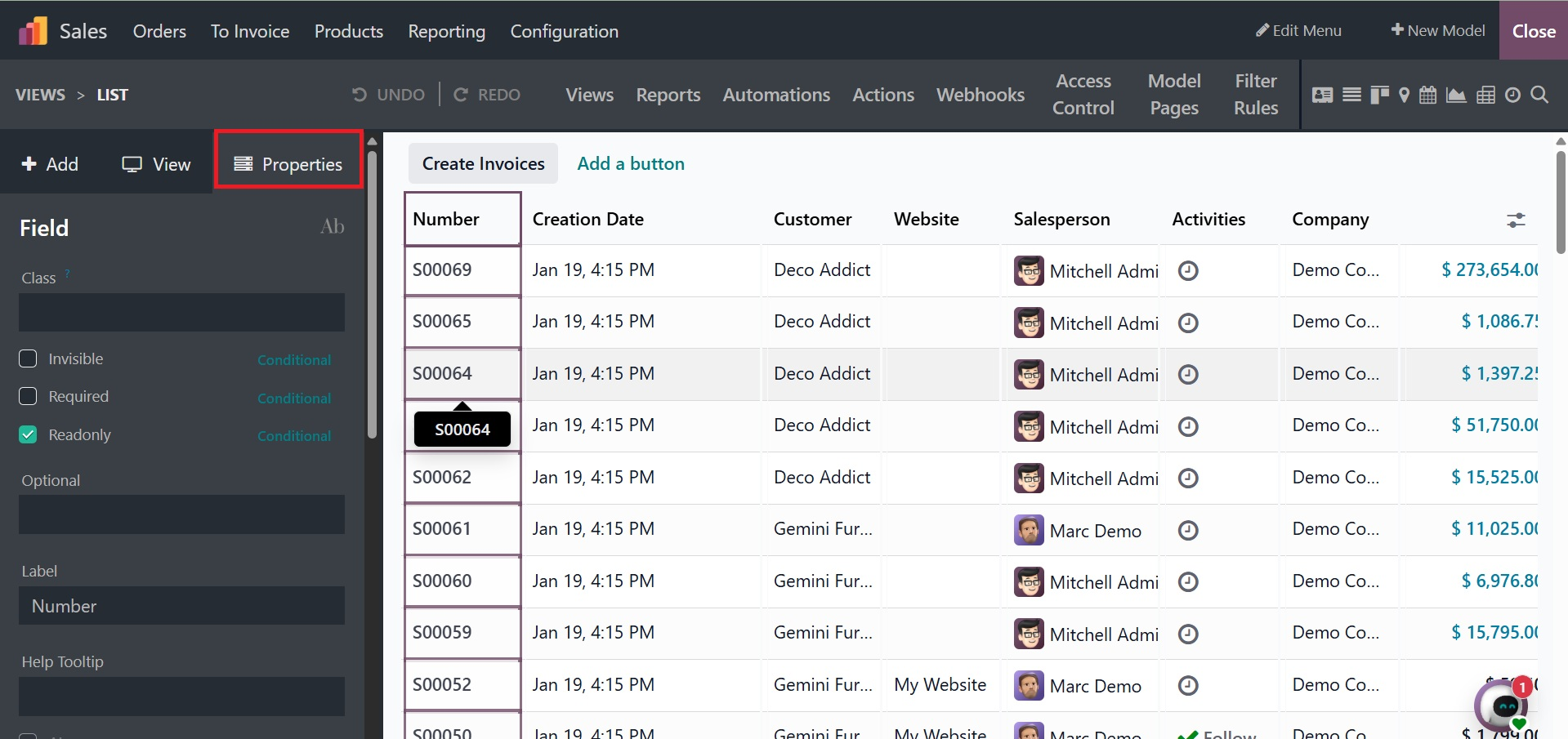
The following is how to choose the pertinent field:
If a user has authority, you can toggle on the Invisible field to make sure the field is hidden from users until the Authorized User makes it visible.
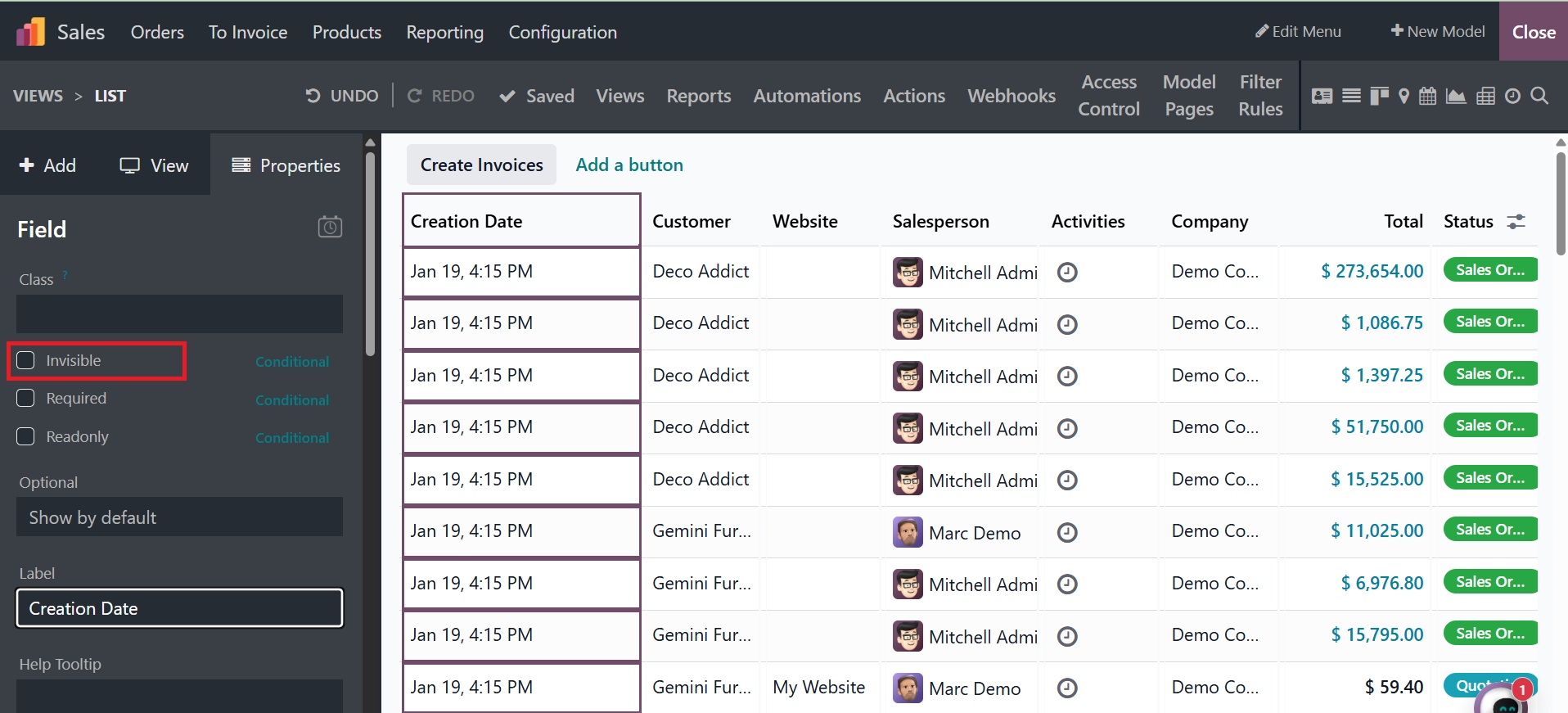
Enabling the Required Field will ensure that the appropriate entry is needed to be described in the applications menu while the entries are being specified.
Users won't be able to view the content unless a field being specified has its Read Only property enabled. They won't be able to modify or add to it.
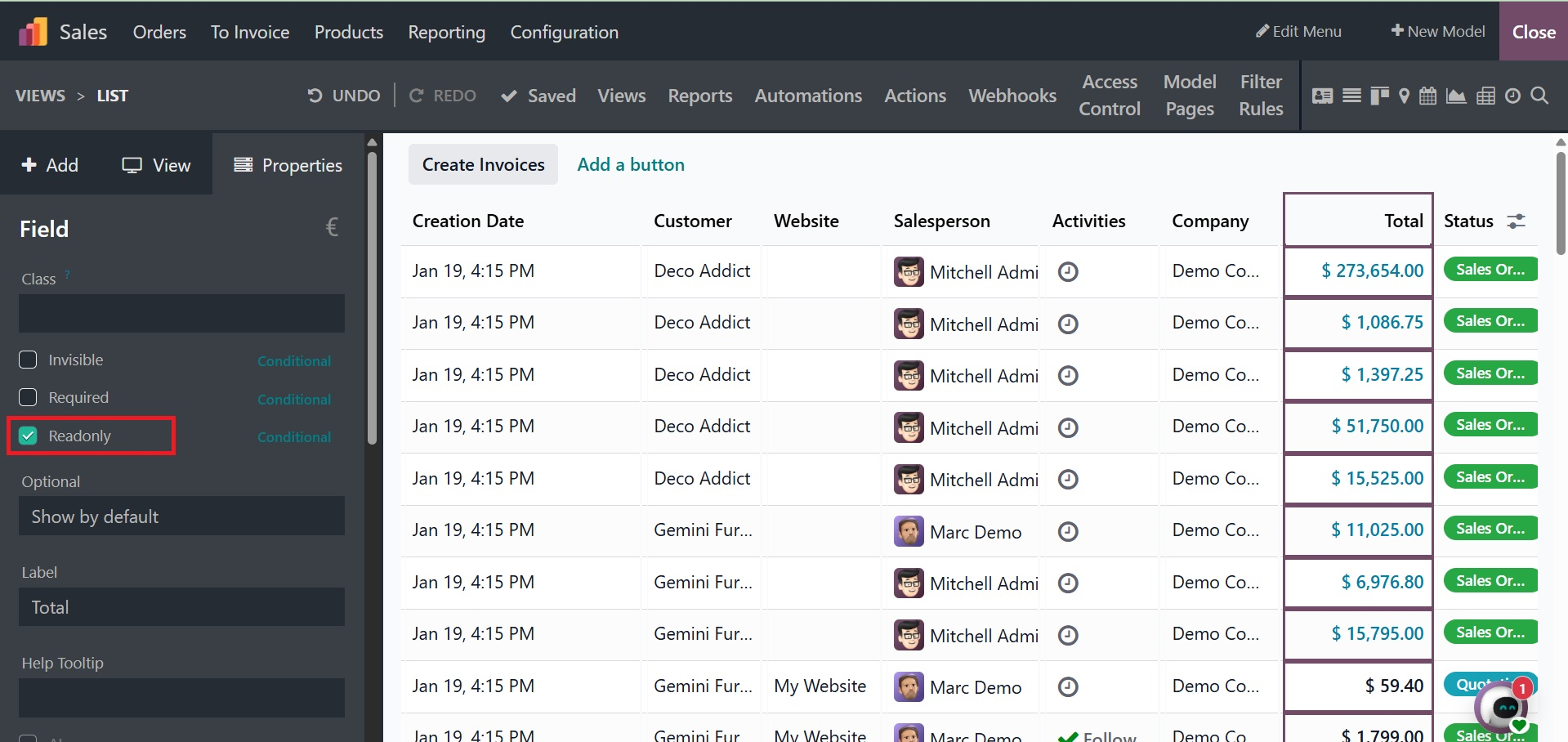
You can ensure that the field is labeled in accordance with the provided description by defining the label.
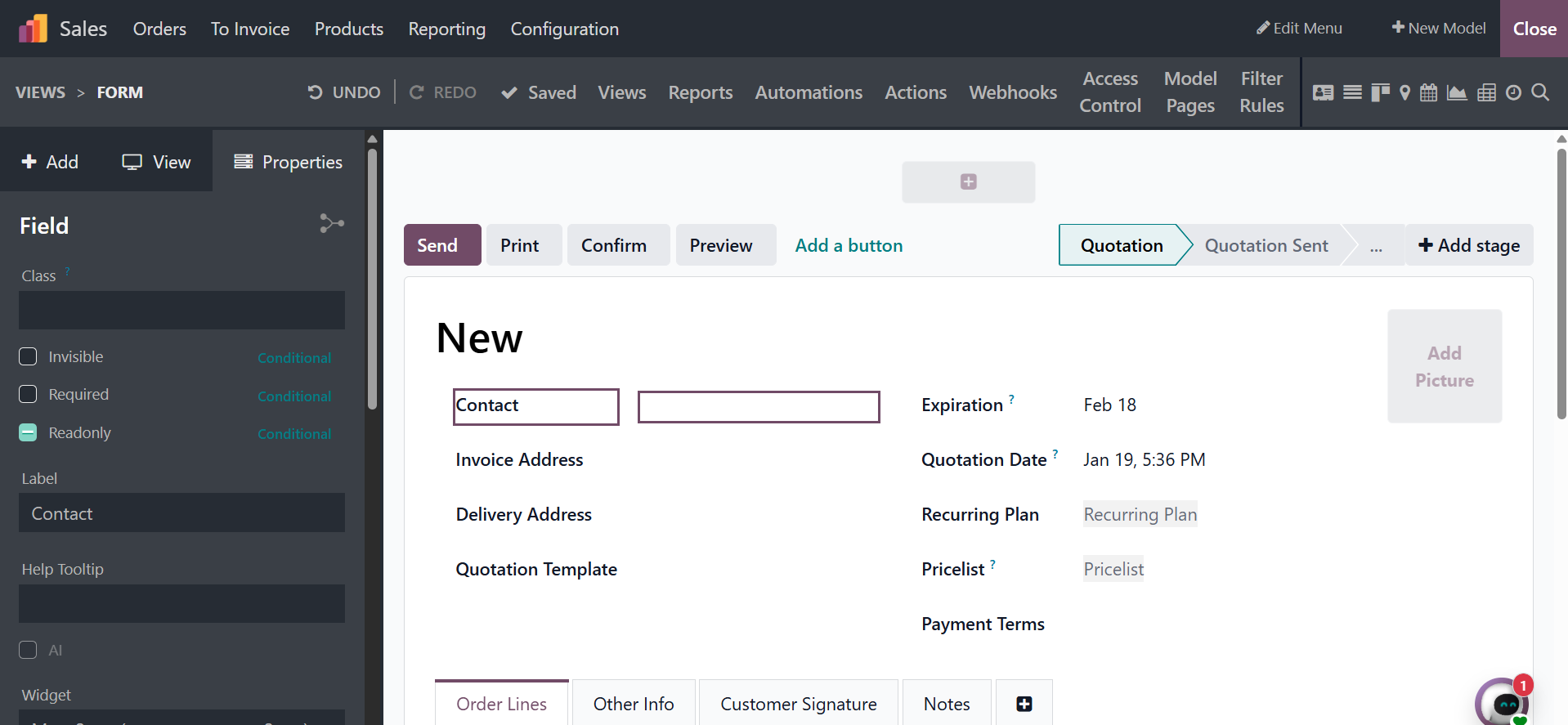
When the HelpTooltip is enabled, users will receive helpful guidance on how to fill out the fields listed in the menu.
Here, users can select the widget that should be included in the entry's menu description.
It is possible to specify the default value of a field for the menu that will display the application.
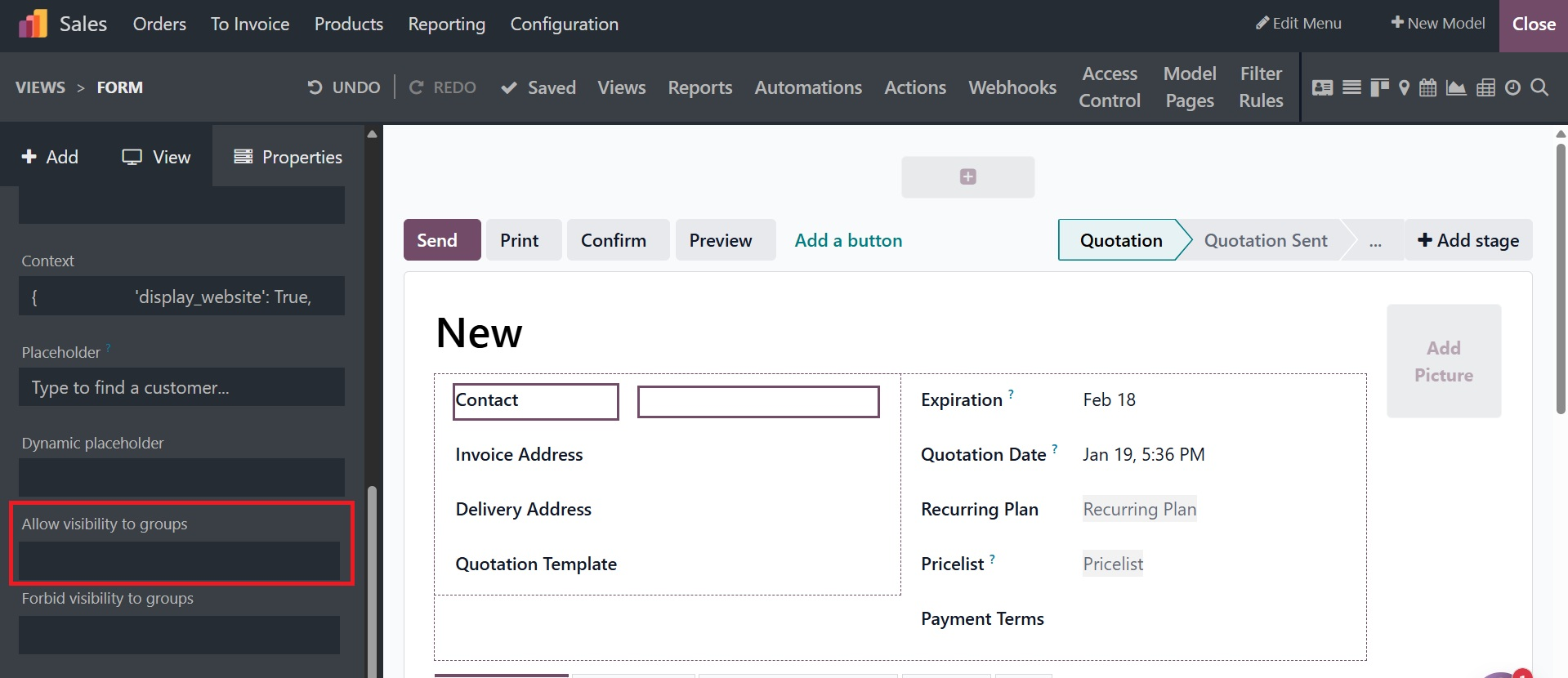
Limit Visibility to Groups: In this section, you can indicate which groups should have restricted access to this field.
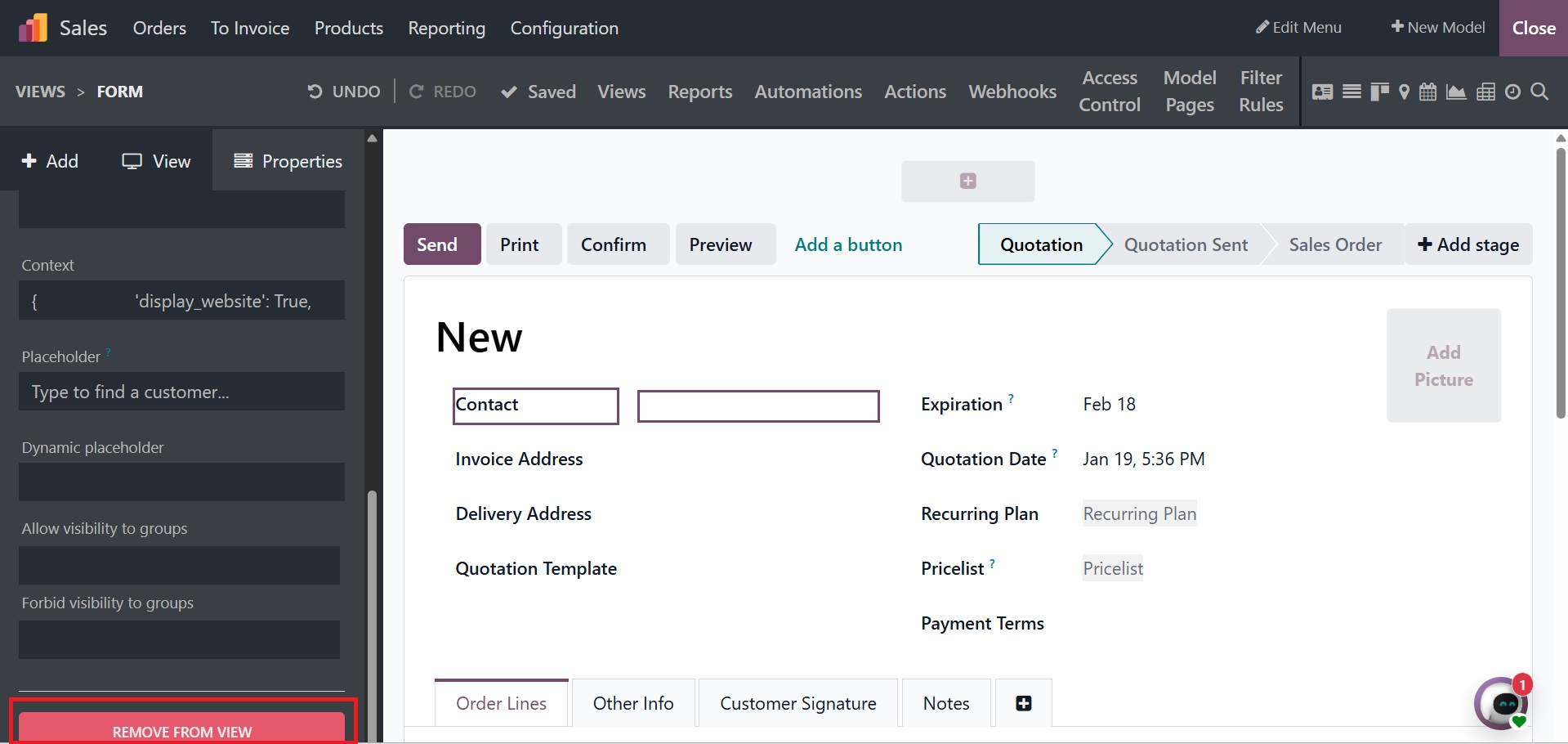
By choosing the Remove From View option, the field can also be removed from the application.
You will now be able to comprehend how the new application is created utilizing the Odoo19 Studio Module thanks to the Fields, Tabs, and Columns of operation. Let's now finish setting the new application using the Odoo19 Studio Module. Now let's learn how to define the Smart Tabs in a specific menu using the Odoo19 Studio.