Design Your Website Page
The Odoo 19 Website module offers a comprehensive and user-friendly platform for building and managing your company’s online presence. With its improved interface and enhanced customization tools, you can design professional web pages that align perfectly with your brand and business objectives.
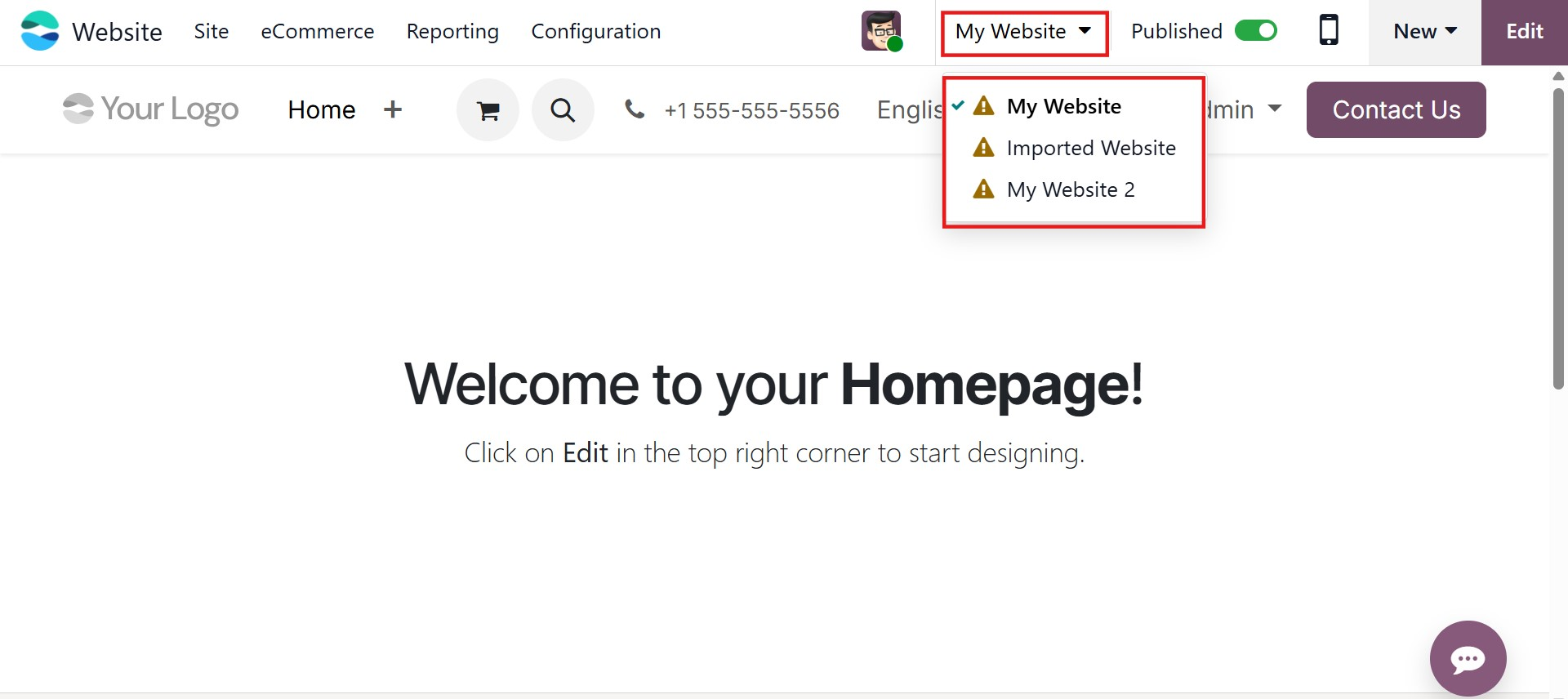
To begin, open the Website module from the Odoo dashboard. The homepage of the Website module provides access to your published website and configuration options. If you manage multiple websites within the same database, you can select the appropriate one directly from the homepage. Click on the My Websites option to display a list of all available websites, then choose the website you wish to manage.
To start designing or modifying a page, click the Edit button located in the top-right corner of the screen. The page will switch to editing mode, activating the website builder interface. In this mode, you can use the editing panel to structure and customize your page using Odoo’s drag-and-drop building blocks.
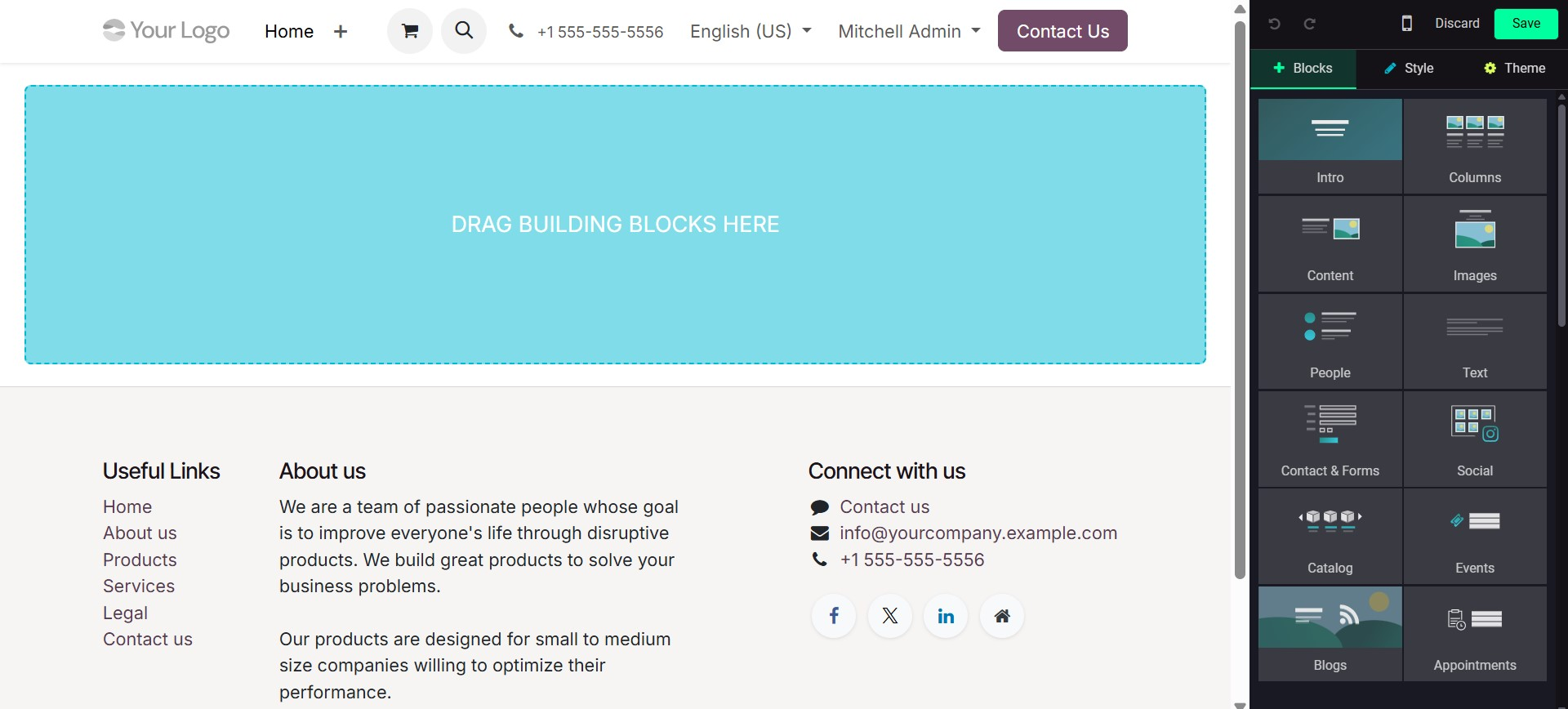
Odoo 19 provides a modern set of customization tools that allow you to modify layout, typography, colors, alignment, spacing, backgrounds, animations, and more. These tools ensure your website is visually attractive while effectively delivering your business message.
The website builder operates on a block-based structure. You can simply drag the required building blocks and drop them into designated areas on your webpage. Once placed, each block can be customized according to your needs.
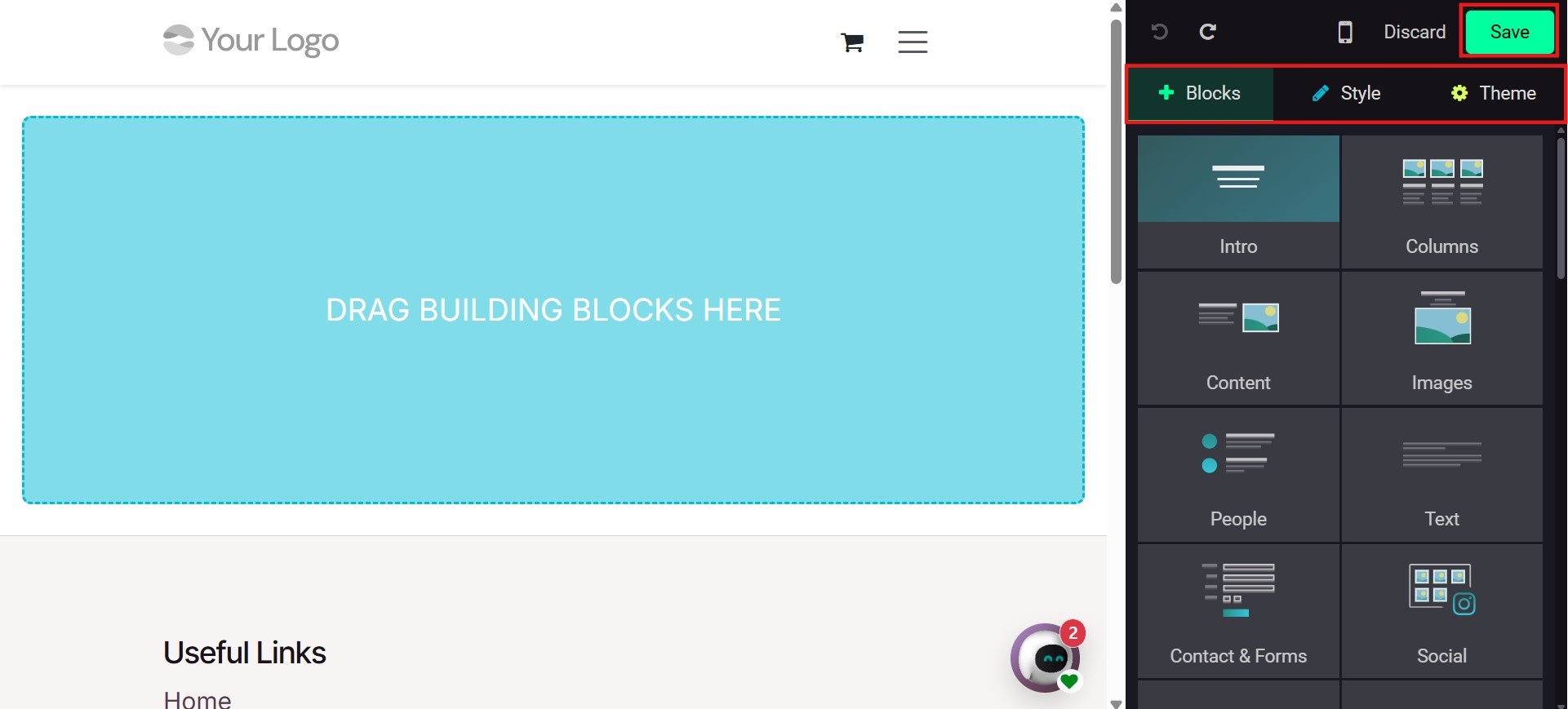
Before designing, you may choose a theme from the themes available within Odoo or install additional themes from the Odoo App Store. After selecting a theme, you can personalize page layouts, styles, and structural elements. Once all required blocks and settings are configured, click the Save button to apply your changes.
1.1 Snippet Tools
The website builder in Odoo 19 is powered by a wide range of snippet tools. These pre-designed building blocks allow you to quickly create structured, responsive, and professional web pages without technical expertise.
Below are some commonly used snippets:
- Chart Snippet: This snippet enables you to visually present statistical or qualitative business data using various chart formats such as bar, line, pie, doughnut, and radar charts.
- Countdown Snippet: The Countdown Snippet is ideal for creating urgency on your website. It is commonly used to promote limited-time offers, product launches, or special events. You can customize the layout, timer format, labels, and styling to match your website design.
- Steps Snippet: This snippet clearly illustrates different stages of a process. It is especially useful for explaining workflows such as order processing, service delivery, or onboarding procedures.
- Product Catalog Snippet: This snippet displays products in a structured format, making it suitable for showcasing product collections or featured items.
- Pop-up Snippet: The Pop-up Snippet allows you to display promotional messages, discounts, subscription forms, or announcements to visitors.
- Progress Bar Snippet: This snippet visually represents percentage values or project progress. It is commonly used to display goals, achievements, or campaign performance.
- Timeline Snippet: The Timeline Snippet visually presents milestones or historical events. It is beneficial for showcasing company growth, product development stages, or project schedules.
- Number Snippet: This snippet highlights important numerical achievements such as total customers, completed projects, awards, or products sold.
- Masonry Snippet: The Masonry Snippet provides a dynamic grid layout for images or content blocks, creating a visually engaging presentation style.
- Big Boxes Snippet: This snippet is useful for emphasizing key content areas through large, visually striking blocks.
- Product List Snippet: Displays a clean and organized list of products for easy browsing.
In Odoo 19, snippets are categorized to simplify website design and content organization.
Structure Snippets
These snippets help define the layout and visual structure of your page:
- Banner
- Carousel
- Cover
- Text Cover
- Text–Image
- Image–Text
- Title
- Text
- Number
- Masonry
- Columns
- Image Wall
- Features
- Image Gallery
- Picture
- Big Boxes
- Media List
- Parallax
Feature Presentation Snippets
These snippets are ideal for highlighting services, teams, or product comparisons:
- Showcase
- Comparisons
- Team
- Call to Action
- References
- Timeline
- Quotes
- Tabs
- Items
- Table of Contents
- Steps
- Features Grid
- Accordion
- Pricelist
Dynamic Content Snippets
These snippets integrate interactive or automatically updated content:
- Newsletter Block
- Events
- Social Media Feeds
- Search
- Products
- Dynamic Content
- Map
- Form
- Newsletter Pop-up
- Pop-up
- Countdown
- Discussion Group
- Donation
- Blog Posts
- Embed Code
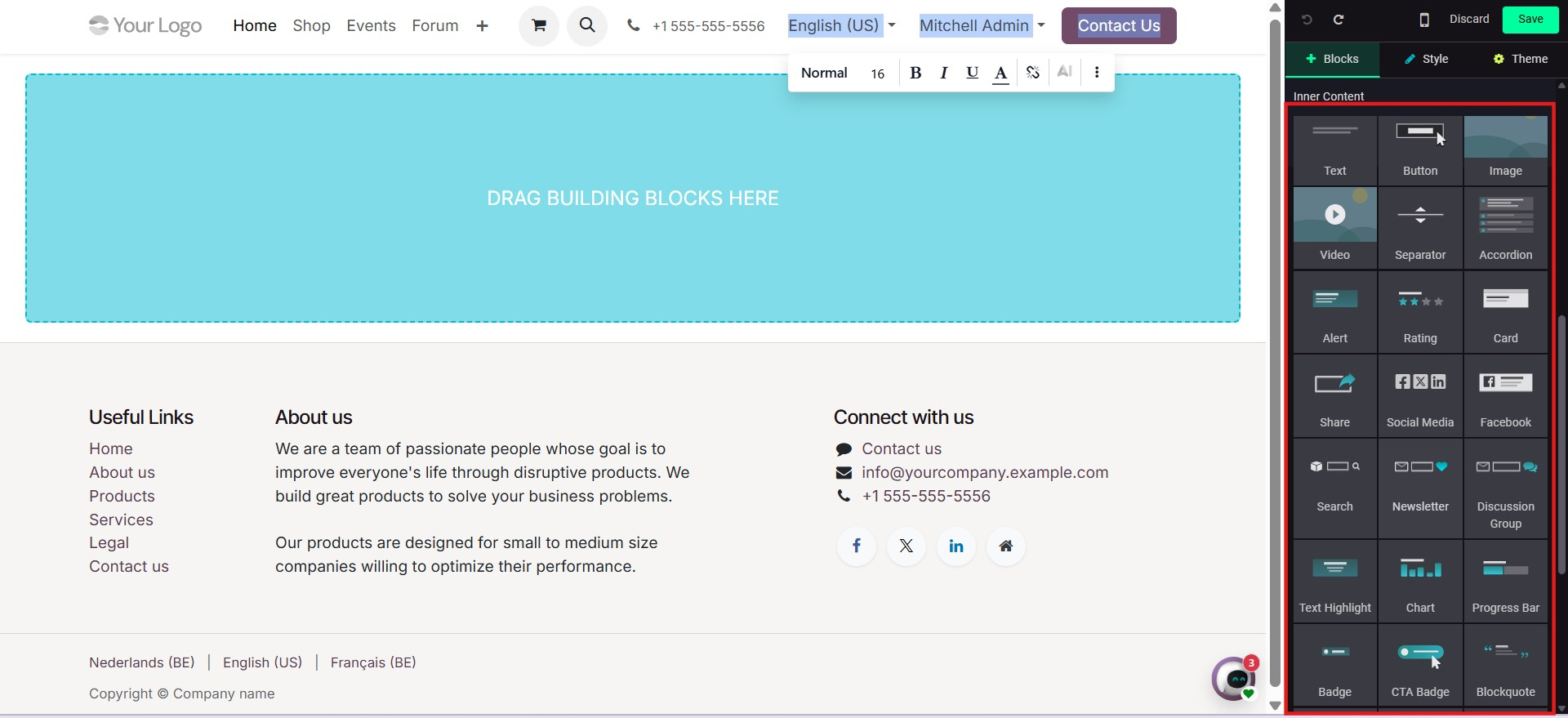
Inner Content Snippets
These elements enhance internal content presentation:
- Button
- Image
- Video
- Separator
- Add to Cart
- Newsletter
- Badge
- Appointment
- Blockquote
- Text Highlight
- Progress Bar
- Card
- Alert
- Rating
- Share
- Social Media