Badges
Odoo 19 also includes a powerful Badge Management system that allows you to reward forum members for specific achievements or actions. Badges act as incentives and recognition tools, encouraging meaningful participation within your forum community.
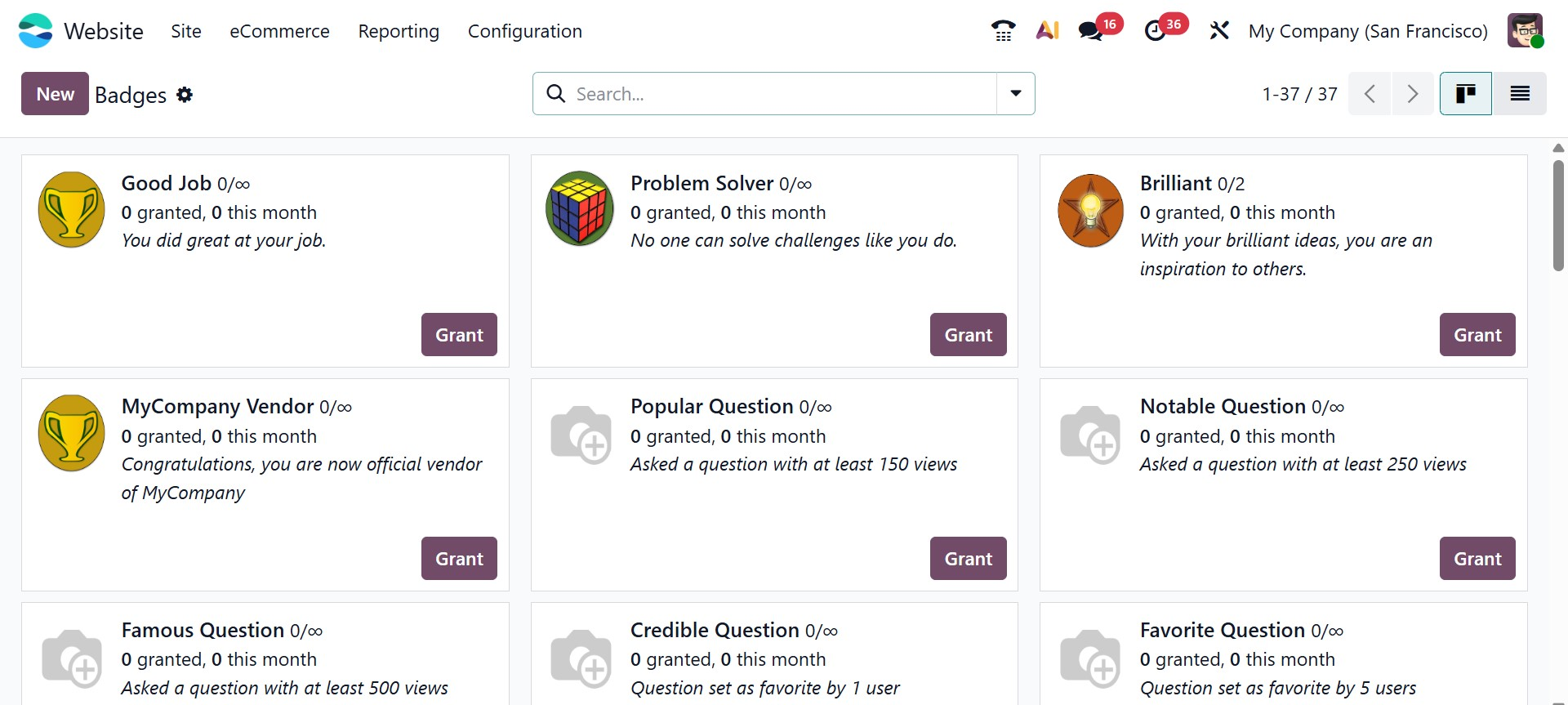
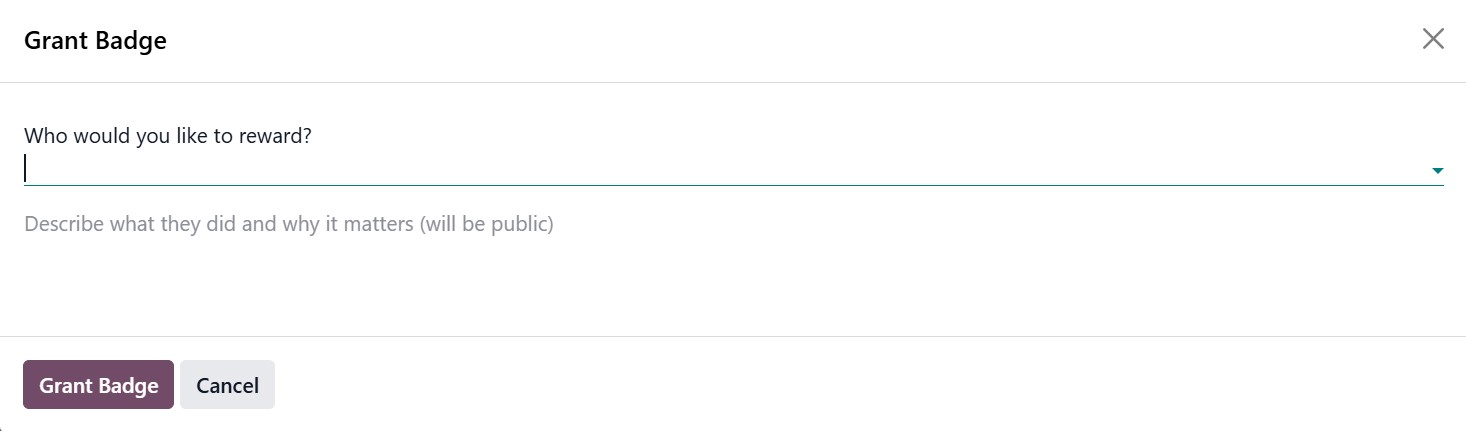
The Badges window displays all badges created on the platform. By default, badges are shown in Kanban view, where each badge card includes a Grant button. Clicking this button opens a pop-up window that lets you manually award the badge to a user. In this window, you can select the recipient and provide a public explanation describing why the badge was awarded.
Badges can also be viewed and managed in List view, which offers a more compact overview.
To create a new badge in Odoo 19, click the New button to open the badge creation form, where you can define the Badge Name and provide a clear Badge Description. In the Granting section, you can specify who is permitted to manually award the badge, while administrators remain exempt from these restrictions. The available options include allowing everyone to grant the badge, limiting access to selected users, permitting only users who already possess certain badges, or completely restricting manual granting so that the badge is assigned only through challenges.
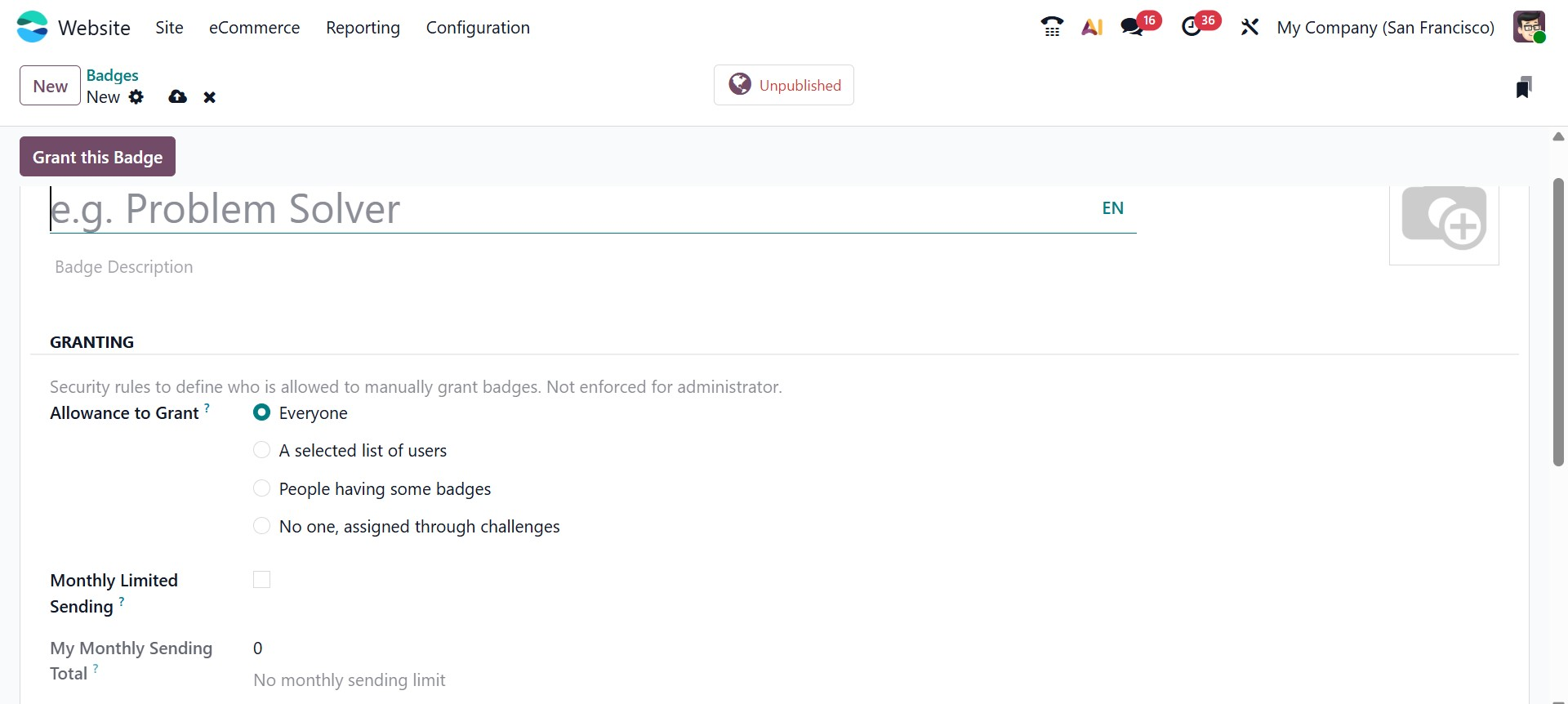
Additionally, you can enable the Monthly Limited Sending option to control how many times a user is allowed to grant the badge within a month. This feature helps ensure fair usage by automatically tracking how many times the active user has awarded the badge during the current month.
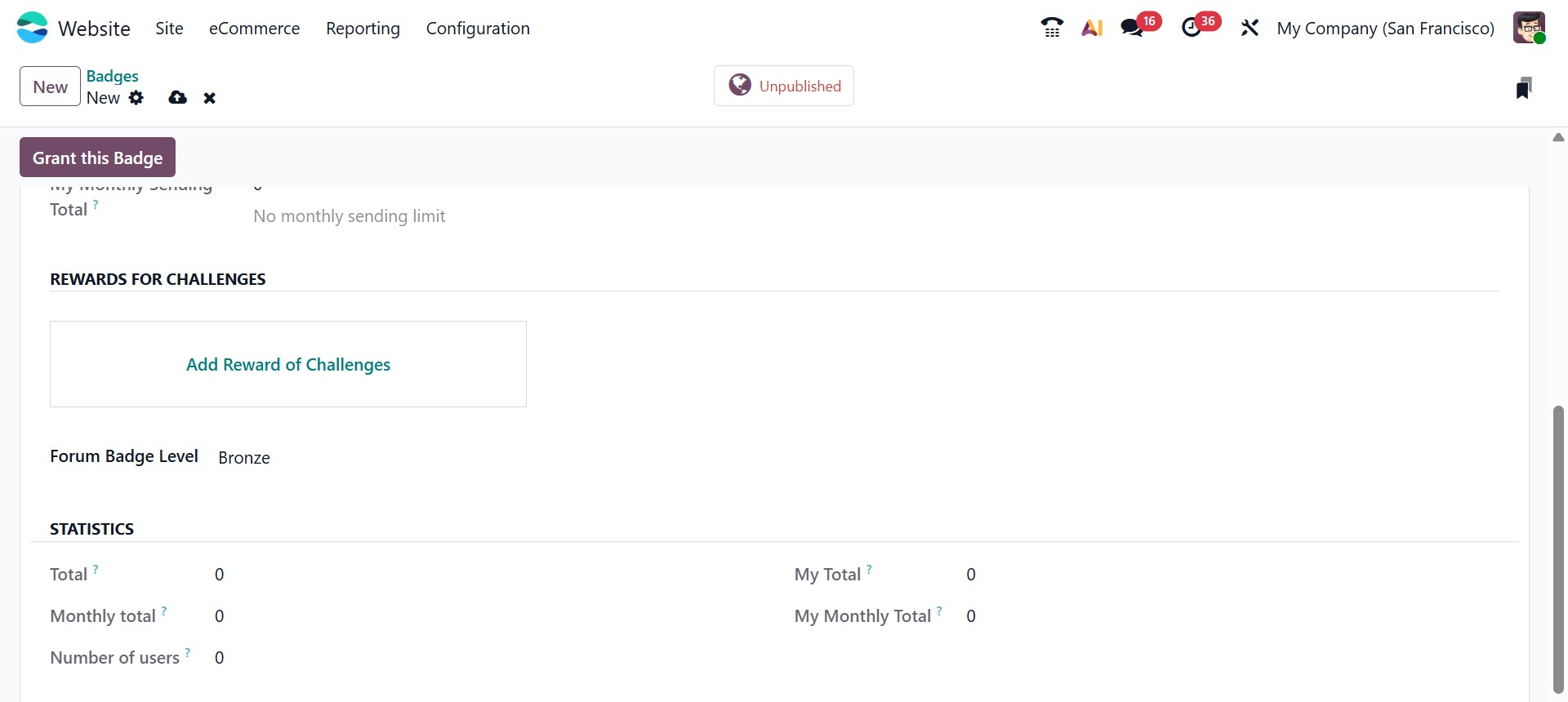
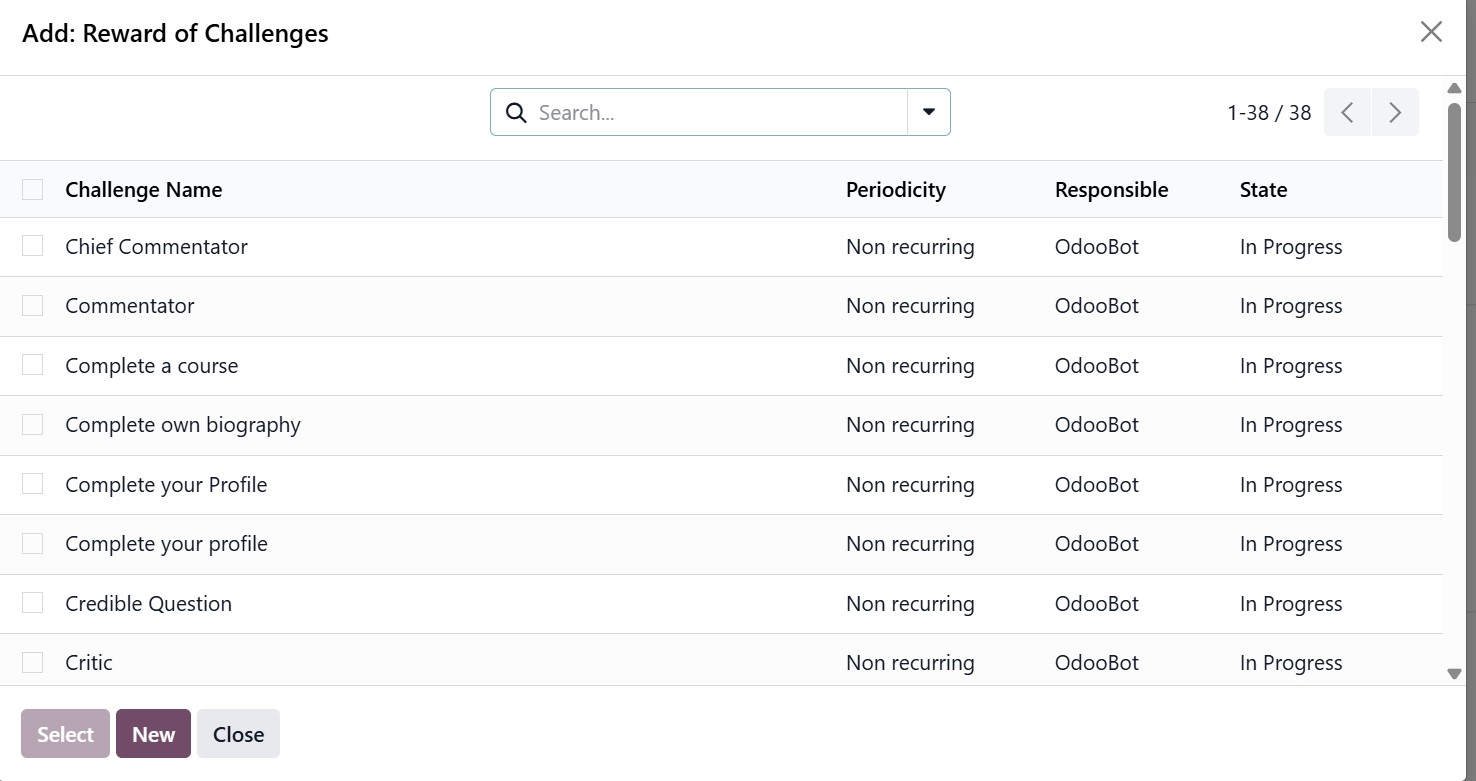
Badges in Odoo 19 can also be awarded automatically through challenges. In the Rewards for Challenges section of the badge form, clicking the Add button allows you to link the badge to predefined challenge records. When a user completes the associated challenge, the badge is granted automatically without manual intervention.
Additionally, you can assign a Forum Badge Level, such as Bronze, Silver, or Gold, to visually indicate the importance or difficulty level of the achievement.
The Statistics section of the badge configuration form is updated automatically and provides detailed insights into badge distribution. It displays the total number of times the badge has been awarded, the monthly total indicating how often it has been granted during the current month, and the number of unique users who have earned the badge. It also shows personalized data for the active user, including My Total, which represents how many times the user has received the badge, and My Monthly Total, indicating how often it has been received within the current month.
Once all required details are completed, click Save to store the configuration. After saving, you can use the Grant this Badge option to manually award the badge by selecting the recipient and providing a brief explanation for the reward.