Customize the Menu and Appearance
The Odoo 19 Website module offers flexible and intuitive tools to customize both the navigation structure and visual appearance of your website. These features allow you to organize your pages efficiently while ensuring your website maintains a professional and visually appealing design that aligns with your business objectives.
1.1 Menu Customization
Odoo 19 enables you to manage and customize your website menus with just a few simple steps. To begin, open your website and click the Edit button located in the top-right corner of the screen. Once the editing mode is activated, select the Site option from the top menu bar. This will open a dropdown menu containing options such as Home Page, Menu Editor, Content, This Page, and Pages management tools.
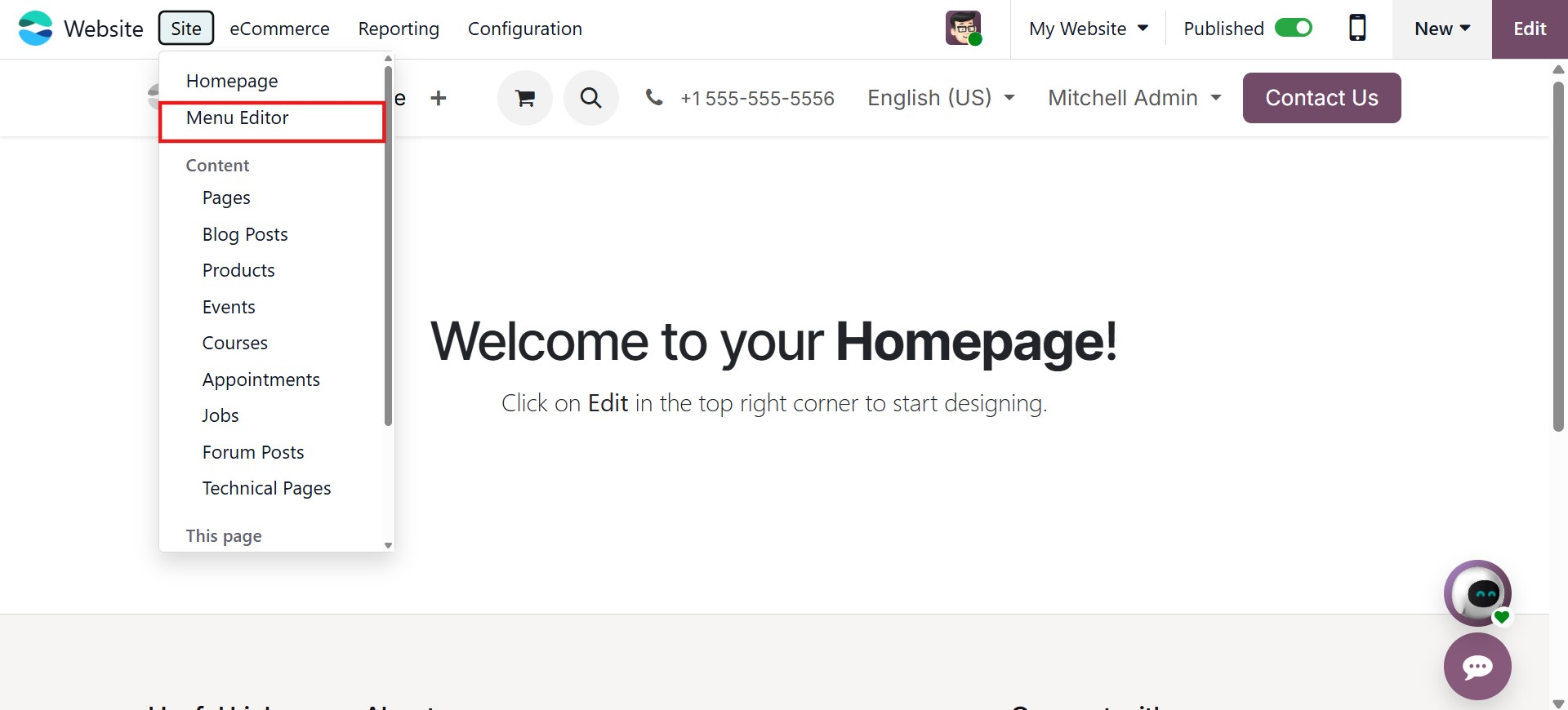
The Menu Editor option allows you to create, edit, organize, and delete menu items according to your requirements. Using this feature, you can control how visitors navigate through your website. The Pages and Content options provide additional control over page visibility, structure, and hierarchy, ensuring your website remains well-organized and easy to browse.
1.2 Create a New Menu
Creating a new menu item in Odoo 19 is straightforward. After selecting Site → Menu Editor, a pop-up window appears displaying all configured menu items. From this window, you can edit or remove existing menu entries.
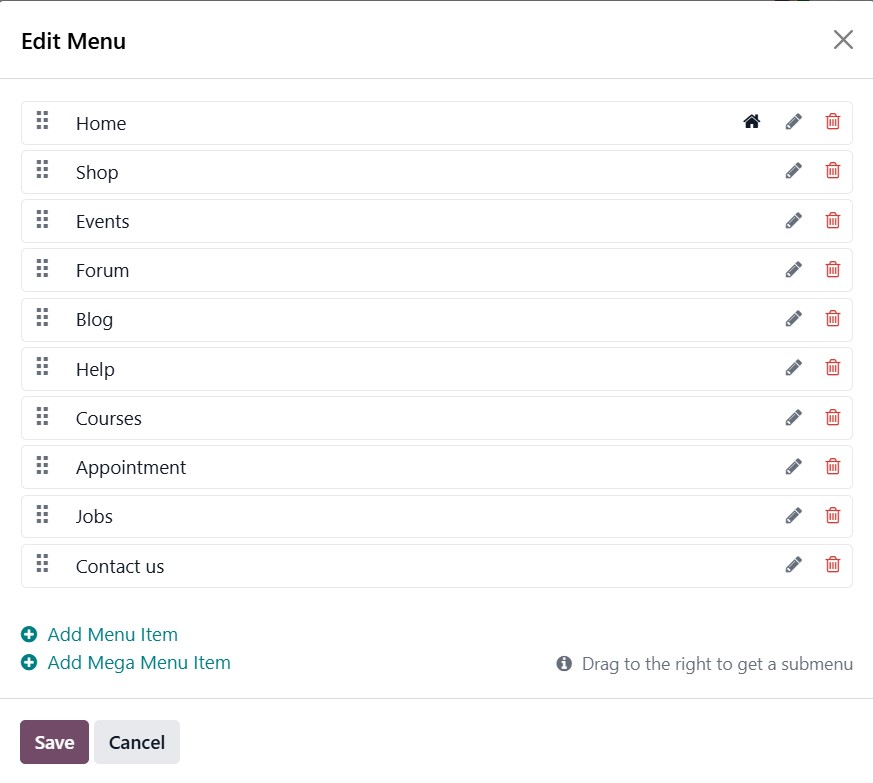
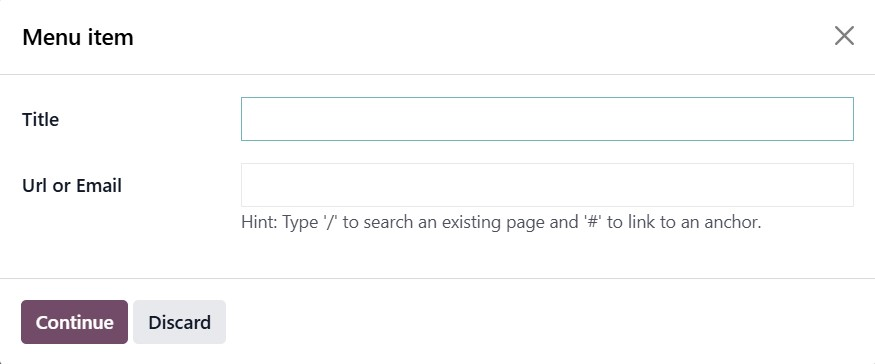
To add a new menu item, click the Add Menu Item button. A dialog box will prompt you to enter the required details, including the Menu Label and the destination link, which may be an internal page, external URL, anchor link, or email address. Once the necessary information is entered, click the Save button to confirm the changes.
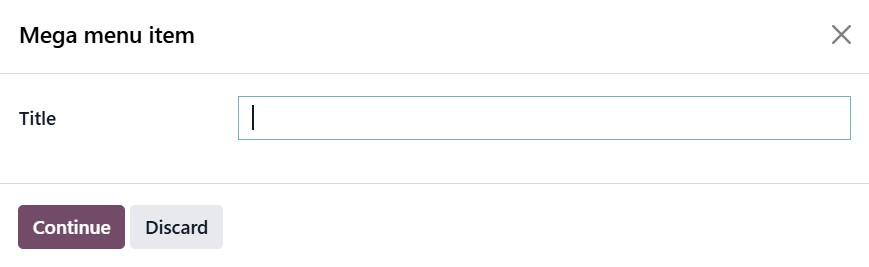
Odoo 19 also supports the creation of Mega Menu items. By selecting the Add Mega Menu Item option, you can design advanced dropdown menus with multiple columns, images, icons, and structured links. The mega menu can be customized using various layout templates, background images, and column configurations, allowing you to create a modern and user-friendly navigation experience.
Menu items can be rearranged easily using drag-and-drop functionality, giving you full control over the order and hierarchy of your website navigation.
1.3 Appearance Customization
The visual presentation of a website plays a vital role in attracting and retaining visitors. Odoo 19 provides comprehensive appearance customization tools that enable you to tailor your website’s design to suit your branding and business needs.
To access appearance customization options, click the Edit button to enter editing mode. The Style panel provides tools to modify layouts, themes, fonts, colors, spacing, alignment, and backgrounds. You can select from available themes within Odoo or install additional themes from the Odoo App Store. Once a theme is selected, you may further personalize each page using drag-and-drop snippets and design settings.
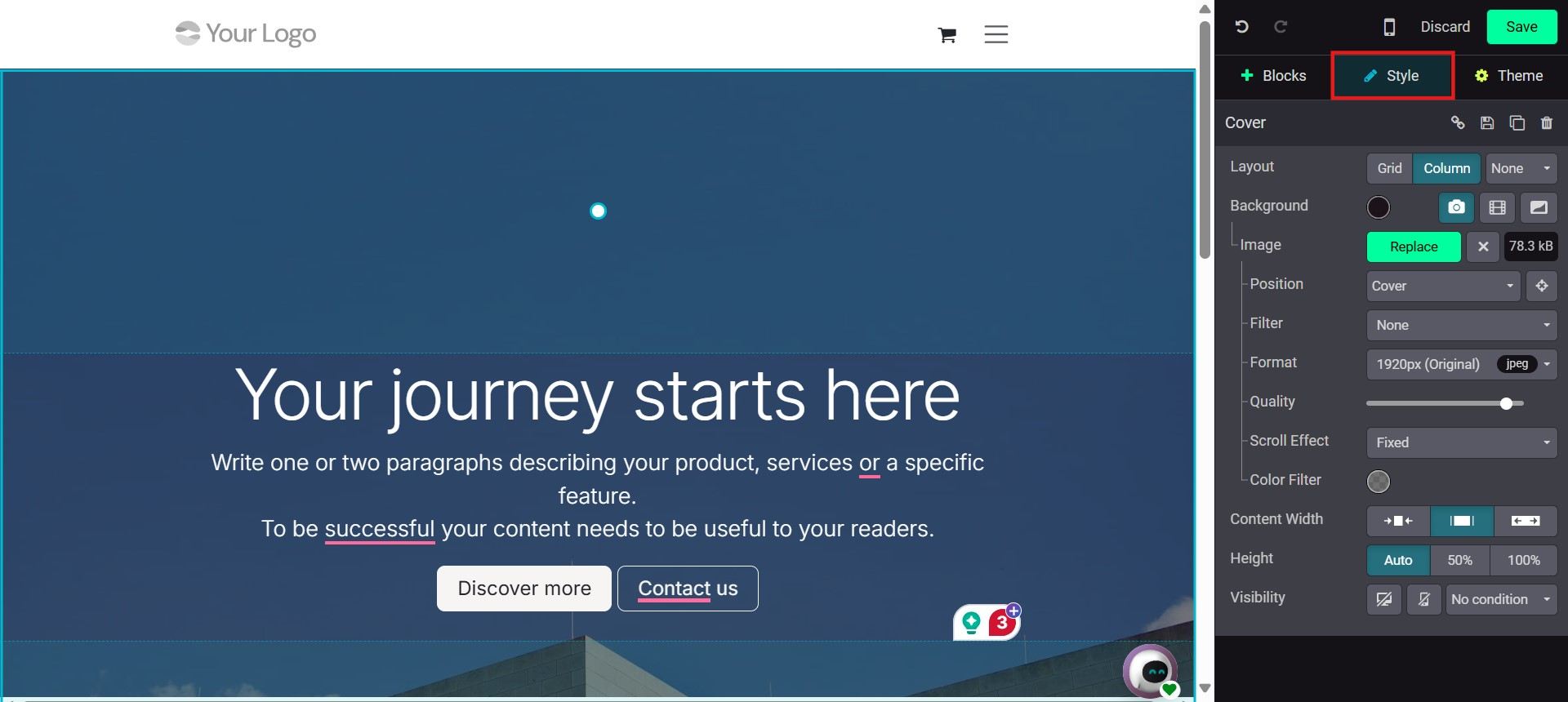
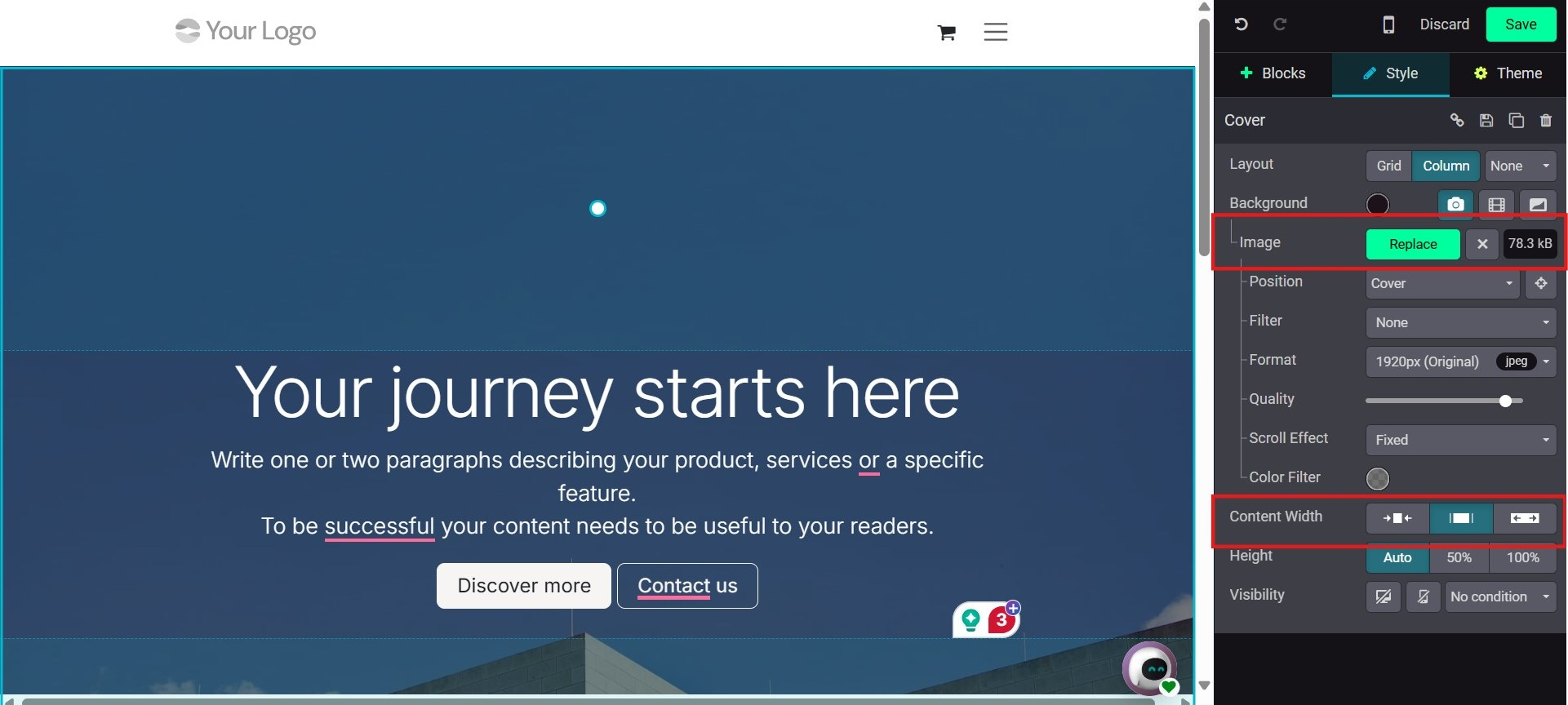
Odoo 19 allows you to fine-tune image properties for optimal performance and presentation. You can adjust image dimensions, alignment, and display settings directly from the editing panel. The system also optimizes image formats for faster loading times, ensuring improved website performance without compromising visual quality. Background images, visibility settings, animation effects, and formatting options can also be customized to enhance user engagement.
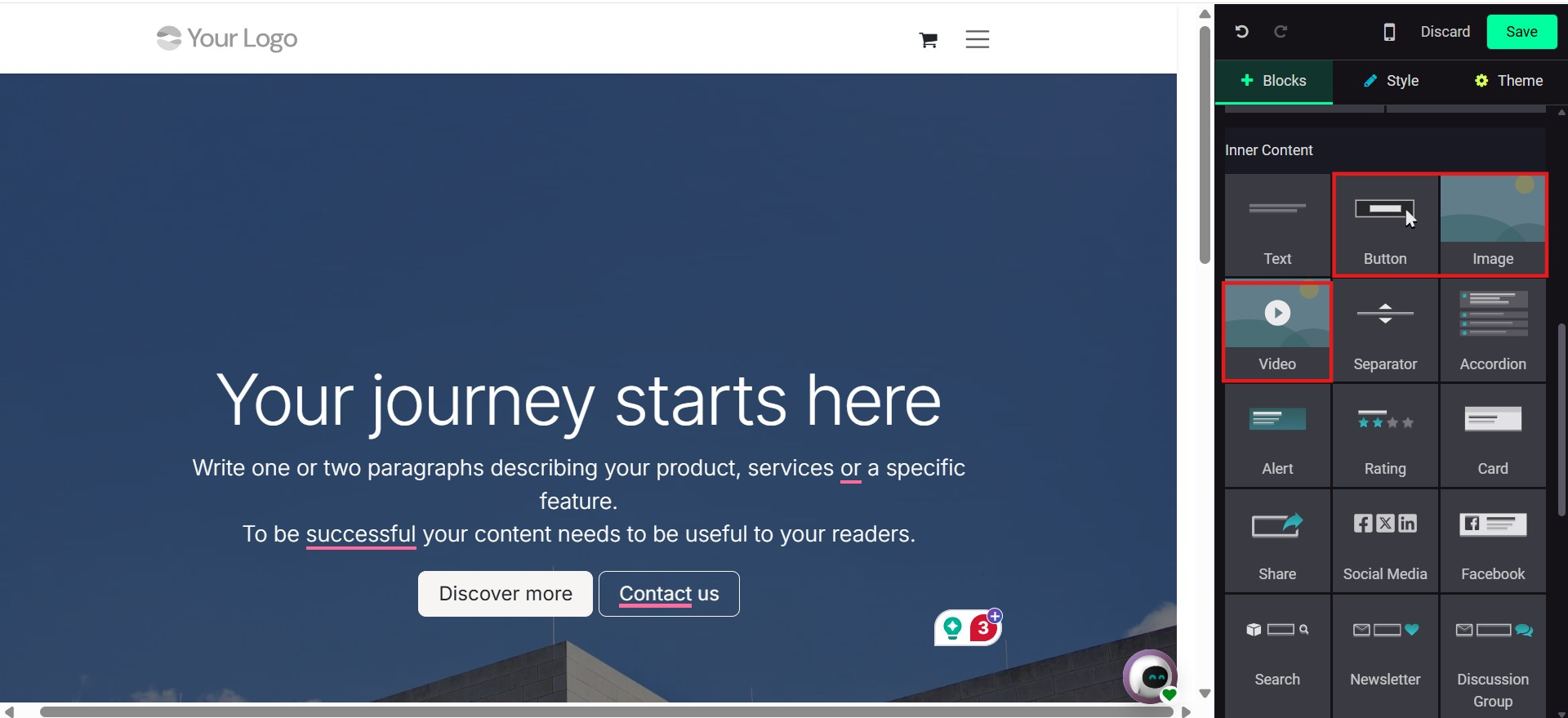
Inner content elements, such as Image, Video, and Button snippets, can be easily added to existing blocks. These snippets allow you to embed multimedia content and interactive buttons seamlessly within your webpage structure.
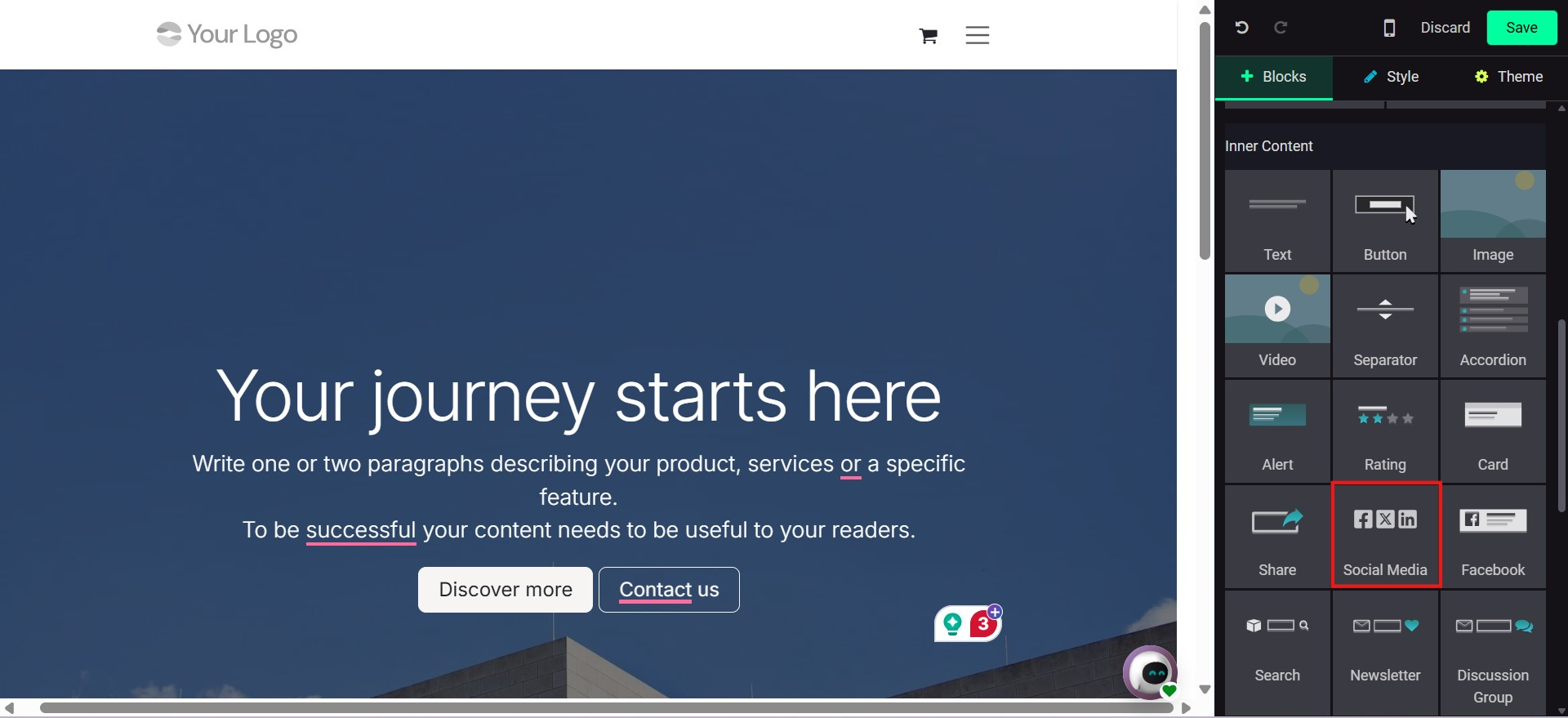
Odoo 19 continues to support social media integration through dedicated snippets, enabling you to connect your public social media accounts directly to your website. This enhances online visibility and encourages visitor interaction.
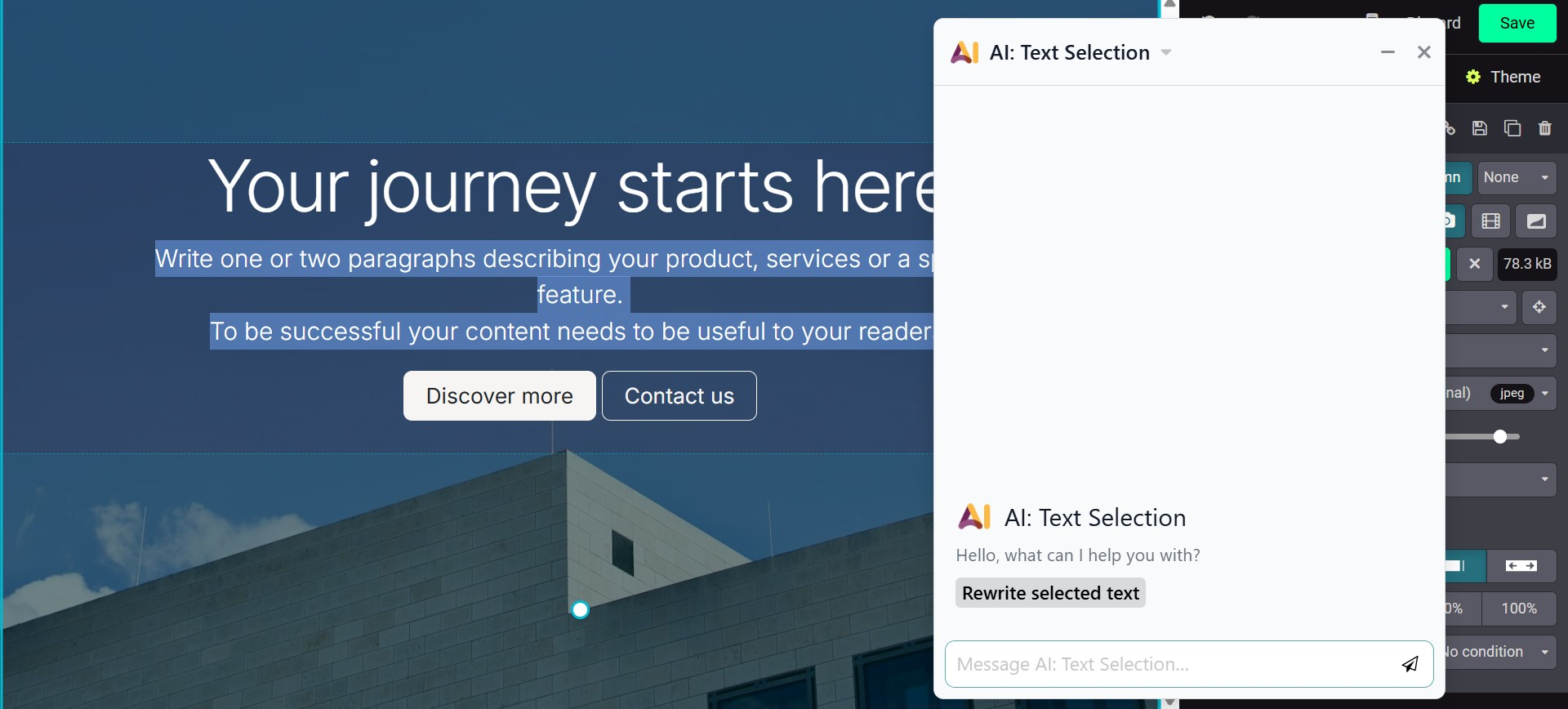
A significant enhancement in Odoo 19 is the improved AI-powered content assistance. Users can generate new content, rewrite existing text, or adjust tone and length using the integrated AI tool. To use this feature, select the content within a snippet and access the AI tool from the inline text editor. You can request the system to shorten, expand, or professionalize the selected content.
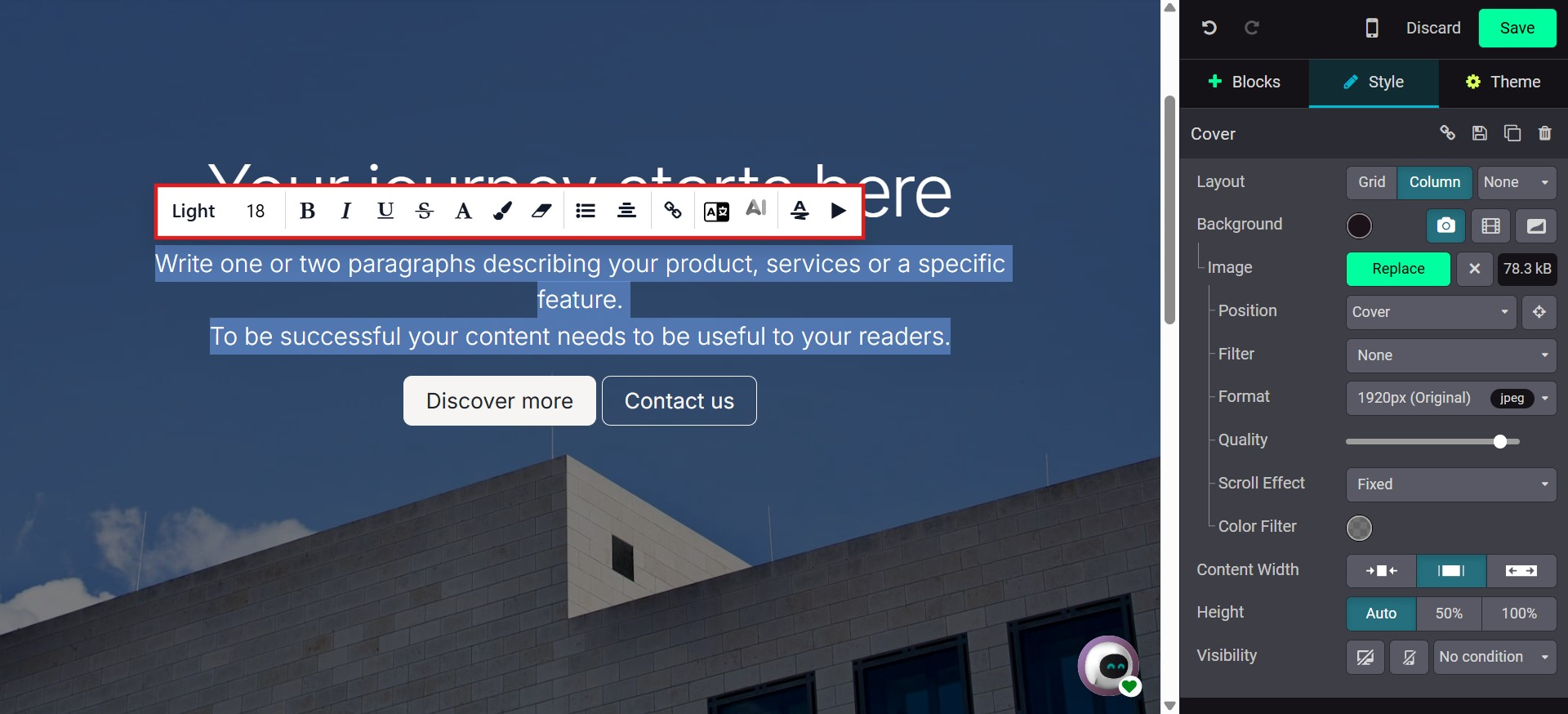
After generating the revised text, simply insert it to replace the original content. This feature helps streamline content creation and ensures consistent, high-quality communication.
Additionally, Odoo 19 provides translation tools that allow you to translate website content into multiple languages, supporting multilingual website management and expanding your global reach.
1.4 Mobile Preview
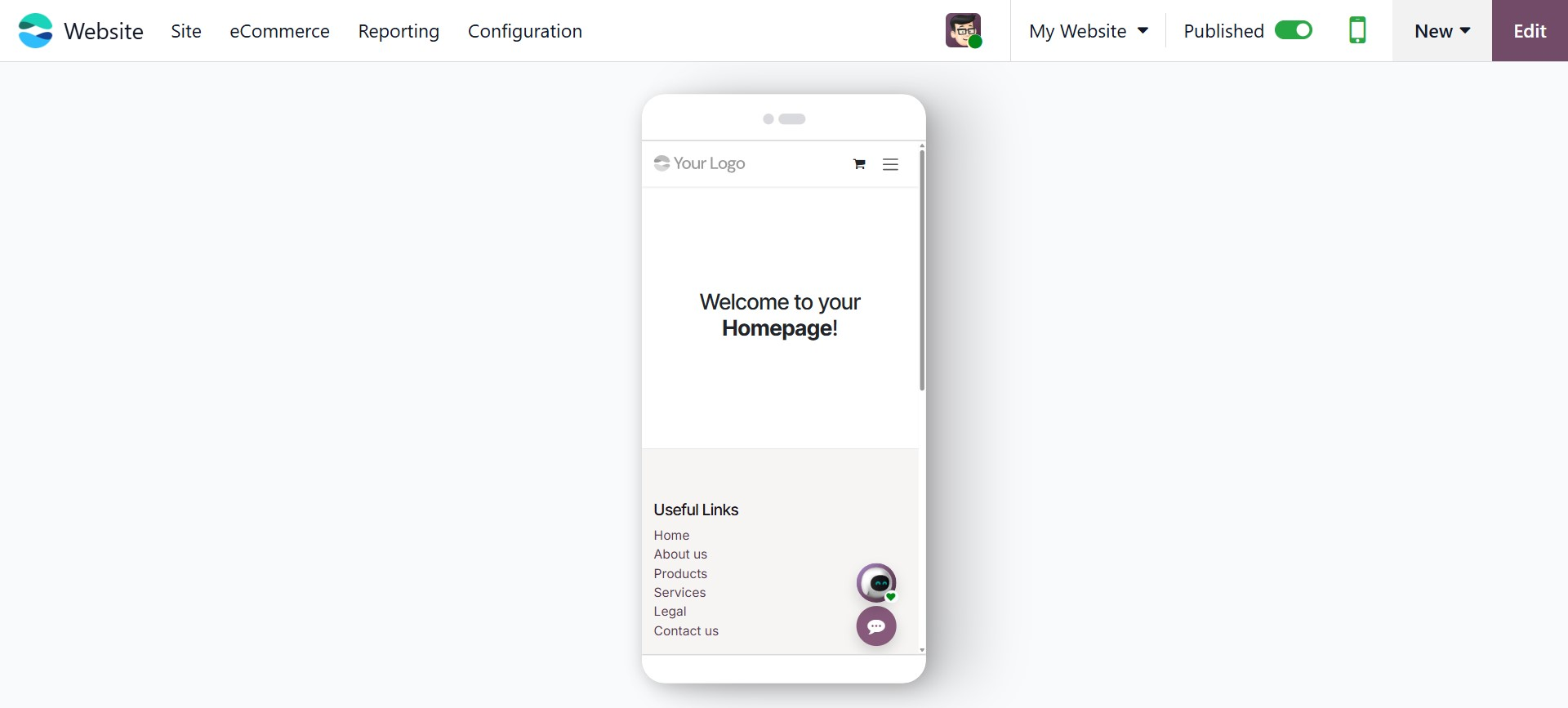
Odoo 19 ensures that websites are fully responsive and optimized for various devices and screen sizes. The system automatically adapts website layouts to provide a consistent viewing experience across desktops, laptops, tablets, and smartphones.
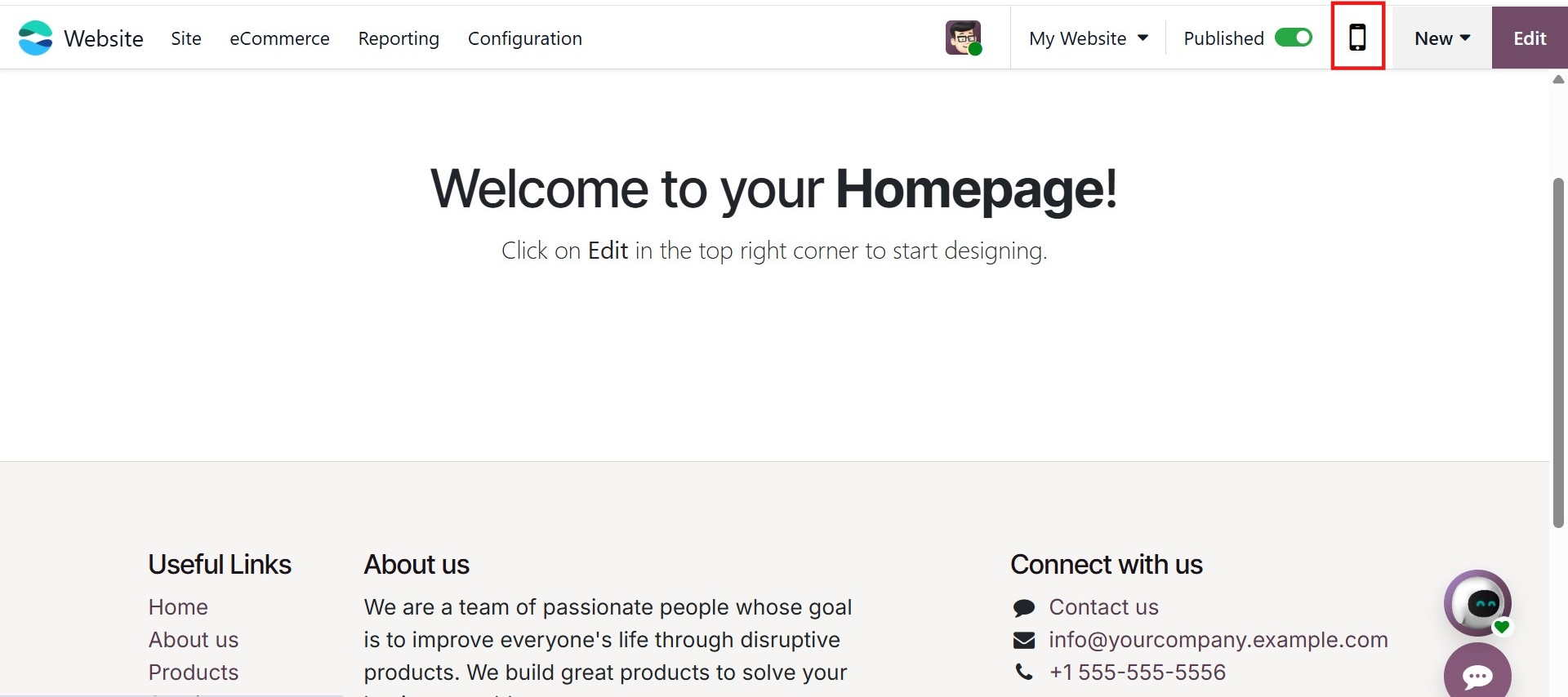
To preview how your website appears on mobile devices, use the Mobile Preview icon available in the top editing toolbar. By clicking this icon, you can instantly switch to a mobile view and evaluate how your content adjusts to smaller screens.
Websites built with Odoo 19 are designed with responsive technology, meaning they automatically adjust layout elements, images, menus, and content blocks to fit different screen dimensions. You can also manually resize your browser window to observe how the website dynamically adapts. This responsiveness ensures improved usability, accessibility, and user experience across all devices.
Now that we have explored menu management, appearance customization, and mobile responsiveness in Odoo 19, we can proceed to discuss how to list and manage goods and services within the module.