eCommerce Payment
In the era of "techie-apps," e-commerce is now an essential part of all business models. By offering chances to sell products and services internationally, online platforms significantly improve business operations. Businesses can reach a larger audience with e-commerce, which makes it simple for consumers to peruse and buy goods. Additionally, the ERP platform provides a very user-friendly eCommerce solution that easily incorporates into your company, offering a specialized platform for effective management and operations.
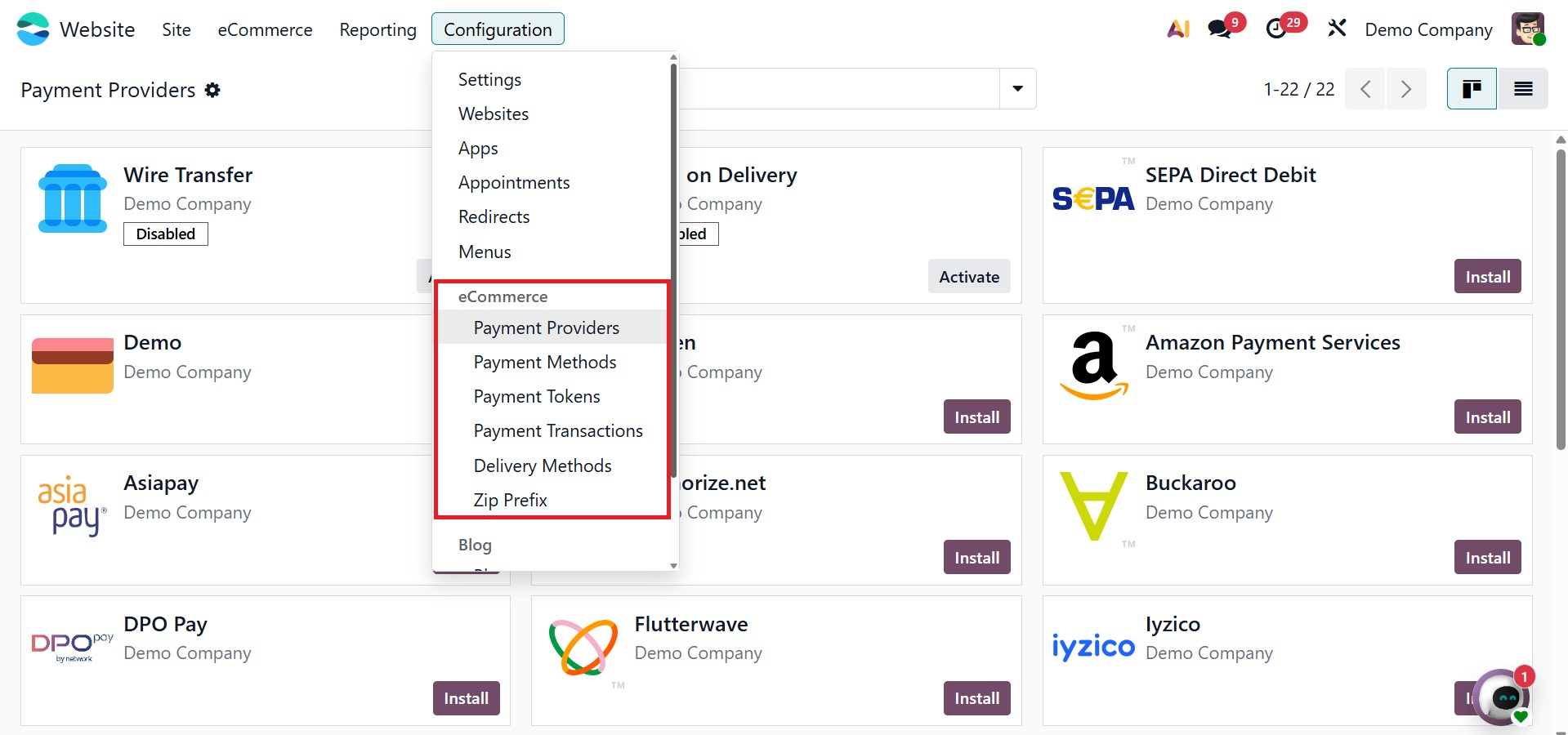
Payment providers
To facilitate safe and effective transactions on your e-commerce website or customer portal, a number of payment acquirers are available. The Payment Provider option located in the Website module's Configuration tab can be used to configure these. You can give your clients a variety of quick and easy ways to pay for their online purchases by setting up appropriate payment providers. Clicking on the Payment Providers menu will take you to the Payment Acquirers window, where all of the preset settings are shown for simple setup and management.
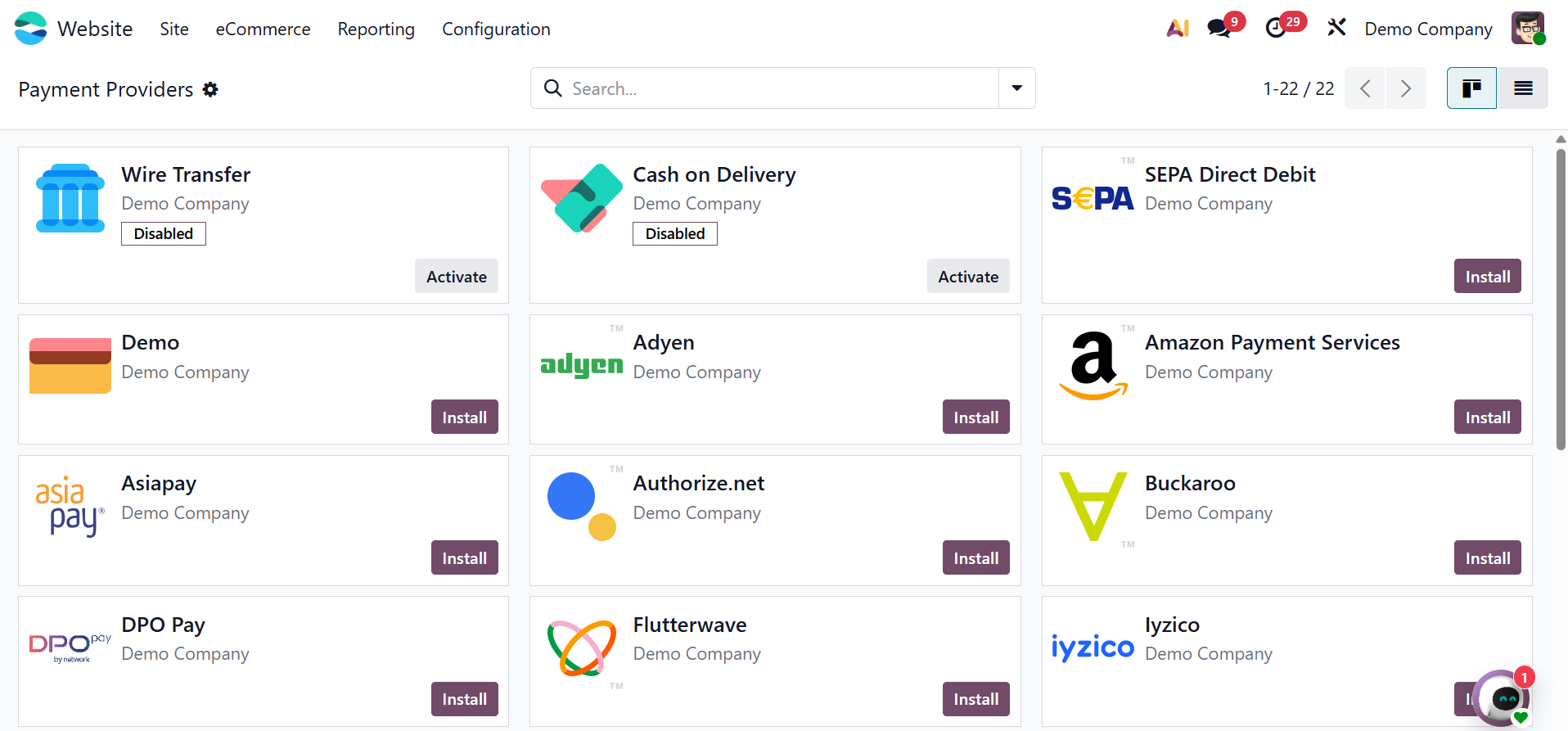
A glimpse of every payment acquirer set up on the platform may be found in the Payment Acquirers window. You can access the comprehensive configuration options of any of the listed acquirers by selecting them. The payment acquirer's name appears at the top of the setup window. The State field allows you to see and modify the acquirer's current operational status, including whether it is enabled, disabled, or running in test mode. Just choose the Enabled option to activate the acquirer. You can process test transactions by using a simulated payment interface when you choose Test Mode. Before allowing live transactions, this mode is helpful for confirming the configuration.
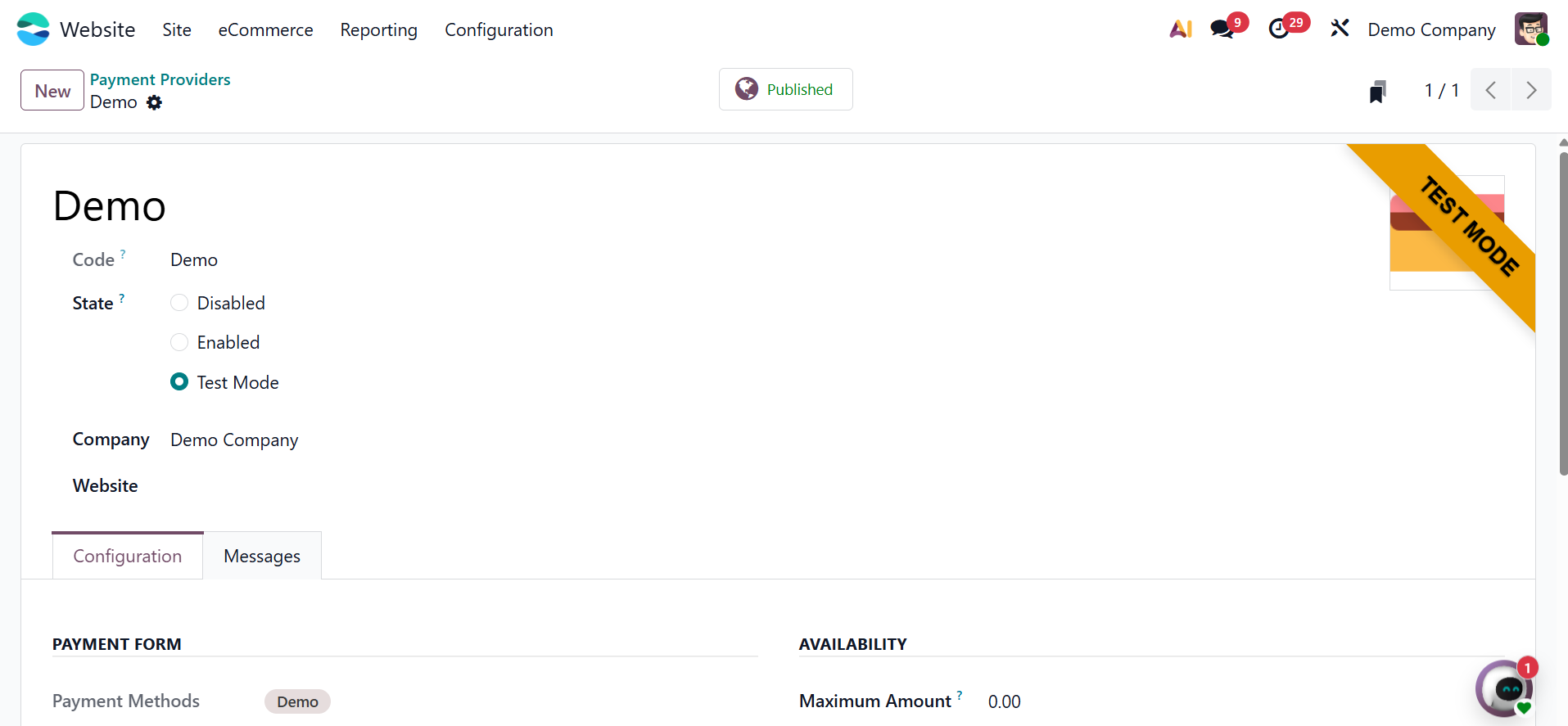
You can list the nations in which this payment method should be accessible in the Availability section. The acquirer will be accessible worldwide by default if no countries are chosen.
Other choices, like Payment Journal, are located under the Payment Followup section farther down the configuration window. You can choose which journal will be used to record successful transactions using the Payment Journal field. You may also alter the Help Message and Pending Message under the Messages menu to assist or advise users as they make a payment.
It is crucial to remember that every payment acquirer has a unique set of options and configuration procedures. Offering a range of payment acquirers gives consumers the flexibility of selecting their chosen payment method and increases the probability of receiving payments on time.
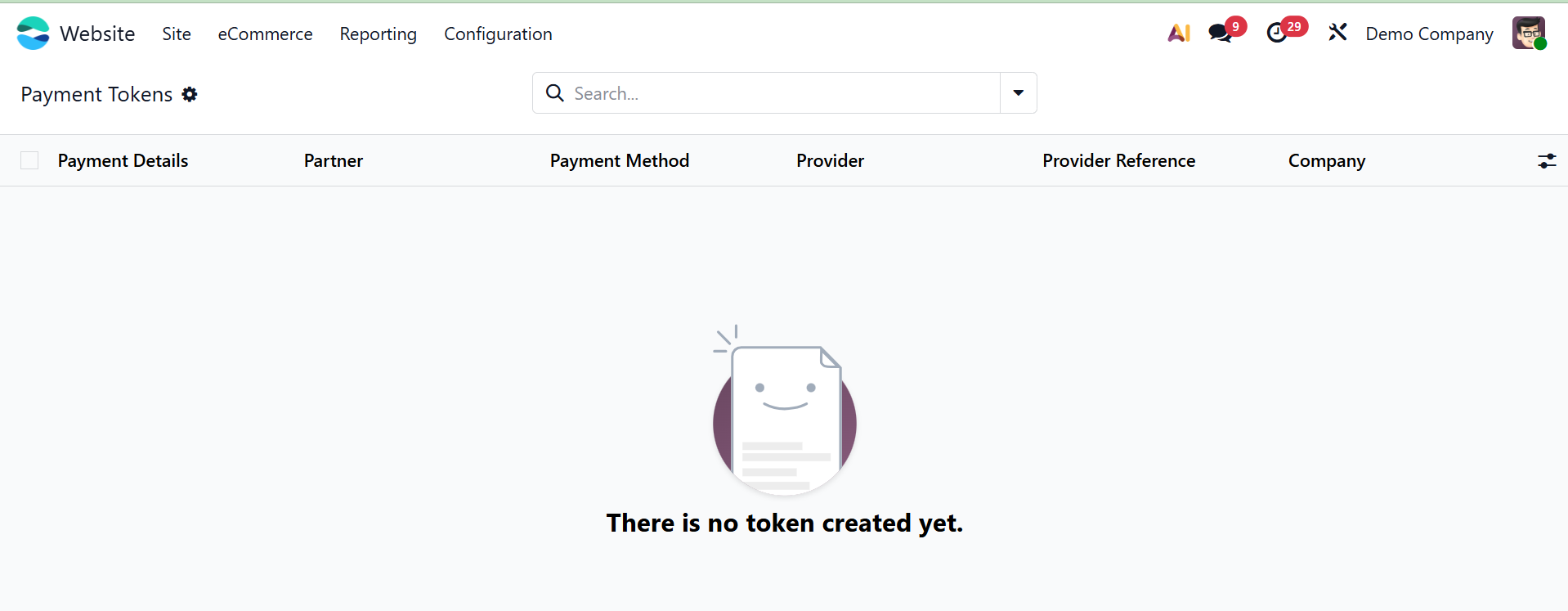
Other features are available on the platform after the payment acquirers are set up. The eCommerce area under the Configuration tab will show more sophisticated capabilities like Payment Tokens, Payment Icons, and Payment Transactions when Developer Mode is enabled from the general settings. This allows for greater customization and control over payment processes.
Payment methods
Any website that manages online transactions must have payment options. They serve as visual cues that let clients know which online payment gateways are accessible and what kinds of credit or debit cards are accepted at the online store. This increases client confidence and the possibility that they will complete transactions while also streamlining the checkout process.
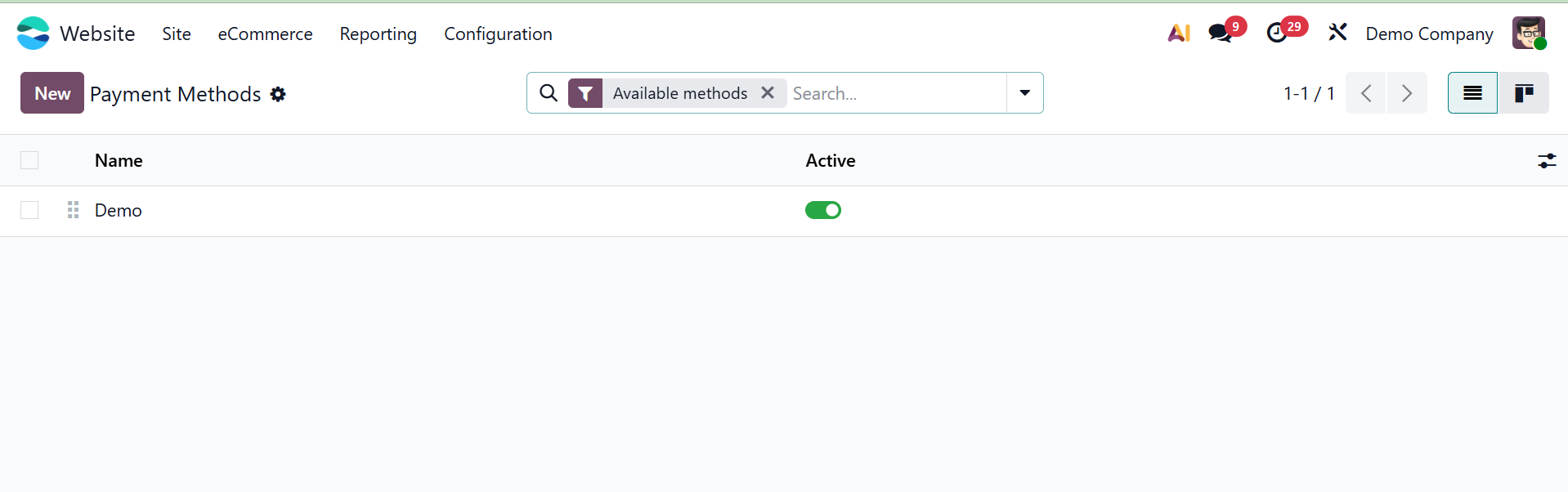
The technology makes it simple to set up different payment options. You can use the proper payment icons to direct your clients when you set up new payment acquirers. To control this, go to the Website module's Configuration tab and choose the Payment Methods menu. By doing this, the Payment Icons window will open, allowing you to view and modify all of the specified payment icons.
All of the platform's previously configured payment icons are shown in the Payment Methods window. Just click on the relevant entry to get the details of each icon. Similarly, you can click the New button in the window's upper left corner to create a new payment icon.
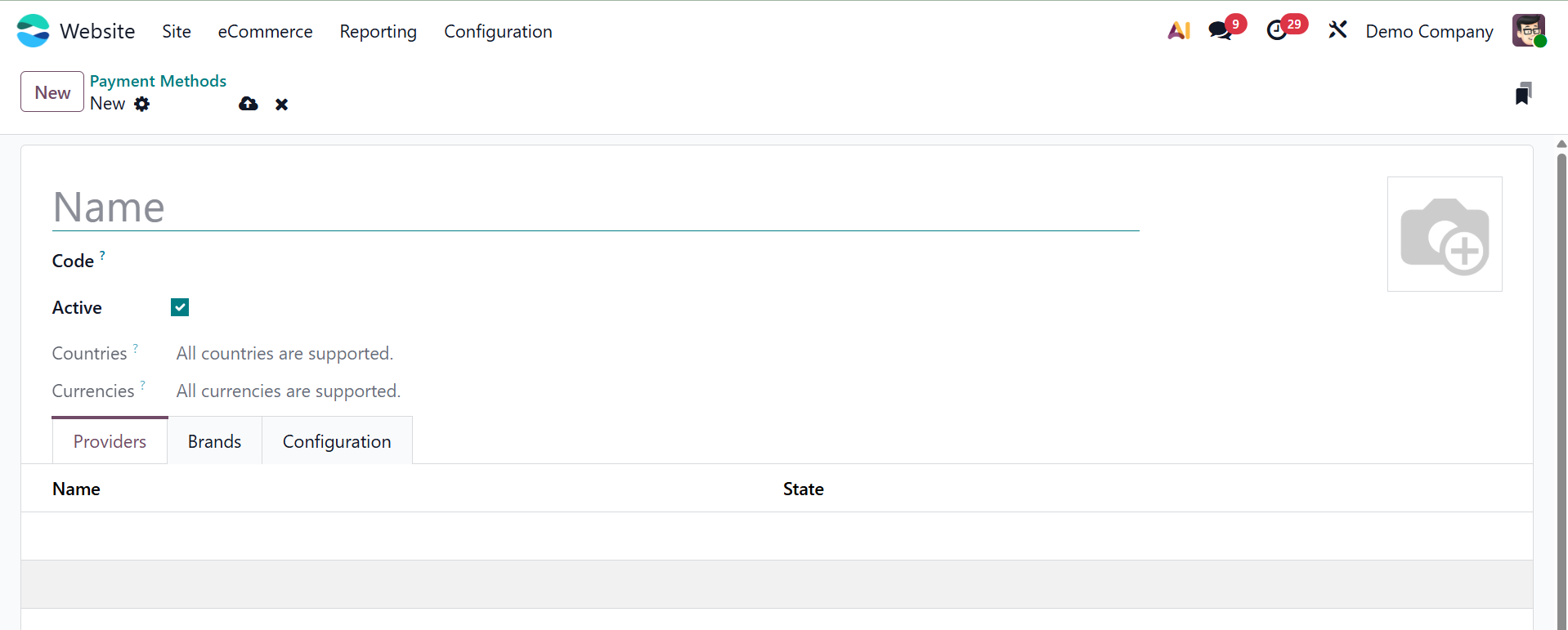
In addition to naming this payment icon, you can put the image that was used to make it in the designated place. In the Providers list tab, you can add acquirers who accept this payment icon. To do this, click the Add a line option. All of the Acquirers that are used on the platform will then be shown. The new payment icon can be saved by clicking the Save button after the list has been updated.
Additionally, two additional submenu options under Payment Methods—Payment Tokens, which are used to handle remembered client payment details—become accessible when developer mode is enable
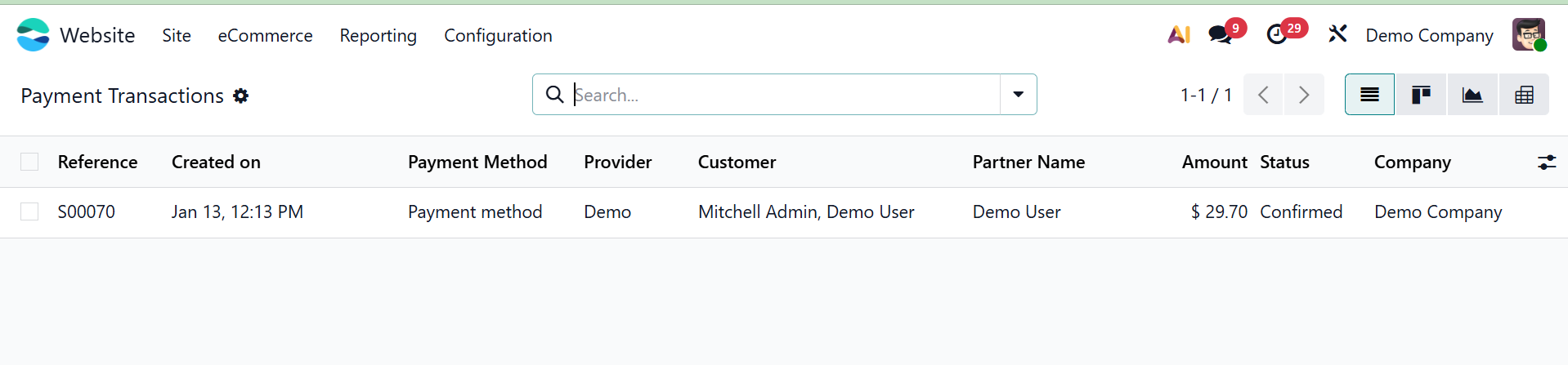
Payment Transactions, which show the status of every payment record made over the website.
These additional choices provide you more precise control over your eCommerce platform's payment procedure. Now let's move on to the delivery methods feature.
Delivery methods
Businesses may manage and set up many shipping alternatives for their e-commerce operations using the Delivery Methods feature. The Delivery Methods pane will list every delivery method that is currently defined on the platform, along with important details like the carrier name, delivery type, and related price rules.
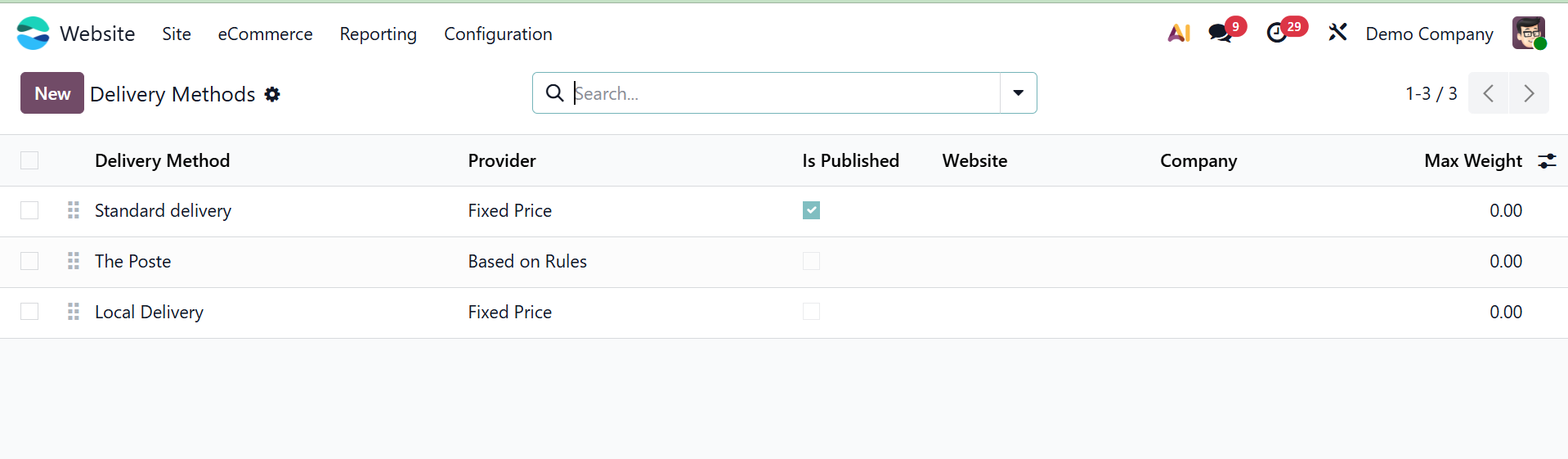
You can click the New button in the window's upper-left corner to establish a new delivery method. This opens a comprehensive setup form where you can adjust the Pricing and Destination settings appropriately and choose the Carrier Name and Provider Type (e.g., fixed pricing, based on rules, or third-party integrations like DHL, FedEx, etc.).
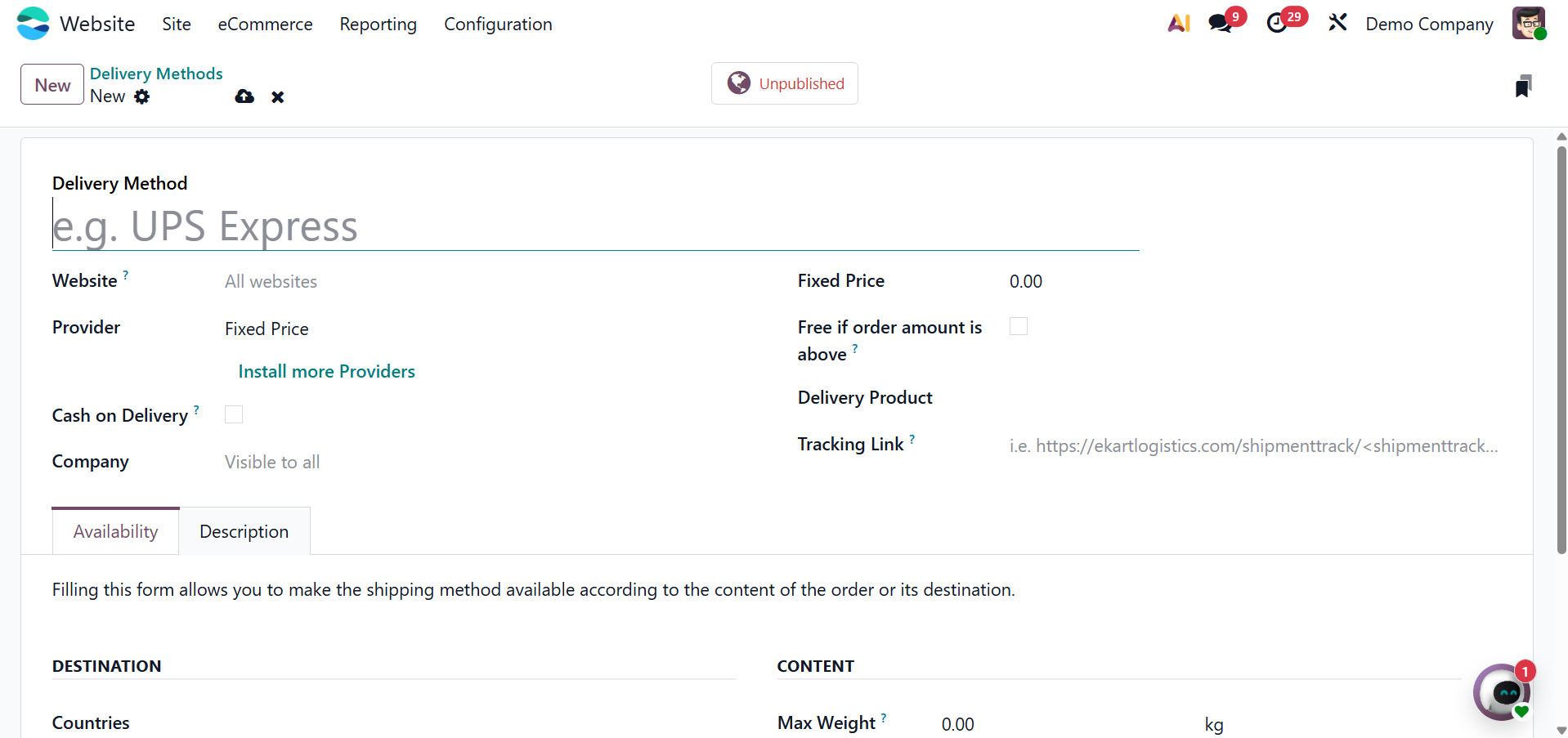
Delivery margins, free delivery thresholds, and integration credentials for external shipping APIs are additional setup choices. The countries or client groups where the delivery method should be made available can also be selected under the Availability section. Customers will be able to select their preferred shipping option based on speed, cost, or provider throughout the checkout process once the delivery method has been established and stored.
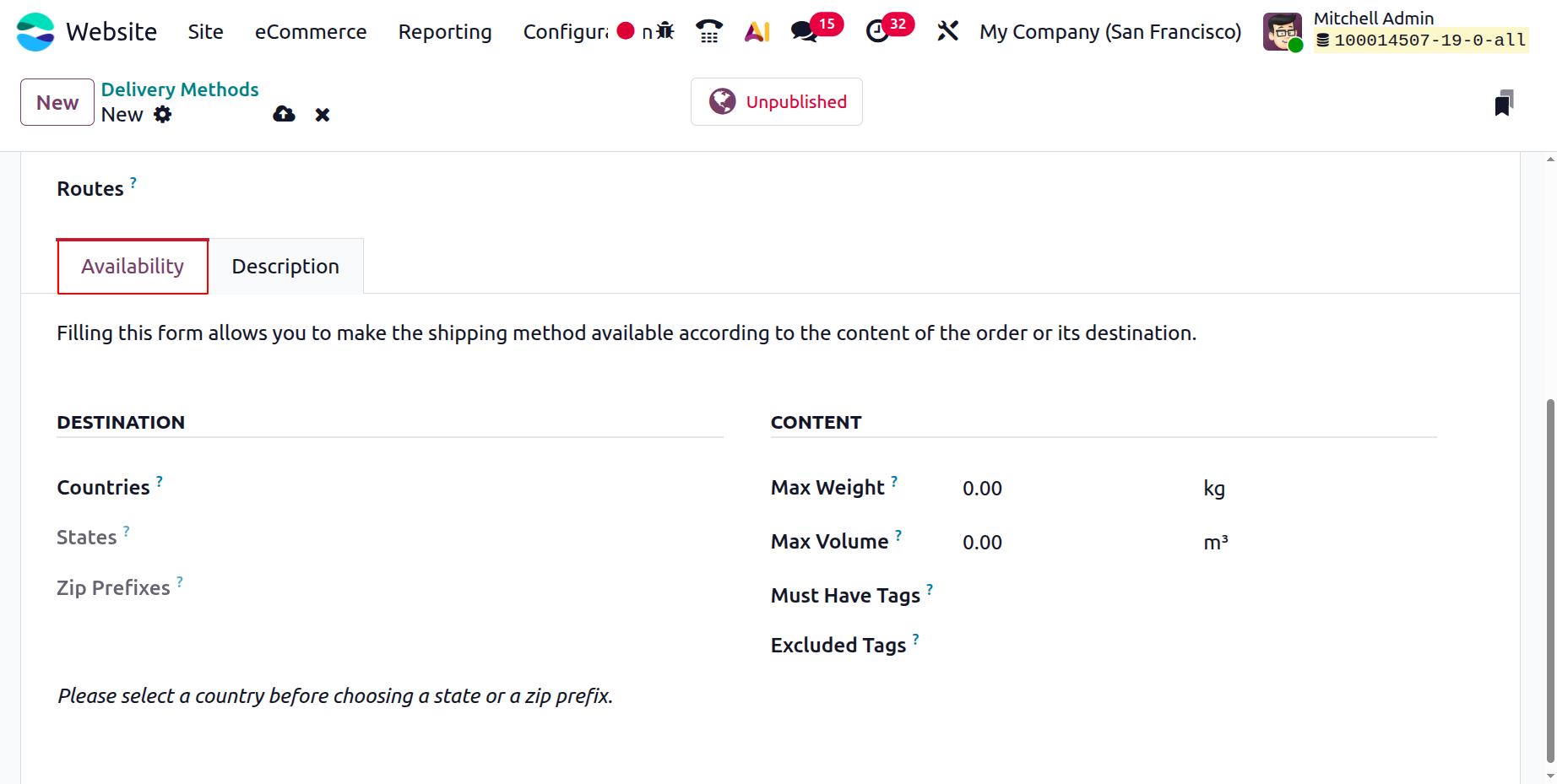
The initial characters of a ZIP or postal code that are used to identify a particular geographic area within a nation or state are known as the ZIP Prefix. Odoo matches client addresses with pre-established delivery or location rules using this prefix.