Configuration
In the Odoo 19 Live Chat module, the Configuration menu is used to set up how your live chat works and manage it. The Configuration menu consists of three menus: Canned Responses, Chatbots, and Expertise.
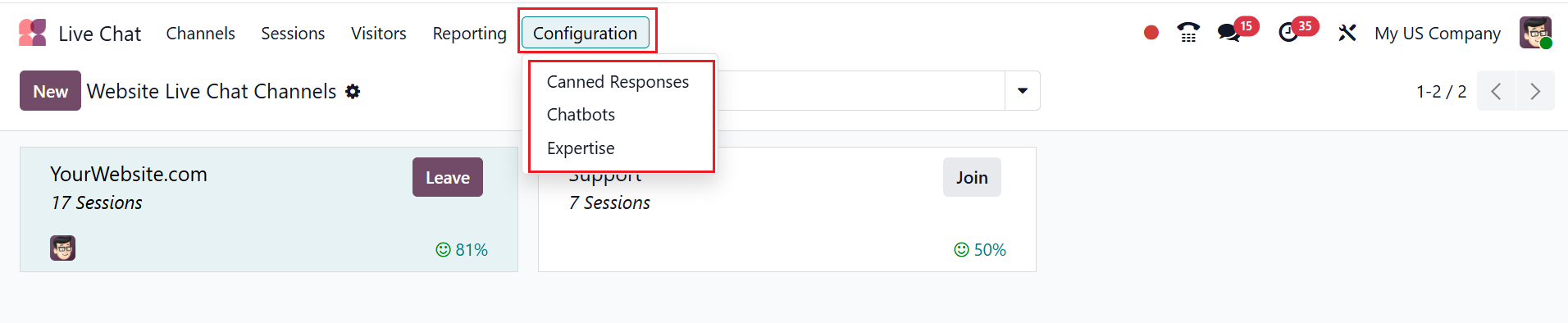
1.1 Canned Responses:
In Odoo 19 Live Chat, Canned Responses are pre-configured replies that operators can quickly insert into conversations to consistently and efficiently answer common questions. They help teams save time, maintain a professional tone, and respond more quickly to customers. Here, you can view a list of canned responses along with their Shortcut, Substitution, Description, Created By, Authorized Groups, and Last Used details. Use the New button to create a response. Add the required fields and save them.

1.2 Chatbot:
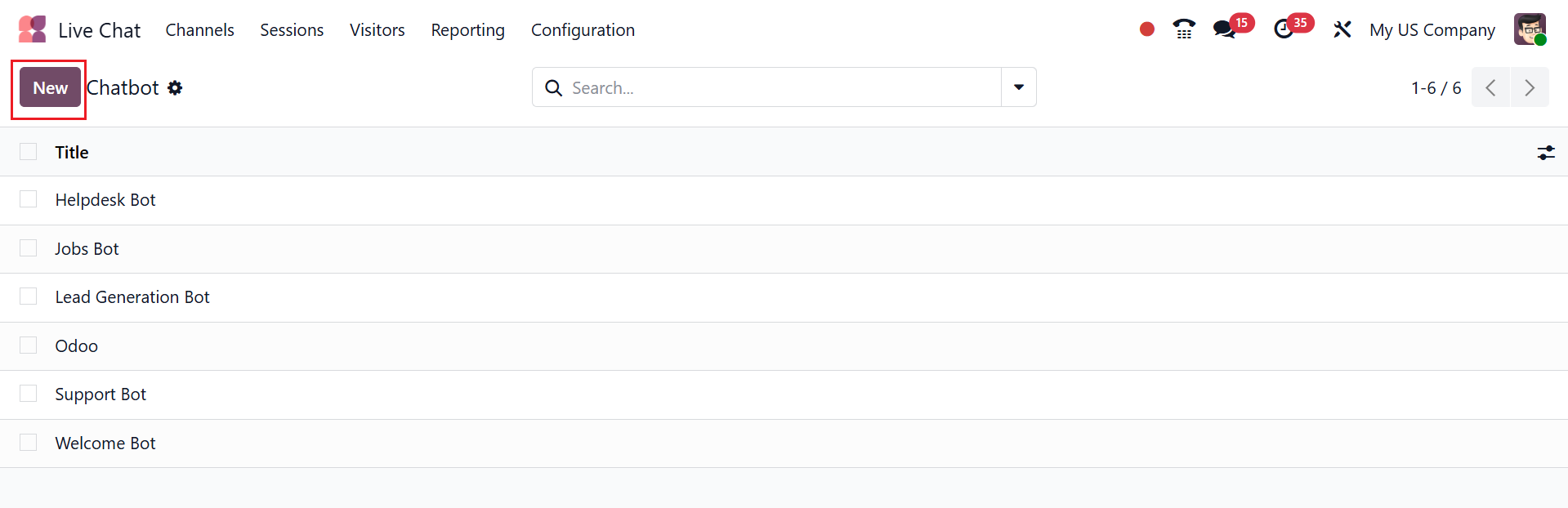
In Odoo 19, the Chatbot is an automated assistant that interacts with website visitors in Live Chat using predefined responses and efficient handling of common inquiries. It helps qualify leads, answer common questions, and route conversations to the right team without human intervention. Here, you can see a list of chatbots with their title. As shown below, click the New button to create a chatbot.
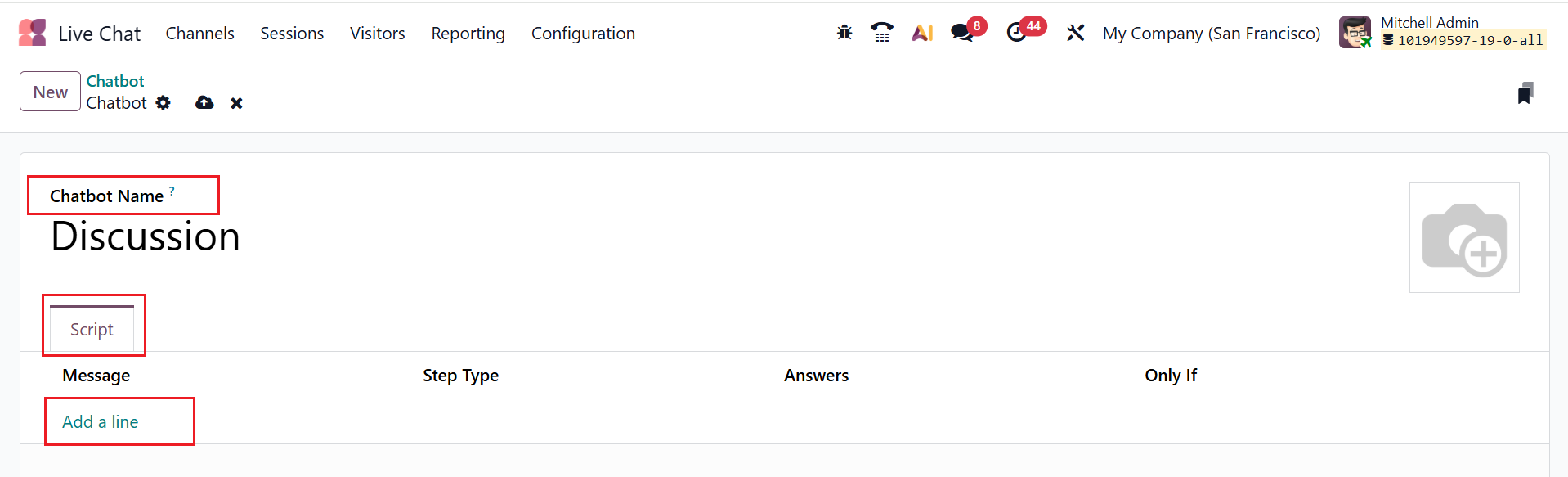
Then provide a title in the Chatbot Name field. In the Script tab, click on the Add a line button under the Message field as shown below:
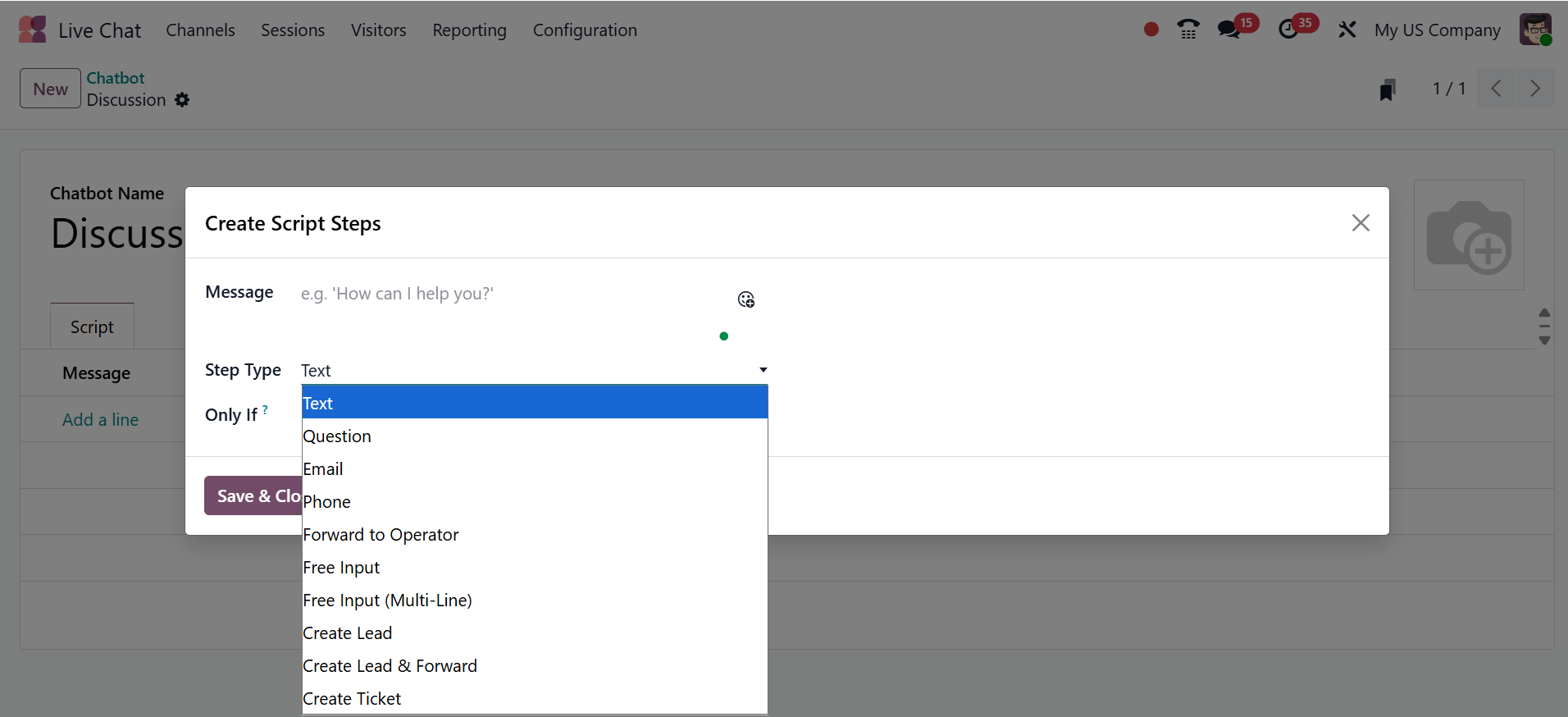
A pop-up screen will appear to create a chatbot script, as shown below. Use the Message field to enter a scripted message. In the Step Type field, select the script step as Text, Question, Email, Phone, Forward to Operator, Free Input, Free Input (Multi-Line), Create Lead, Create Lead & Forward, or Create Ticket based on the purpose of your chatbot. In the Only If field, enable the option to display the steps only when all answers are selected.
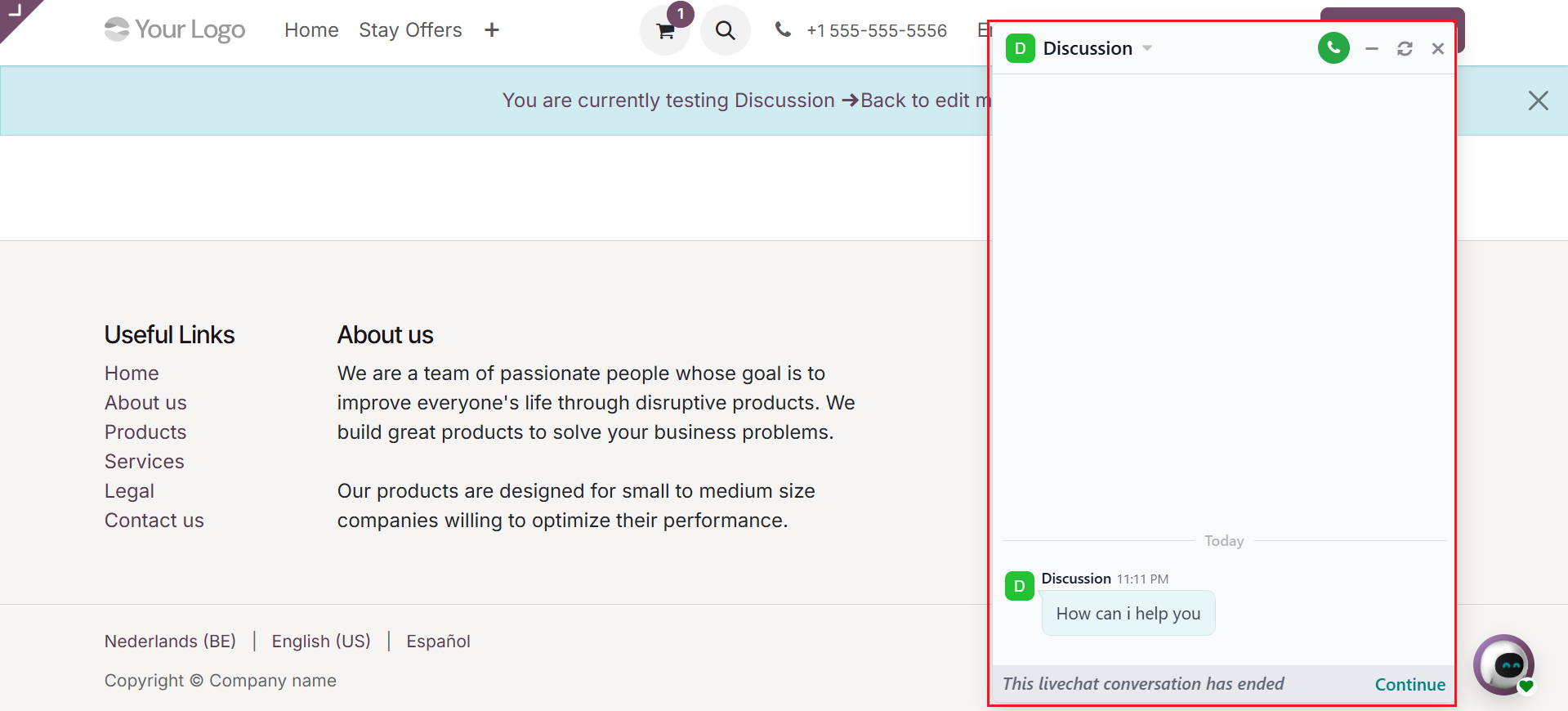
Then, click the Test button to open the channel’s web interface. You can begin a conversation with the newly created chatbot, as shown below.
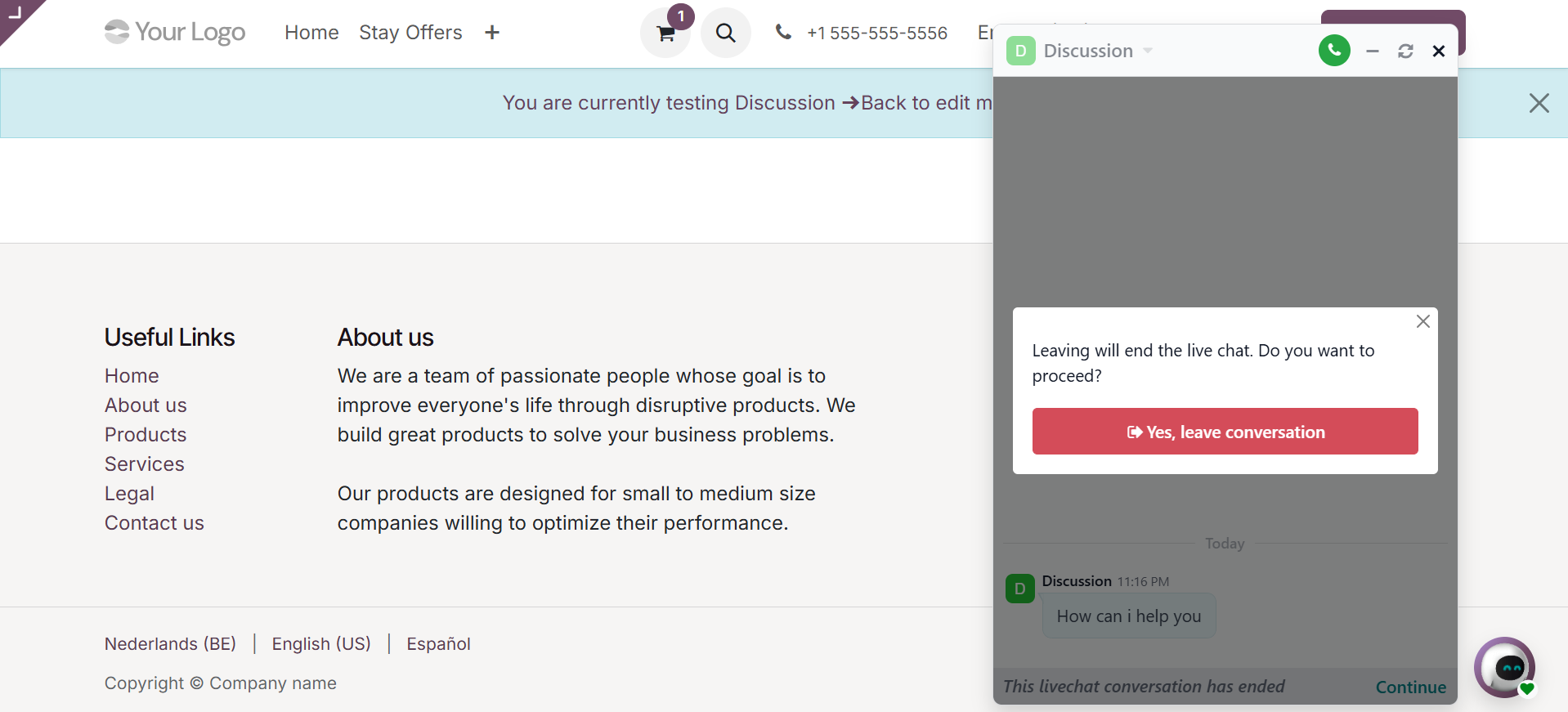
Click the close icon at the top of the chatbot window to end the session. A pop-up screen will appear for confirmation to end the discussion. Then, click on the Yes, leave conversation button to confirm it, as shown below:
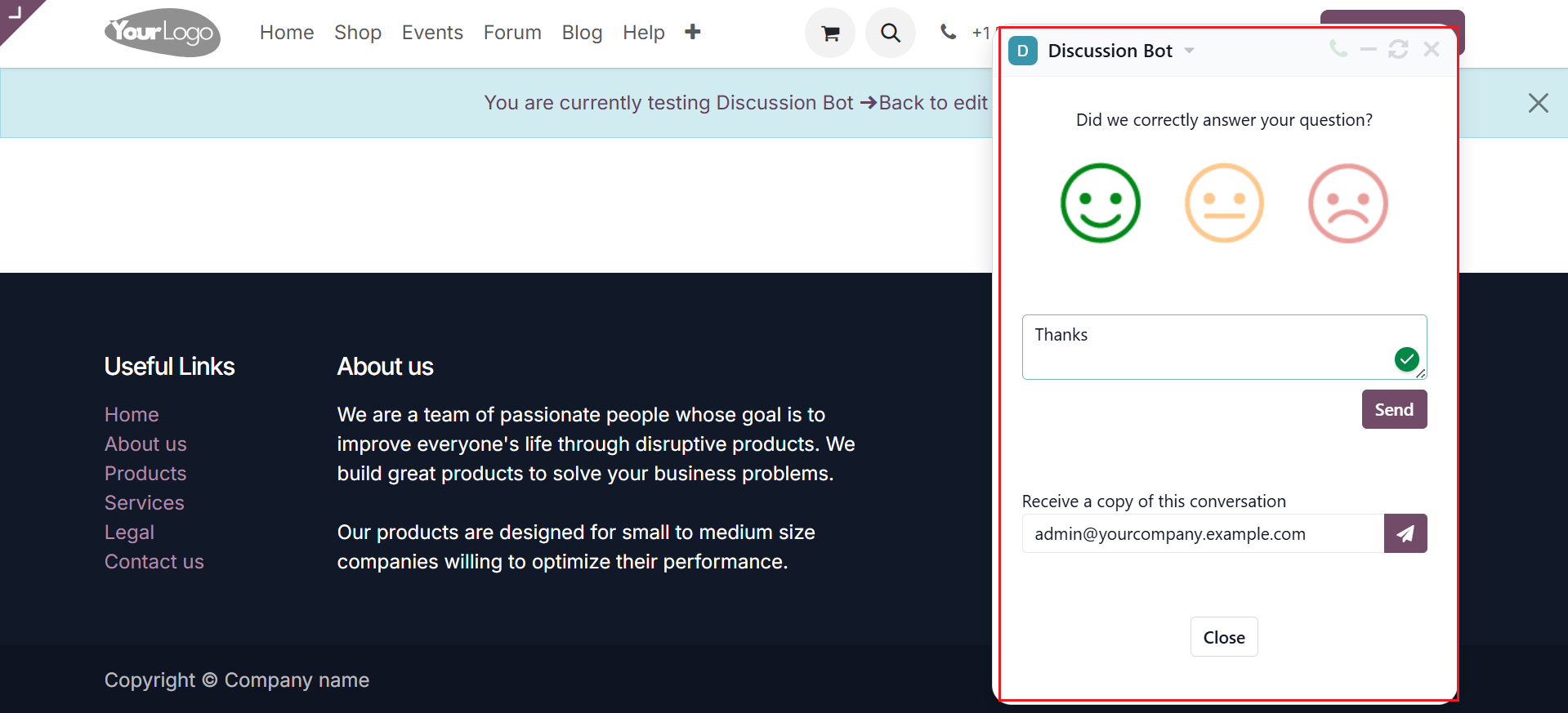
Then, you can select a rating for the chatbot as happy, ok, or sad emojis as shown below:
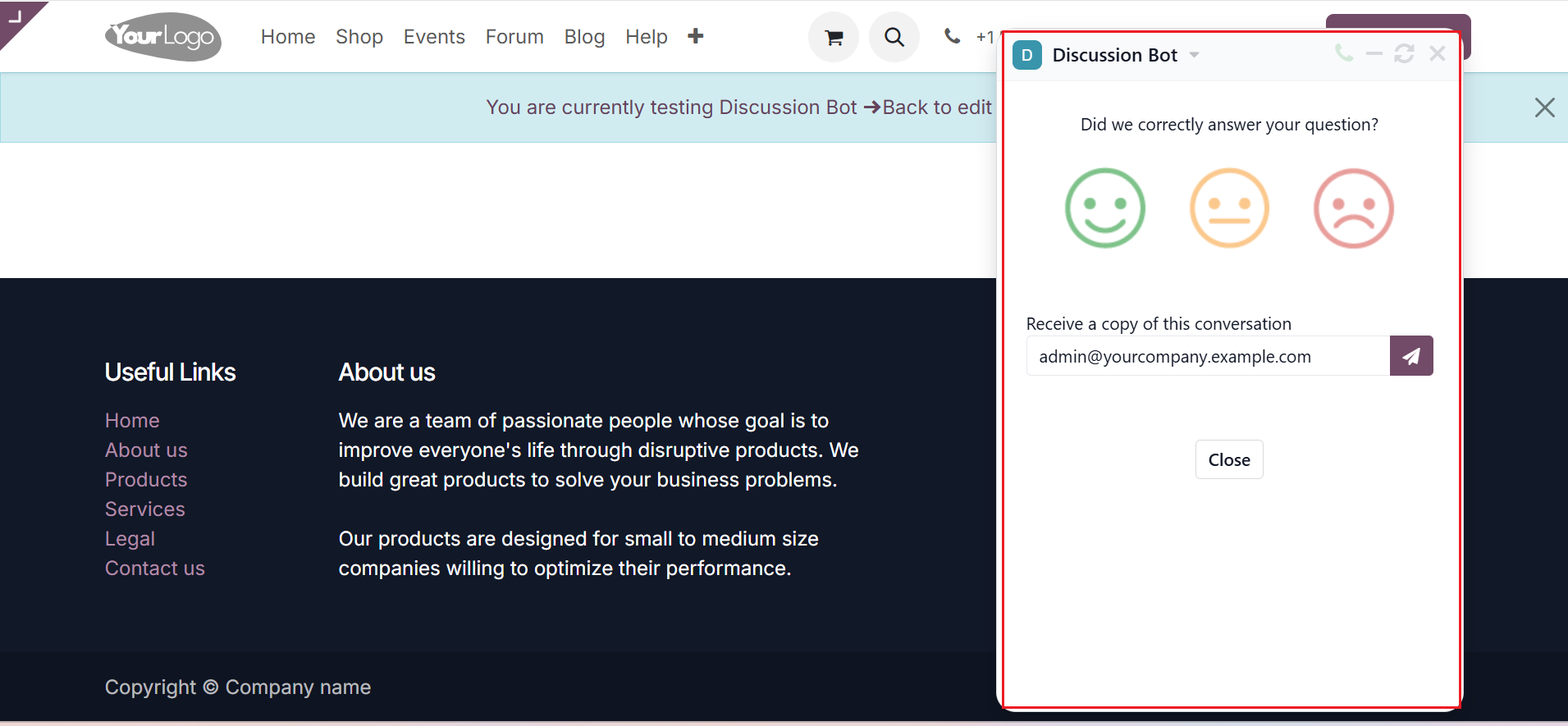
Then, add the response as a note regarding the chatbot conversation and send it by clicking the Send button, and click on the Close button to close the chat.
1.3 Expertise
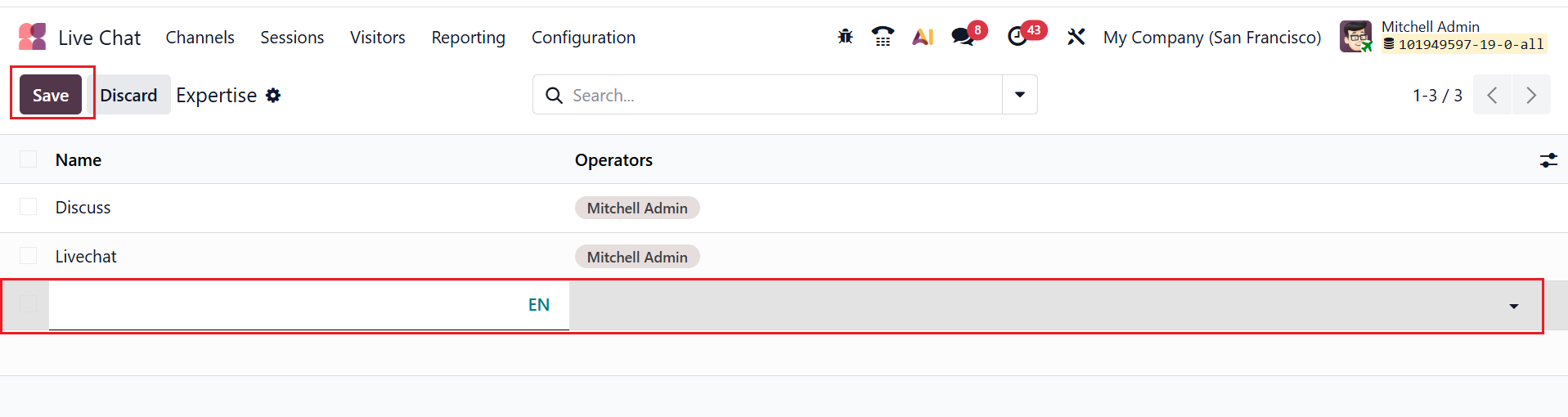
In Odoo 19 Live Chat, the Expertise option is used to define specific skills or knowledge areas for chat operators. It helps automatically route incoming chats to the most qualified operator based on their assigned expertise, ensuring faster and more accurate responses. Click the New button to add a new expertise. A blank line will appear where you can enter the expertise name, select the operator, and then save it.
1.4 Tags
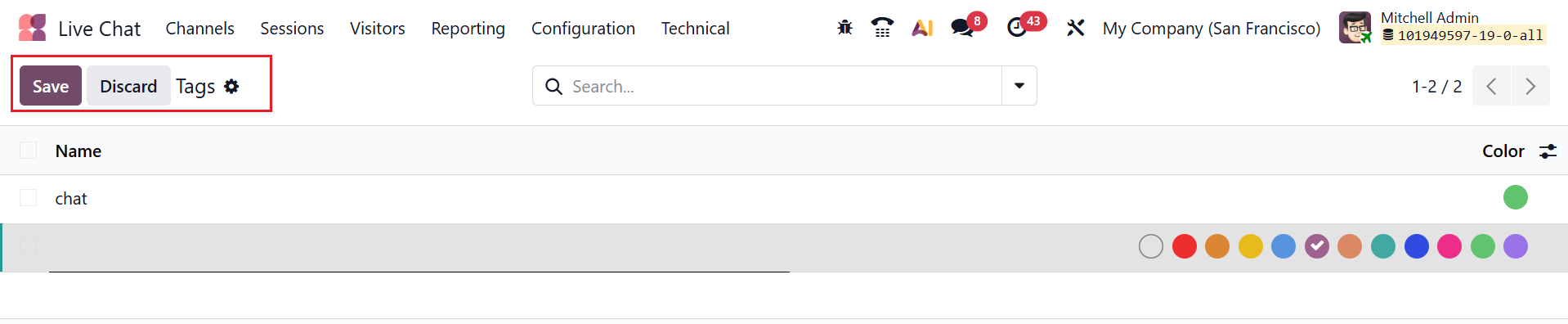
When you activate the Developer Mode, a new option named Tags will appear under the Configuration menu. In Odoo 19 Live Chat, Tags are labels that can be added to chat conversations to categorize them by topic, issue type, or customer need. To create a new tag, click the New button. A blank line will appear where you can enter the tag name, select a color, and then save it.
2. Technical
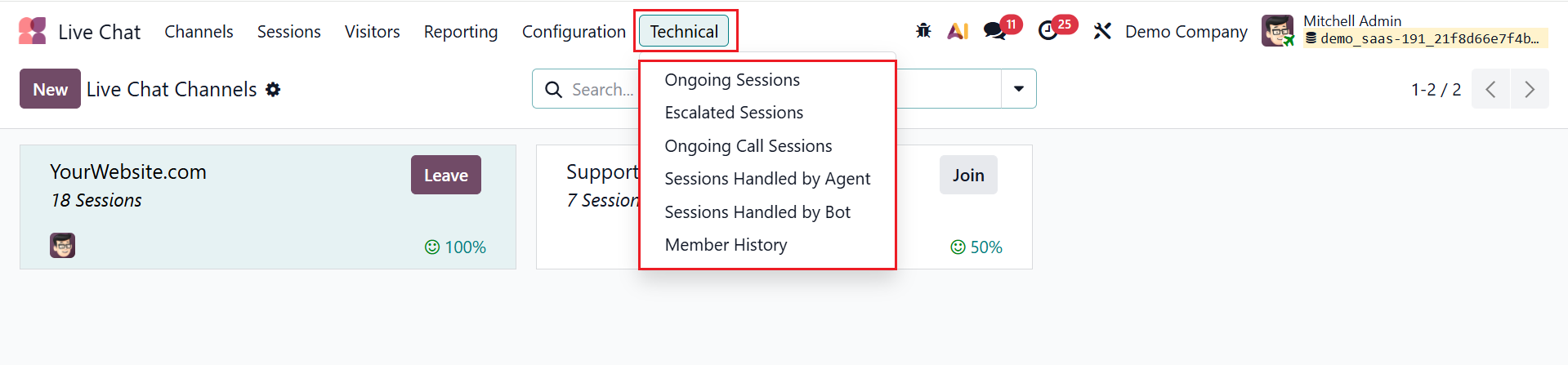
When you activate the Developer Mode in the Settings module, a new menu will appear named Technical, as shown below. In Odoo 19, the Technical Menu is an advanced configuration section available in Developer Mode that provides access to technical settings, which are mainly used by developers or administrators to customize, troubleshoot, and manage system behavior beyond standard user settings.
Under the Technical menu, you can see options such as Ongoing Sessions, Escalated Sessions, Ongoing Call Sessions, Sessions Handled by Agent, Sessions Handled by Bot, and Member History, as shown below:
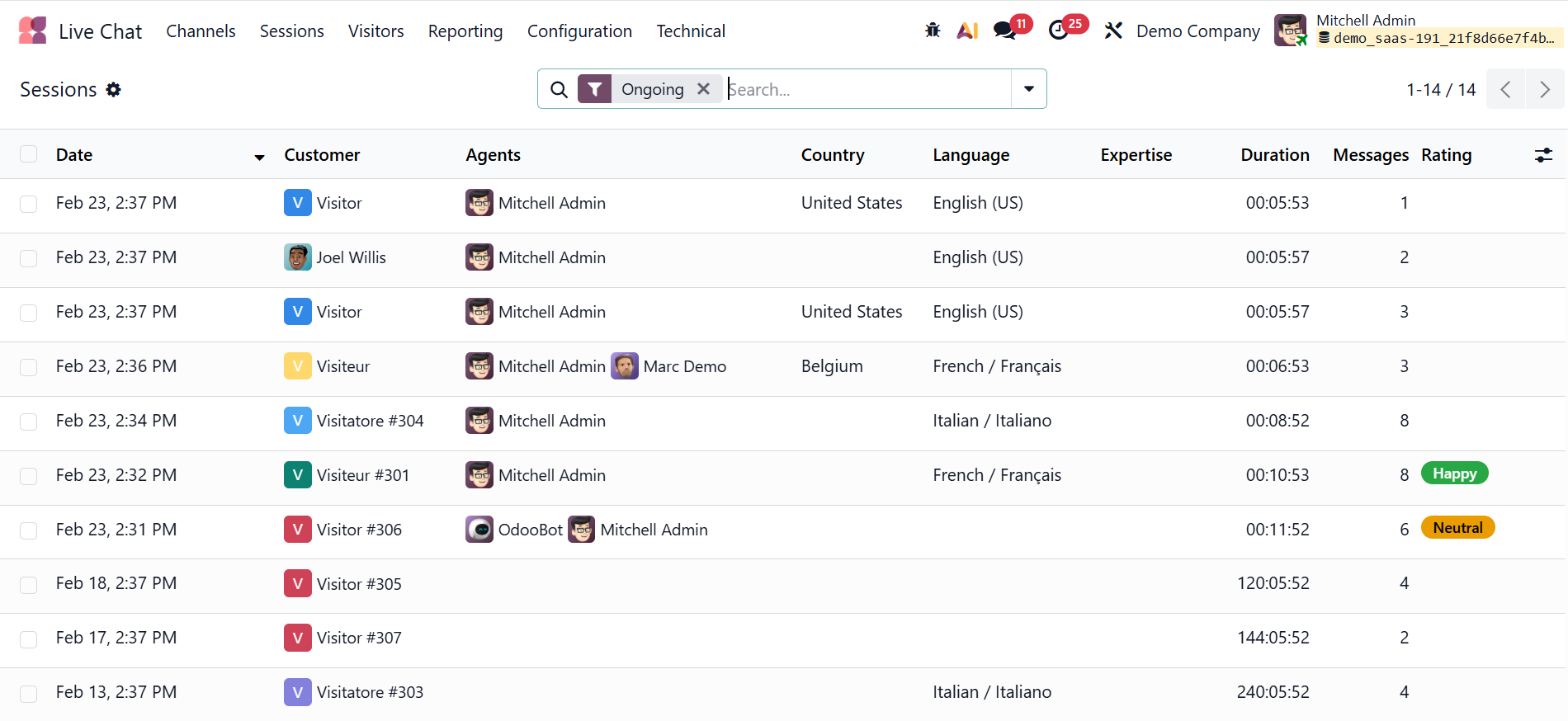
2.1 Ongoing Sessions:
In Odoo 19 Live Chat, Ongoing Sessions are active conversations between website visitors and operators that have not yet been closed or marked as resolved. These sessions allow operators to continue the discussion, transfer it to another team member, or close it once the issue is handled.
2.2 Escalated Sessions:
In Odoo 19 Live Chat, Escalated Sessions are conversations that have been transferred to a higher-level support agent or a different team for further assistance. This ensures complex or unresolved issues are handled by the appropriate personnel without losing the chat history.

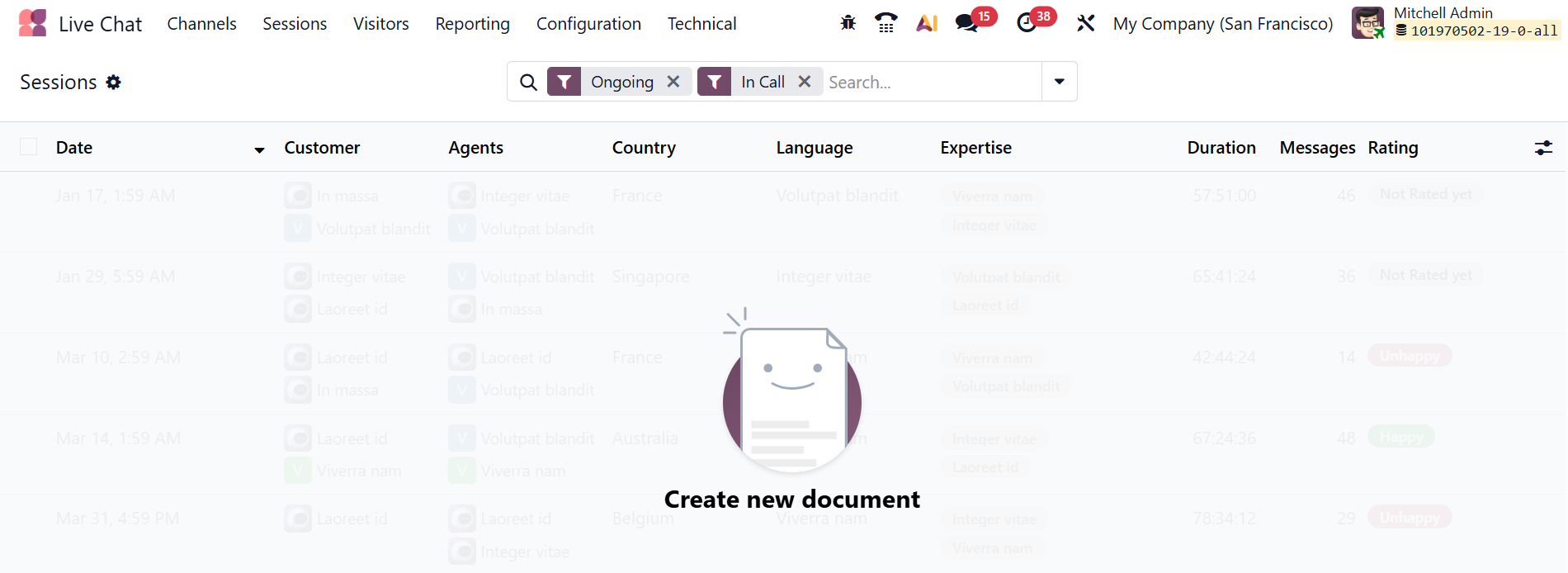
2.3 Ongoing Call Sessions
In Odoo 19 Live Chat, an Ongoing Call Session refers to an active voice or VoIP conversation that has not yet been ended by either the customer or the operator. The session allows agents to manage, monitor, or conclude the call when the interaction is complete.
2.4 Sessions Handled by Agent:
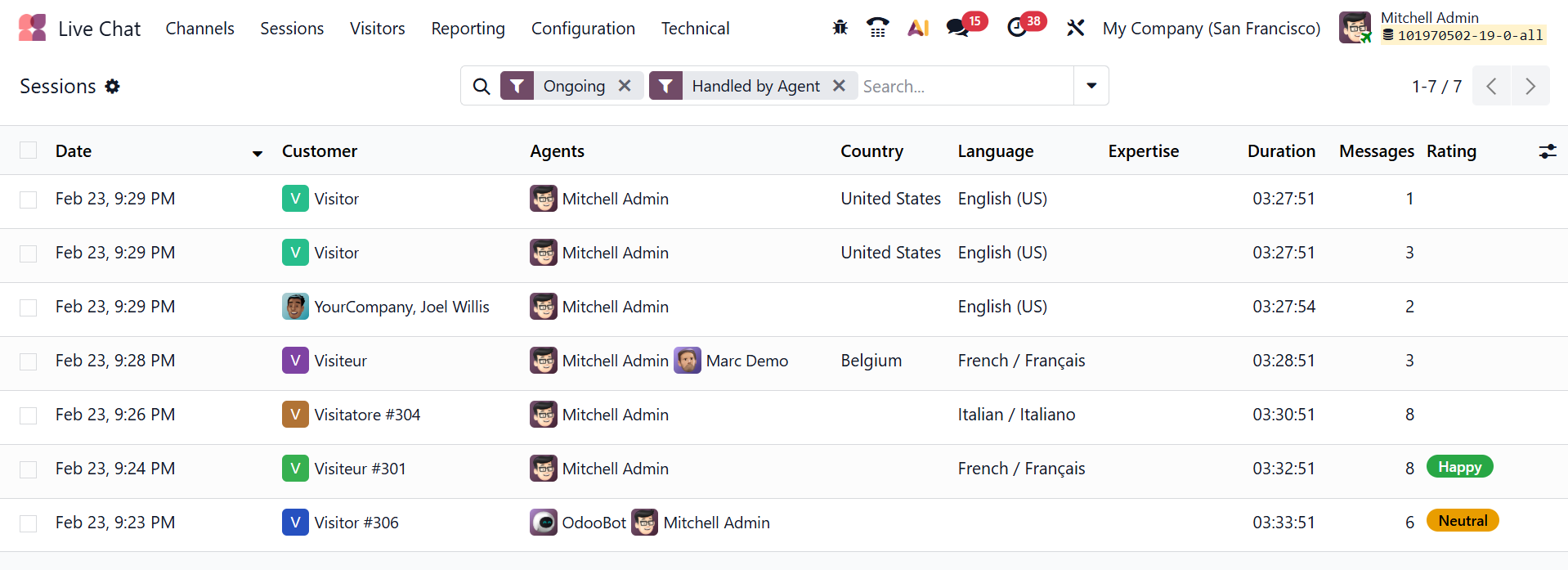
In Odoo 19 Live Chat, Sessions Handled by Agent are chat or call conversations that have been assigned to and managed by a specific operator. These sessions are recorded under the agent’s activity for tracking performance, response time, and resolution status.
2.5 Sessions Handled by Bot:
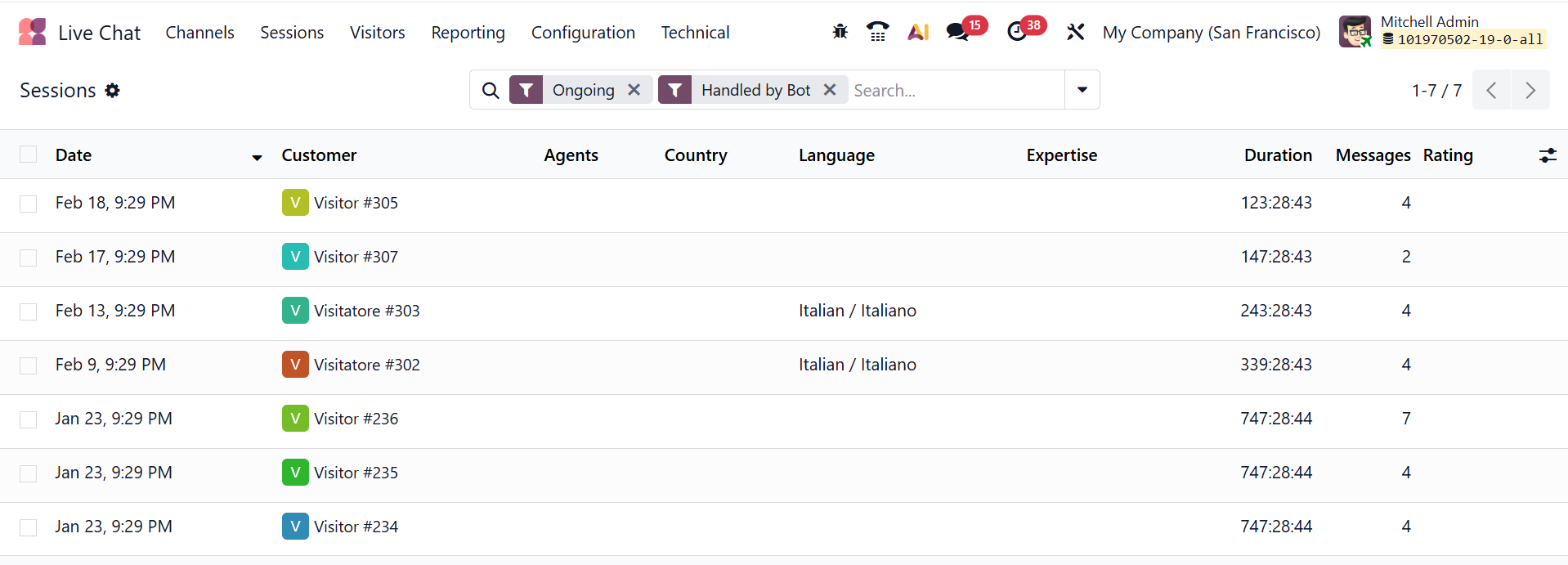
In Odoo 19 Live Chat, Sessions Handled by Bot are conversations automatically managed by a chatbot without human intervention. The bot responds based on predefined rules or scripts and can escalate the session to a human agent if needed.
2.6 Member History
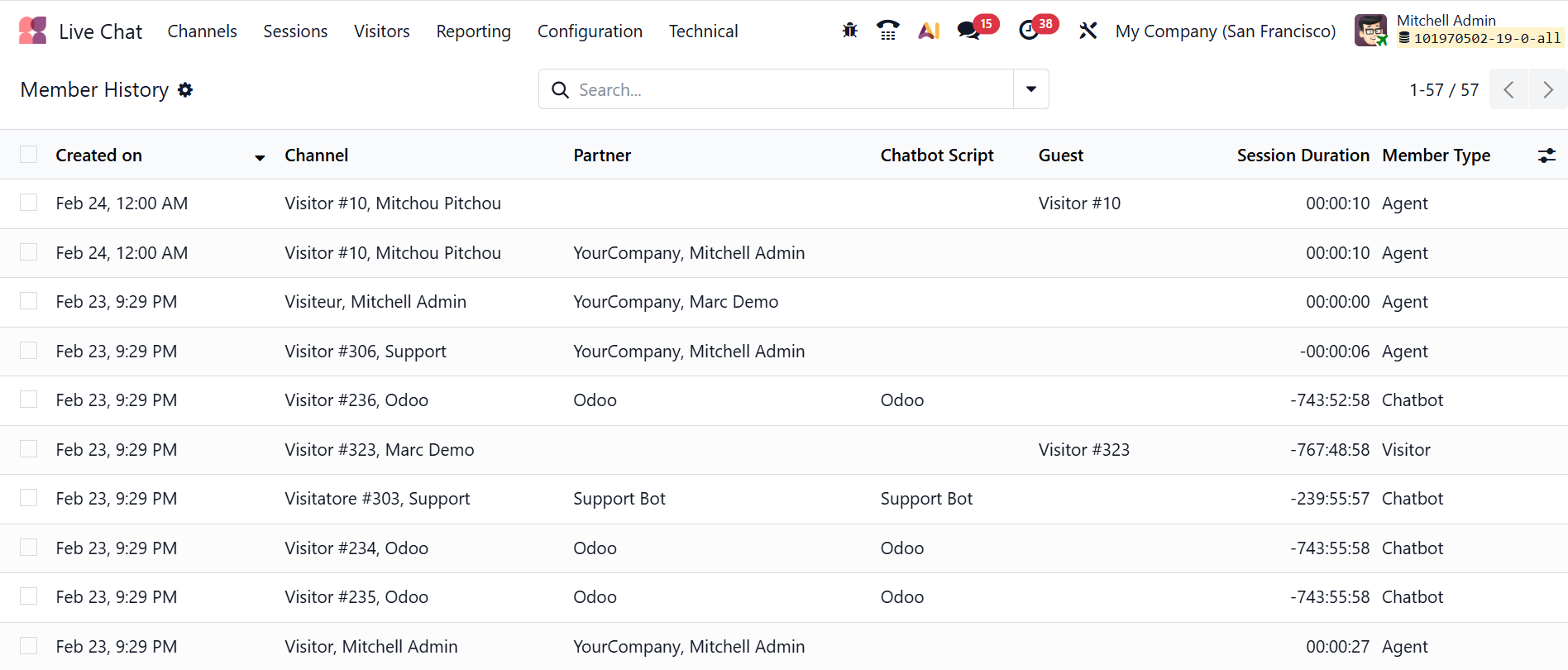
In Odoo 19 Live Chat, Member History refers to the record of past conversations and interactions associated with a specific visitor or customer. It allows agents to view previous chats, calls, and related details to provide more personalized and efficient support.